Title here
Summary here
Stop fighting dependency conflicts. Learn what virtual environments are, why they matter, and how to create, activate, and share them with venv, pip, and requirements.txt — step by step.

If you have written more than one Python project, you have probably felt this pain: one project needs an old version of a library, another needs the newest one, and installing the second quietly breaks the first. Or you share your code, a teammate runs it, and it fails with a ModuleNotFoundError even though it works perfectly on your machine.
Virtual environments are the standard fix for all of this. They are one of the first habits that separate someone who writes Python scripts from someone who ships Python projects. This guide explains what they are, why they matter, and exactly how to use them — no prior experience required.
When you install Python and run pip install, packages go into a single, shared location for that Python installation. Every project on your machine draws from that same global set of packages.
That works right up until two projects disagree. Imagine you maintain two web apps:
Django 4.2.Django 3.2 because of a plugin that hasn’t been updated.A package can only exist in one version at a time in a shared installation. Install 3.2 for Project B and you have just downgraded Project A without meaning to. Install 4.2 again and you break Project B. There is no version of the global environment that makes both projects happy at once.
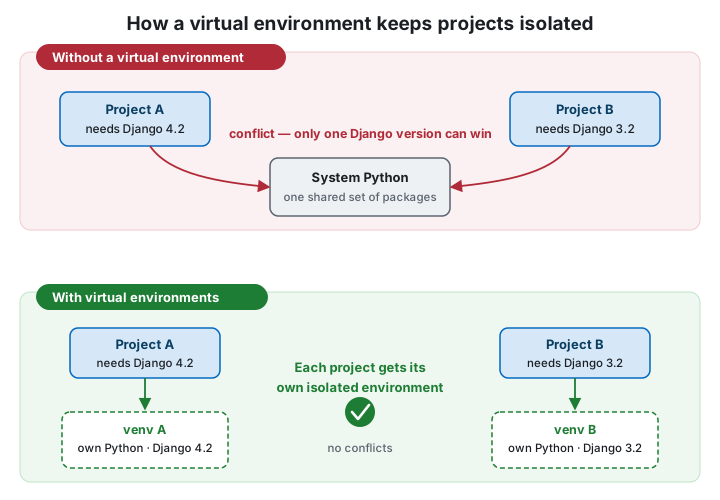
This is exactly the conflict the bottom half of the diagram solves.
A virtual environment is a self-contained folder that holds its own copy of the Python interpreter (really a lightweight link to it) and its own private site-packages directory where libraries are installed. When a virtual environment is active, python and pip point inside that folder instead of at the global installation.
The effect is simple but powerful:
Python ships with a built-in tool for this called venv. You do not need to install anything extra.
Open a terminal, move into your project folder, and run:
# Move into your project
cd my-project

# Create a virtual environment in a folder named ".venv"
python -m venv .venv
That is the whole creation step. A new .venv folder appears in your project. The name .venv is just a convention — you could call it anything — but .venv is widely used because the leading dot keeps it tidy and tools recognize it.
python or python3?
On macOS and Linux you may need to type python3 instead of python. Run python3 --version to check what you have. On Windows, python is usually correct. Use whichever one prints a Python 3.x version.
Creating the environment is not enough — you have to activate it so your shell knows to use it. The command differs by operating system:
# macOS / Linux
source .venv/bin/activate
# Windows (PowerShell)
.venv\Scripts\Activate.ps1:: Windows (Command Prompt)
.venv\Scripts\activate.batOnce active, your prompt changes to show the environment name in parentheses:
(.venv) you@computer my-project %That little (.venv) is your signal that you are now working inside the isolated environment. From here, python and pip refer to the project’s private copies. You can confirm it:
# Should point inside your project's .venv folder
which python      # macOS / Linux
where python      # Windows
When you are done, leave the environment with a single command:
deactivateWith the environment active, install packages exactly as you normally would:
pip install requests pandasThese land in .venv/, not in your global Python. To see what is installed in the current environment:
pip listBecause the environment is isolated, this list starts almost empty and only contains what this project needs. That is a feature: it keeps each project’s dependencies explicit and small.
You should never commit the .venv folder itself to version control — it is large, machine-specific, and easy to rebuild. Instead, you record the list of packages your project needs and let others recreate the environment from that list.
Freeze your current packages into a file:
pip freeze > requirements.txtThis writes every installed package and its exact version, for example:
pandas==2.2.2
requests==2.32.3
Now anyone — including future you on a new laptop — can recreate the same environment:
# 1. Create and activate a fresh environment
python -m venv .venv
source .venv/bin/activate        # or the Windows command above

# 2. Install the exact same packages
pip install -r requirements.txt
This is the heart of reproducible Python projects. The code and the requirements.txt together are enough to rebuild the project anywhere.
Add .venv to .gitignore
Create a file named .gitignore in your project and add a single line:
.venv/This keeps the environment folder out of Git while your requirements.txt (which you do commit) carries everything needed to rebuild it.
Put together, the day-to-day pattern for any new project looks like this:
# Start a new project
mkdir weather-app && cd weather-app

# Create and activate an isolated environment
python -m venv .venv
source .venv/bin/activate

# Install what you need
pip install requests

# ... write and run your code ...
python app.py

# Record dependencies so others can reproduce them
pip freeze > requirements.txt

# When you switch tasks
deactivate
Do this once per project and the “works on my machine” problem largely disappears.
Do I create one environment for everything, or one per project? One per project. That is the entire point — isolation. Sharing a single environment across projects reintroduces the conflicts you are trying to avoid.
Where should the environment live?
Inside the project folder (as .venv) is the most common and convenient choice, because it travels with the project and is easy to find.
What if activation is blocked on Windows PowerShell?
PowerShell may refuse to run the activation script due to its execution policy. You can allow it for your user with Set-ExecutionPolicy -ExecutionPolicy RemoteSigned -Scope CurrentUser, then activate again.
I see ModuleNotFoundError even though I installed the package.
Almost always, the environment is not active, or you installed the package in a different environment. Check that your prompt shows (.venv) and that which python (or where python) points inside your project.
venv is built in, simple, and enough for the vast majority of projects, which is why this guide focuses on it. As you grow, you will hear about other tools that solve the same isolation problem with extra features:
venv was based on it.They are worth exploring later, but none of them change the core idea you just learned. Master venv first, and the rest will feel familiar.
python -m venv .venv, then activate it (source .venv/bin/activate on macOS/Linux, .venv\Scripts\Activate.ps1 on Windows).pip; they stay inside the environment.pip freeze > requirements.txt and rebuild anywhere with pip install -r requirements.txt..venv/ — commit requirements.txt instead.Make this the first step of every Python project you start. It takes ten seconds and saves you hours of confusing, hard-to-debug problems down the line.
Want to go deeper into Python itself? Our free Python for Data Analytics course builds these professional habits in from the very beginning.
 Python
Managing Python Projects with Poetry: A Practical Guide
Outgrown venv and requirements.txt? Poetry handles dependencies, virtual environments, lockfiles, and packaging from a single pyproject.toml. A practical, end-to-end guide with real commands.
Read article
Python
Managing Python Projects with Poetry: A Practical Guide
Outgrown venv and requirements.txt? Poetry handles dependencies, virtual environments, lockfiles, and packaging from a single pyproject.toml. A practical, end-to-end guide with real commands.
Read article
 Python
Fast, All-in-One Python Project Management with uv
uv is a single, blazing-fast tool that handles virtual environments, dependencies, lockfiles, Python versions, and packaging. A practical guide to the toolchain replacing pip, venv, and pyenv.
Read article
Python
Fast, All-in-One Python Project Management with uv
uv is a single, blazing-fast tool that handles virtual environments, dependencies, lockfiles, Python versions, and packaging. A practical guide to the toolchain replacing pip, venv, and pyenv.
Read article