Title here
Summary here
Tired of a notebook that only runs on your machine? This guide builds the container mental model, then walks through pulling a real Jupyter image, mounting a volume so your work survives, and reaching the server from your browser.

“It works on my notebook” is the data-science version of an old joke. You hand a colleague your .ipynb file, and it fails on the second cell — a different pandas version parses a date differently, a system library your plotting code needs was never installed, or their Python is a minor version off from yours. The code was never the problem. The environment underneath it was.
This is where people quietly give up and just say “works for me,” because reproducing someone else’s exact Python version, library versions, and system dependencies by hand is tedious and easy to get subtly wrong. (If you’ve already tamed dependency drift within a single Python install with virtual environments, this is the layer underneath that: the operating system and system libraries beneath Python itself.) Docker solves that layer by packaging the whole environment — OS, Python, every library version — into one shippable unit. This guide builds the mental model first, then pulls a real Jupyter image and runs it end to end, using real commands and their real output the whole way through.
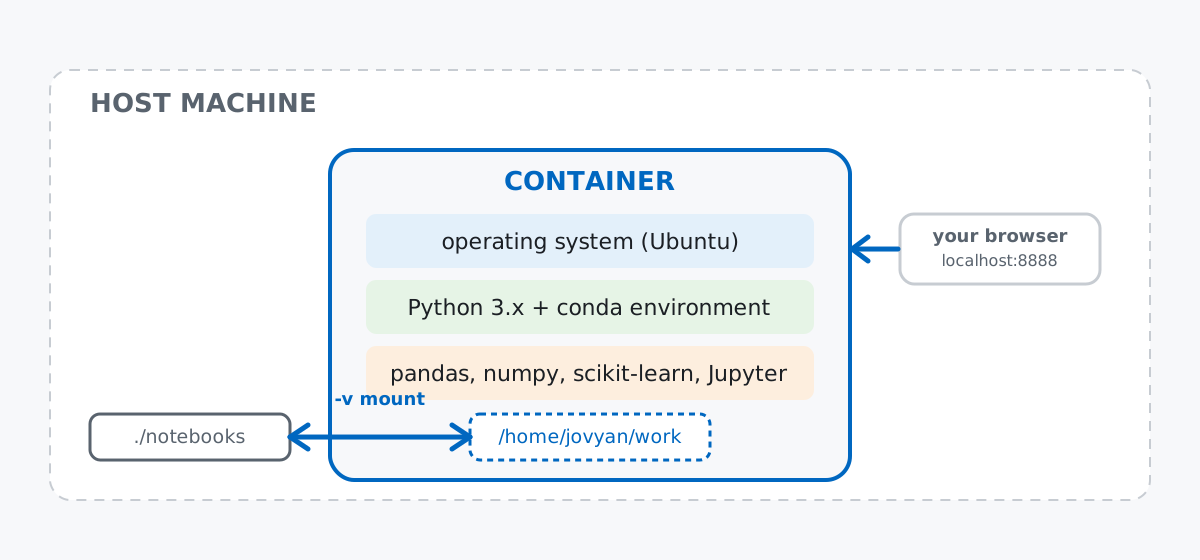
Put together: the container is your environment, the volume mount is the one bridge back to your host filesystem, and a mapped port is how your browser reaches the Jupyter server running inside. Everything else about the container can be thrown away and rebuilt identically, on any machine that has Docker installed, any time.
Rather than hand-building a Dockerfile from scratch, start from the Jupyter Docker Stacks project — a set of official, actively maintained images that already bundle Jupyter with a coherent set of data-science libraries. jupyter/scipy-notebook is the one built for this: Python, JupyterLab, pandas, NumPy, and scikit-learn, all pinned together and tested as a set.
docker pull jupyter/scipy-notebook:latestlatest: Pulling from jupyter/scipy-notebook
...
521286c5780b: Pull complete
302bb99fa9a8: Pull complete
18384b057d87: Pull complete
91dd2335cdfe: Pull complete
c98d1f2de24d: Pull complete
4169cdc7dbfa: Pull complete
Digest: sha256:fca4bcc9cbd49d9a15e0e4df6c666adf17776c950da9fa94a4f0a045d5c4ad33
Status: Downloaded newer image for jupyter/scipy-notebook:latest
docker.io/jupyter/scipy-notebook:latestEach Pull complete line is one filesystem layer — the image is built in layers, and Docker caches every one, which is why a second pull of the same image is nearly instant. The image itself isn’t small:
docker images jupyter/scipy-notebookREPOSITORY TAG SIZE
jupyter/scipy-notebook latest 3.89GBAlmost four gigabytes, because it’s a full Ubuntu base plus a conda Python environment plus the scientific Python stack. That’s the trade you’re making: a slow first pull in exchange for never again debugging a missing system library on someone else’s machine.
A container with nowhere to save work is a demo, not a tool. Run it with -v (or --volume) to bind a notebooks folder on your host to the container’s working directory, and -p to map the container’s port 8888 to your host so your browser can reach it:
mkdir -p notebooks
docker run -d --name dt-jupyter-demo \
  -p 8888:8888 \
  -v "$(pwd)/notebooks":/home/jovyan/work \
jupyter/scipy-notebook:lateste6f41b08ad3c152dc622bf6a3055f1036f804059ec6ef77a38ae0668d127ac8eThat long hexadecimal string is the new container’s ID, printed because -d runs it detached (in the background) instead of tying up your terminal. /home/jovyan is the default home directory baked into every Jupyter Docker Stacks image — jovyan is the non-root user the container runs as, a small in-joke (“Jovian,” as in “of Jupyter”).
A detached container’s output doesn’t vanish — docker logs replays it. The last few lines are the ones that matter:
docker logs dt-jupyter-demo[I 2026-07-05 11:33:40.544 ServerApp] Serving notebooks from local directory: /home/jovyan
[I 2026-07-05 11:33:40.544 ServerApp] Jupyter Server 2.8.0 is running at:
[I 2026-07-05 11:33:40.544 ServerApp] http://e6f41b08ad3c:8888/lab?token=c51e4b210bc2971a2605ed0ee5857f5ec3bed2af64448d99
[I 2026-07-05 11:33:40.544 ServerApp] http://127.0.0.1:8888/lab?token=c51e4b210bc2971a2605ed0ee5857f5ec3bed2af64448d99
[I 2026-07-05 11:33:40.544 ServerApp] Use Control-C to stop this server and shut down all kernels (twice to skip confirmation).
[C 2026-07-05 11:33:40.546 ServerApp]
To access the server, open this file in a browser:
file:///home/jovyan/.local/share/jupyter/runtime/jpserver-7-open.html
Or copy and paste one of these URLs:
http://e6f41b08ad3c:8888/lab?token=c51e4b210bc2971a2605ed0ee5857f5ec3bed2af64448d99
http://127.0.0.1:8888/lab?token=c51e4b210bc2971a2605ed0ee5857f5ec3bed2af64448d99Ignore the first URL (with the container’s internal hostname, e6f41b08ad3c) — that only resolves from inside Docker’s network. The 127.0.0.1 line is the one you actually paste into a browser on your host, and the token= query parameter is the access token JupyterLab generated for this run. Anyone with that token can open this server, so treat it like a password.
Before opening a browser, a plain curl against the server’s API is a quick, scriptable way to confirm it’s alive:
curl -s http://127.0.0.1:8888/api{"version": "2.8.0"}And the full lab URL with the token returns a real page, not a redirect to a login form:
curl -s -o /dev/null -w "%{http_code}\n" \
"http://127.0.0.1:8888/lab?token=c51e4b210bc2971a2605ed0ee5857f5ec3bed2af64448d99"200A 200 means the token was accepted and JupyterLab served its page. If you saw a 302 here, the token in your URL doesn’t match what’s in the log — copy it again.
A responding server tells you Jupyter started. It doesn’t tell you the data science part of the image is intact. docker exec runs a one-off command inside an already-running container, which is a fast way to check without opening a notebook at all:
docker exec dt-jupyter-demo python -c "
import sys, pandas, numpy, sklearn
print('python', sys.version.split()[0])
print('pandas', pandas.__version__)
print('numpy', numpy.__version__)
print('scikit-learn', sklearn.__version__)
"
python 3.11.6
pandas 2.1.1
numpy 1.24.4
scikit-learn 1.3.1Those exact versions are frozen into this image tag. Pull the same tag on a teammate’s laptop, on a CI runner, or on a cloud VM a year from now, and — as long as jupyter/scipy-notebook:latest hasn’t moved to a newer build in the meantime — you get the same four version numbers back. That’s the whole pitch of containerizing the environment, demonstrated in four lines of real output.
The mental model claims a mounted volume outlives the container. Here’s that claim tested for real, writing a small CSV from inside the container and reading it back after the container is gone:
docker exec dt-jupyter-demo python -c "
import pandas as pd
df = pd.DataFrame({'city': ['Berlin', 'Lisbon'], 'high_c': [24, 27]})
df.to_csv('/home/jovyan/work/weather.csv', index=False)
print('wrote weather.csv from inside the container')
"
wrote weather.csv from inside the containerFrom the host, the file is already there — no copying, no docker cp, because the mount makes it the same file on disk:
cat notebooks/weather.csvcity,high_c
Berlin,24
Lisbon,27Now remove the container entirely — not stop it, delete it — and start a brand-new one with the same -v flag:
docker rm -f dt-jupyter-demo
docker run -d --name dt-jupyter-demo2 \
  -p 8888:8888 \
  -v "$(pwd)/notebooks":/home/jovyan/work \
  jupyter/scipy-notebook:latest
docker exec dt-jupyter-demo2 cat /home/jovyan/work/weather.csv
city,high_c
Berlin,24
Lisbon,27The original container is gone — a different container ID, a fresh filesystem — and weather.csv is still there because it never actually lived inside the container’s disposable layer. It lived on your host the whole time; the container just had a window into it.
jupyter/scipy-notebook won’t have every library you want — rich, for example, isn’t part of the scientific stack. Rather than pip install-ing it by hand every time you start a container (and losing it the moment that container is removed), bake it into your own image with a two-line Dockerfile:
FROM jupyter/scipy-notebook:latest

RUN pip install --no-cache-dir rich
docker build -t dt-jupyter-custom:latest .#5 [2/2] RUN pip install --no-cache-dir rich
#5 1.754 Collecting rich
#5 2.305 Downloading rich-15.0.0-py3-none-any.whl.metadata (18 kB)
#5 2.888 Collecting mdurl~=0.1 (from markdown-it-py>=2.2.0->rich)
#5 3.312 Downloading rich-15.0.0-py3-none-any.whl (310 kB)
#5 5.133 Installing collected packages: mdurl, markdown-it-py, rich
#5 5.403 Successfully installed markdown-it-py-4.2.0 mdurl-0.1.2 rich-15.0.0
#5 DONE 6.0s
naming to docker.io/library/dt-jupyter-custom:latest doneFROM starts from the official image instead of the plain OS, so you inherit Jupyter and the whole scientific stack for free; the RUN line is the only thing you added. Confirm it landed:
docker run --rm dt-jupyter-custom:latest python -c "
from importlib.metadata import version
print('rich', version('rich'))
"
rich 15.0.0Every teammate who builds this same Dockerfile gets rich 15.0.0 on top of the identical base — no “did you remember to pip install that?” in your onboarding docs.
Forgetting -v quietly deletes everything you wrote. Start a container with no volume mount, do real work in it, and removing the container removes the work with it — there’s no recycle bin. Proven the hard way here: a notebook written with no -v flag simply isn’t there once the container is gone.
docker run -d --name dt-jupyter-novolume -p 8889:8888 jupyter/scipy-notebook:latest
docker exec dt-jupyter-novolume sh -c \
  "echo '{\"cells\": []}' > /home/jovyan/work/important_analysis.ipynb"
docker rm -f dt-jupyter-novolume
docker run -d --name dt-jupyter-novolume2 -p 8889:8888 jupyter/scipy-notebook:latest
docker exec dt-jupyter-novolume2 ls -la /home/jovyan/work
total 12
drwsrwsr-x 2 jovyan users 4096 Oct 20 2023 .
drwsrws--- 1 jovyan users 4096 Jul 5 11:35 ..No important_analysis.ipynb. The directory is empty — the file lived only inside the first container’s disposable layer, and it went with it.
A port that’s already taken fails loudly, not silently. -p 8888:8888 claims host port 8888. Try to start a second container on that same port while the first is still running, and Docker refuses outright:
docker run -d --name dt-jupyter-portconflict -p 8888:8888 jupyter/scipy-notebook:latestdocker: Error response from daemon: failed to set up container networking:
driver failed programming external connectivity on endpoint dt-jupyter-portconflict:
Bind for 0.0.0.0:8888 failed: port is already allocatedThat’s a clear error to read, but confusing the first time you hit it if you didn’t realize an old container from yesterday was still running on that port. docker ps shows you what’s currently bound before you guess.
The access token is different on every run — pin it if you want a stable link. Compare two containers started from the exact same image and command:
first run:   token=c51e4b210bc2971a2605ed0ee5857f5ec3bed2af64448d99
second run:  token=4ff5d17a2f27bc52df4ef51bb9deaf29750509f086825282
Jupyter generates a fresh random token on every container start, which is good security by default but breaks a bookmarked URL. If you want a fixed token across restarts (fine for a throwaway local project, not for anything reachable from outside your machine), set one explicitly with an environment variable at run time, and read it back the same way — check the image’s own documentation for the exact variable name your version expects, since Jupyter Docker Stacks has changed this option’s name across releases.
The container is the environment, the volume mount is the one deliberate hole in an otherwise disposable filesystem, and the port mapping is how your browser gets in:
docker pull)docker run)-v) → the folder that survives when the container doesn’t-p) → how you reach the server from outside the containerFROM the official image, add only what’s missingPull the image once, mount a real folder, and every notebook you write in it is exactly as reproducible on your machine as on anyone else’s.
If you want to build the Python skills that go inside that container — indexing, cleaning, and analyzing real datasets with pandas — the Pandas Data Analysis lessons in our free Python for Data Analytics course are a solid next stop. And if this post has you thinking about the deployment side of containers — CI pipelines, image registries, and shipping containers to production — Lesson 12: CI/CD and DevOps in our free Software Engineering course picks up exactly where Docker’s role in this post leaves off.
 Python
Build an AI Chatbot in Python: A Command-Line LLM Client
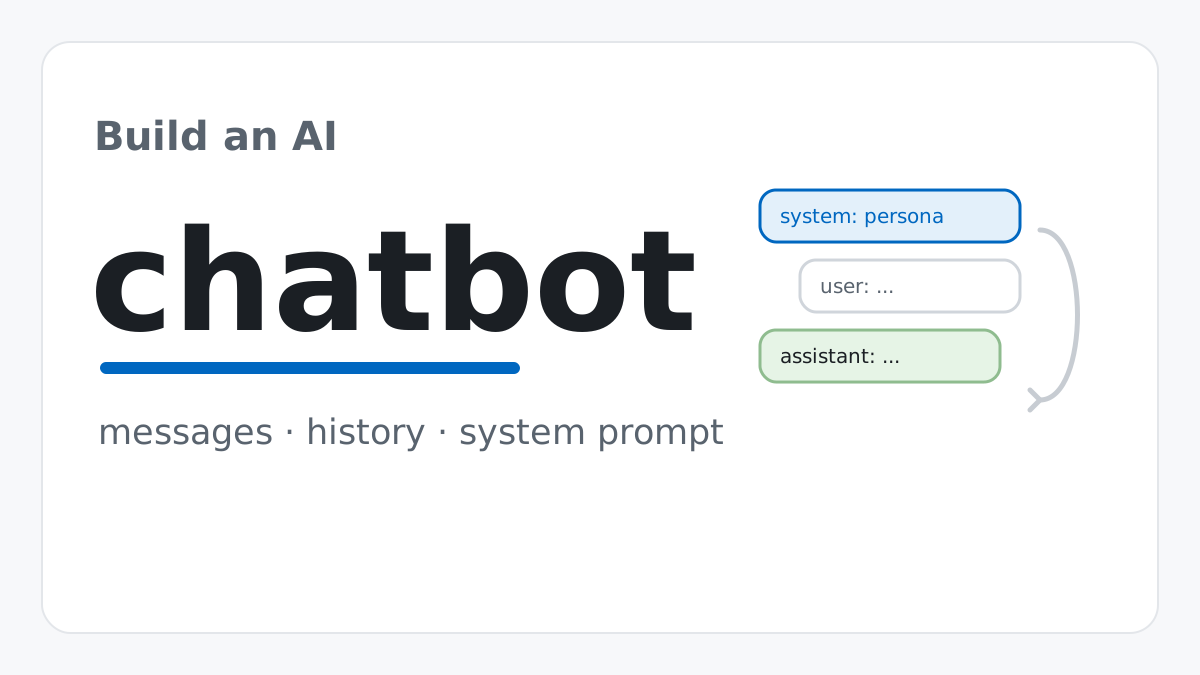
A from-scratch walkthrough of the pattern behind every LLM chatbot: one function that sends a message plus conversation history to a chat-completion API, a persona set by a system prompt, and a loop that keeps the conversation going.
Read article
Python
Build an AI Chatbot in Python: A Command-Line LLM Client
A from-scratch walkthrough of the pattern behind every LLM chatbot: one function that sends a message plus conversation history to a chat-completion API, a persona set by a system prompt, and a loop that keeps the conversation going.
Read article
 Software Engineering
The Single Responsibility Principle: One Class, One Reason to Change
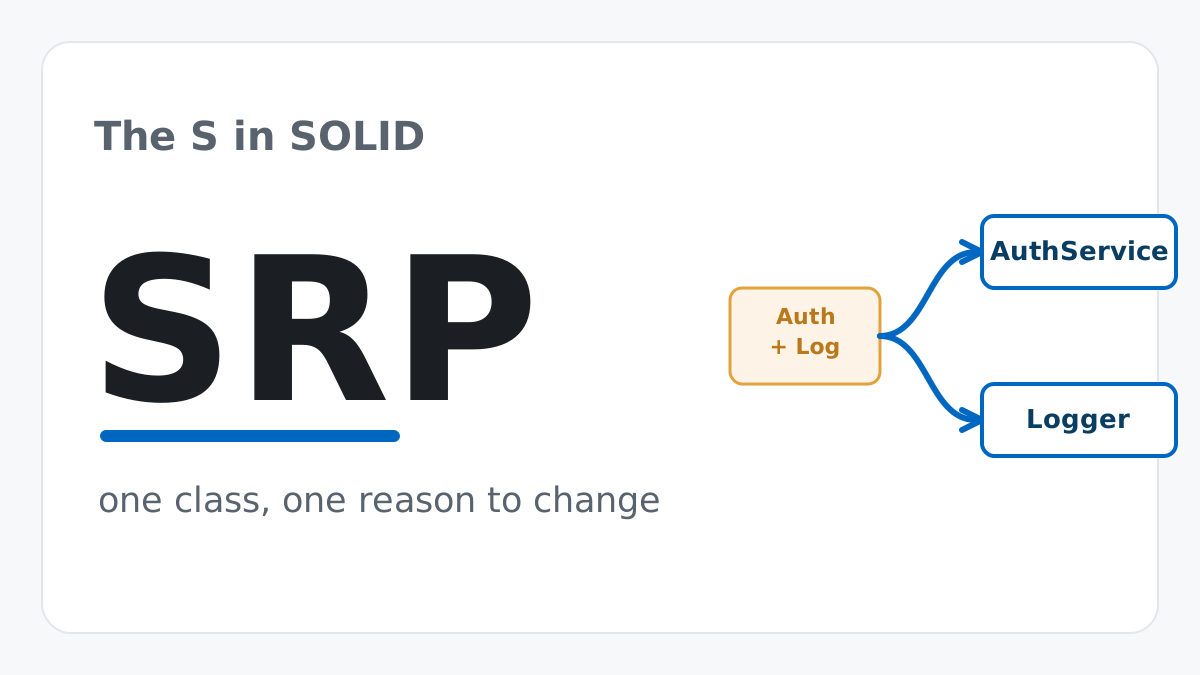
The Single Responsibility Principle says a class should have only one reason to change. See it in action: take a Python AuthService that also owns its logging, find why that's a problem, and refactor it into clean, focused classes.
Read article
Software Engineering
The Single Responsibility Principle: One Class, One Reason to Change
The Single Responsibility Principle says a class should have only one reason to change. See it in action: take a Python AuthService that also owns its logging, find why that's a problem, and refactor it into clean, focused classes.
Read article