Title here
Summary here
A first taste of unsupervised learning: there's no label to predict here, just raw pixel data. This post reshapes an image into a table of RGB points, clusters them with scikit-learn's KMeans, and reads the cluster centers back as the image's dominant colors and their prevalence.

“What are the actual dominant colors in this image?” comes up in more places than you’d expect: a designer checking that a banner reads as “mostly teal, with an orange accent” before it goes to print, a photo app generating a color-matched palette, a product team auditing whether a logo still looks “on-brand” after a redesign. Eyeballing an image and guessing three or four colors gets you close, but it’s a guess. K-Means clustering turns the same question into arithmetic.
Here’s the part that trips people up if they’ve only seen scikit-learn used for prediction so far: this problem has no label. You’re not predicting a cultivar or a disease-progression score from features — there’s no answer key at all, just a pile of pixels, and the “prediction” is a grouping the algorithm invents on its own. (If you haven’t seen the fit/predict pattern yet, start with our scikit-learn overview — K-Means uses the exact same shape, just without a y.) This post builds the mental model for that shift first, then clusters a real image end to end: load it, fit KMeans, and read the results back as colors.
A color image is secretly a big table of 3D points, and the algorithm doesn’t know or care that they came from a picture. Here’s the full chain of reasoning:
(R, G, B) in a 3D space.X (the RGB triplets), no y. Nobody has labeled any pixel as “the correct color” — clustering exists precisely for data like this, where you want structure discovered, not predicted.KMeans groups nearby points and averages them. Pick a number of groups, k. The algorithm assigns every point to its nearest of k centroids, moves each centroid to the average position of the points now assigned to it, and repeats until nothing moves. Points that are close together in RGB space — meaning similar colors — end up in the same group.(R, G, B) triplet — a color you can display directly — and the number of pixels assigned to it tells you how much of the image that color covers.That’s the whole idea: reshape, cluster, read the centroids back as colors. Everything below is just executing those five steps on a real image.
Rather than sourcing a photo (and inheriting whatever licensing questions come with one), this post generates its own test image with Pillow — the kind of thing you’d actually want to check with this technique. Imagine you run a small candle studio and you’re designing a new product-label banner: a teal band across the top, a warm orange “flame” circle in the middle, a charcoal caption bar along the bottom, and a cream background. Before it goes to print, you want an objective read on which colors actually dominate the design, not a guess.
import numpy as np
from PIL import Image, ImageDraw

WIDTH, HEIGHT = 400, 250
CREAM = (245, 240, 227)     # background
TEAL = (27, 94, 90)         # top band
ORANGE = (230, 126, 34)     # candle-flame circle
CHARCOAL = (45, 45, 48)     # bottom text bar

img = Image.new("RGB", (WIDTH, HEIGHT), CREAM)
draw = ImageDraw.Draw(img)
draw.rectangle([0, 0, WIDTH, 40], fill=TEAL)
draw.rectangle([40, 210, WIDTH - 40, 240], fill=CHARCOAL)
draw.ellipse([140, 70, 260, 190], fill=ORANGE)

# a flat design is too easy for clustering to be interesting -- add per-pixel noise
arr = np.array(img).astype(np.int16)
rng = np.random.default_rng(42)
noise = rng.normal(loc=0, scale=8, size=arr.shape)
noisy = np.clip(arr + noise, 0, 255).astype(np.uint8)

img_noisy = Image.fromarray(noisy, mode="RGB")
img_noisy.save("candle_label_banner.png")
img_noisy.size
(400, 250)(The outputs in this post come from Pillow 12.3, numpy 2.5, and scikit-learn 1.9.) This banner is a real 100,000-pixel PNG sitting on disk, but every diagram in this post is a hand-drawn illustration rather than an embedded screenshot, so here are a few real sampled pixel values from the saved file instead of a picture of it, to show the noise is genuinely there:
for (r, c) in [(5, 5), (100, 150), (225, 100), (125, 200)]:
    print(f"({r:>3}, {c:>3}) -> {tuple(int(v) for v in noisy[r, c])}")
( 5, 5) -> (19, 102, 77)
(100, 150) -> (230, 119, 33)
(225, 100) -> (45, 35, 41)
(125, 200) -> (220, 122, 32)None of those four values exactly match the four “clean” colors in the code above — (19, 102, 77) is close to teal’s (27, 94, 90) but not identical. That’s the added noise doing its job: a perfectly flat image would make clustering trivial, so every pixel gets its own small, random nudge.
np.array(image) already turns a Pillow image into a (height, width, 3) array. The reshape call is the step that actually matches the mental model above: it collapses the height and width dimensions into one, leaving a plain table of pixel-rows.
pixels = noisy.reshape(-1, 3)
pixels.shape
(100000, 3)pixels[:5][[ 29 85 96]
[ 34 78 79]
[ 28 91 89]
[ 20 101 96]
[ 27 103 93]]100,000 rows (400 × 250), 3 columns. Notice there’s nothing left in this array that says “this pixel was at row 12, column 340” — that spatial information is gone on purpose. KMeans only ever looks at a point’s position in RGB space, never where it sat in the picture.
KMeans on Pixel SpaceThe banner design was built from 4 intentional colors, so n_clusters=4 is a reasonable starting guess here — real photos rarely give you that luxury, which is exactly why the gotchas section below covers a way to estimate k when you don’t already know it.
from sklearn.cluster import KMeans

kmeans = KMeans(n_clusters=4, random_state=42, n_init=10)
kmeans.fit(pixels)
KMeans(n_clusters=4, n_init=10, random_state=42)Same shape as any other estimator: configure, then .fit(). The only thing missing compared to a classifier’s .fit(X, y) is the y — pixels is the entire argument, because clustering has nothing to predict, only structure to find. KMeans is documented in full in scikit-learn’s KMeans reference, including the handful of parameters this post uses.
The fitted object now holds cluster_centers_ — four rows, three columns, exactly the shape of the input:
kmeans.cluster_centers_.round(1)[[244.1 239.4 226.5]
[ 44.6 44.3 47.5]
[ 26.5 93.5 89.4]
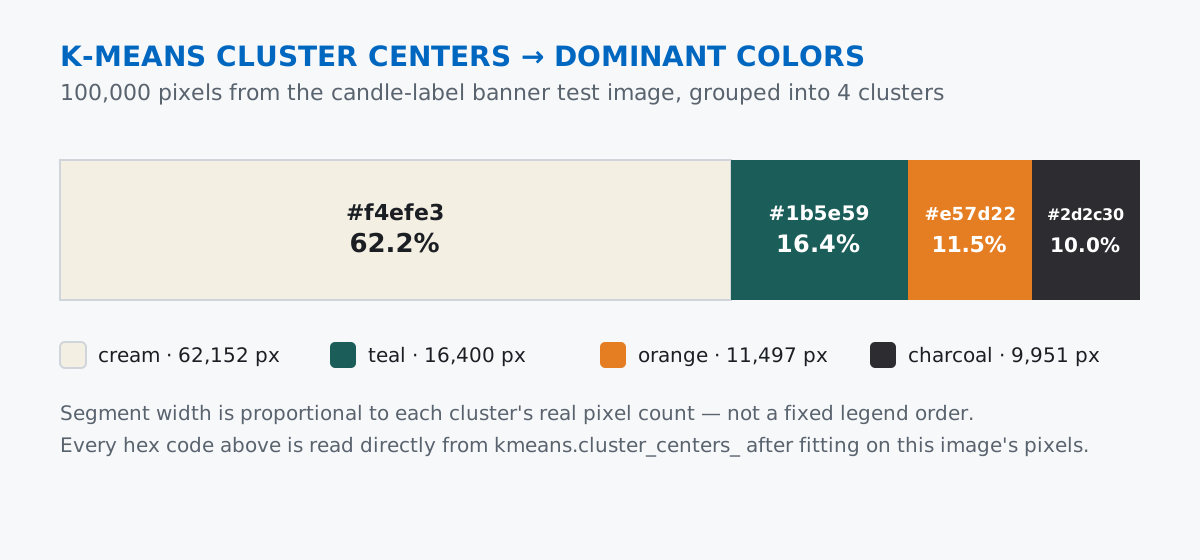
[229.5 125.5 33.7]]Each row is a color, in the same (R, G, B) order as every pixel that fed into it. And labels_ says which of the four clusters every one of the 100,000 pixels belongs to, so a simple bincount gives each color’s prevalence:
labels = kmeans.labels_
counts = np.bincount(labels, minlength=4)
counts, counts.sum()
(array([62152, 9951, 16400, 11497]), 100000)Sixty-two thousand pixels landed in the first cluster alone — unsurprising, since the cream background covers most of the banner. The other three clusters (9,951, 16,400, and 11,497 pixels) line up with the charcoal bar, teal band, and orange circle, in some order determined by how KMeans happened to number them.
cluster_centers_ is convenient for numpy, but nobody hands a designer three floating-point numbers. Rounding each channel to the nearest integer and formatting it as hex turns a centroid into a color you can paste into any design tool:
def to_hex(rgb):
    r, g, b = (int(round(v)) for v in rgb)
    return f"#{r:02x}{g:02x}{b:02x}"

order = np.argsort(-counts)  # most prevalent first
for i in order:
    pct = counts[i] / counts.sum() * 100
    print(f"{to_hex(kmeans.cluster_centers_[i]):<10} {pct:5.1f}%")
#f4efe3 62.2%
#1b5e59 16.4%
#e57d22 11.5%
#2d2c30 10.0%KMeans found the design’s cream (#f4efe3), teal (#1b5e59), orange (#e57d22), and charcoal (#2d2c30) — the exact four colors the banner was drawn with, recovered purely from noisy pixels, with no color list handed to the algorithm anywhere. The percentages are the prevalence from the mental model: the cream background dominates at 62.2%, and the other three split the remaining space in the order you’d expect from a banner where the background is the largest region and the caption bar is the smallest.
Choosing n_clusters isn’t automatic. This post got to cheat with n_clusters=4 because the banner’s color count was known in advance. For a real photograph, the standard approach is the elbow method: fit KMeans for a range of k values and plot inertia_ (the sum of squared distances from each point to its assigned centroid) against k.
for k in range(1, 9):
    km = KMeans(n_clusters=k, random_state=42, n_init=10).fit(pixels)
    print(f"k={k}: inertia={km.inertia_:,.0f}")
k=1: inertia=2,088,969,701
k=2: inertia=387,381,047
k=3: inertia=46,325,622
k=4: inertia=18,440,576
k=5: inertia=15,923,357
k=6: inertia=14,318,843
k=7: inertia=13,095,969
k=8: inertia=12,362,585Inertia always drops as k grows — more clusters can only fit the data better — but the size of the drop matters. Here it falls by roughly 20x between k=1 and k=2, and again between k=2 and k=3, but from k=4 onward each extra cluster barely helps (18.4M to 15.9M to 14.3M…). That’s the “elbow”: k=4 is where adding complexity stops paying for itself, matching the four colors actually used in the design. (Our Choosing the Number of Clusters lesson covers this in more depth, including the silhouette score as a second opinion.)
RGB channels already share one scale, but don’t assume every clustering input does. Our scikit-learn overview post showed a classifier getting misled because alcohol and proline lived on wildly different scales, which is why that post reached for StandardScaler. Here, every channel already runs 0–255 with the same meaning, so distances in RGB space are already fair without any scaling step. The general principle still applies, though: the moment you cluster on a mix of things that aren’t naturally comparable — say, pixel color alongside pixel row/column position, or color values that were stored in different bit depths — you’re back to needing to rescale before KMeans can compare them honestly.
A cluster center is an average, and averages can invent a color no pixel actually has. Look again at the raw centroid for the teal cluster from earlier: (26.5, 93.5, 89.4). No real pixel can have a fractional channel value — every pixel this algorithm saw was a plain integer 0 to 255. A centroid’s fractional values are proof it’s a computed mean over every pixel in its cluster, not a color sampled from the image. Usually that mean lands close to the “obvious” color, as it did here, but the more visually varied a cluster’s members are, the further its center can drift from anything you’d actually point to in the picture.
Random initialization can genuinely change your answer, and scikit-learn’s own default leaves that door open. KMeans starts by placing k initial centroids semi-randomly, and a single unlucky placement can get stuck in a worse grouping. Since scikit-learn 1.4, the default n_init is "auto", which resolves to a single initialization attempt for the default k-means++ init — meaning an unlucky random_state can bite you even without changing any code:
bad = KMeans(n_clusters=4, random_state=14).fit(pixels)  # default n_init, one attempt
print("default n_init, random_state=14, inertia:", f"{bad.inertia_:,.0f}")

fixed = KMeans(n_clusters=4, random_state=14, n_init=10).fit(pixels)
print("explicit n_init=10, random_state=14, inertia:", f"{fixed.inertia_:,.0f}")
default n_init, random_state=14, inertia: 43,836,626
explicit n_init=10, random_state=14, inertia: 18,440,576Same seed, same data — but the default single-attempt run lands at an inertia more than double the ten-attempt run, because it settled for a grouping that split the near-identical cream background into two clusters instead of separating out the charcoal bar. Pass n_init=10 explicitly (scikit-learn still accepts an integer, it just no longer defaults to one) to run multiple random starts and keep the best, and pass random_state so the run you keep is reproducible rather than a fresh roll of the dice every time.
Five steps, no label anywhere in sight:
(R, G, B) rows with .reshape(-1, 3) — one row per pixel, no yKMeans(n_clusters=k).fit(pixels) — groups nearby points in RGB space; the elbow method (inertia vs. k) helps pick k when you don’t already know the color count.cluster_centers_ — read each finished centroid directly as a color.labels_ + bincount — count pixels per cluster to get each color’s prevalencerandom_state and an explicit n_init=10 — keep the result both reproducible and resistant to an unlucky initializationIf you want to go deeper on clustering specifically — scaling features correctly, running K-Means end to end with a real customer dataset, and turning cluster numbers into a business story — the K-Means with Scikit-Learn lesson in our free Machine Learning course picks up exactly where this post leaves off.
 Python
Build an AI Chatbot in Python: A Command-Line LLM Client
A from-scratch walkthrough of the pattern behind every LLM chatbot: one function that sends a message plus conversation history to a chat-completion API, a persona set by a system prompt, and a loop that keeps the conversation going.
Read article
Python
Build an AI Chatbot in Python: A Command-Line LLM Client
A from-scratch walkthrough of the pattern behind every LLM chatbot: one function that sends a message plus conversation history to a chat-completion API, a persona set by a system prompt, and a loop that keeps the conversation going.
Read article
 Software Engineering
The Single Responsibility Principle: One Class, One Reason to Change
The Single Responsibility Principle says a class should have only one reason to change. See it in action: take a Python AuthService that also owns its logging, find why that's a problem, and refactor it into clean, focused classes.
Read article
Software Engineering
The Single Responsibility Principle: One Class, One Reason to Change
The Single Responsibility Principle says a class should have only one reason to change. See it in action: take a Python AuthService that also owns its logging, find why that's a problem, and refactor it into clean, focused classes.
Read article