Title here
Summary here
sqlite3 gets you a connection; pandas turns that connection into a two-way door for DataFrames. This guide builds the mental model, then works through read_sql_query, groupby analysis, to_sql, and parameterized queries on a small hardware-store database you can reproduce yourself.

You already know two separate skills: writing SQL to ask a database a question, and using pandas to clean and analyze a table once you have it. The part that trips people up is the seam between them — how does a SELECT statement’s result actually become a DataFrame, and how do you get a DataFrame’s numbers back into the database once you’re done with them?
That seam is narrower than it looks, and pandas mostly hides it behind two functions. If you want the database side of this — enforcing rules with triggers, BEFORE vs AFTER, NEW and OLD — our post on SQL triggers covers that half. This one is about the bridge: sqlite3.connect() to open the door, pd.read_sql_query() to walk data through it one way, and DataFrame.to_sql() to walk it back the other.
Three ideas carry this entire post:
sqlite3.connect("path.db") opens the handle; nothing about pandas is involved yet.read_sql_query and to_sql are pandas’ two directions through that handle. One runs a query and packages the rows into a DataFrame; the other takes a DataFrame and writes it back as rows.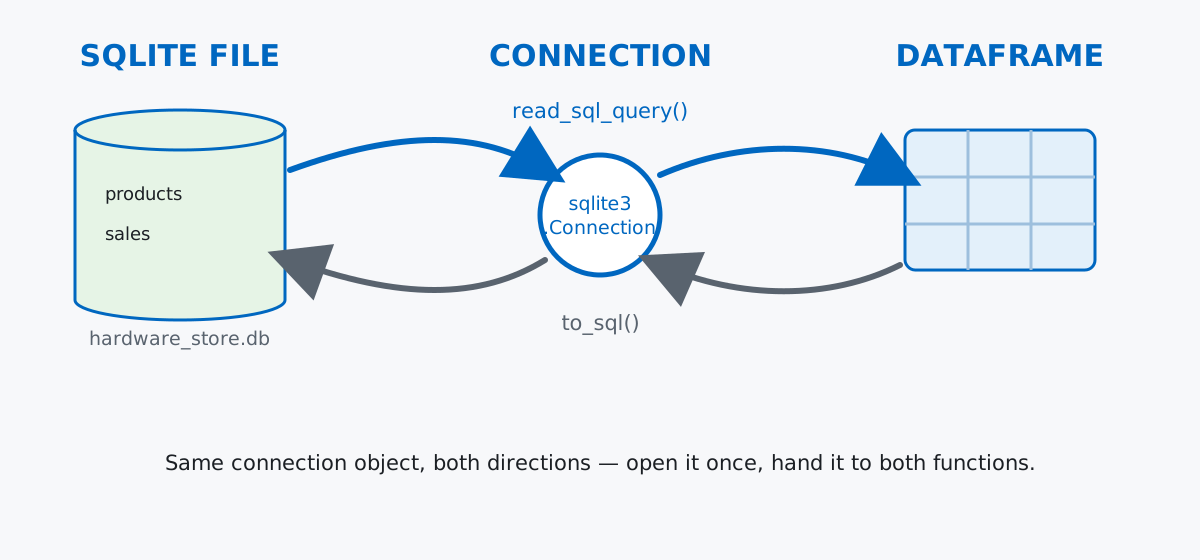
The connection object never changes in either direction — you open it once and hand the same object to both functions. Once that clicks, “how do I get my query into pandas” and “how do I save my DataFrame back to the database” turn out to be near-mirror-image one-liners.
Imagine a small hardware store tracking what it sells: a products table for the catalog, and a sales table for individual sale line items. Both are hand-built here rather than downloaded, since the point of this post is the SQLite-pandas bridge, not the data itself.
import os
import sqlite3
import numpy as np
import pandas as pd

DB_PATH = "hardware_store.db"
if os.path.exists(DB_PATH):
    os.remove(DB_PATH)

con = sqlite3.connect(DB_PATH)
con.execute("PRAGMA foreign_keys = ON;")

con.executescript("""
CREATE TABLE products (
    id INTEGER PRIMARY KEY,
    name TEXT NOT NULL,
    category TEXT NOT NULL,
    unit_price REAL NOT NULL
);

CREATE TABLE sales (
    id INTEGER PRIMARY KEY,
    product_id INTEGER NOT NULL REFERENCES products(id),
    quantity INTEGER NOT NULL,
    sale_date TEXT NOT NULL
);

INSERT INTO products (id, name, category, unit_price) VALUES
    (1, 'Claw Hammer',        'Tools',      18.50),
    (2, 'Cordless Drill',     'Tools',      64.00),
    (3, 'Wood Screws (100ct)','Fasteners',   6.25),
    (4, 'Wall Anchors (50ct)','Fasteners',   4.80),
    (5, 'Interior Paint 1L',  'Paint',      15.90),
    (6, 'Paint Roller Set',   'Paint',       9.40),
    (7, 'Extension Cord 5m',  'Electrical', 12.75),
    (8, 'LED Bulb 4-Pack',    'Electrical', 11.20);
""")
con.commit()
hardware_store.db is a real file that shows up in your working directory the moment connect() runs — that’s the first mental-model point made concrete. products is small and hand-written on purpose; sales needs volume to make the pandas analysis later worth doing, so it’s generated with a seeded random number generator instead of typed out row by row:
rng = np.random.default_rng(42)
n_sales = 60
product_ids = rng.integers(1, 9, size=n_sales)
quantities = rng.integers(1, 6, size=n_sales)
days = rng.integers(1, 29, size=n_sales)
sale_dates = [f"2026-06-{d:02d}" for d in days]

sales_rows = list(zip(
    [int(p) for p in product_ids],
    [int(q) for q in quantities],
    sale_dates,
))

con.executemany(
    "INSERT INTO sales (product_id, quantity, sale_date) VALUES (?, ?, ?)",
    sales_rows,
)
con.commit()

con.execute("SELECT count(*) FROM sales").fetchone()(60,)Sixty sale line items across eight products. (The outputs in this post come from pandas 3.0.3 and SQLite 3.51 via Python’s built-in sqlite3 module — everything shown also works on pandas 2.x.)
read_sql_query: A Query Straight Into a DataFrameThis is the core move. Write ordinary SQL, hand it to pd.read_sql_query() along with your open connection, and you get a DataFrame back — no manual loop over cursor.fetchall(), no manually naming columns.
sales_df = pd.read_sql_query(
    """
    SELECT s.id, p.name, p.category, s.quantity, p.unit_price, s.sale_date
    FROM sales AS s
    JOIN products AS p ON p.id = s.product_id
    ORDER BY s.id
    """,
    con,
)
sales_df.head()
id name category quantity unit_price sale_date
0 1 Claw Hammer Tools 5 18.50 2026-06-13
1 2 Extension Cord 5m Electrical 4 12.75 2026-06-19
2 3 Paint Roller Set Paint 2 9.40 2026-06-19
3 4 Wall Anchors (50ct) Fasteners 5 4.80 2026-06-14
4 5 Wall Anchors (50ct) Fasteners 3 4.80 2026-06-24The join happened in SQL, exactly like it would from any other client — pandas just receives the finished result set and turns each row into a DataFrame row, inferring a dtype per column from SQLite’s returned values. (See the pandas SQL I/O documentation for the full set of arguments, including parse_dates and chunksize for large result sets.)
Once the join result is a DataFrame, this isn’t a SQL problem anymore — it’s an ordinary pandas one. Revenue per line item, then per category:
sales_df["revenue"] = (sales_df["quantity"] * sales_df["unit_price"]).round(2)
category_totals = (
    sales_df.groupby("category")["revenue"]
    .sum()
    .round(2)
    .sort_values(ascending=False)
)
category_totals
category
Tools 1715.50
Electrical 620.80
Paint 540.00
Fasteners 217.55
Name: revenue, dtype: float64Tools drives more than half the store’s revenue in this sample, even though it’s only two of the eight products. A second groupby answers a different question — which individual products move the most units:
top_products = (
    sales_df.groupby("name")["quantity"]
    .sum()
    .sort_values(ascending=False)
    .head(3)
)
top_products
name
Extension Cord 5m 32
Wall Anchors (50ct) 31
Claw Hammer 27
Name: quantity, dtype: int64Highest revenue and highest unit count aren’t the same list — extension cords sell more units than hammers, but at a third of the price, they don’t show up in the revenue ranking at all. That’s the kind of thing a raw SUM(quantity) in SQL would tell you too, but doing it in pandas after the fact means you can pivot the question — by category, by product, by both — without writing a new query each time.
to_sql: Writing a DataFrame Back to the DatabaseThe trip back is the mirror image. Say you want the category summary saved as its own table, so a report can query it directly without re-running the join and the groupby every time:
summary_df = category_totals.reset_index().rename(columns={"revenue": "total_revenue"})
summary_df.to_sql("category_summary", con, if_exists="replace", index=False)
con.commit()

pd.read_sql_query("SELECT * FROM category_summary ORDER BY total_revenue DESC", con)
category total_revenue
0 Tools 1715.5
1 Electrical 620.8
2 Paint 540.0
3 Fasteners 217.55to_sql inspects the DataFrame’s columns and dtypes, generates a matching CREATE TABLE if the target doesn’t exist yet, and inserts every row — category_summary didn’t exist anywhere in the schema until this call created it. index=False skips writing the DataFrame’s row index as its own column, which you almost always want for a summary table like this one. The read right after just proves the round trip worked: a table that started life as a pandas Series is now queryable with plain SQL, same as products or sales.
? Placeholder Isn’t OptionalBoth read_sql_query and raw sqlite3 cursors accept a params argument that fills in ? placeholders safely. It’s tempting to skip it and just build the SQL string yourself with an f-string — until you see what that actually opens up:
category_to_find = "Paint"
safe_df = pd.read_sql_query(
    "SELECT p.name, s.quantity, s.sale_date FROM sales AS s "
    "JOIN products AS p ON p.id = s.product_id "
    "WHERE p.category = ? ORDER BY s.sale_date",
    con,
    params=(category_to_find,),
)
len(safe_df)16That’s the safe version — sixteen sales rows for paint products. Now watch what happens if the same filter value is built into the query with an f-string instead, and that value happens to contain SQL:
malicious_input = "Paint' OR '1'='1"
unsafe_query = f"SELECT name, category FROM products WHERE category = '{malicious_input}'"
unsafe_result = pd.read_sql_query(unsafe_query, con)
len(unsafe_result)8safe_result = pd.read_sql_query(
"SELECT name, category FROM products WHERE category = ?",
con,
params=(malicious_input,),
)
len(safe_result)0The f-string version returns all eight products, every category — the injected OR '1'='1' turned a filter into a tautology that matches every row. The parameterized version treats the entire malicious string as one literal value to compare against category, finds nothing that matches, and correctly returns zero rows. category_to_find in this example came from a Python variable, but in a real application it’s exactly the shape of value that arrives from a form field or a URL parameter — never build a query string by concatenating or formatting in a value that didn’t come from your own code.
if_exists='replace' drops the table and rebuilds it from scratch — constraints and all. It’s not an update; it’s a DROP TABLE followed by a fresh CREATE TABLE inferred from the DataFrame. Any PRIMARY KEY, UNIQUE, or NOT NULL constraint the original table had is gone unless the DataFrame’s schema happens to recreate it, which to_sql never does on its own:
con.execute("""
CREATE TABLE restock_alerts (
    id INTEGER PRIMARY KEY,
    product_name TEXT UNIQUE NOT NULL,
    threshold INTEGER NOT NULL
);
""")
con.execute(
    "INSERT INTO restock_alerts (product_name, threshold) VALUES (?, ?)",
    ("Cordless Drill", 5),
)
con.commit()

alerts_df = pd.read_sql_query("SELECT * FROM restock_alerts", con)
alerts_df.to_sql("restock_alerts", con, if_exists="replace", index=False)

con.execute("SELECT sql FROM sqlite_master WHERE name = 'restock_alerts'").fetchone()
('CREATE TABLE "restock_alerts" (\n"id" INTEGER,\n "product_name" TEXT,\n "threshold" INTEGER\n)',)Compare that to the original CREATE TABLE: PRIMARY KEY, UNIQUE, and NOT NULL are all silently gone. Nothing errored — the table still holds the same values, and it looks fine until something relies on the constraint that used to be there. If you need to preserve a schema, write to a fresh table name and swap it in yourself, or use if_exists='append' against a table you created with the exact CREATE TABLE you want.
A with connection: block manages the transaction, not the connection. In sqlite3, using a connection as a context manager commits on success or rolls back on an exception — it does not close the connection afterward, even though that’s the pattern you’d expect from files or sockets:
with con:
    con.execute(
        "INSERT INTO products (id, name, category, unit_price) VALUES (9, 'Tape Measure', 'Tools', 8.10)"
    )

con.execute("SELECT count(*) FROM products").fetchone()(9,)The connection is still open right after the with block — that query above only works because it is. You have to call con.close() yourself, explicitly, when you’re actually done:
con.close()
con.execute("SELECT 1")
ProgrammingError: Cannot operate on a closed database.read_sql guesses between a query and a table name, and that guess needs SQLAlchemy for the table-name path. pd.read_sql() is a convenience wrapper: give it a string starting with SELECT and it behaves like read_sql_query; give it a bare table name and it tries to behave like read_sql_table instead. The catch is that read_sql_table only works against a SQLAlchemy engine, not a plain sqlite3.Connection:
con2 = sqlite3.connect(DB_PATH)
pd.read_sql_table("products", con2)NotImplementedErrorIf you’re connecting with plain sqlite3 — as this whole post does — stick to read_sql_query with an explicit SELECT and skip read_sql/read_sql_table entirely. They’re built for the SQLAlchemy-connectable case, and reaching for them out of habit is the most common way this error shows up.
The whole bridge between SQLite and pandas comes down to one connection object used in both directions:
sqlite3.connect() → opens a handle to the database filepd.read_sql_query(sql, con) → runs a query through that handle and returns a DataFrameDataFrame.to_sql(name, con) → writes a DataFrame back through the same handle as a tableparams=(...) with ? placeholders → the only safe way to fill in a value that didn’t come from your own source codeKeep if_exists='replace' for disposable summary tables, not ones with constraints you care about, and always close the connection yourself when you’re done with it.
If you want the SQL half of this bridge in more depth — running queries with sqlite3, cursors, and loading results into pandas step by step — the Querying Databases from Python module in our free SQL & Databases course picks up exactly where this post leaves off, and our pandas GroupBy guide goes deeper into the split-apply-combine analysis this post only touched on.
 Python
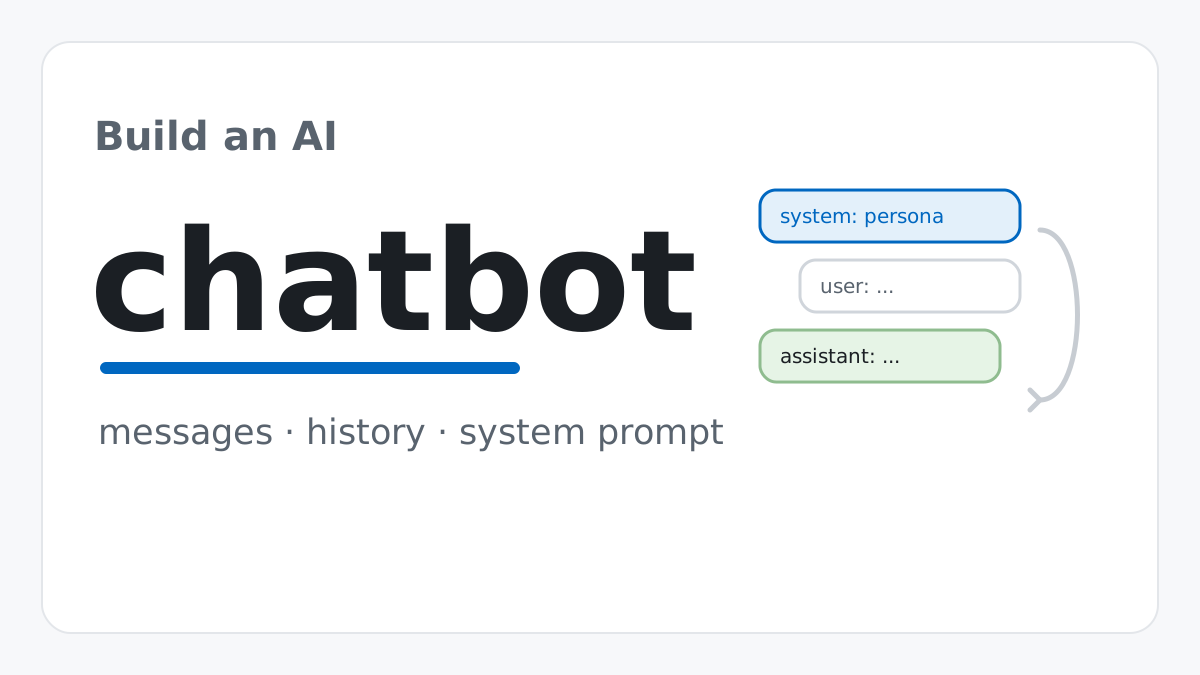
Build an AI Chatbot in Python: A Command-Line LLM Client
A from-scratch walkthrough of the pattern behind every LLM chatbot: one function that sends a message plus conversation history to a chat-completion API, a persona set by a system prompt, and a loop that keeps the conversation going.
Read article
Python
Build an AI Chatbot in Python: A Command-Line LLM Client
A from-scratch walkthrough of the pattern behind every LLM chatbot: one function that sends a message plus conversation history to a chat-completion API, a persona set by a system prompt, and a loop that keeps the conversation going.
Read article
 Software Engineering
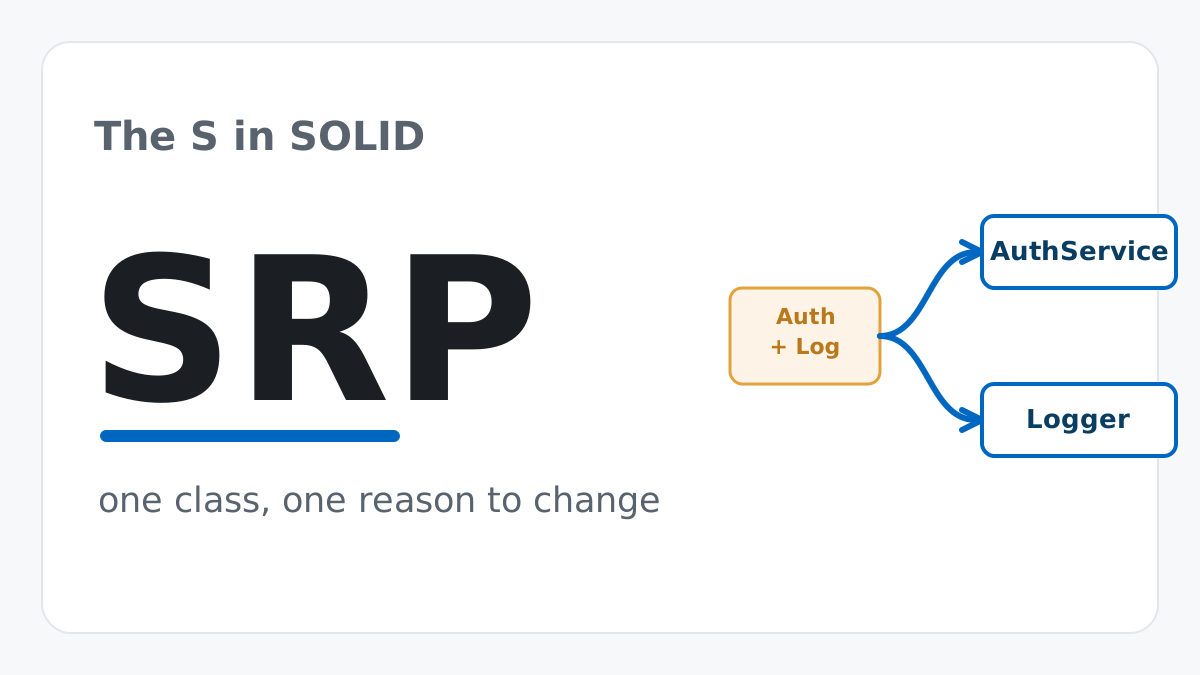
The Single Responsibility Principle: One Class, One Reason to Change
The Single Responsibility Principle says a class should have only one reason to change. See it in action: take a Python AuthService that also owns its logging, find why that's a problem, and refactor it into clean, focused classes.
Read article
Software Engineering
The Single Responsibility Principle: One Class, One Reason to Change
The Single Responsibility Principle says a class should have only one reason to change. See it in action: take a Python AuthService that also owns its logging, find why that's a problem, and refactor it into clean, focused classes.
Read article