Title here
Summary here
Every Postgres container you’ve run so far in this course has been short-lived — created, used, torn down within a single lesson. Lesson 1’s db never outlived its own docker compose down. That’s fine for a smoke test, but a real database has to survive far more ordinary events: a container restart, an image upgrade, a docker compose down you run on purpose to free up resources before running up again ten minutes later. This lesson answers a direct, concrete question: when a Postgres container is removed and a new one takes its place, what happens to the data — and what’s the one line in a Compose file that changes the answer?
By the end of this lesson, you will be able to:
down and up.docker compose down from docker compose down -v, and know which one this lesson relies on.Every running container gets its own writable layer — a thin layer of storage on top of its read-only image, where anything the container writes while running actually goes. For a Postgres container, that includes the entire database: every table, every row, everything under /var/lib/postgresql/data inside the container’s filesystem.
That writable layer belongs to the container, not the image, and not the host. docker compose down (or plain docker rm) removes the container — and its writable layer goes with it, permanently. docker compose up afterward creates a brand-new container from the same image, with a brand-new, empty writable layer. Nothing links the old container’s data to the new one unless you tell Docker to keep it somewhere else. That “somewhere else” is a volume.
Here’s the simplest possible Postgres service — the same shape you’ve used all course, with a host port added so you can query it directly:
services:
  db:
    image: postgres:16-alpine
    environment:
      POSTGRES_PASSWORD: cityflow
      POSTGRES_DB: cityflow
    ports:
      - "5440:5432"
Save this as docker-compose.no-volume.yml. No volumes: key appears anywhere — Postgres’s data directory lives entirely in this container’s writable layer.
docker compose -f docker-compose.no-volume.yml -p cf-vol-novol up -d Network cf-vol-novol_default Creating
Network cf-vol-novol_default Created
Container cf-vol-novol-db-1 Creating
Container cf-vol-novol-db-1 Created
Container cf-vol-novol-db-1 Starting
Container cf-vol-novol-db-1 StartedWrite something real to it:
docker exec cf-vol-novol-db-1 psql -U postgres -d cityflow -c \
"CREATE TABLE checkpoint (note TEXT); INSERT INTO checkpoint VALUES ('written before recreate');"
docker exec cf-vol-novol-db-1 psql -U postgres -d cityflow -c "SELECT * FROM checkpoint;"CREATE TABLE
INSERT 0 1
note
-------------------------
written before recreate
(1 row)Now do exactly what a routine restart, redeploy, or docker compose down && docker compose up on a maintenance day would do — remove the container and bring the stack back up from the same file:
docker compose -f docker-compose.no-volume.yml -p cf-vol-novol down
docker compose -f docker-compose.no-volume.yml -p cf-vol-novol up -d Container cf-vol-novol-db-1 Stopping
Container cf-vol-novol-db-1 Stopped
Container cf-vol-novol-db-1 Removing
Container cf-vol-novol-db-1 Removed
Network cf-vol-novol_default Removing
Network cf-vol-novol_default Removed
 Network cf-vol-novol_default Creating
 Network cf-vol-novol_default Created
 Container cf-vol-novol-db-1 Creating
 Container cf-vol-novol-db-1 Created
 Container cf-vol-novol-db-1 Starting
Container cf-vol-novol-db-1 StartedQuery the exact same table:
docker exec cf-vol-novol-db-1 psql -U postgres -d cityflow -c "SELECT * FROM checkpoint;"ERROR: relation "checkpoint" does not exist
LINE 1: SELECT * FROM checkpoint;
^Gone. Not corrupted, not partially there — the table doesn’t exist at all, because this db service got a genuinely new container with a genuinely empty writable layer, and Postgres initialized a fresh, empty database inside it, exactly as if you’d never run anything before. Confirm the same result with a real, host-side Python check:
# gate: setup: mkdir -p /tmp/cf-vol-demo && printf 'services:\n  db:\n    image: postgres:16-alpine\n    environment:\n      POSTGRES_PASSWORD: cityflow\n      POSTGRES_DB: cityflow\n    ports:\n      - "5440:5432"\n' > /tmp/cf-vol-demo/docker-compose.no-volume.yml && docker compose -f /tmp/cf-vol-demo/docker-compose.no-volume.yml -p cf-vol-novol up -d >/dev/null && sleep 3
# gate: teardown: docker compose -f /tmp/cf-vol-demo/docker-compose.no-volume.yml -p cf-vol-novol down -v >/dev/null 2>&1
"""Prove that, with no named volume for Postgres's data directory, removing
and recreating the container loses everything written to it."""
import subprocess
import time

import psycopg2

COMPOSE = ["docker", "compose", "-f", "/tmp/cf-vol-demo/docker-compose.no-volume.yml", "-p", "cf-vol-novol"]


def connect():
    return psycopg2.connect(host="localhost", port=5440, dbname="cityflow", user="postgres", password="cityflow")


conn = connect()
cur = conn.cursor()
cur.execute("CREATE TABLE checkpoint (note TEXT);")
cur.execute("INSERT INTO checkpoint VALUES ('written before recreate');")
conn.commit()
cur.execute("SELECT COUNT(*) FROM checkpoint;")
print(f"before recreate: {cur.fetchone()[0]} row(s) in checkpoint")
cur.close()
conn.close()

subprocess.run(COMPOSE + ["down"], check=True, capture_output=True)
subprocess.run(COMPOSE + ["up", "-d"], check=True, capture_output=True)
time.sleep(3)

conn = connect()
cur = conn.cursor()
try:
    cur.execute("SELECT COUNT(*) FROM checkpoint;")
    print(f"after recreate:  {cur.fetchone()[0]} row(s) in checkpoint")
except psycopg2.errors.UndefinedTable:
    print('after recreate:  ERROR - relation "checkpoint" does not exist')
cur.close()
conn.close()
before recreate: 1 row(s) in checkpoint
after recreate: ERROR - relation "checkpoint" does not existReal, independent confirmation of the same loss — one row before the recreate, an undefined-table error after.
Add one volumes: block, mounted at exactly the path Postgres writes its data to:
services:
  db:
    image: postgres:16-alpine
    environment:
      POSTGRES_PASSWORD: cityflow
      POSTGRES_DB: cityflow
    ports:
      - "5441:5432"
    volumes:
      - cf-vol-demo-data:/var/lib/postgresql/data

volumes:
  cf-vol-demo-data:
Save this as docker-compose.with-volume.yml. Two things changed: the service now lists cf-vol-demo-data:/var/lib/postgresql/data under volumes:, and a top-level volumes: section declares cf-vol-demo-data as a named volume Compose should manage. That single line redirects everything Postgres writes to /var/lib/postgresql/data away from the container’s disposable writable layer and into a separate, durable storage object Docker keeps around independently of any one container.
docker compose -f docker-compose.with-volume.yml -p cf-vol-withvol up -d Network cf-vol-withvol_default Creating
Network cf-vol-withvol_default Created
Volume cf-vol-withvol_cf-vol-demo-data Creating
Volume cf-vol-withvol_cf-vol-demo-data Created
Container cf-vol-withvol-db-1 Creating
Container cf-vol-withvol-db-1 Created
Container cf-vol-withvol-db-1 Starting
Container cf-vol-withvol-db-1 StartedNotice the new line in the output: Volume cf-vol-withvol_cf-vol-demo-data Created. Compose prefixed your volume name with the project name, the same way it did for the network and the containers back in Lesson 1. Write the identical checkpoint row, then run the identical remove-and-recreate cycle:
docker exec cf-vol-withvol-db-1 psql -U postgres -d cityflow -c \
  "CREATE TABLE checkpoint (note TEXT); INSERT INTO checkpoint VALUES ('written before recreate');"
docker compose -f docker-compose.with-volume.yml -p cf-vol-withvol down
docker compose -f docker-compose.with-volume.yml -p cf-vol-withvol up -d
CREATE TABLE
INSERT 0 1
Container cf-vol-withvol-db-1 Stopping
Container cf-vol-withvol-db-1 Stopped
Container cf-vol-withvol-db-1 Removing
Container cf-vol-withvol-db-1 Removed
Network cf-vol-withvol_default Removing
Network cf-vol-withvol_default Removed
Network cf-vol-withvol_default Creating
Network cf-vol-withvol_default Created
Container cf-vol-withvol-db-1 Creating
Container cf-vol-withvol-db-1 Created
Container cf-vol-withvol-db-1 Starting
Container cf-vol-withvol-db-1 StartedLook closely: no Volume ... Removing line appears anywhere in that down. Plain docker compose down removes containers and networks — it deliberately leaves named volumes alone, on the assumption that data is exactly the thing you don’t want an ordinary teardown to delete. Confirm it survived:
docker exec cf-vol-withvol-db-1 psql -U postgres -d cityflow -c "SELECT * FROM checkpoint;" note
-------------------------
written before recreate
(1 row)Still there. Same YAML shape, same down, same up, one added volumes: mapping — and the outcome flips completely. The Python equivalent, run independently through the actual TCP connection:
# gate: setup: printf 'services:\n  db:\n    image: postgres:16-alpine\n    environment:\n      POSTGRES_PASSWORD: cityflow\n      POSTGRES_DB: cityflow\n    ports:\n      - "5441:5432"\n    volumes:\n      - cf-vol-demo-data:/var/lib/postgresql/data\n\nvolumes:\n  cf-vol-demo-data:\n' > /tmp/cf-vol-demo/docker-compose.with-volume.yml && docker compose -f /tmp/cf-vol-demo/docker-compose.with-volume.yml -p cf-vol-withvol up -d >/dev/null && sleep 3
# gate: teardown: docker compose -f /tmp/cf-vol-demo/docker-compose.with-volume.yml -p cf-vol-withvol down -v >/dev/null 2>&1; rm -rf /tmp/cf-vol-demo
"""Prove that, with a named volume mounted at Postgres's data directory,
removing and recreating the container keeps everything written to it."""
import subprocess
import time

import psycopg2

COMPOSE = ["docker", "compose", "-f", "/tmp/cf-vol-demo/docker-compose.with-volume.yml", "-p", "cf-vol-withvol"]


def connect():
    return psycopg2.connect(host="localhost", port=5441, dbname="cityflow", user="postgres", password="cityflow")


conn = connect()
cur = conn.cursor()
cur.execute("CREATE TABLE checkpoint (note TEXT);")
cur.execute("INSERT INTO checkpoint VALUES ('written before recreate');")
conn.commit()
cur.execute("SELECT COUNT(*) FROM checkpoint;")
print(f"before recreate: {cur.fetchone()[0]} row(s) in checkpoint")
cur.close()
conn.close()

subprocess.run(COMPOSE + ["down"], check=True, capture_output=True)
subprocess.run(COMPOSE + ["up", "-d"], check=True, capture_output=True)
time.sleep(3)

conn = connect()
cur = conn.cursor()
cur.execute("SELECT * FROM checkpoint;")
print(f"after recreate:  {cur.fetchall()}")
cur.close()
conn.close()
before recreate: 1 row(s) in checkpoint
after recreate: [('written before recreate',)]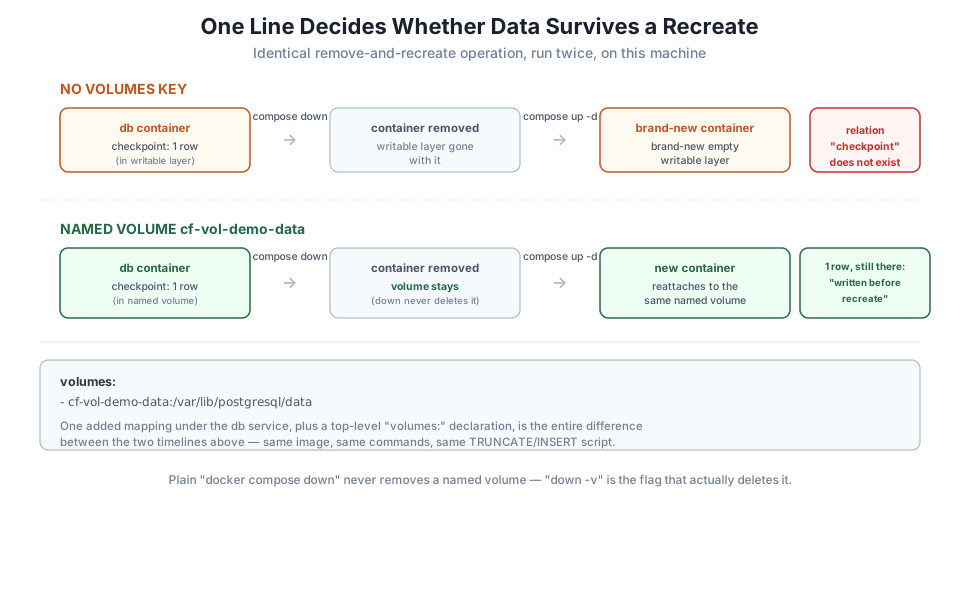
You’ve now seen that plain docker compose down leaves a named volume behind on purpose. Confirm it’s still there after the run above:
docker volume ls --filter name=cf-vol-withvolDRIVER VOLUME NAME
local cf-vol-withvol_cf-vol-demo-dataTo actually delete it — the thing you want when you’re done experimenting for good, not just restarting — add -v:
docker compose -f docker-compose.with-volume.yml -p cf-vol-withvol down -v Container cf-vol-withvol-db-1 Stopping
Container cf-vol-withvol-db-1 Stopped
Container cf-vol-withvol-db-1 Removing
Container cf-vol-withvol-db-1 Removed
Network cf-vol-withvol_default Removing
Volume cf-vol-withvol_cf-vol-demo-data Removing
Volume cf-vol-withvol_cf-vol-demo-data Removed
Network cf-vol-withvol_default Removeddocker volume ls --filter name=cf-vol-withvolDRIVER VOLUME NAMENow it’s actually gone. This is the flag every teardown command in this course’s Compose lessons uses from here on: down -v, so re-running a lesson’s example from a clean state and from a “you already ran this once” state both behave the same way — which is exactly why the gate setup for this lesson’s Python checks uses it too.
down -v is permanent
There is no undo for docker compose down -v on a volume holding real data you care about. In this lesson every volume only ever holds a one-row demo table, deleted on purpose to keep the environment clean — but on a real project, down -v against a production or even a shared development database is exactly how teams lose things they meant to keep. Reach for it deliberately, not as a habit.
Run both Compose files from this lesson yourself: write a checkpoint row to each, remove and recreate each container, and confirm the no-volume version loses the row while the with-volume version keeps it.
Hint
Give each stack its own -p project name and its own host port, exactly as this lesson does, so you can run both without one interfering with the other.
Run docker volume inspect cf-vol-withvol_cf-vol-demo-data (while the with-volume stack is up) and find the Mountpoint field it reports.
Hint
On Docker Desktop, that mountpoint is a path inside the Docker Desktop VM, not directly browsable from your host’s own file explorer — the volume is real, durable storage, but Docker still manages access to it rather than exposing it as an ordinary host folder.
A bind mount maps a specific host folder into a container, instead of a Docker-managed volume — for example ./pgdata:/var/lib/postgresql/data under volumes:. Predict whether that would survive a down/up cycle the same way the named volume did, then create a docker-compose.bind-mount.yml to test it.
Hint
Both a named volume and a bind mount live outside the container’s writable layer, so both survive a container being removed and recreated — the difference is where Docker keeps the files (a Docker-managed location vs. a folder you chose yourself) and how directly you can inspect them from your host.
You ran the same operation — write a row, remove the container, recreate it, read the row back — against two Compose files differing by exactly one volumes: mapping. Without it, the container’s writable layer disappeared along with the container, and a fresh, empty database took its place; a query for the row you’d just written failed outright. With a named volume mounted at Postgres’s real data directory, the identical remove-and-recreate cycle left the row completely intact, confirmed independently through a live TCP connection. You also learned the flag that actually deletes a named volume — down -v, deliberately absent from a plain down so routine restarts can’t silently destroy data.
volumes: key and mounted into a service.docker compose down — removes containers and networks, but never named volumes.docker compose down -v — also removes the named volumes the file declares; permanent, and the flag this course’s Compose lessons use to keep teardowns fully clean./var/lib/postgresql/data for Postgres.A database that loses its data on every restart isn’t a database — it’s a cache with extra steps. Every real data stack that includes a stateful service (Postgres here, but the same rule applies to any database, message queue, or search index) needs exactly this decision made deliberately: which paths hold data that must outlive the container, and which paths are fine to throw away and rebuild. Lesson 4’s local data stack and Lesson 5’s guided project both carry a named volume forward from this lesson, on the same reasoning you just watched play out twice.
You now know how to keep a container’s data alive across a restart. The next question is how containers find each other in the first place — Lesson 3 looks at the network Compose has been quietly creating for you since Lesson 1, and shows exactly what changes when you add a second service that needs to reach db by name, with no manual network setup at all.
Keep DATATWEETS free. Help fund practical data, AI, and engineering lessons for learners worldwide.