Title here
Summary here
Lesson 1 mentioned it in passing: Compose creates a network for you, with no docker network create anywhere in the file. This lesson stops treating that as a footnote and looks at it directly — what that network actually is, what docker network inspect reports about it, and what “containers reach each other by service name” really means when you watch it happen rather than take it on faith.
By the end of this lesson, you will be able to:
docker network create yourself.Two services — db, the same Postgres you’ve used all course, and client, a small Python container whose entire job is to resolve db by name and open a real connection to it:
# gate: skip
"""CityFlow's network-check client - resolves 'db' by service name and
opens a real TCP connection to it, proving Compose's default network
resolves service names with no manual docker network create anywhere."""
import socket

ip = socket.gethostbyname("db")
print(f"resolved db -> {ip}")
s = socket.create_connection(("db", 5432), timeout=5)
print("TCP connect to db:5432 succeeded")
s.close()
Save this as client.py, and the stack itself as docker-compose.yml:
services:
  db:
    image: postgres:16-alpine
    environment:
      POSTGRES_PASSWORD: cityflow
      POSTGRES_DB: cityflow

  client:
    image: python:3.13-slim
    depends_on:
      - db
    volumes:
      - ./client.py:/client.py:ro
    command: ["python", "/client.py"]
Nothing in either file mentions a network by name. There’s no docker network create, no --network flag, no network section in the YAML at all. Bring up just db first:
docker compose -p cf-net-demo up -d db Network cf-net-demo_default Creating
Network cf-net-demo_default Created
Container cf-net-demo-db-1 Creating
Container cf-net-demo-db-1 Created
Container cf-net-demo-db-1 Starting
Container cf-net-demo-db-1 StartedRead that output again: Network cf-net-demo_default Creating — the very first line, before either container. Compose created a network before it created anything else, entirely on its own, named after the project (cf-net-demo, from -p) with _default appended. This is the network every service in this file joins unless you tell it otherwise.
docker network ls --filter name=cf-net-demoNETWORK ID NAME DRIVER SCOPE
9058f9c99900 cf-net-demo_default bridge localA real network, same driver (bridge) as the one you created by hand with docker network create in Module 1 — Compose isn’t using some different, special mechanism, it’s running the exact same command you’d run yourself, automatically, at the moment it’s needed.
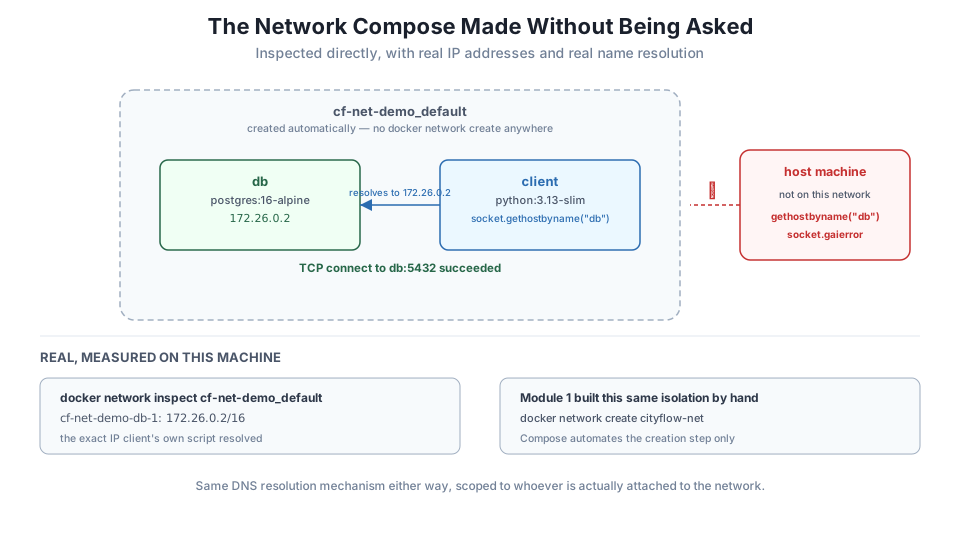
docker network inspect cf-net-demo_default --format '{{range .Containers}}{{.Name}}: {{.IPv4Address}}{{"\n"}}{{end}}'cf-net-demo-db-1: 172.26.0.2/16db is attached, with a real IP address on this network — 172.26.0.2. You never assigned that address; Compose’s network driver did, the same way it would for a network you created yourself. Only db shows here because client hasn’t been started yet.
Run client as a one-off task against the db that’s already up:
docker compose -p cf-net-demo run --rm client Container cf-net-demo-db-1 Running
Container cf-net-demo-client-run-0913dfd5fb3f Creating
Container cf-net-demo-client-run-0913dfd5fb3f Created
resolved db -> 172.26.0.2
TCP connect to db:5432 succeededresolved db -> 172.26.0.2 — the exact IP docker network inspect reported a moment ago. client.py never hardcoded that address; it asked the operating system to resolve the hostname "db", and Compose’s network gave it back the right answer, because db is the name of the service in the YAML. Change that service’s name to anything else and this same resolution would follow it automatically — the name in the file is the name on the network, always in sync, which is exactly the property Lesson 1 called out as missing from the hand-typed --network/-h version.
Confirm db is still the only container that stays attached once client finishes and removes itself:
docker network inspect cf-net-demo_default --format '{{range .Containers}}{{.Name}}: {{.IPv4Address}}{{"\n"}}{{end}}'cf-net-demo-db-1: 172.26.0.2/16client ran with --rm behavior baked into docker compose run, so once its script finished, the container was removed and its network endpoint released — the same disposable-task pattern Lesson 1’s reporter used, just proven here from the network’s own point of view.
Module 1’s guided project ended with an exercise proving your host terminal couldn’t reach cityflow-db by name, even though a container on the same network could. Compose’s automatic network has the identical property — it isn’t more permissive just because you didn’t have to create it yourself:
# gate: setup: mkdir -p /tmp/cf-net-demo && printf 'services:\n  db:\n    image: postgres:16-alpine\n    environment:\n      POSTGRES_PASSWORD: cityflow\n      POSTGRES_DB: cityflow\n\n  client:\n    image: python:3.13-slim\n    depends_on:\n      - db\n    volumes:\n      - ./client.py:/client.py:ro\n    command: ["python", "/client.py"]\n' > /tmp/cf-net-demo/docker-compose.yml && printf 'import socket\nip = socket.gethostbyname("db")\nprint(f"resolved db -> {ip}")\ns = socket.create_connection(("db", 5432), timeout=5)\nprint("TCP connect to db:5432 succeeded")\ns.close()\n' > /tmp/cf-net-demo/client.py && docker compose -f /tmp/cf-net-demo/docker-compose.yml -p cf-net-demo-gate up -d db >/dev/null && sleep 3
# gate: teardown: docker compose -f /tmp/cf-net-demo/docker-compose.yml -p cf-net-demo-gate down -v >/dev/null 2>&1; rm -rf /tmp/cf-net-demo
"""Prove Compose's default network resolves service names between
containers automatically, and that the host itself is not on that network."""
import socket
import subprocess

# The host is not attached to the stack's network, so it cannot resolve
# a Compose service name - the same isolation Module 1 built by hand.
try:
    socket.gethostbyname("db")
    print("host resolved 'db' - unexpected")
except socket.gaierror:
    print("host cannot resolve 'db' (expected - the host isn't on the network)")

# Inside the network, the client container resolves 'db' and connects for real.
result = subprocess.run(
    ["docker", "compose", "-f", "/tmp/cf-net-demo/docker-compose.yml",
     "-p", "cf-net-demo-gate", "run", "--rm", "client"],
    capture_output=True, text=True, check=True,
)
print(result.stdout.strip())
assert "TCP connect to db:5432 succeeded" in result.stdout
host cannot resolve 'db' (expected - the host isn't on the network)
resolved db -> 172.26.0.2
TCP connect to db:5432 succeededSame script, run from this very machine’s own Python — the process running this gate can’t resolve db at all, while a client container on cf-net-demo_default resolves and connects to it instantly. That’s not two different mechanisms; it’s the same DNS resolution mechanism, scoped to whoever is actually attached to the network.
docker compose -p cf-net-demo down Container cf-net-demo-db-1 Stopping
Container cf-net-demo-db-1 Stopped
Container cf-net-demo-db-1 Removing
Container cf-net-demo-db-1 Removed
Network cf-net-demo_default Removing
Network cf-net-demo_default RemovedOne command, same as Lesson 1 — the network Compose created without being asked gets removed the same way, without you having to remember its generated name to do it.
Bring up db alone, inspect the network before and after running client, and confirm the resolved IP address in client’s output matches what docker network inspect reports.
Hint
Run docker network inspect cf-net-demo_default --format '{{range .Containers}}{{.Name}}: {{.IPv4Address}}{{"\n"}}{{end}}' exactly as shown in this lesson — the --format string is Go template syntax, not shell syntax, so keep the quoting exactly as written.
Add a third service, client2, identical to client but with a different service key. Without running anything, predict whether client2 will also successfully resolve db. Then test it.
Hint
Every service in the same docker-compose.yml joins the same default network unless a service explicitly opts out, so client2 resolving db should work identically to client — the service name is what matters, not which service is asking.
Compose lets you name the default network yourself instead of accepting the project-prefixed generated one. Add a top-level networks: section with a default: key and a name: override, and confirm docker network ls now shows your chosen name instead of cf-net-demo_default.
Hint
networks:
  default:
    name: cityflow-net
Add this alongside services: at the top level of the file — the rest of the stack needs no changes, since services already refer to each other by service name, not by network name.
You watched Compose create a network before it created either container, inspected it directly with docker network inspect, and confirmed a client container resolved the database’s service name to the exact IP address that command reported — no docker network create, no --network flag, anywhere in either file. The host machine itself stayed off that network the whole time, unable to resolve the same hostname the client container resolved instantly — the identical isolation Module 1 built by hand with its own docker network create, produced here with zero network-specific lines in the Compose file at all.
<project>_default unless overridden.docker network inspect — reports real IP addresses and currently-attached containers for any network, Compose-created or not.networks: default: name: — the one line needed to give Compose’s automatic network a name of your choosing instead of the generated one.Every multi-service stack in the rest of this course — Lesson 4’s data stack, Lesson 5’s guided project, and every Compose file you write after this course — depends on this exact mechanism to let its pieces find each other, and now you’ve watched it happen at the network layer instead of trusting that -h db “just works.” Module 1 taught you what a Docker network is; this lesson showed you that Compose doesn’t replace that model, it just automates the one step — creation — that used to be yours to remember.
You now have all three pieces this module has built so far: a declarative file instead of hand-typed commands, data that survives a container being recreated, and containers that find each other by name automatically. Lesson 4 puts them to work together for the first time — a real Postgres database and a real Python job, both defined as services in one Compose file, running as an actual local data stack rather than a lesson-sized demo.
Keep DATATWEETS free. Help fund practical data, AI, and engineering lessons for learners worldwide.