Title here
Summary here
You’ve pulled images from Docker Hub constantly since Module 1 — hello-world, nginx:alpine, postgres:16-alpine, python:3.13-slim — without ever asking what’s actually happening on the other end of docker pull. This lesson answers that, and then does something you haven’t done yet: pushes an image you built somewhere else, and pulls it back down, proving it really is portable and not just something that happens to work on your machine.
By the end of this lesson, you will be able to:
docker pull actually asks it for.A registry is a server that stores container images, organized by repository and tag, and serves them over HTTP. That’s the whole concept — nothing about it is exotic. Docker Hub (hub.docker.com) is the default public registry, and it’s real: nginx, postgres, and python are all genuine repositories hosted there, maintained by their respective projects or Docker itself, and every docker pull you’ve run in this course so far reached out to it. When you write docker pull nginx:alpine with no registry named, Docker assumes Docker Hub and docker.io/library/nginx:alpine in full.
For this lesson’s hands-on push, though, you’re going to run your own registry, locally, instead of pushing to a real Docker Hub account. That keeps the whole exercise 100% local and reversible — nothing you do here is published anywhere outside your own machine — while using the exact same mechanics a real push to Docker Hub would use.
Docker publishes an official registry:2 image that is a real, working registry server. Run it, mapping its default port to your host:
docker run -d -p 5000:5000 --name local-registry registry:2Unable to find image 'registry:2' locally
2: Pulling from library/registry
Digest: sha256:a3d8aaa63ed8681a604f1dea0aa03f100d5895b6a58ace528858a7b332415373
Status: Downloaded newer image for registry:2
e4167e23d4ded97593d70e380748d1f7b122038ce8ae242f0678c3400b7d9823docker ps --filter "name=local-registry"CONTAINER ID IMAGE COMMAND CREATED STATUS PORTS NAMES
e4167e23d4de registry:2 "/entrypoint.sh /etc…" 3 seconds ago Up 2 seconds 0.0.0.0:5000->5000/tcp, [::]:5000->5000/tcp local-registryThat’s a real registry, running as a container, reachable at localhost:5000 — no different in kind from Docker Hub, just private and local.
An image’s tag encodes where it can be pushed. Prefixing a tag with localhost:5000/ tells Docker “push this to the registry listening at localhost:5000,” rather than the Docker Hub default. Tag Lesson 1’s fare-estimator image (or any image you’ve already built):
docker tag cityflow-fare-estimator:1.0 localhost:5000/cityflow-fare-estimator:1.0This doesn’t copy anything — it’s the same image, with a second name pointing at it. Confirm with docker images and you’ll see both tags listed against the identical image ID.
docker push localhost:5000/cityflow-fare-estimator:1.0The push refers to repository [localhost:5000/cityflow-fare-estimator]
77be2f21d550: Pushed
10f83dd1bf76: Pushed
1f5fd724d329: Pushed
c1b6a374b2eb: Pushed
40b80d951936: Pushed
ee525c32493e: Pushed
4e6fee325600: Pushed
1.0: digest: sha256:179759f063b49d75fc5fe452adf523cbe5246b96e49fcfff5371c62364f3ac96 size: 1779Each Pushed line is one layer — the same layers docker history showed you in Lesson 1 — uploaded to local-registry one at a time. The digest line at the end is a content hash of the whole image, computed the same way regardless of which registry you push to.
Pushing proves nothing on its own if you still have the original copy sitting on disk. Remove every local tag pointing at this image, then pull it back down as if from a different machine entirely:
docker rmi cityflow-fare-estimator:1.0 localhost:5000/cityflow-fare-estimator:1.0Untagged: cityflow-fare-estimator:1.0
Untagged: localhost:5000/cityflow-fare-estimator:1.0
Untagged: localhost:5000/cityflow-fare-estimator@sha256:179759f063b49d75fc5fe452adf523cbe5246b96e49fcfff5371c62364f3ac96
Deleted: sha256:57885a80276f5ed3774fa99cc1f38794eba9d8cf1f5bfcbf6d84ac6ab552a938docker images | grep cityflow-fare-estimatorNo output — confirmed gone. Now pull it back, exactly the way any teammate’s machine would:
docker pull localhost:5000/cityflow-fare-estimator:1.01.0: Pulling from cityflow-fare-estimator
Digest: sha256:179759f063b49d75fc5fe452adf523cbe5246b96e49fcfff5371c62364f3ac96
Status: Downloaded newer image for localhost:5000/cityflow-fare-estimator:1.0
localhost:5000/cityflow-fare-estimator:1.0docker run --rm localhost:5000/cityflow-fare-estimator:1.0CityFlow fare estimate
-----------------------
distance: 3.20 mi
duration: 14.00 min
estimate: $13.50Same output as Lesson 1 — from an image that, seconds ago, existed nowhere on this machine except inside local-registry. That’s the entire point of a registry: an image built on one machine becomes runnable on any machine that can reach the registry, with nothing but a tag name in common.
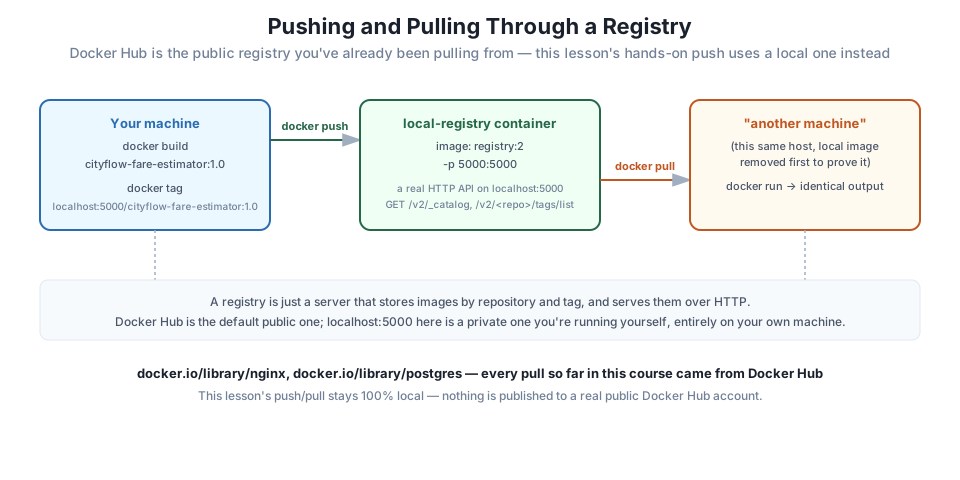
registry:2 exposes a small, real HTTP API — it isn’t a black box. Query it directly to see, in plain JSON, what repositories and tags it’s holding:
# gate: setup: mkdir -p /tmp/cfe-gate && printf 'FROM python:3.13-slim\nCMD ["python","-c","print(1)"]\n' > /tmp/cfe-gate/Dockerfile && docker build -t cityflow-fare-estimator:1.0 /tmp/cfe-gate >/dev/null 2>&1; docker rm -f local-registry >/dev/null 2>&1; docker run -d -p 5000:5000 --name local-registry registry:2 >/dev/null && sleep 2 && docker tag cityflow-fare-estimator:1.0 localhost:5000/cityflow-fare-estimator:1.0 && docker push localhost:5000/cityflow-fare-estimator:1.0 >/dev/null 2>&1
# gate: teardown: docker rm -f local-registry >/dev/null 2>&1; docker rmi -f cityflow-fare-estimator:1.0 localhost:5000/cityflow-fare-estimator:1.0 >/dev/null 2>&1; rm -rf /tmp/cfe-gate
import requests

catalog = requests.get("http://localhost:5000/v2/_catalog").json()
print("catalog:", catalog)

tags = requests.get("http://localhost:5000/v2/cityflow-fare-estimator/tags/list").json()
print("tags:", tags)
catalog: {'repositories': ['cityflow-fare-estimator']}
tags: {'name': 'cityflow-fare-estimator', 'tags': ['1.0']}/v2/_catalog lists every repository the registry knows about; /v2/<repository>/tags/list lists every tag under one repository. This is the entire mental model of “a registry,” made concrete: a small HTTP API in front of storage, organized by repository and tag — exactly what docker push and docker pull were talking to under the hood every time you ran them, including every docker pull against Docker Hub since Module 1.
Why localhost:5000 needs no login
A real push to Docker Hub requires docker login and an account, because it’s a shared, public service. This lesson’s registry has none of that — it accepts pushes from anyone who can reach localhost:5000, which is exactly why it’s suitable only for local learning and development, never for anything you’d expose outside your own machine without adding authentication in front of it.
Public Docker Hub repositories work well for open-source base images — python, postgres, nginx — that any team is happy to share. A company’s own proprietary images are a different story: nobody wants their internal billing service or a data job with embedded credentials sitting in a public repository. That’s what private registries are for, and they’re the same underlying idea you just ran, just with authentication and access control layered on top: a company might run a self-hosted registry (Harbor and the registry:2 image you just used are both real, common choices), or use a managed one from a cloud provider. The commands stay familiar — docker tag, docker push, docker pull — the only real difference is that docker login against that registry now checks a real credential before letting a push through, exactly the gap localhost:5000 deliberately skipped for this lesson.
docker rm -f local-registrylocal-registryRun a local registry, then tag and push cityflow-report:friendly (or any image you’ve built in this module) to it. Remove your local copies and pull it back, confirming docker run still produces the correct output.
Hint
The pattern is identical regardless of which image you use: docker tag <image> localhost:5000/<image>, docker push localhost:5000/<image>, docker rmi both tags, then docker pull localhost:5000/<image>.
Tag the same image twice — once as :1.0 and once as :latest — and push both. Query /v2/<repository>/tags/list and confirm both tags appear under the same repository.
Hint
Two tags of the same image share the same underlying layers, so pushing the second one is nearly instant — the registry recognizes it already has every layer and only needs to record the new tag name.
Start a fresh local-registry container and query /v2/_catalog immediately, before pushing anything to it. Confirm the response and explain, in your own words, what it tells you about a brand-new registry.
Hint
Expect {"repositories": []} — an empty list, not an error. A registry with nothing pushed to it yet is still a fully working registry; it just has nothing to serve.
You learned what a registry actually is — a server storing images by repository and tag, exposed over a real HTTP API — and then proved it hands-on rather than by definition alone: you ran a real registry:2 container, tagged and pushed an image to it, removed every local copy, pulled the image back down as if from a different machine, and confirmed it ran identically. You also queried the registry’s own /v2/_catalog and /v2/<repository>/tags/list endpoints directly, seeing in plain JSON exactly what docker push and docker pull have been talking to this entire course, including every pull from the real Docker Hub.
docker pull in this course has used it.localhost:5000/<repo>:<tag> — a tag prefix that routes docker push/docker pull to a specific registry instead of the default.docker tag — gives an existing image a second name, without copying anything./v2/_catalog, /v2/<repo>/tags/list) backing every push and pull, checkable directly with a tool like requests or curl.Every real deployment pipeline, from a small team to a large company, relies on exactly this mechanism to move an image from “built on a laptop” to “running somewhere else” — a CI server, a teammate’s machine, a Kubernetes cluster. You’ll push to a registry again, for real, when Module 5 pulls images into a local Kind cluster — the same docker tag / docker push / docker pull pattern, at a larger scale, is exactly how Kubernetes gets the images it schedules.
You now know how to build an image, cache it efficiently, and move it through a registry. What you haven’t done yet is watch one fail — deliberately — and figure out why. In Lesson 4, you’ll build a container with a real bug in it, watch it crash, and diagnose exactly what went wrong using docker logs, docker exec, and docker inspect.
Keep DATATWEETS free. Help fund practical data, AI, and engineering lessons for learners worldwide.