Title here
Summary here
You’ve installed Docker and watched it solve a real bug. Now it’s time to actually understand the two nouns you’ve been using loosely since Lesson 1: image and container. Get this distinction solid and almost everything else in Docker — and a good deal of Kubernetes later in this course — falls out of it naturally. Get it fuzzy, and every later lesson will feel like memorizing commands instead of understanding a system.
By the end of this lesson, you will be able to:
docker pull, docker run, docker ps, docker stop, and docker rm deliberately, reading their real output.An image is a read-only template stored on disk — a snapshot of a filesystem plus instructions for what to run. A container is a running (or stopped) instance created from that template, with its own process, its own writable layer on top of the image, and its own lifecycle. You can create many containers from the same image, and none of them change the image itself.
That’s the whole idea. The rest of this lesson makes it concrete with commands you run yourself.
docker pull downloads an image from a registry (by default, Docker Hub) without running anything yet. Use nginx:alpine — a small, real web server image — as the example for this lesson:
docker pull nginx:alpinealpine: Pulling from library/nginx
5de55e5ef9c0: Pull complete
7b1fb50ff9dc: Pull complete
e42993d4c6ec: Pull complete
d0e9565ba4ff: Pull complete
c4a042f5cf71: Pull complete
e1f13a453c9d: Pull complete
ba4be3b26f08: Pull complete
977aedb192ad: Pull complete
Digest: sha256:4a73073bd557c65b759505da037898b61f1be6cbcc3c2c3aeac22d2a470c1752
Status: Downloaded newer image for nginx:alpine
docker.io/library/nginx:alpineEach Pull complete line is one layer — images are built and stored in stackable layers, which is why the download is broken into several pieces rather than one file (you’ll go deeper on layers in Module 2). Confirm it landed with docker images:
docker images nginx:alpineIMAGE ID DISK USAGE CONTENT SIZE EXTRA
nginx:alpine 28c4e91555d0 61.8MB 0BNothing is running yet. docker pull only ever touches disk — it downloads a template and stops there. That’s worth sitting with for a second, because it’s the first half of the whole lesson: the image exists, completely inert, before a single container is created from it.
nginx:alpine has two parts, and both matter once you start pulling more than one image: nginx is the repository name, and alpine is the tag — a label pointing at one specific version or variant of that repository. The same nginx repository also publishes tags like 1.27, latest, and plenty of others; alpine specifically points at a build on the minimal Alpine Linux base, which is why it’s a fraction of the size of a full Ubuntu-based image. When you don’t specify a tag at all, Docker assumes :latest — convenient while you’re learning, but worth naming explicitly in anything you intend to run more than once, since latest can point at a different actual image next month while your command stays the same.
By default, docker pull reaches out to Docker Hub, a public registry anyone can pull official images from, exactly like nginx, postgres, and python in this module so far. A registry is just a server that stores images and serves them by repository and tag — Docker Hub is the default one, but plenty of teams run a private registry for their own images, which you’ll meet in Module 2’s lesson on image registries. For now, the only thing to internalize is that docker pull <repository>:<tag> is always asking a registry for one specific, named image — never something vaguer like “whatever nginx is these days.”
docker run is what actually creates and starts a container from an image:
docker run -d --name cityflow-web-demo -p 8088:80 nginx:alpined4d1c9f4de905c2fa9bb7a9167f8636349c4bb043a29aca12a957d659e35766aThat long string is the new container’s ID. Three flags did real work here:
-d (“detached”) runs the container in the background and hands your terminal back immediately, instead of blocking while nginx runs in the foreground.--name cityflow-web-demo gives the container a human-readable name, so you don’t have to remember or copy-paste that ID for every later command.-p 8088:80 maps port 8088 on your machine to port 80 inside the container, where nginx listens by default.docker psdocker ps lists running containers — this is the single most-used Docker command, and you’ll type it constantly for the rest of this course:
docker psCONTAINER ID IMAGE COMMAND CREATED STATUS PORTS NAMES
d4d1c9f4de90 nginx:alpine "/docker-entrypoint.…" Less than a second ago Up Less than a second 0.0.0.0:8088->80/tcp, [::]:8088->80/tcp cityflow-web-demoEvery column here maps directly to something you just did: the IMAGE column shows nginx:alpine — the exact template this container came from — and PORTS shows the 8088:80 mapping you specified. The NAMES column shows cityflow-web-demo, the name you chose. This container is a live, running Linux process, not a copy of the image sitting idle.
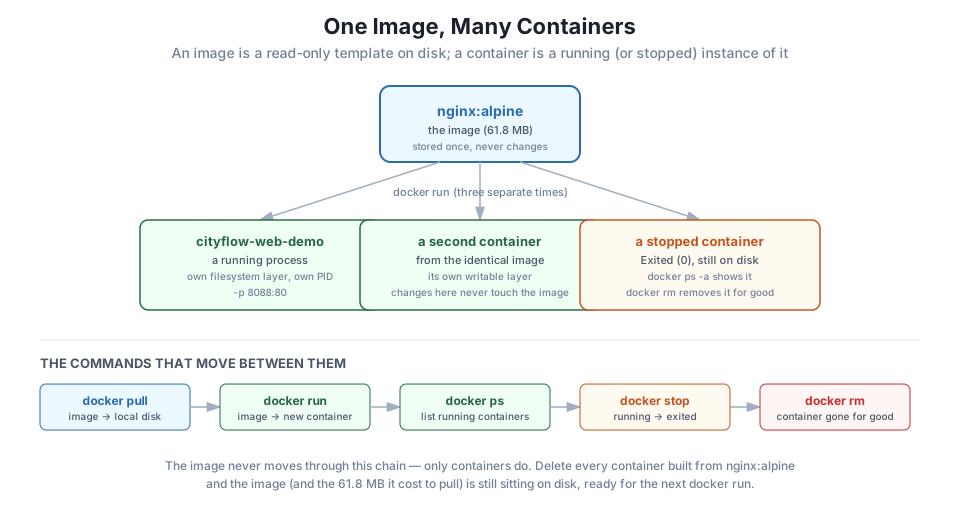
To prove the image is untouched, pull it again, or just check docker images a second time — it’s still exactly 61.8 MB, exactly one entry, no matter how many containers you create from it. Run a second container from the same image right now to see this for yourself:
docker run -d --name cityflow-web-demo-2 nginx:alpine
docker ps --filter "name=cityflow"
CONTAINER ID IMAGE COMMAND CREATED STATUS PORTS NAMES
9e21a6b3c9d4 nginx:alpine "/docker-entrypoint.…" 1 second ago Up 1 second cityflow-web-demo-2
d4d1c9f4de90 nginx:alpine "/docker-entrypoint.…" 14 seconds ago Up 14 seconds 0.0.0.0:8088->80/tcp, [::]:8088->80/tcp cityflow-web-demoTwo independent containers, two different container IDs, two different names — both built from the identical nginx:alpine image. Each has its own writable filesystem layer stacked on top of the same read-only image; if you were to modify a file inside one container, the other container and the underlying image would be completely unaffected.
A stopped container is not a deleted container
docker ps only shows running containers. A container you stop still exists on disk — with its filesystem layer, logs, and exit status intact — until you explicitly remove it. docker ps -a shows every container regardless of state, which is exactly why you should always filter it by name or label when several projects share a machine: an unfiltered docker ps -a on a real workstation can turn up containers from work that has nothing to do with what you’re doing right now.
Clean up the way you’ll clean up for the rest of this course — stop first, then remove:
docker stop cityflow-web-demo cityflow-web-demo-2cityflow-web-demo
cityflow-web-demo-2docker stop sends a shutdown signal and waits for the container’s process to exit. The container still exists — check with a filtered docker ps -a:
docker ps -a --filter "name=cityflow"CONTAINER ID IMAGE COMMAND CREATED STATUS PORTS NAMES
9e21a6b3c9d4 nginx:alpine "/docker-entrypoint.…" 25 seconds ago Exited (0) 4 seconds ago cityflow-web-demo-2
d4d1c9f4de90 nginx:alpine "/docker-entrypoint.…" 38 seconds ago Exited (0) 4 seconds ago cityflow-web-demoSTATUS now reads Exited (0) — the 0 is the process’s exit code, and 0 specifically means “exited cleanly, no error.” The container is still right there, just not running. Now actually delete it:
docker rm cityflow-web-demo cityflow-web-demo-2cityflow-web-demo
cityflow-web-demo-2docker ps -a --filter "name=cityflow"CONTAINER ID IMAGE COMMAND CREATED STATUS PORTS NAMESEmpty. Both containers are gone for good — but docker images nginx:alpine would still show the exact same 61.8 MB image, untouched by any of this. That’s the whole lesson, demonstrated rather than just stated: containers come and go; the image they were built from just sits there, ready for the next docker run.
Pull nginx:alpine (or reuse it if you already have it) and run a single named container from it with -d. Run docker ps and identify, in your own words, which column proves this is a running process and which column proves which image it came from.
Hint
STATUS (e.g. Up 12 seconds) proves it’s actively running; IMAGE names the exact template. Compare both columns against what you typed in your docker run command.
Run three separate containers from the same nginx:alpine image, each with a different --name. Use docker ps to confirm all three are running with distinct container IDs, then check docker images nginx:alpine and note that it still shows exactly one image entry.
Hint
You don’t need -p on every one — only one container at a time can bind to a given host port, so give at most one of the three a -p flag, or omit it entirely and just prove the point with docker ps.
Take one of the three containers from Exercise 2: stop it, confirm with a filtered docker ps -a that it now shows Exited, then remove it and confirm with the same filtered command that it’s gone. Do this one step at a time rather than chaining the commands, and read each command’s output before running the next.
Hint
docker stop <name> → docker ps -a --filter "name=<name>" → docker rm <name> → docker ps -a --filter "name=<name>" again. The point of doing it slowly is to see the container’s state change at each step rather than just trusting that it worked.
You built the mental model this entire course rests on: an image is a read-only template on disk, and a container is a running or stopped instance created from it. You proved it rather than just read it — pulling nginx:alpine once, running two independent containers from it, watching both in docker ps, and confirming with docker images that the image itself never changed no matter how many containers you created or destroyed. You also walked the full lifecycle deliberately: pull (template to disk), run (template to running container), ps (what’s alive right now), stop (running to exited, but still present), and rm (gone for good).
docker pull — downloads an image without running anything.docker run — creates and starts a new container from an image.docker ps / docker ps -a — lists running containers only, or every container regardless of state.docker stop / docker rm — stop a running container (it still exists) versus permanently delete it.This distinction is why Docker scales the way it does: pulling one 61.8 MB image once and running it a hundred times costs almost nothing extra, because every container after the first reuses the same on-disk layers. It’s also why containers are disposable in a way virtual machines traditionally aren’t — deleting a container is cheap and safe, because the image it came from is untouched and ready to produce another one instantly. Every multi-container system you’ll build for the rest of this course, up through Kubernetes deployments that run dozens of identical containers from one image, is this exact idea at larger scale.
You’ve run a stateless web server — nginx doesn’t remember anything between requests, and losing the container costs you nothing. In Lesson 4, you’ll run something that does need to hold onto data: a real Postgres database, running as a container, that you connect to and query for real. You’ll learn what “the container is running” actually verifies, using docker logs and docker exec to look inside a live container instead of just trusting the green dot next to its name.
Keep DATATWEETS free. Help fund practical data, AI, and engineering lessons for learners worldwide.