Title here
Summary here
Every container you’ve run so far — hello-world, python:3.13-slim, nginx:alpine — either did one thing and exited, or served static content nobody actually queried. This lesson is different: you’re going to run a container that holds real state, keeps running indefinitely, and needs to answer real questions correctly — a Postgres database. By the end, “the container is running” will mean something specific and checkable to you, not just a green dot in a list.
By the end of this lesson, you will be able to:
docker logs to confirm what actually happened at startup.docker exec.Pull and run the official Postgres image, giving it a name, a password, a database name, and a port mapping so you can reach it from your host machine:
docker run -d --name cityflow-db \
  -e POSTGRES_PASSWORD=cityflow \
  -e POSTGRES_DB=cityflow \
  -p 5433:5432 \
postgres:16-alpine9c3f0a2c72fa04456b483f2b320ed4e64984185b3706a8c6b796707fa3d9a86eTwo new ideas in this command. -e sets an environment variable inside the container — the official Postgres image reads POSTGRES_PASSWORD and POSTGRES_DB at startup to initialize itself, which is how a stock image becomes your database without you writing a single line of setup code. And -p 5433:5432 maps host port 5433 to the container’s port 5432 (Postgres’s default) — using 5433 rather than 5432 on the host side sidesteps any Postgres you might already have running locally.
Confirm it’s running:
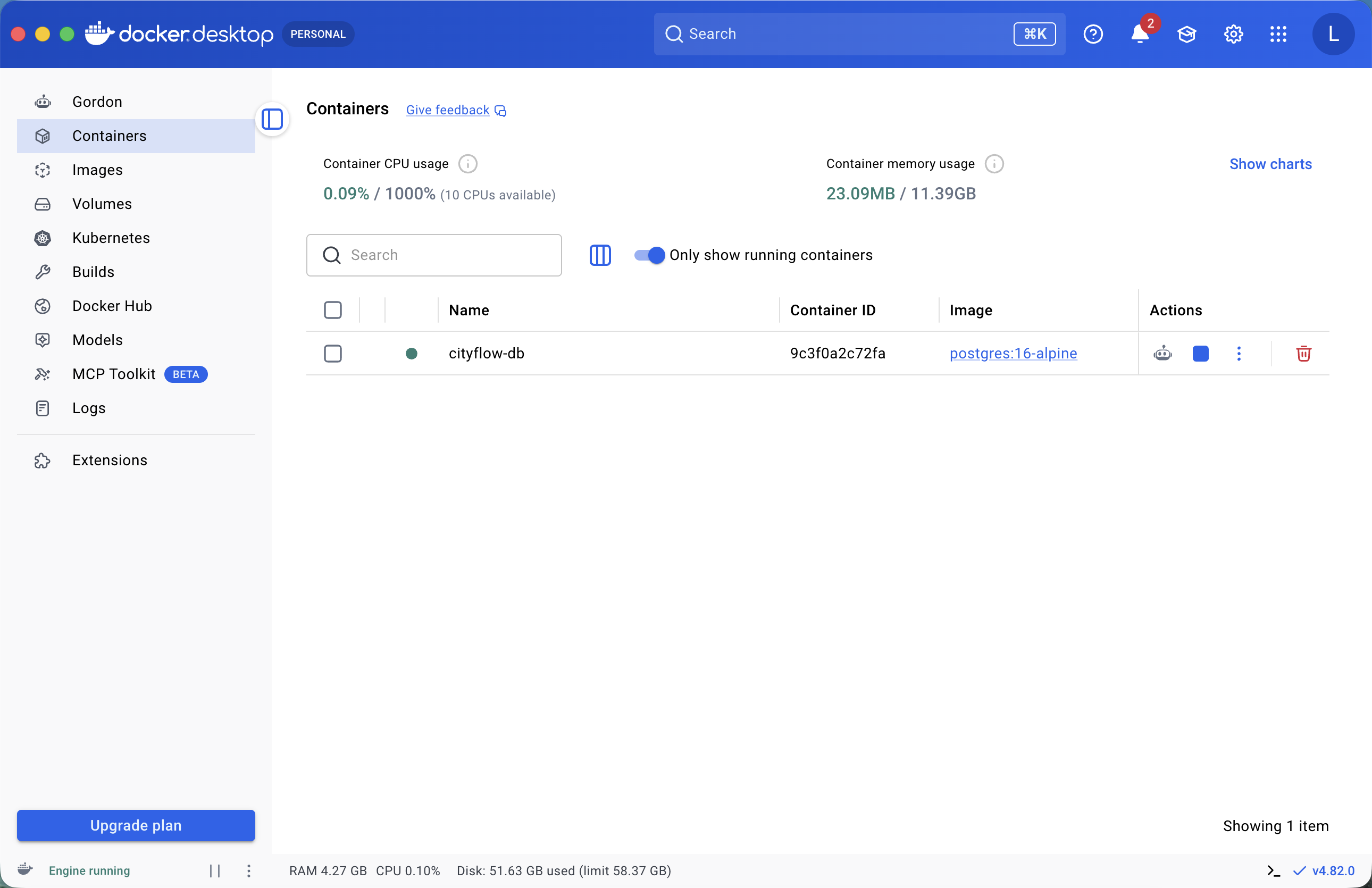
docker psCONTAINER ID IMAGE COMMAND CREATED STATUS PORTS NAMES
9c3f0a2c72fa postgres:16-alpine "docker-entrypoint.s…" 4 seconds ago Up 3 seconds 0.0.0.0:5433->5432/tcp, [::]:5433->5432/tcp cityflow-dbSTATUS says Up 3 seconds. That’s a real process running — but it is not proof that Postgres has finished starting up and is ready to accept connections. A database needs a moment to initialize its data directory the first time it runs. This gap between “the container process started” and “the service inside it is actually ready” is one of the most important things to internalize about containerized services, and it’s exactly what the next two commands let you check.
docker logs: read what actually happeneddocker logs streams a container’s stdout/stderr — for most server software, that’s the same log output you’d see if you’d started it directly on your own machine:
docker logs cityflow-db done
server started
CREATE DATABASE
/usr/local/bin/docker-entrypoint.sh: ignoring /docker-entrypoint-initdb.d/*
waiting for server to shut down....2026-07-20 22:47:36.320 UTC [41] LOG: received fast shutdown request
2026-07-20 22:47:36.324 UTC [41] LOG: aborting any active transactions
2026-07-20 22:47:36.327 UTC [41] LOG: background worker "logical replication launcher" (PID 47) exited with exit code 1
2026-07-20 22:47:36.327 UTC [42] LOG: shutting down
2026-07-20 22:47:36.328 UTC [42] LOG: checkpoint starting: shutdown immediate
2026-07-20 22:47:36.364 UTC [42] LOG: checkpoint complete: wrote 926 buffers (5.7%); 0 WAL file(s) added, 0 removed, 0 recycled; write=0.016 s, sync=0.019 s, total=0.038 s; sync files=301, longest=0.005 s, average=0.001 s; distance=4283 kB, estimate=4283 kB; lsn=0/1925D20, redo lsn=0/1925D20
2026-07-20 22:47:36.368 UTC [41] LOG: database system is shut down
done
server stopped
PostgreSQL init process complete; ready for start up.
2026-07-20 22:47:36.441 UTC [1] LOG: starting PostgreSQL 16.14 on aarch64-unknown-linux-musl, compiled by gcc (Alpine 15.2.0) 15.2.0, 64-bit
2026-07-20 22:47:36.442 UTC [1] LOG: listening on IPv4 address "0.0.0.0", port 5432
2026-07-20 22:47:36.442 UTC [1] LOG: listening on Unix socket "/var/run/postgresql/.s.PGSQL.5432"
2026-07-20 22:47:36.445 UTC [57] LOG: database system was shut down at 2026-07-20 22:47:36 UTC
2026-07-20 22:47:36.448 UTC [1] LOG: database system is ready to accept connectionsThat log is worth reading closely, because it shows Postgres’s actual first-run sequence, not a simplified version: it creates the cityflow database, then — this looks odd the first time you see it — briefly shuts itself back down (waiting for server to shut down), then starts up again and prints database system is ready to accept connections. That restart is normal and intentional: Postgres’s official image bootstraps its data directory in one short-lived internal process, then restarts cleanly as the long-running server. The very last line is the one that actually matters — until you see ready to accept connections, the “service” part of this service isn’t there yet, even if docker ps already says Up.
docker exec: run a command inside the containerdocker exec runs a new command inside an already-running container — useful for inspecting or querying a service without leaving your terminal. Postgres’s image ships its own psql client, so you can query the database from directly inside the container:
docker exec cityflow-db psql -U postgres -d cityflow -c "SELECT version();" version
------------------------------------------------------------------------------------------------
PostgreSQL 16.14 on aarch64-unknown-linux-musl, compiled by gcc (Alpine 15.2.0) 15.2.0, 64-bit
(1 row)That’s a real query, answered by a real Postgres server, running entirely inside the container — no network round-trip to your host was needed for this particular check, because docker exec runs the psql command as a new process inside the same container’s filesystem and network namespace.
docker exec vs docker logs
docker logs is passive — it shows you what the container’s main process has already printed, and you can’t send it any input. docker exec is active — it starts a brand-new process inside the container right now, which is how you get a shell, run a one-off query, or poke at a running service’s internals without stopping it.
Querying from inside the container proves Postgres is answerable to itself. A real application, though, runs outside the container and connects over the network, exactly the way the -p 5433:5432 mapping was set up to allow. Try it with the psql client on the host:
PGPASSWORD=cityflow psql -h localhost -p 5433 -U postgres -d cityflow \
  -c "SELECT current_database(), current_user, inet_server_port();"
current_database | current_user | inet_server_port
------------------+--------------+------------------
cityflow | postgres | 5432Notice inet_server_port() reports 5432 — the port inside the container — even though you connected to 5433 on your host. That’s the port mapping working exactly as designed: your client talks to host port 5433, Docker forwards the traffic to container port 5432, and Postgres itself has no idea any translation happened.
Now prove the same thing from Python, using a small script that does a bit more than one query — it creates a table, inserts a few rows, and reads them back, which is closer to what a real CityFlow job would actually do:
# gate: setup: docker rm -f cityflow-db >/dev/null 2>&1; docker run -d --name cityflow-db -e POSTGRES_PASSWORD=cityflow -e POSTGRES_DB=cityflow -p 5433:5432 postgres:16-alpine >/dev/null && sleep 3
# gate: teardown: docker rm -f cityflow-db >/dev/null 2>&1
import psycopg2

conn = psycopg2.connect(
    host="localhost",
    port=5433,
    dbname="cityflow",
    user="postgres",
    password="cityflow",
)
cur = conn.cursor()

cur.execute("""
    CREATE TABLE IF NOT EXISTS trips (
        pickup_zone INTEGER,
        dropoff_zone INTEGER,
        fare_amount NUMERIC
    );
""")

cur.execute("DELETE FROM trips;")
cur.executemany(
    "INSERT INTO trips (pickup_zone, dropoff_zone, fare_amount) VALUES (%s, %s, %s);",
    [
        (236, 142, 15.60),
        (138, 217, 33.10),
        (161, 236, 9.30),
    ],
)
conn.commit()

cur.execute("SELECT COUNT(*), ROUND(AVG(fare_amount), 2) FROM trips;")
count, avg_fare = cur.fetchone()
print(f"rows in trips table: {count}")
print(f"average fare_amount: {avg_fare}")

cur.close()
conn.close()
print("connection closed cleanly")
rows in trips table: 3
average fare_amount: 19.33connection closed cleanlyThree real rows, a real AVG() computed by the Postgres server running inside the container, and a real average of 19.33 — (15.60 + 33.10 + 9.30) / 3. Nothing here is mocked: the table was created, the rows were inserted, the connection went out over TCP to port 5433, through Docker’s port mapping, into the container, and Postgres answered.
Pull the layers of this lesson apart and you get four distinct, increasingly strong claims:
docker ps shows Up — a process exists inside the container. This is the weakest claim; Postgres could still be initializing.docker logs shows ready to accept connections — the service inside the container has finished starting up.docker exec ... psql — the service answers a query, but only from inside its own container.psycopg2, connects over the mapped port — the service is reachable and correct from outside the container, the way any real application will actually use it.Each step is strictly stronger evidence than the last. Skipping straight to step 4 without understanding steps 1–3 is exactly how “why can’t my app reach the database?” debugging sessions go long — you now have a layered way to isolate where the failure actually is.
Run your own cityflow-db container (or reuse the one from this lesson) and read its full docker logs output. Find the exact line that proves the server is ready to accept connections, and the line that shows which port it’s listening on internally.
Hint
Look for database system is ready to accept connections and listening on IPv4 address "0.0.0.0", port 5432. Both should appear near the very end of a clean startup.
Use docker exec to run a query that lists every table in the cityflow database (\dt in psql, or SELECT table_name FROM information_schema.tables WHERE table_schema = 'public';). Confirm the trips table appears if you’ve already run this lesson’s Python script.
Hint
docker exec cityflow-db psql -U postgres -d cityflow -c "\dt" — remember \dt is a psql-specific meta-command, not standard SQL, so it only works when you’re actually inside psql.
Try connecting from the host with psql -h localhost -p 5432 (the container’s internal port, not the mapped 5433) instead of the correct port. Read the resulting error message carefully and explain, in your own words, why it fails even though Postgres is genuinely running.
Hint
Unless something else on your machine happens to be listening on 5432, you should get a connection-refused error — proof that the mapping, not just the running service, is what makes a container reachable from the host at all.
You ran a real, stateful Postgres service as a container and proved, layer by layer, that “the container is running” is not one fact but several. docker ps showed a live process; docker logs showed the real startup sequence down to the exact line where Postgres declared itself ready; docker exec ran a query from inside the container; and a host psql connection plus a Python script using psycopg2 proved the service was reachable and correct from the outside, through the -p 5433:5432 port mapping, with real inserted rows and a real computed average of 19.33.
-e KEY=VALUE — passes an environment variable into a container; the official Postgres image uses this to initialize itself.-p HOST:CONTAINER — maps a host port to a container port; the service inside never knows the mapping happened.docker logs — passive, shows what the container’s process has already printed; the fastest way to check whether a service actually finished starting.docker exec — active, runs a new command inside an already-running container.Up in docker ps only proves a process exists; logs, an internal query, and an external connection are progressively stronger proof.Nearly every real data pipeline depends on at least one long-running service like this — a database, a queue, a cache. Knowing how to verify a containerized service in layers (process running, service ready, answerable internally, reachable externally) is exactly the debugging skill that separates “it’s probably fine” from actually knowing why a connection failed. You’ll lean on docker logs and docker exec constantly for the rest of this course, and the same layered thinking carries directly into Kubernetes, where kubectl logs and kubectl exec play the identical role at a larger scale.
You now have all four concepts this module set out to teach: a working Docker install, a real reason containers exist, the image-versus-container model, and a genuine long-running service you can verify from the outside. The Guided Project puts all four to work at once — three containers, one Docker network, and a small slice of CityFlow’s real trip data moving between them, with nothing simulated.
Keep DATATWEETS free. Help fund practical data, AI, and engineering lessons for learners worldwide.