Title here
Summary here
Module 4 ended with a genuinely solid local data stack: one docker-compose.yml, a real Postgres healthcheck, and CityFlow’s ETL job starting only once its dependency proved it was ready. That’s everything Compose can give you — and it’s everything you need, as long as it all fits on one machine. This lesson is about the moment that stops being true, and about the tool CityFlow reaches for next: Kubernetes, running here on a local cluster called Kind.
By the end of this lesson, you will be able to:
docker ps and crictl ps side by side and explain why they report different numbers of “running things” for the exact same cluster.datatweets-docker-k8s, is healthy and ready for the rest of this module.Nothing here is simulated — every command below runs against a cluster that has been up on this machine for hours already. Let’s begin.
Every service in Module 4 ran with a restart: policy. If db crashed, Docker would restart that exact container, on that exact machine, because that machine is the only one Compose knows about. That single sentence is the entire limitation this lesson is about. A restart: policy answers “what if a container dies?” — it cannot answer “what if the machine it was running on is gone?”, because there is no second machine in the picture at all.
Kubernetes exists for the moment a data platform needs more than one machine: more CPU and memory than any single box has, tolerance for a whole machine failing outright, and a way to add capacity by adding machines rather than by making one machine bigger. Doing that requires something Compose was never designed to have — a control plane: a real program, running continuously, whose only job is to look at “what should be running” and “what is actually running right now” and reconcile the two, no matter which machine each container ends up on.
That control plane is Kubernetes. Three ideas carry the rest of this module:
restart: policy has no equivalent move — its machine either exists or the stack is down.up runs once, when you type it; Kubernetes’ reconciliation never stops running.Lesson 3 of this module puts the third idea in front of you directly — you’ll kill a running pod on purpose and watch a real controller put it back, with no docker-compose up typed anywhere.
datatweets-docker-k8sThis course uses Kind — “Kubernetes in Docker” — to run a real, local Kubernetes cluster without any cloud account. A cluster named datatweets-docker-k8s is already running on this machine, and every example in this module uses it directly:
kubectl get nodes -o wideNAME STATUS ROLES AGE VERSION INTERNAL-IP EXTERNAL-IP OS-IMAGE KERNEL-VERSION CONTAINER-RUNTIME
datatweets-docker-k8s-control-plane Ready control-plane 18h v1.32.2 172.18.0.2 <none> Debian GNU/Linux 12 (bookworm) 6.12.76-linuxkit containerd://2.0.2One node, Ready, running Kubernetes v1.32.2. kubectl is the command-line tool you’ll use for the rest of this course to talk to that control plane — the same relationship docker has to the Docker Engine, but for a cluster instead of a single host.
kubectl cluster-info --context kind-datatweets-docker-k8sKubernetes control plane is running at https://127.0.0.1:52757
CoreDNS is running at https://127.0.0.1:52757/api/v1/namespaces/kube-system/services/kube-dns:dns/proxyThat URL, https://127.0.0.1:52757, is the real API server this whole cluster is built around — every kubectl command in this course is an HTTPS request to it.
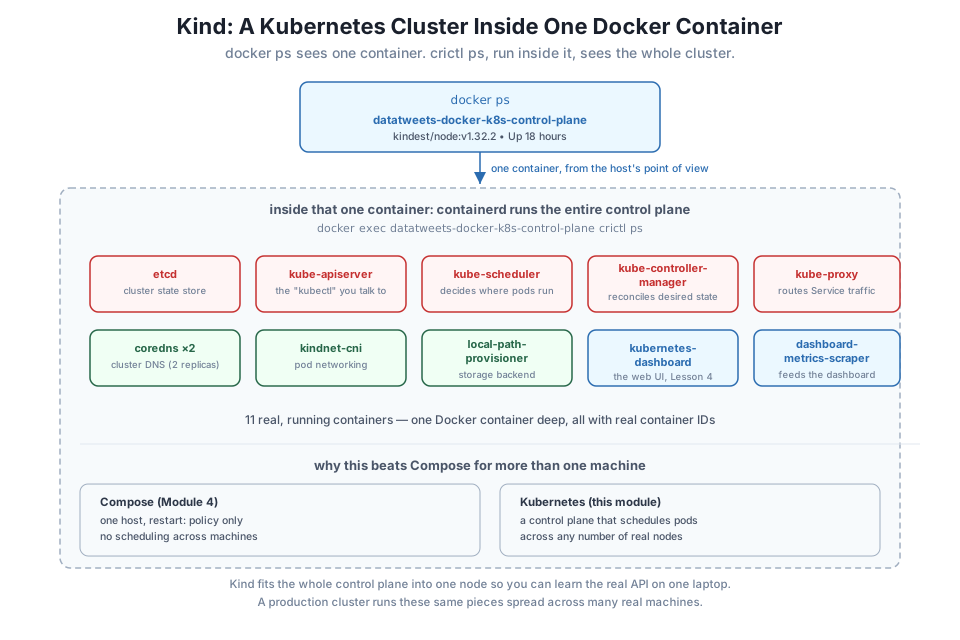
Here’s the part that makes Kind worth understanding, not just using. From the host’s point of view — plain docker ps — this entire Kubernetes cluster is one container:
docker ps --filter "name=datatweets-docker-k8s"CONTAINER ID IMAGE COMMAND CREATED STATUS PORTS NAMES
c12f36809e54 kindest/node:v1.32.2 "/usr/local/bin/entr…" 18 hours ago Up 18 hours 127.0.0.1:52757->6443/tcp datatweets-docker-k8s-control-planeOne row. One image, kindest/node:v1.32.2 — a Docker image built to run an entire Kubernetes node inside it. Now look inside that container, using crictl (the CLI for containerd, the container runtime Kubernetes itself uses — a different tool from Docker’s own runtime, running nested one level down):
docker exec datatweets-docker-k8s-control-plane crictl psCONTAINER IMAGE CREATED STATE NAME ATTEMPT POD ID POD NAMESPACE
f053f4e307f56 653e2348b2d4a 18 hours ago Running local-path-provisioner 2 24f4774ee0e05 local-path-provisioner-7dc846544d-p97r7 local-path-storage
f84cf127aeb7f 20b332c9a70d8 18 hours ago Running kubernetes-dashboard 1 640bebdf875a8 kubernetes-dashboard-79cbcf9fb6-bbs5n kubernetes-dashboard
354788f20b50a ee75e27fff91c 18 hours ago Running kindnet-cni 1 2ce4e72cfb029 kindnet-x6x59 kube-system
fc44517bb12bf a422e0e982356 18 hours ago Running dashboard-metrics-scraper 1 9d8e4be308de6 dashboard-metrics-scraper-5bd45c9dd6-7vzqf kubernetes-dashboard
9db4524d2dd55 2f6c962e7b831 18 hours ago Running coredns 1 d96cc53cca2be coredns-668d6bf9bc-qxslr kube-system
1e697ce545db8 e5aac5df76d9b 18 hours ago Running kube-proxy 1 24e852c906878 kube-proxy-p7xz8 kube-system
1f442241573fb 2f6c962e7b831 18 hours ago Running coredns 1 06b0415ca4a9c coredns-668d6bf9bc-5mttd kube-system
94c0ae92dad60 82dfa03f692fb 18 hours ago Running kube-scheduler 1 12d7663261598 kube-scheduler-datatweets-docker-k8s-control-plane kube-system
07465f1b6ea0d 3c9285acfd2ff 18 hours ago Running kube-controller-manager 1 25bbb4c6464c8 kube-controller-manager-datatweets-docker-k8s-control-plane kube-system
045b5c517aa50 6417e1437b6d9 18 hours ago Running kube-apiserver 1 f7c9118afb794 kube-apiserver-datatweets-docker-k8s-control-plane kube-system
f41a232299bad 7fc9d4aa817aa 18 hours ago Running etcd 1 3c995d9880a23 etcd-datatweets-docker-k8s-control-plane kube-systemEleven containers, running one layer inside the single container docker ps showed you — and one of them, kube-apiserver, is literally the same API server kubectl cluster-info just pointed at. The kube-scheduler that decides where pods run, the etcd that stores the whole cluster’s state, the kube-controller-manager that does the reconciling Lesson 3 will show you live — every piece of “a Kubernetes cluster” is, on this machine, a real container, visible with a tool you already have installed.
kubectl get pods -A shows the exact same set from the API server’s point of view, by namespace:
kubectl get pods -ANAMESPACE NAME READY STATUS RESTARTS AGE
kube-system coredns-668d6bf9bc-5mttd 1/1 Running 1 (17h ago) 18h
kube-system coredns-668d6bf9bc-qxslr 1/1 Running 1 (17h ago) 18h
kube-system etcd-datatweets-docker-k8s-control-plane 1/1 Running 1 (17h ago) 18h
kube-system kindnet-x6x59 1/1 Running 1 (17h ago) 18h
kube-system kube-apiserver-datatweets-docker-k8s-control-plane 1/1 Running 1 (17h ago) 18h
kube-system kube-controller-manager-datatweets-docker-k8s-control-plane 1/1 Running 1 (17h ago) 18h
kube-system kube-proxy-p7xz8 1/1 Running 1 (17h ago) 18h
kube-system kube-scheduler-datatweets-docker-k8s-control-plane 1/1 Running 1 (17h ago) 18h
kubernetes-dashboard dashboard-metrics-scraper-5bd45c9dd6-7vzqf 1/1 Running 1 (17h ago) 18h
kubernetes-dashboard kubernetes-dashboard-79cbcf9fb6-bbs5n 1/1 Running 1 (17h ago) 18h
local-path-storage local-path-provisioner-7dc846544d-p97r7 1/1 Running 2 (17h ago) 18hEleven pods, matching the eleven containers crictl reported exactly. kubernetes-dashboard and dashboard-metrics-scraper are the real Kubernetes Dashboard this module reaches for starting in Lesson 4 — already running, in its own namespace, the same way any other pod runs.
kubectl get nodes reported Ready earlier. That word means something specific and checkable, not just “the container is running.” kubectl describe node shows the real conditions the kubelet (the agent running on every node, inside this same container) is reporting:
kubectl describe node datatweets-docker-k8s-control-plane | grep -A 12 "^Conditions"Conditions:
Type Status LastHeartbeatTime LastTransitionTime Reason Message
---- ------ ----------------- ------------------ ------ -------
MemoryPressure False Tue, 21 Jul 2026 20:21:30 +0330 Tue, 21 Jul 2026 01:44:45 +0330 KubeletHasSufficientMemory kubelet has sufficient memory available
DiskPressure False Tue, 21 Jul 2026 20:21:30 +0330 Tue, 21 Jul 2026 01:44:45 +0330 KubeletHasNoDiskPressure kubelet has no disk pressure
PIDPressure False Tue, 21 Jul 2026 20:21:30 +0330 Tue, 21 Jul 2026 01:44:45 +0330 KubeletHasSufficientPID kubelet has sufficient PID available
Ready True Tue, 21 Jul 2026 20:21:30 +0330 Tue, 21 Jul 2026 01:45:09 +0330 KubeletReady kubelet is posting ready status
Addresses:
InternalIP: 172.18.0.2
Hostname: datatweets-docker-k8s-control-plane
Capacity:
cpu: 10
ephemeral-storage: 61202244KiFour separate, continuously-updated conditions, each with its own heartbeat timestamp — memory, disk, process count, and overall readiness. Ready isn’t a single boolean anyone hand-waves; it’s the kubelet reporting real telemetry about the node it’s running on, and the scheduler only places new pods on nodes where all of this checks out. The lines that follow, Addresses and Capacity, are the same -A 12 output spilling past the conditions table — a reminder that describe output is one continuous real report, not something trimmed to fit a lesson. This is the same “prove it, don’t assume it” instinct Module 4 built around Postgres healthchecks, now applied to an entire machine instead of one service.
Run docker ps --filter "name=datatweets-docker-k8s" and docker exec datatweets-docker-k8s-control-plane crictl ps yourself, and count the rows in each. Confirm you get one and eleven, matching this lesson, and match each crictl ps row to its kubectl get pods -A counterpart by name.
Hint
The POD column in crictl ps output is the pod name Kubernetes assigned — it should line up exactly with the NAME column in kubectl get pods -A, one to one.
Run kubectl cluster-info and note the port after 127.0.0.1:. Then run docker ps --filter "name=datatweets-docker-k8s" again and compare that port to the one shown in the PORTS column.
Hint
They’re the same port — kubectl is really just making HTTPS requests through a port Docker forwarded from the container to your machine, no differently than any other -p port mapping you’ve used since Module 1.
Run the kubectl describe node command from this lesson yourself and check all four conditions. Then explain, in your own words, what would have to be different for Ready to report False.
Hint
DiskPressure becoming True is a realistic one to reason about — it happens when a node’s storage gets too full, which the scheduler treats as a real, checkable reason to stop placing new pods there. This is precisely the kind of resource pressure this course has been keeping an eye on since Lesson 1 of Module 1.
Docker Compose orchestrates containers on one machine, with restart: policies as its only answer to failure. Kubernetes exists for what Compose structurally cannot do: schedule containers across any number of machines, tolerate a whole node disappearing, and continuously reconcile a declared desired state rather than running a command once. This course’s Kind cluster, datatweets-docker-k8s, makes that control plane real and inspectable on one laptop — docker ps shows one container, and crictl ps, run inside that exact container, shows the eleven real containers making up the whole cluster: etcd, the API server, the scheduler, the controller manager, coredns, kube-proxy, kindnet-cni, the storage provisioner, and the Kubernetes Dashboard itself. kubectl describe node confirmed Ready is real, continuously-reported telemetry, not a label anyone assumed.
Ready condition is real kubelet-reported telemetry.crictl — the CLI for containerd, the container runtime Kubernetes itself uses; running it inside the Kind node reveals the cluster’s own containers.docker compose up.Every concept the rest of this module builds — self-healing Deployments in Lesson 3, stable network identity via Services in Lesson 4 — exists because a real control plane is watching and reconciling, all the time, across machines Compose never had to think about. Seeing that control plane as ordinary containers, inspectable with tools you already know, is what turns “Kubernetes” from an intimidating black box into a system you can reason about the same way you’ve reasoned about every container since Module 1.
You’ve confirmed the cluster is healthy and seen exactly what it’s made of. Lesson 2 puts your hands on it directly — running your first real pod with kubectl run, and watching its full lifecycle from Pending to Running to gone.
Keep DATATWEETS free. Help fund practical data, AI, and engineering lessons for learners worldwide.