Title here
Summary here
Code is only half of a software project; the other half is knowing what to work on next. Which bugs are open? Who’s fixing what? What’s planned for the next release? GitHub answers all of that with Issues — a lightweight tracker built into every repository, where each bug, feature request, or task gets its own number, description, and discussion thread. Issues are where a project’s work actually lives, and using them well is what turns a pile of commits into an organized, collaborative effort. This lesson shows you how.
By the end of this lesson, you will be able to:
This connects the pull requests of Module 5 to the work that drives them. Let’s begin.
An issue is a single, numbered item of work or discussion in a repository — “Login button is misaligned on mobile” (#42), “Add CSV export” (#43), “Document the install steps” (#44). Each one has a title, a description (which supports Markdown, checklists, and code blocks), and a comment thread where people discuss it. Because every issue has a stable number, you can refer to it from anywhere — commits, pull requests, even other issues — just by typing #42.
Issues aren’t only for bugs. Teams use them for feature requests, questions, planning notes, and tasks of every kind. Think of the Issues tab as the project’s shared to-do list and conversation log rolled into one.
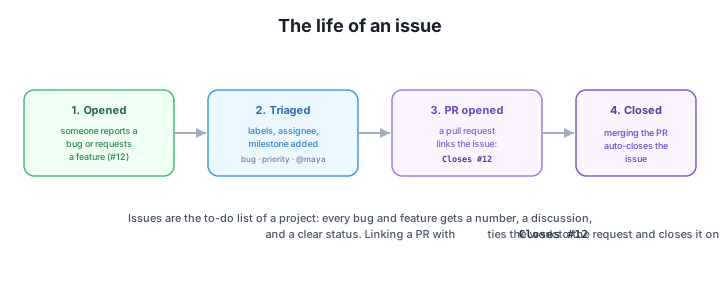
A handful of open issues is easy to manage; a hundred is not — unless you organize them. GitHub gives you three main tools:
bug, enhancement, documentation, good first issue, priority: high, and any custom labels you create. You can filter the issue list by label to see, say, only open bugs.Used together, these turn a flat list into a queryable system: “show me all open, high-priority bug issues assigned to me in the v2.0 milestone” is a single filtered view.
Here’s where issues and the pull requests from Module 5 connect. When a pull request fixes an issue, you link them with a closing keyword in the PR description (or a commit message): Closes #12, Fixes #12, or Resolves #12. GitHub recognizes these and does two helpful things:
So the natural rhythm is: open an issue describing the work, open a pull request that says Closes #12, and when that PR merges, the issue closes itself. The work and the record of the work stay in sync automatically.
Use the issue number everywhere
Typing #12 anywhere in GitHub — a comment, a commit message, a PR — turns into a clickable link to that issue. Mentioning an issue this way (without a closing keyword) just creates a reference; using a keyword like Closes #12 in a PR is what triggers the auto-close on merge. Plain references are great for “related to #12” context without closing anything.
Once you have many issues, a flat list isn’t always the best way to see the work. GitHub Projects turns your issues (and pull requests) into a customizable view — most familiarly a board with columns like “To do”, “In progress”, and “Done”, where you drag cards between columns as work moves along. Projects can also show issues as a table or a timeline, and can sort and group by any field, including custom ones like priority or estimate.
The key idea: Projects don’t replace issues, they organize them. Each card is still a real issue with all its labels, assignees, and discussion — Projects just give you a higher-level, visual way to plan and track them. For a small repo, the Issues tab alone is plenty; as a project grows, a Project board becomes the dashboard the whole team works from.
You’ve fixed the bug described in issue #30. What exactly do you write, and where, so that the issue closes by itself when your work is merged?
Hint
Put a closing keyword in your pull request description (or a commit message), like Closes #30, Fixes #30, or Resolves #30. When that PR is merged into the default branch, GitHub automatically closes issue #30 and links the two together.
Your team has 80 open issues. You want to see only the high-priority bugs assigned to you for the current release. Which three organizing tools make that possible?
Hint
Labels (e.g. bug and priority: high), assignees (filter to yourself), and milestones (the current release). Filtering the issue list by all three at once gives you exactly that view.
You want to mention issue #15 in a comment for context, but you do not want to close it. How is that different from writing Closes #15 in a merged PR?
Hint
Just typing #15 creates a plain clickable reference/link without changing the issue’s status. A closing keyword like Closes #15 in a pull request is what tells GitHub to auto-close issue #15 when the PR merges. Plain references never close anything.
Issues are GitHub’s built-in tracker — each is a numbered item (bug, feature, task, or question) with a description, discussion, and a stable number you can reference anywhere with #N. You organize them with labels (categories), assignees (ownership), and milestones (goals/releases), turning a flat list into a filterable system. Linking a pull request to an issue with a closing keyword (Closes #12) ties the work to the request and auto-closes the issue when the PR merges. As a project grows, Projects turn those same issues into a visual board, table, or timeline for higher-level planning — without replacing the issues themselves.
Closes #N in a PR auto-closes the linked issue on merge.Issues are where a project’s intent lives — the bridge between “what needs doing” and the commits that do it. Tracking work in issues (instead of scattered chat messages and mental notes) gives a team a shared, searchable memory: why a change was made, who owns it, and what’s left before the next release. And because issues link directly to pull requests, the planning you do here flows straight into the automation you’ll build next — starting with running your tests automatically on every push.
Run your test suite automatically on every push with a GitHub Actions workflow.
Return to the Automating with GitHub module overview
You can now track a project’s work with issues — organized, assigned, and linked to the pull requests that resolve them. Next you’ll automate the most important check of all: running your tests on every push, so problems are caught the moment they’re introduced.