Title here
Summary here
So far you’ve used GitHub Actions to check your code — running tests on every push. But the same engine that runs your tests can also publish your work. In this lesson we look at two ways GitHub publishes for you, both powered by Actions: GitHub Pages, which serves a static website straight out of your repository, and release automation, which turns a pushed version tag into a polished GitHub Release without you clicking a single button. The pattern underneath both is the one that makes Actions so powerful: an event happens, a workflow runs, and something useful is produced — automatically.
By the end of this lesson, you will be able to:
This builds directly on the tags and releases you created by hand in Module 6. Let’s automate them.
Continuous integration answers the question “is my code healthy?” Publishing answers a different one: “how do I get my work in front of people?” GitHub handles both with the same Actions engine, just triggered by different events. Push to your main branch and a Pages workflow can rebuild and redeploy your website. Push a version tag and a release workflow can package a new GitHub Release. In each case you do the normal git thing you’d do anyway — a push — and the automation takes it from there.
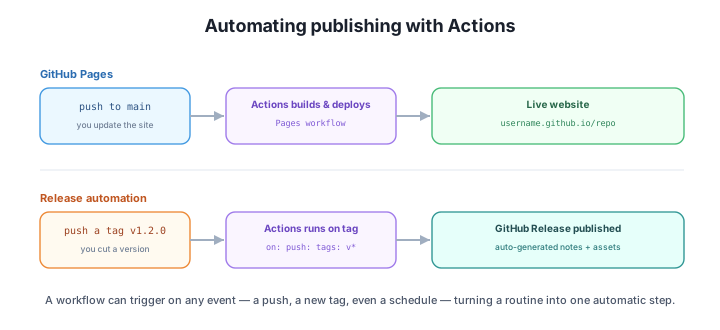
The shared idea is worth naming up front: a routine you’d otherwise do by hand becomes a single automatic step tied to an event you already create. You don’t learn a new ritual; you attach automation to the one you have.
GitHub Pages is free static website hosting served directly from a repository. “Static” means the site is plain files — HTML, CSS, JavaScript, images — with no server-side application running behind it. GitHub serves those files at a public URL so anyone can visit them.
By default, a project site lives at https://username.github.io/repo, where username is your GitHub account (or organization) and repo is the repository name. So a repository called skylog owned by maya would publish to https://maya.github.io/skylog. (A special repository named username.github.io gets the shorter, top-level https://username.github.io address.)
Because it only serves static files, Pages is perfect for anything that doesn’t need a backend:
You enable Pages from the repository’s Settings -> Pages, where you pick a source — the answer to “what should GitHub publish, and how?” You have two broad choices:
main) and a folder — either the repository root (/) or a /docs directory. GitHub takes the files there and serves them. This is the simplest option and great when your site is already plain HTML, or when a tool writes finished files into /docs.The key payoff is that, once Pages is configured, publishing is just pushing. Push a commit to main, GitHub notices the change, builds the site (running your Actions workflow if you chose that source), deploys it, and the live URL updates a short while later. There’s no separate “upload to a server” step and no FTP — your normal git workflow is your deployment workflow. Make a change, commit, push, and the website at username.github.io/repo reflects it. That tight loop is why so many docs sites, portfolios, and course platforms run on Pages.
In Module 6 you created a release by hand: you tagged a commit (say v1.2.0), pushed the tag, then went to GitHub and drafted a Release with notes. That works, but it’s a manual ritual you have to remember every time. Actions can do the whole thing for you, triggered by the one step you can’t skip anyway — pushing the tag.
Here is a real, validated release workflow. Drop it in your repository at the path shown in its first line, and from then on, pushing a version tag publishes a Release.
# .github/workflows/release.yml
name: Release

on:
  push:
    tags:
      - "v*"

permissions:
  contents: write

jobs:
  release:
    runs-on: ubuntu-latest
    steps:
      - name: Check out the code
        uses: actions/checkout@v4

      - name: Create the GitHub Release
        run: gh release create "$GITHUB_REF_NAME" --generate-notes
        env:
          GH_TOKEN: ${{ github.token }}
Let’s read it piece by piece:
name: Release is just a friendly label for the workflow, shown in the Actions tab.on: push: tags: "v*" is the trigger, and it’s the heart of this workflow. Unlike a CI workflow that runs on every push to a branch, this one runs only when a tag matching the pattern v* is pushed — that is, any tag that starts with v, like v1.0.0, v1.2.0, or v2.0.0-beta. Pushing ordinary commits to a branch does nothing here; pushing a version tag is what fires it.permissions: contents: write grants this workflow permission to write to the repository’s contents — which is what creating a release requires. Workflows get a minimal, scoped token by default, so you explicitly grant the access a job needs.runs-on: ubuntu-latest asks GitHub for a fresh Ubuntu virtual machine to run the job, just like in your CI workflow.actions/checkout@v4 checks out your repository’s code onto that machine so the tools have something to work with.gh release create "$GITHUB_REF_NAME" --generate-notes is the line that does the work. It calls the GitHub CLI (gh) to create a Release. $GITHUB_REF_NAME is an environment variable GitHub sets to the name of the ref that triggered the run — here, the tag you pushed (e.g. v1.2.0), so the Release is created for exactly that version. --generate-notes tells GitHub to write the release notes automatically, assembling them from the merged pull requests and commits since the previous release — no hand-written changelog required.env: GH_TOKEN: ${{ github.token }} hands the gh CLI the built-in token GitHub provides to every workflow run, so the command is authenticated and allowed to act on your repository.Put together: the manual sequence from Module 6 — tag, push, then draft a release on the website — collapses into a single action. You push the tag, the workflow runs, and the Release appears with notes already written.
The trigger is the whole point
A workflow’s on: block can listen for almost any event: a push to a branch, a pull request being opened, a new tag (as here), or even a schedule using cron syntax to run at fixed times. It’s the same Actions engine every time — only the triggering event changes. That’s what makes Actions general-purpose automation rather than just a test runner: pick an event, and you can attach any sequence of steps to it.
You enable GitHub Pages on a repository named skylog owned by the account maya, deploying from the main branch. What public URL will your site live at?
Hint
A project site is served at https://username.github.io/repo, so this one lives at https://maya.github.io/skylog. (Only a repository specifically named maya.github.io would get the shorter top-level https://maya.github.io address.)
Looking at the release.yml workflow, which line ensures it runs only when you push a version tag — and not on ordinary pushes to a branch?
Hint
The on: block: push: tags: "v*". The tags key (rather than branches) means the trigger is a tag push, and the "v*" pattern restricts it to tags beginning with v, like v1.2.0. Pushing regular commits to a branch won’t start this workflow.
The command in the workflow ends with --generate-notes. If you removed that flag, what would you have to do differently?
Hint
--generate-notes tells GitHub to write the release notes for you, assembling them automatically from the merged pull requests and commits since the previous release. Without it, the Release would be created with empty (or only minimal) notes, and you’d have to write the changelog by hand.
GitHub publishes for you in two ways, both built on Actions. GitHub Pages is free static website hosting served from a repository at username.github.io/repo — ideal for docs, portfolios, demos, and course sites. You turn it on under Settings -> Pages and pick a source: deploy directly from a branch (like main or a /docs folder) for ready-made files, or use GitHub Actions when the site needs a build step. Either way, publishing becomes automatic — push to main and the live site redeploys. Release automation uses a workflow that triggers on a pushed version tag (on: push: tags: "v*") and runs gh release create "$GITHUB_REF_NAME" --generate-notes to publish a GitHub Release with notes written automatically from your merged PRs and commits. The manual tag-and-draft routine from Module 6 becomes a single step: push the tag, the Release appears.
username.github.io/repo./docs, or use a GitHub Actions workflow for a build step.main rebuilds and redeploys the site.on: push: tags: "v*" runs only when a version tag is pushed.gh release create ... --generate-notes — publishes a Release with auto-written notes.Manual publishing is the step teams forget, do inconsistently, or get wrong under deadline pressure. By tying publication to events you already create — a push to main, a pushed version tag — Actions removes the chance to forget and makes shipping repeatable. Your website stays in sync with your code, and every tagged version gets a proper, well-documented Release with no extra effort. Just as importantly, you’ve now seen the deeper pattern behind Actions: any event can trigger any workflow. That’s the foundation you’ll bring together in the next lesson, where you assemble these pieces into a real project.
Put it all together: add a CI workflow and issue templates to a real repository.
Return to the Automating with GitHub module overview
You can now let GitHub publish for you — a static site that redeploys on every push, and a Release that publishes itself from a version tag. Next you’ll bring the whole module together in a guided project, wiring continuous integration and issue templates into a repository so it’s ready for real collaboration.