Title here
Summary here
Up to now, SkyLog has had a single line of history: one commit after another on main. But real work isn’t that tidy. You want to build a feature without breaking the working version, try an idea you might throw away, or fix a bug while another change is half-done. Branches make all of that safe. A branch is a separate line of development you can switch to, commit on, and later merge back — and the surprising part is how lightweight it is. In Git, a branch is nothing more than a movable pointer to a commit. Understanding that one idea makes branching feel simple instead of scary.
We’ll keep using the SkyLog repository.
By the end of this lesson, you will be able to:
git branch and read the current-branch markergit switchLet’s begin.
Here’s the mental model that makes everything else click: a branch is a movable pointer to a commit. Your commits form a chain (you saw this in Module 2), and a branch is just a small label that points at one of them. The special pointer HEAD marks which branch you’re currently on. When you make a commit, the current branch’s pointer moves forward to the new commit — automatically.
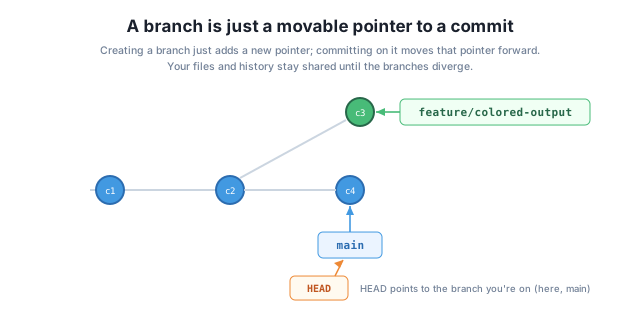
Because a branch is just a pointer, creating one is instant and cheap — Git isn’t copying your files. Two branches share all the history they have in common and only differ where they’ve diverged. That’s why developers branch freely, often many times a day.
The git branch command, with no arguments, lists your branches and marks the current one with an asterisk. A fresh repository has just one:
$ git branch
* main
The * next to main means that’s the branch you’re on right now — it’s where HEAD points. As you add branches, they’ll all appear here, with the asterisk always showing your current location.
To start a new line of work, create a branch and switch to it. The modern command is git switch -c (the -c means “create”):
$ git switch -c feature/colored-output
Switched to a new branch 'feature/colored-output'
Now git branch shows two branches, with the asterisk on your new one:
$ git branch
* feature/colored-output
  main
You’re now on feature/colored-output, branched off whatever commit main pointed to. Any commits you make happen here, leaving main untouched. To go back, switch by name (no -c, since the branch already exists): git switch main.
git switch vs git checkout
You may see older tutorials use git checkout -b name to create-and-switch and git checkout name to switch. Those still work, but checkout does many unrelated things (it also restores files), which made it confusing. Modern Git split that job into two clearer commands: git switch for branches and git restore for files. This course uses git switch.
Once you’re on a branch, committing moves that branch’s pointer forward while main stays put. If you then switch back to main and commit there too, the two branches diverge — each has commits the other doesn’t. You can see this clearly with the graph view from Module 2:
$ git log --oneline --graph --all
* f0a8c02 Document basic usage
| * 57738e5 Add colored output
|/
* 7203482 Add SkyLog script
* 09e95d6 Add project README
Read it bottom-up: both branches share the first two commits, then the history forks. Add colored output lives only on feature/colored-output; Document basic usage lives only on main. The |/ shows where they split from a common ancestor. This is exactly the situation merging is designed to resolve — which is the next lesson.
After running git switch -c fix/typo, what does git branch print, and what does the asterisk tell you?
Hint
It lists fix/typo and main (and any others), with the * on fix/typo — because -c created and switched to the new branch, so it’s now your current branch (where HEAD points).
What’s the difference between git switch -c feature/x and git switch feature/x?
Hint
git switch -c feature/x creates a new branch and switches to it. git switch feature/x switches to a branch that already exists. Use -c only the first time; after that, switch by name.
A teammate worries that making a branch will “copy the whole project.” Why is that not true?
Hint
A branch is just a movable pointer to a commit — Git doesn’t copy any files to create one. Branches share all their common history and differ only where they’ve diverged, so creating one is instant and uses almost no space.
A branch is a lightweight, movable pointer to a commit, and HEAD marks the branch you’re currently on. List branches with git branch (the * shows your current one), and create-and-switch with git switch -c <name> (switch back with git switch <name>, no -c). Committing moves the current branch forward while others stay put, so two branches diverge — each gaining commits the other lacks — which git log --graph --all shows as a fork. Because branches are just pointers, creating them is instant and free, which is why they’re central to everyday Git.
HEAD — points to the branch you’re currently on.git branch — lists branches; * marks the current one.git switch -c <name> / git switch <name> — create-and-switch / switch.Branching is what lets you (and a whole team) work on many things at once without stepping on each other or breaking the working version. It’s the foundation of every collaborative Git workflow you’ll meet later — feature branches, pull requests, releases. And because a branch is just a cheap pointer, you can branch as freely as you like, which encourages exactly the safe, experiment-friendly habits good developers rely on. Next you’ll bring diverged branches back together with merging.
Bring branches back together — understand fast-forward and three-way merges and when Git uses each.
Return to the Branching and Merging module overview
You now know what a branch really is — a cheap, movable pointer — and how to create, switch, and diverge branches. Next you’ll reunite them: merging brings the work from one branch into another, and you’ll learn the two ways Git does it.