Title here
Summary here
In the last lesson you merged a branch and it just worked. Most merges do — Git is good at weaving together changes that touch different parts of a file. But sometimes two branches edit the same lines in different ways, and Git can’t know which version you meant. When that happens, the merge pauses and asks you to decide. That pause is a merge conflict, and the first thing to understand is that it is completely normal and nothing is broken. Git hasn’t lost your work, it hasn’t made a bad guess, and you can always back out. In this lesson you’ll meet a conflict on purpose, read exactly what Git is telling you, resolve it calmly, and finish the merge — using our familiar SkyLog repository.
By the end of this lesson, you will be able to:
CONFLICT message and git status during a paused merge<<<<<<<, =======, and >>>>>>> conflict markersgit add, and git commitgit merge --abortLet’s begin.
A conflict happens for one specific reason: two branches changed the same line(s) of the same file in different ways, and Git can’t pick a winner on its own. In SkyLog, both main and feature/friendly-greeting edited the GREETING line. When we try to merge, Git starts the merge, hits that line, and stops:
$ git merge feature/friendly-greeting
Auto-merging skylog.py
CONFLICT (content): Merge conflict in skylog.py
Automatic merge failed; fix conflicts and then commit the result.
Read this top-down. Auto-merging skylog.py means Git tried to combine the file automatically. CONFLICT (content): Merge conflict in skylog.py says it couldn’t — there’s a clash in the content of that file. The last line is the most reassuring: the merge failed safely and is now waiting for you. No commit was made; you’re in the middle of a merge.
git status confirms exactly where you stand:
$ git status
On branch main
You have unmerged paths.
  (fix conflicts and run "git commit")
  (use "git merge --abort" to abort the merge)

Unmerged paths:
  (use "git add <file>..." to mark resolution)
	both modified:   skylog.py

no changes added to commit (use "git add" and/or "git commit -a")
Two phrases matter here. “You have unmerged paths” means there are files still waiting to be resolved. “both modified: skylog.py” under Unmerged paths tells you precisely which file conflicts and why — both branches modified it. Notice Git even hands you the two exits: fix and git commit, or git merge --abort. You’re never stuck.
When a file conflicts, Git rewrites the conflicting region with three special marker lines so you can see both versions side by side. Open skylog.py and you’ll find this:
import sys

<<<<<<< HEAD
GREETING = "SkyLog v1.0"
=======
GREETING = "Hi there, stargazer!"
>>>>>>> feature/friendly-greeting

def add(observation):
    with open("observations.md", "a") as f:
        f.write(f"- {observation}\n")
The markers split the clashing region into two halves:
<<<<<<< HEAD — the start of the conflict. Everything between here and the divider is your side: the version on the branch you’re currently on (HEAD, which is main).======= — the divider between the two sides.>>>>>>> feature/friendly-greeting — the end of the conflict. Everything between the divider and here is their side: the version from the branch you’re merging in.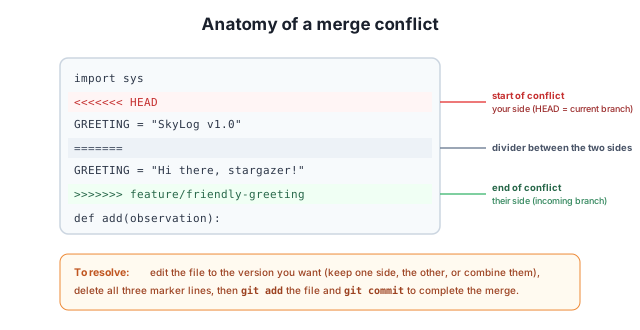
The lines outside the markers (import sys, the def add(...) block) merged cleanly — only the GREETING line clashed, so only that line is wrapped. Your job is just to decide what that one region should become.
Resolving a conflict means editing the file until it reads exactly the way you want, then removing all three marker lines so no <<<<<<<, =======, or >>>>>>> remain. You have three choices: keep your side, keep their side, or combine them. Here we’ll combine both into a single greeting. Edit the conflicting region down to one line:
GREETING = "Hi there, stargazer! (SkyLog v1.0)"With the markers gone and the file the way you want it, tell Git the conflict is settled by staging the file with git add. Staging a conflicted file is how you mark it resolved:
$ git add skylog.py
$ git status
On branch main
All conflicts fixed but you are still merging.
  (use "git commit" to conclude merge)

Changes to be committed:
	modified:   skylog.py
Notice how the message changed: “All conflicts fixed but you are still merging” — Git now sees the file as resolved but knows the merge isn’t finished yet. Conclude it with a commit. Because Git already prepared a merge message, --no-edit accepts it without opening an editor:
$ git commit --no-editThat final commit is the merge commit — it has two parents, one from each branch. The graph shows the fork closing back up:
$ git log --oneline --graph
*   9842f24 Merge branch 'feature/friendly-greeting'
|\
| * 06dff2e Friendlier greeting
* | 6431fc0 Add version to greeting
|/
* a72c783 Add SkyLog script
Read it bottom-up: both branches started from Add SkyLog script, then each added its own commit to the GREETING line (Add version to greeting on main, Friendlier greeting on the feature branch), and the top commit knits them back together. The conflict is gone and history records both lines of work plus your resolution.
Nothing is lost — you can always abort
A merge conflict never destroys your commits. Until you make that final merge commit, you can undo the whole thing with git merge --abort and return to exactly where you were before. And remember: conflicts only happen when two branches change the same lines — changes to different parts of a file merge automatically.
Sometimes you start a merge, see the conflict, and decide you’re not ready to deal with it — maybe you want to talk to the teammate who wrote the other side, or finish another task first. You don’t have to push through. As long as you haven’t made the merge commit yet, git merge --abort cancels the merge and rewinds your working files and branch pointer to exactly how they were the moment before you ran git merge:
$ git merge --abortThere’s no output, and that’s a good sign — it quietly puts everything back. Your branches, commits, and files are untouched; it’s as if the merge never started. You can attempt the merge again later when you’re ready to resolve the conflict for good. Think of git merge --abort as the seatbelt that makes experimenting with merges completely safe.
You merge a branch and get CONFLICT (content): Merge conflict in skylog.py, even though your teammate also edited skylog.py last week without any conflict. What’s different this time?
Hint
A conflict only happens when both branches changed the same line(s). Last week your teammate edited a different part of the file, so Git merged automatically. This time both sides changed the same line (the GREETING line), so Git can’t choose and pauses for you to decide.
In a conflicted file you see <<<<<<< HEAD above one version and >>>>>>> feature/friendly-greeting below another, split by =======. Which version is “yours” and which is “theirs”?
Hint
The block between <<<<<<< HEAD and ======= is your side — the branch you’re currently on (HEAD). The block between ======= and >>>>>>> feature/friendly-greeting is their side — the branch you’re merging in. To resolve, edit the region to the version you want, delete all three marker lines, then git add and git commit.
You’re halfway through resolving a conflict, the markers are still in the file, and you decide you’d rather not merge right now. You haven’t committed yet. How do you back out cleanly?
Hint
Run git merge --abort. Because you haven’t made the merge commit yet, it rewinds your files and branch to exactly the state before git merge, discarding the half-finished resolution. Nothing is lost — you can try the merge again later.
A merge conflict happens when two branches change the same lines of a file in different ways, so Git can’t merge automatically. When that occurs, Git prints CONFLICT (content): ..., pauses the merge, and leaves the conflicting file marked both modified under Unmerged paths in git status. Inside the file, Git wraps the clash in three markers: <<<<<<< HEAD (your side), ======= (divider), and >>>>>>> branch (their side). You resolve by editing the file to the version you want — keep one side, the other, or combine them — removing all markers, then git add to mark it resolved and git commit to finish the merge. If you’d rather not continue, git merge --abort rewinds everything to before the merge — as long as you haven’t committed yet.
both modified — git status marker for a conflicted file under Unmerged paths.<<<<<<< HEAD / ======= / >>>>>>> branch — your side, divider, their side.git add, then git commit.git merge --abort — cancel the merge and return to before it started (pre-commit only).Conflicts are the part of Git that intimidates beginners most, and they don’t need to. Once you can read the markers and git status, a conflict is just Git handing you a clear, recoverable decision rather than a crisis. This skill is unavoidable in real teamwork — the more people change a project, the more often two changes will overlap — and knowing you can always resolve calmly or abort safely is what lets you collaborate with confidence. Next you’ll learn another everyday move: setting work aside temporarily without committing it.
Set aside unfinished changes without committing them, switch branches, then bring your work back with the stash.
Return to the Branching and Merging module overview
You can now face a merge conflict without flinching: you know why it happens, how to read what Git is telling you, how to resolve it and finish the merge, and how to bail out with git merge --abort when you’re not ready. These are everyday skills on any team. Next you’ll pick up a handy companion to branching — stashing work in progress so you can switch contexts without losing a thing.