Title here
Summary here
The moment you fork a project, the clock starts ticking. The maintainers keep merging pull requests, fixing bugs, and adding features — but none of that lands in your fork automatically. A fork is a snapshot, not a live mirror. Leave it for a week and the original has moved on while your copy sits exactly where you left it. Start a new contribution on top of that stale code and you’ll be building on yesterday’s project, which is how merge conflicts and out-of-date pull requests are born.
The fix is a small, repeatable routine: tell Git where the original lives (a remote called upstream), pull its latest changes down into your local main, and push that refreshed main back up to your fork. This lesson teaches that routine, plus the rebase trick for keeping a feature branch sitting cleanly on top of the newest code.
By the end of this lesson, you will be able to:
origin (your fork) and upstream (the original) — and confirm them with git remote -vgit fetch upstreamupstream/main into your local main and push the result to your forkmain for a clean, linear historyWe’ll keep using the practice repo with the accounts you (your fork) and datatweets (the original). Let’s catch up.
origin and upstreamWhen you cloned your fork, Git gave you one remote automatically — origin, pointing at your copy under your account. To stay in sync, you add a second remote pointing at the original repo, by convention named upstream. (You’d add it once with git remote add upstream [email protected]:datatweets/git-collaboration-practice.git; here it’s already set up.)
Check what you have with git remote -v:
$ git remote -v
origin    [email protected]:you/git-collaboration-practice.git (fetch)
origin    [email protected]:you/git-collaboration-practice.git (push)
upstream  [email protected]:datatweets/git-collaboration-practice.git (fetch)
upstream  [email protected]:datatweets/git-collaboration-practice.git (push)
Read it as two destinations. origin is you/git-collaboration-practice — your fork, the one you push to. upstream is datatweets/git-collaboration-practice — the original project, the one you only read from. The (fetch) and (push) lines just say each remote is wired for both directions, but in practice you push to origin and fetch from upstream. Get those two names straight and the rest of the workflow falls into place.
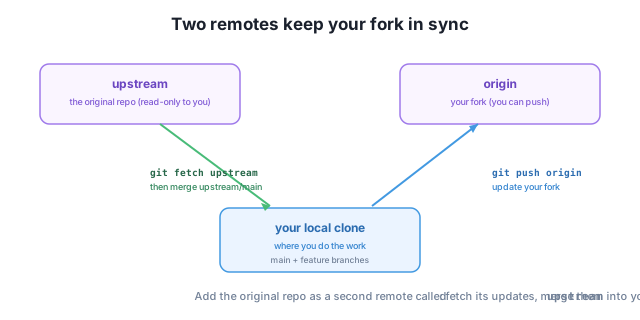
upstream, Merge into main, Push to Your ForkThe sync itself is three commands. First, fetch from upstream to download the original’s latest commits — this updates your remote-tracking branch upstream/main without touching any of your local branches:
$ git fetch upstream
From github.com:datatweets/git-collaboration-practice
 * [new branch]      main       -> upstream/main
That line tells you Git now knows about the original’s main as upstream/main. Nothing in your working files has changed yet — fetch only downloads; it never modifies your branches.
Next, switch to your local main and merge the upstream branch into it:
$ git switch main
$ git merge upstream/main
Updating 592fe4c..bc8e83c
Fast-forward
 task_manager.py | 3 +++
 1 file changed, 3 insertions(+)
The key word is Fast-forward. Because you hadn’t made any commits of your own on main, your branch was simply behind upstream/main — so Git just slides the main pointer forward to match, with no merge commit needed. Your main is now identical to the original’s. (If you had committed directly on main, you’d get a real merge commit instead — one good reason to keep your work on feature branches and leave main clean.)
Finally, push your freshly updated main up to your fork so origin reflects the new state:
$ git push origin mainThat’s the full loop: fetch upstream → merge upstream/main → push origin main. Run it whenever you’re about to start new work, and you’ll always be building on the latest code.
Syncing main is one thing. But what if you already have a feature branch in progress and, meanwhile, main has moved ahead? You want your branch to sit on top of the new main, as if you’d started your work today. That’s exactly what git rebase does: it lifts your branch’s commits off and replays them on top of the latest main, producing a clean, linear history.
Here’s a small repo before rebasing. Your feature/docs branch (“Add docs”) split off the same point where main later gained “Add version file” — so history has forked:
$ git log --oneline --graph --all
* 8d9ea55 Add version file
| * a8b6854 Add docs
|/
* c10e6f6 Add app
Switch to the feature branch and rebase it onto main:
$ git switch feature/docs
$ git rebase main
Successfully rebased and updated refs/heads/feature/docs.
Now look again — the fork is gone, replaced by a single straight line:
$ git log --oneline --graph --all
* 6cf730d Add docs
* 8d9ea55 Add version file
* c10e6f6 Add app
Notice that “Add docs” now sits on top of “Add version file” with no branching, and its hash changed from a8b6854 to 6cf730d. (Your own hashes will differ — that’s expected.) That hash change is the whole point and the whole catch: rebase doesn’t move your original commits, it rewrites them as new ones. The history is tidier, but the commits are no longer the same objects.
That’s the merge-vs-rebase trade-off in a nutshell. Merge preserves exactly what happened, including the fork, by adding a merge commit — safe and honest, but history can get tangled. Rebase gives you a clean linear story, but only because it rewrites commits. Use rebase to keep a private feature branch current; use merge when you need a faithful record or the branch is shared.
Only rebase a branch you haven’t shared
Rebasing rewrites your commits (new hashes), so it’s safe only on a branch that’s still yours alone — one you haven’t pushed for others to build on. The instant a branch is shared, rebasing it forces everyone else into a painful reconciliation. This is the same rule from Module 2: don’t rewrite history that other people have already pulled. For the shared main, always merge — never rebase it.
You run git remote -v and see origin pointing at you/project and upstream pointing at datatweets/project. Which remote do you fetch the original’s updates from, and which do you push your synced main to?
Hint
Fetch updates from upstream (the original, datatweets/project) and push to origin (your fork, you/project). You only read from upstream; you write to your own fork.
After git merge upstream/main, Git reported Fast-forward instead of creating a merge commit. Explain why that happened, and what would have produced a merge commit instead.
Hint
Your local main had no commits of its own — it was simply behind upstream/main — so Git just slid the main pointer forward, no merge commit required. If you’d committed directly on main, the two branches would have diverged and Git would have created a real merge commit.
You have a feature branch you started yesterday that nobody else has pulled, and main has since moved ahead. You also need to update the shared main itself with the latest from upstream. Which gets a rebase and which gets a merge, and why?
Hint
Rebase the private feature branch onto the latest main — it’s yours alone, so rewriting its commits is safe and gives a clean linear history. Merge upstream/main into the shared main, never rebase it: rebasing shared history would force everyone else to reconcile rewritten commits.
A fork doesn’t update itself, so you keep it current with a short routine built around two remotes: origin (your fork, where you push) and upstream (the original, where you fetch). Confirm both with git remote -v. To sync, git fetch upstream downloads the original’s latest into upstream/main, then git switch main and git merge upstream/main brings those changes into your local main — a clean fast-forward when you haven’t committed on main yourself — and git push origin main updates your fork. For an in-progress feature branch, git rebase main replays your commits on top of the latest main for a tidy linear history. The catch: rebase rewrites commits (their hashes change), so rebase only branches you haven’t shared, and always merge — never rebase — the shared main.
upstream remote — the original repo you forked from; add it once, fetch updates from it.git fetch upstream downloads; git merge upstream/main integrates it into your main.main pointer when you haven’t diverged; no merge commit.main for a linear history, rewriting them.Out-of-date forks are the silent cause of most contribution headaches: pull requests that won’t merge cleanly, conflicts that pile up, and work built on code that has already changed. Mastering the upstream sync routine means your contributions always start from the project’s latest state, so your pull requests stay easy to review and easy to merge. And knowing when to merge versus rebase — keeping your own branches tidy without ever rewriting history others depend on — is exactly the judgment that separates a confident collaborator from a cautious one.
Put it all together: fork, branch, sync, and contribute a real feature through a pull request from start to finish.
Return to the Collaboration with Pull Requests module overview
You can now keep a fork in step with the project it came from — adding an upstream remote, fetching and merging its changes, pushing to your fork, and rebasing feature branches for a clean history. In the next lesson you’ll bring every skill from this module together in a guided project, contributing a complete feature to a real repository through a pull request.