Title here
Summary here
So far, every repository you’ve made lives only on your computer. That’s fine for solo work — until your laptop dies, or you want to show someone your project, or work with a teammate. A remote solves this: it’s a copy of your repository kept somewhere else that you sync with. GitHub is the most popular service for hosting remotes — a website that stores Git repositories, adds a friendly interface, and provides the collaboration features you’ll use in the next module. This lesson explains how GitHub relates to the Git you already know, how to create a repository on it, and how your computer authenticates to it.
Remember from Module 1: Git is the tool on your machine; GitHub is an online host for Git repositories. They work together.
By the end of this lesson, you will be able to:
Let’s begin.
Because Git is distributed (Module 1), every copy of a repository is complete — it has the full history, not just the latest files. A remote on GitHub is simply another full copy that everyone agrees to treat as the shared one. You push your commits up to it and pull others’ commits down from it; the remote is the meeting point.
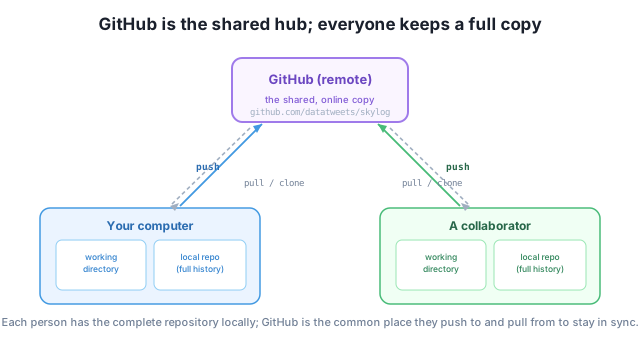
This is why putting a repo on GitHub gives you three things at once: a backup (your history exists somewhere besides your laptop), a portfolio (a public link people can view), and a collaboration hub (a shared copy teammates sync with).
To host a repo, you first create an empty one on GitHub. There are two common ways.
In the web interface: sign in at github.com, click New (the green “New repository” button), give it a name (e.g. skylog), optionally a short description, choose Public or Private, and click Create repository. Leave “Initialize this repository with a README” unchecked when you already have a local project to push — an empty remote avoids conflicts on your first push.
With the GitHub CLI (gh): if you’ve installed and signed in to the gh command-line tool, you can create the repo without leaving the terminal:
gh repo create skylog --public --source=. --remote=originEither way, the result is the same: an empty repository on GitHub, waiting for you to connect your local repo and push. You’ll do that connection in Lesson 2.
Public vs private
A public repository is visible to anyone (great for portfolios and open source); a private one is visible only to you and people you invite. You can change this later in the repo’s settings, and either way you control who can push.
When your computer talks to GitHub to push or pull, GitHub needs to know it’s really you. There are two ways to authenticate, and each gives the repository a slightly different remote URL:
https://github.com/datatweets/skylog.git. It’s the easiest to start with; you authenticate with your GitHub account, and a credential helper (or the gh CLI) remembers your login so you’re not prompted every time.[email protected]:datatweets/skylog.git. You generate an SSH key once, add the public half to your GitHub account, and from then on your machine authenticates automatically with no passwords to type.Both do the same job; the difference is only how your identity is proven. HTTPS is the simplest first choice, especially with the gh CLI handling credentials. Many developers later switch to SSH for its set-it-and-forget-it convenience. You’ll see the URL you chose whenever you inspect your remote:
$ git remote -v
origin  https://github.com/datatweets/skylog.git (fetch)
origin  https://github.com/datatweets/skylog.git (push)
origin is just the conventional name for your main remote — you’ll meet it properly in the next lesson.
Name two distinct benefits of pushing a local repository to GitHub, beyond simply having a second copy.
Hint
Any two of: a backup (history survives a lost laptop), a portfolio/shareable link (people can view your work), and a collaboration hub (teammates push to and pull from the same shared copy). “Backup” alone was excluded, so name the others.
You see a repo’s remote URL is [email protected]:datatweets/skylog.git. Is that HTTPS or SSH, and what one-time setup does it require?
Hint
The git@...: form is SSH. It requires generating an SSH key once and adding its public half to your GitHub account; after that, pushes and pulls authenticate automatically without passwords.
When creating a GitHub repo for a project you’ve already started locally, why leave “Initialize with a README” unchecked?
Hint
An initialized remote already has a commit (the README), which would diverge from your local history and make your first push fail until you reconcile them. Starting with an empty remote lets your local commits push cleanly.
GitHub hosts Git repositories online, turning a local-only project into something backed up, shareable, and collaborative. Because Git is distributed, your machine and GitHub each hold a complete copy; the GitHub remote is the shared one everyone syncs with. You create a repository through the web interface (the New button) or the gh CLI, leaving it empty when you already have local work to push. Your computer authenticates over HTTPS (https://github.com/..., easiest to start) or SSH ([email protected]:..., key-based and password-free after setup) — both prove your identity, and the choice only changes the remote URL.
gh repo create.origin — the conventional name for your primary remote.Almost no real project stays purely local. Pushing to GitHub is how you protect your work, build a public portfolio that employers actually read, and open the door to collaboration. Understanding that the remote is just another full copy — and how you authenticate to it — demystifies everything that follows: connecting, pushing, pulling, and working with others. Next you’ll wire your local SkyLog repo to a remote and push it for the first time.
Wire your local repo to a remote with git remote, then publish it with your first git push.
Return to the GitHub and Remotes module overview
You now know what GitHub is, how to create a repository, and how your machine authenticates to it. Next you’ll make the connection real — pointing your local SkyLog repo at a remote with git remote and pushing your commits online for the first time.