Title here
Summary here
In the last lesson you connected your local SkyLog repository to a remote and pushed it for the first time. But a remote is only useful if both sides stay current: you send your new commits up, and you bring teammates’ commits down. That two-way flow is what “syncing” means, and Git gives you a small set of commands to control it precisely — including one that lets you look before you leap.
The key insight of this lesson is that downloading changes and merging them are two separate steps. git fetch quietly downloads what’s new without touching a single file you’re working on. git pull downloads and merges in one move. Knowing the difference lets you decide when to peek first and when to just integrate.
By the end of this lesson, you will be able to:
git clonegit pushgit fetch and read “behind” statusgit pull (fetch + merge)origin/mainLet’s begin.
Before sending or receiving anything, you need a local copy to work in. When the repository already exists on a remote — a teammate created it, or you set it up earlier on another machine — you don’t initialize a new one; you clone it. Cloning downloads the entire repository (every commit, every branch, the full history) and sets up the remote connection for you automatically:
$ git clone [email protected]:datatweets/skylog.git
Cloning into 'skylog'...
Over a real network connection you’ll also see progress lines like remote: Enumerating objects... and Receiving objects: 100%... scroll by as the data transfers. When it finishes, you have a brand-new skylog/ folder containing a complete working copy, with origin already pointing at the remote you cloned from. You only clone once — after that, you keep in sync with the commands below.
The figure shows how all four sync commands relate to each other:
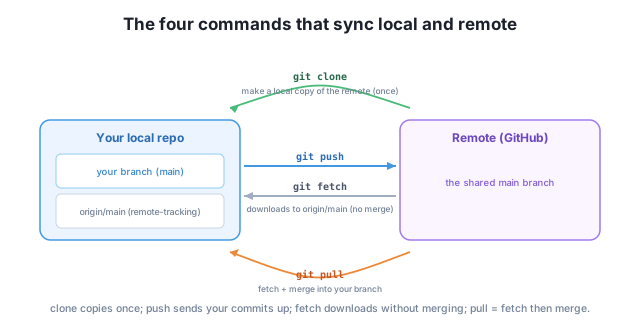
Notice the small box inside your local repo labeled origin/main. That’s a remote-tracking branch — Git’s local bookmark for “where the remote’s main was the last time I checked.” It’s central to how fetch works, and we’ll come back to it.
Once you’ve made commits locally, they exist only on your machine until you send them up. git push uploads your new commits to the remote so others can see and download them:
$ git push origin mainHere origin names the remote and main names the branch you’re sending. After a successful push, the remote’s main advances to match your local main, and Git updates your origin/main bookmark to point at the same place. Pushing is the outbound direction — your work flowing up to the shared copy. Everything else in this lesson is about the inbound direction: getting others’ work down to you.
Suppose a teammate pushes a change to SkyLog while you’re working. Their commit now lives on the remote, but your machine has no idea it exists yet. To find out — without disturbing your own work — you fetch:
$ git fetch origin
From github.com:datatweets/skylog
   bbe42af..3512e16  main       -> origin/main
Read that last line carefully. Git downloaded the new commits and moved your remote-tracking branch origin/main from bbe42af to 3512e16. Crucially, it did not touch your main branch or any file in your working directory. Fetch only updates your knowledge of the remote; it leaves your actual work exactly as it was.
Now ask Git where you stand. The -sb flags give a short status with a branch summary on top:
$ git status -sb
## main...origin/main [behind 1]
That [behind 1] means origin/main has one commit your main doesn’t have yet. You’ve seen the change but haven’t taken it. This is the whole point of fetch: you can inspect what’s incoming — view the commits, read the diff — and decide how to integrate it, all before anything merges into your branch.
Fetch looks, pull leaps
git fetch never changes your working files — it only updates remote-tracking branches like origin/main, so it’s completely safe to run anytime, even with uncommitted changes. git pull, by contrast, does change your files, because it merges. Many developers prefer the fetch, review, then merge habit over a blind pull, especially on shared branches, so they always know what they’re about to integrate.
When you’re ready to actually bring those changes into your branch, git pull does it in one step. A pull is simply a fetch followed by a merge of the fetched commits into your current branch:
$ git pull origin main
From github.com:datatweets/skylog
 * branch            main       -> FETCH_HEAD
Updating bbe42af..3512e16
Fast-forward
 README.md | 2 ++
 1 file changed, 2 insertions(+)
Here Git fetched the teammate’s commit and then merged it. Because your main had no new commits of its own, the merge was a fast-forward — Git just slid your branch pointer up to 3512e16, no merge commit needed. The summary at the bottom shows the real effect: README.md gained two lines. Run git status -sb now and the [behind 1] is gone; you’re in sync.
The bookmark Git has been quietly maintaining through all of this is the remote-tracking branch. You can list these with the -r flag:
$ git branch -r
  origin/HEAD -> origin/main
  origin/main
origin/main is your local record of the remote’s main branch. You never edit it directly — fetch and pull update it for you. origin/HEAD is a pointer to the remote’s default branch (here, main), which is what you land on after a fresh clone. These remote-tracking branches are how Git can tell you “you’re behind 1” without a network call: it compares your main against the last-known position of origin/main.
The commit hashes you see on your own machine (bbe42af, 3512e16) will be different from these — every repository’s history produces its own hashes, so don’t expect to match them exactly. What matters is the pattern: fetch advances origin/main, status reports the gap, and pull closes it.
A teammate sends you the URL [email protected]:datatweets/skylog.git for a project that already exists on GitHub. You don’t have it locally yet. Which command gives you a working copy with the remote connection already set up — and how many times will you run it?
Hint
Use git clone [email protected]:datatweets/skylog.git. It downloads the full history and configures origin for you automatically. You clone once; from then on you stay current with fetch, pull, and push.
After running git fetch origin, you run git status -sb and see ## main...origin/main [behind 1]. Did fetch change any of your files, and what does [behind 1] tell you?
Hint
Fetch changed nothing in your working directory — it only moved the origin/main bookmark. [behind 1] means origin/main has one commit that your local main doesn’t have yet. You’ve seen the change but haven’t merged it.
You’re “behind 1” and you’ve reviewed the incoming commit — it’s fine. Which single command downloads and merges it into your current branch, and what is that command equivalent to?
Hint
Run git pull origin main. A pull is equivalent to git fetch followed by a merge of the fetched commits into your current branch. Afterward, git status -sb no longer shows [behind 1].
Keeping local and remote in sync is a two-way flow built from four commands. You clone once to copy a remote you don’t have yet, getting the full history and an origin connection for free. You push to send your commits up to the shared copy. To bring others’ work down, you choose between two paths: fetch quietly downloads new commits into the remote-tracking branch origin/main without touching your files, after which git status -sb shows how far you’re [behind]; pull does the same download but then merges it straight into your current branch (often as a clean fast-forward). The origin/main and origin/HEAD entries from git branch -r are Git’s local bookmarks for the remote, and they’re what make “you’re behind 1” possible without re-checking the network.
git clone — copy a remote repository you don’t have locally yet (run once).git push — send your local commits up to the remote.git fetch — download remote changes into origin/main without merging (safe anytime).git pull — fetch and merge into your current branch in one step.origin/main showing where the remote was last checked, listed with git branch -r.On any shared project, your teammates’ work and yours are constantly diverging and reconverging. Treating “download” and “merge” as separate steps gives you control: fetch lets you inspect what’s coming before it lands, so you’re never surprised by a merge you didn’t expect. That habit — fetch, review, then merge — is how experienced developers stay in sync without stepping on each other. Next you’ll look inside the repository itself to see where all this synced data actually lives.
Look inside the .git directory to see where Git stores commits, branches, and the remote-tracking data you've been syncing.
Return to the GitHub and Remotes module overview
You can now keep a local repository and its remote in step — cloning to start, pushing to share, fetching to look before you leap, and pulling to integrate. With the everyday sync workflow in hand, the next lesson opens up the repository’s internals so you can see exactly where commits, branches, and remote-tracking data are stored.