Title here
Summary here
Your SkyLog repository is online now, and your commits are safely pushed. But if a stranger landed on its GitHub page right now, would they understand what it does, how to run it, or whether they’re even allowed to use it? Probably not. A repository that’s only code is like a book with no cover, no blurb, and no copyright page — useful to the author, baffling to everyone else.
This lesson is less about typing commands and more about the few small files and settings that turn a pile of code into a project people can actually understand and use. You’ll meet the three files that almost every good repository has — a README, a LICENSE, and a .gitignore — and the GitHub touches that make a project discoverable: a clear description and a handful of topics.
By the end of this lesson, you will be able to:
Let’s give SkyLog a proper front door.
The README.md is the single most important file for anyone who isn’t you. GitHub renders it automatically — in Markdown, with headings and code blocks formatted — right below the file list on the repository’s main page. It is the first thing visitors read, so it answers the questions every newcomer has: What is this? Why does it exist? How do I install and run it? What does using it look like?
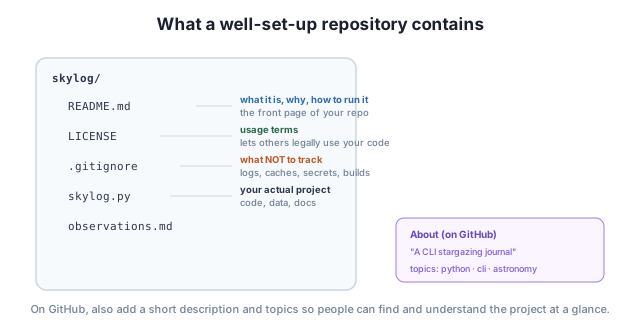
A README doesn’t need to be long; it needs to be useful. A reliable skeleton is: a title, a one-line summary, what it can do, how to install it, how to use it (with a real example), and the license. Here’s one for SkyLog:
# SkyLog

A small command-line journal for logging the stars and objects you spot each night.

## Features

- Record an observation with a name, date, and short note
- List everything you've logged so far
- Stored as plain text you can read without the app

## Installation
git clone https://github.com/datatweets/skylog.git cd skylog
SkyLog needs only Python 3 — no extra packages required.

## Usage

Add an observation, then list what you've recorded:
python skylog.py add “Andromeda Galaxy” –note “Faint smudge, naked eye” python skylog.py list
## License

Released under the MIT License. See the LICENSE file for details.
Save that as README.md in the root of your repo, commit it, and push. The moment it lands on GitHub, the page that was a bare list of files becomes a formatted home page — headings, a description, and copy-pasteable commands. Note the nested fenced blocks above: in your real file, the command examples live inside their own triple-backtick blocks so GitHub shows them as code.
The goal is that someone can go from “never heard of this” to “I just ran it” without asking you a single question.
Here’s the part most beginners skip, and it’s the one with real consequences. A LICENSE is a plain-text file that states the terms under which others may use, modify, and share your code. It sounds like legal boilerplate, but it answers a question every potential user has: Am I allowed to use this?
The surprising default is that if you publish code with no license at all, you have not given anyone permission to use it. Under copyright law, the absence of a license doesn’t mean “free for all” — it means “all rights reserved.” Someone can read your public code, but copying it into their own project, modifying it, or redistributing it is, strictly, not permitted. So a license isn’t there to restrict people; for an open project, it’s there to grant permission.
For projects you want others to learn from or build on, a permissive license is the common choice. The MIT License is the most popular: it’s short, easy to read, and essentially says “do what you like with this, just keep the copyright notice, and there’s no warranty.” Other well-known options exist (such as Apache 2.0 or the GPL family), but for a personal project like SkyLog, MIT is a sensible, friendly default.
You don’t have to write one by hand. When creating or editing a repository, GitHub can add a license for you: choose a template (like MIT), and GitHub drops a correctly filled-in LICENSE file into the repo with your name and the year. If you prefer the terminal, you can also create the file yourself and commit it like any other:
git add LICENSE
git commit -m "Add MIT license"
No license means ‘all rights reserved’
Publishing code without a LICENSE doesn’t make it free to use — by default it’s all rights reserved, so others have no legal right to copy, modify, or redistribute it. If you want people to be able to use your code, add a license. For most personal and portfolio projects, the MIT License is a safe, permissive choice.
You met .gitignore back in Module 2, and it earns its place in a well-set-up repository. It’s a list of patterns telling Git which files to leave untracked — and a clean repo is one where the only things committed are the things that actually belong to the project.
What does not belong? Three categories worth keeping out:
__pycache__/, compiled output, or editor temp files. Committing them adds noise and pointless diffs..env files. This is the important one: once a secret is committed and pushed, it lives in your history forever, even if you delete it later. Keep secrets out from the very first commit..DS_Store, and anything specific to your machine that no one else needs.A small .gitignore for SkyLog might look like this:
__pycache__/
*.log
.env
.DS_Store
The payoff is a repository where every file is intentional. When a visitor browses SkyLog, they see your code and your docs — not a thicket of caches and logs, and certainly not a leaked password. A clean repo signals care, and it’s easier for others to read and trust.
The last touches happen on GitHub itself, in the About panel on the right side of your repository page. Two small fields make a big difference to how findable and understandable your project is.
The description is a one-line summary shown at the top of the repo page and in search results. Keep it short and concrete — say what the project is, not how clever it is. For SkyLog, something like “A CLI stargazing journal” tells a passerby everything they need in five words.
Topics are tags you attach to the repo so it shows up when people browse or search by subject. They’re lowercase keywords describing the language, type, and domain of the project. Good topics for SkyLog would be python, cli, and astronomy — covering what it’s written in, what kind of tool it is, and what it’s about. Click the gear icon next to About, type a few relevant topics, and save.
A good “About” panel, then, has a clear description, a few honest topics, and (if your repo has a homepage or docs) a link. Together with a strong README and a license, these make SkyLog look like a finished, professional project rather than an experiment someone forgot to clean up — and that’s exactly the impression you want a recruiter or collaborator to get.
Draft the Usage section of a README for SkyLog. Include one or two example commands a new user could copy and run.
Hint
A Usage section shows the tool in action. Put real commands inside a fenced code block, for example python skylog.py add "Orion Nebula" --note "Visible through binoculars" and python skylog.py list. The aim is that someone can copy, paste, and see a result.
You’re about to create a new repo for SkyLog and want people to be able to view it and legally reuse the code. Should it be public or private, and what should you do about a license?
Hint
Make it public so anyone can view it. But visibility alone doesn’t grant reuse rights — without a license it’s “all rights reserved.” Add a license (the MIT License is a good permissive choice); GitHub can drop one in for you when you create the repo.
Pick three GitHub topics for SkyLog that would help the right people find it, and explain in one sentence why each fits.
Hint
Good topics describe the language, the kind of tool, and the domain — for SkyLog that’s python (the language), cli (it’s a command-line tool), and astronomy (its subject). Topics are lowercase keywords and you add them via the gear icon in the About panel.
A repository worth sharing is more than its code. The README.md is the front page GitHub renders automatically: it tells visitors what the project is, why it exists, how to install and run it, and shows an example — ideally with a title, a one-line summary, and Features, Installation, and Usage sections. The LICENSE sets the terms of use, and it matters because code published without one is “all rights reserved” by default, meaning no one can legally reuse it; a permissive license like MIT (which GitHub can add for you) fixes that. A clean .gitignore keeps clutter, secrets, and local junk out of the repo so every committed file is intentional. Finally, a short description and a few topics in GitHub’s About panel make the project understandable at a glance and discoverable in search.
The difference between a repository people use and one they bounce off of is rarely the code — it’s whether they can understand it, run it, and know they’re allowed to. A clear README answers the questions a newcomer would otherwise email you about. A license turns “interesting code” into “code I can legally build on.” A clean repo and a good About panel make your work look finished and findable. These few files are also exactly what a recruiter or collaborator skims first, so getting them right is some of the highest-return work you can do on a project. Next, you’ll bring everything together by publishing SkyLog to GitHub end to end.
Put it all together: take SkyLog from a local repo to a polished, published GitHub project.
Return to the GitHub and Remotes module overview
You now know the anatomy of a repository people can actually use: a README that explains it, a LICENSE that permits reuse, a .gitignore that keeps it clean, and an About panel that makes it discoverable. In the next lesson you’ll apply all of it in one guided project — taking SkyLog from a local repository to a fully published, well-documented GitHub project.