Title here
Summary here
You set your name and email back in Module 1, and you’ve been quietly relying on Git’s defaults ever since. Now it’s time to take control. Git is one of the most configurable tools you’ll ever use — you can shorten commands you type fifty times a day, control how files are handled across operating systems, and even run your own scripts automatically at key moments. None of this is required to use Git, but all of it is what separates a comfortable user from a true power user. This lesson is your tour of the controls.
By the end of this lesson, you will be able to:
.gitattributes to control line endings and file handlingThis builds on the basic configuration from Module 1. Let’s begin.
Every Git setting lives at one of three levels, and knowing which is which explains a lot of “why is Git using that email?” moments:
git config --system) — applies to every user on the machine. Stored in something like /etc/gitconfig.git config --global) — applies to you, across all your repositories. Stored in ~/.gitconfig. This is where your name and email live.git config --local) — applies to one repository only. Stored in that repo’s .git/config.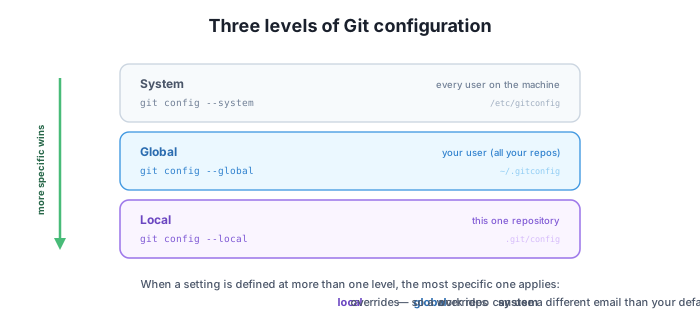
When a setting is defined at more than one level, the most specific one wins — local overrides global, which overrides system. This is genuinely useful: you can set a personal email globally, then override it with a work email in a single client repo:
$ git config --local user.email "[email protected]"
$ git config user.email
[email protected]
The plain git config user.email (no level flag) shows the effective value — what Git will actually use after applying the override rules.
If you type git status and git checkout dozens of times a day, why type them in full? Aliases let you define your own shorthand. You create them as global config settings under alias.*:
$ git config --global alias.co checkout
$ git config --global alias.br branch
$ git config --global alias.st "status -sb"
$ git config --global alias.last "log -1 HEAD --stat"
$ git config --global alias.lg "log --oneline --graph --all"
Now git co runs git checkout, git st runs a short branch-aware status, and git lg draws the commit graph. You can list everything you’ve defined:
$ git config --global --get-regexp '^alias\.'
alias.co checkout
alias.br branch
alias.st status -sb
alias.last log -1 HEAD --stat
alias.lg log --oneline --graph --all
Aliases can wrap any command with its options (note the quotes when the command has spaces). A well-chosen handful — especially lg for a graph view — pays for itself within a day.
While .gitignore says which files Git should skip, .gitattributes says how Git should treat the files it does track. It’s a file you commit to the repo, so its rules apply for everyone who clones it. The most common use is taming line endings — the classic source of “the whole file shows as changed” noise when Windows (CRLF) and macOS/Linux (LF) developers share a repo.
A typical .gitattributes:
* text=auto
*.png binary
*.sh text eol=lf
That tells Git to normalize text files automatically, treat PNGs as binary (never try to diff or convert them), and always store shell scripts with LF line endings. You can check what attributes apply to a given path:
$ git check-attr text eol -- deploy.sh
deploy.sh: text: set
deploy.sh: eol: lf
Beyond line endings, .gitattributes can mark generated files for cleaner diffs, set up custom diff tools for specific file types, and more — but normalizing line endings is the one nearly every shared repo should have.
A hook is a script Git runs automatically at a specific moment — before a commit, after a merge, before a push, and so on. Hooks live in the .git/hooks/ directory, named for the event they fire on; make a script executable with the right name and Git will run it.
The most popular is pre-commit, which runs before a commit is created and can reject it by exiting with a non-zero status. Teams use it to run a linter, check formatting, or block accidental mistakes. Here’s a tiny one that refuses to commit anything containing a TODO marker:
#!/bin/sh
if git diff --cached | grep -q "TODO"; then
  echo "pre-commit: refusing to commit a TODO marker"
  exit 1
fi
Save that as .git/hooks/pre-commit, make it executable, and try to commit staged changes that include a TODO:
$ git commit -m "Add feature"
pre-commit: refusing to commit a TODO marker
The commit is blocked. This is just a taste — hooks are a deep topic — but the idea is powerful: you can automate your own quality checks right at the moment of committing.
Local hooks don’t travel; tools that share them do
The .git/hooks/ directory is not committed, so a hook you write only runs on your machine — teammates won’t get it by cloning. To share hooks across a team, projects use a managed .gitattributes/.gitignore plus a hook framework (like the popular pre-commit tool) or set core.hooksPath to a tracked directory. For personal safety nets, a local hook is perfect; for team-wide enforcement, prefer the required CI checks you built in Module 8.
Your global config has user.email = [email protected], but inside one repo you ran git config --local user.email "[email protected]". What does git config user.email report inside that repo, and why?
Hint
It reports [email protected]. The local level is more specific than the global level, and the most specific setting wins (local overrides global overrides system). Plain git config user.email shows the effective value after those overrides.
You constantly type git log --oneline --graph --all. How would you make git lg do the same thing?
Hint
Run git config --global alias.lg "log --oneline --graph --all" (quotes are needed because of the spaces). After that, git lg runs the full command. List your aliases with git config --global --get-regexp '^alias\.'.
You want to automatically prevent commits that contain the word TODO. What kind of Git feature would you use, and roughly how does it block the commit?
Hint
A pre-commit hook — a script in .git/hooks/pre-commit. Git runs it before creating the commit; if the script exits with a non-zero status (e.g. after finding TODO in the staged diff), Git aborts the commit. Note it only runs on your machine unless shared via a hooks framework.
Git settings live at three config levels — system (all users), global (you, in ~/.gitconfig), and local (one repo, in .git/config) — and the most specific level wins, so a work repo can override your default email. Aliases (under alias.*) turn long commands into short ones like git lg. .gitattributes controls how tracked files are handled — most importantly normalizing line endings across operating systems — and travels with the repo. Hooks are scripts Git runs automatically at events like pre-commit, where a non-zero exit can block a bad commit; local hooks don’t travel, so team-wide enforcement belongs in CI.
.gitattributes — committed rules for line endings, diffs, and file handling.pre-commit); local only unless shared.Configuration is what turns Git from a tool you tolerate into one that fits your hands. Aliases save you thousands of keystrokes; .gitattributes eliminates an entire category of cross-platform headaches; hooks let you catch mistakes before they’re even committed. These are the quality-of-life skills that mark experienced developers — and they set up the next lesson perfectly, where configuration meets safety: signing your commits and keeping secrets out of your history.
Sign your commits so people can trust them, and learn how to handle secrets safely.
Return to the Mastery, Safety, and Capstone module overview
You can now bend Git to your preferences — config levels, aliases, attributes, and hooks. Next you’ll put that configuration to work for safety: signing your commits so others can trust they’re really from you, and keeping secrets out of your repositories.