Title here
Summary here
In the last lesson you learned to bend Git to your preferences. Now you’ll point that control at two things that protect both you and your project: trust and cleanliness. Trust means people can verify a commit really came from you — because, surprisingly, nothing stops someone from putting your name on their work. Cleanliness means your repository never carries secrets it shouldn’t: API keys, passwords, and .env files have a way of sneaking into history, and once they’re pushed to a public repo, the damage is already done. This lesson teaches you to sign your commits and to keep secrets out — and what to do the moment one slips through.
By the end of this lesson, you will be able to:
.gitignoreThese are the habits that keep a repository safe to share. Let’s begin.
Here is an uncomfortable truth about Git: the author name and email on a commit are just text you typed into your config. Git does not verify them. Anyone can run git config user.name "Linus Torvalds" and start producing commits that appear to come from him. The name on a commit is a claim, not a proof.
Signing turns that claim into proof. When you sign a commit, Git attaches a cryptographic signature created with your private key — something only you hold. Anyone with your matching public key can then verify that the commit was made by whoever controls that private key. Modern Git can sign with an SSH key (the same kind you may already use to push) or with GPG; SSH signing is the simplest to set up if you already have an SSH key.
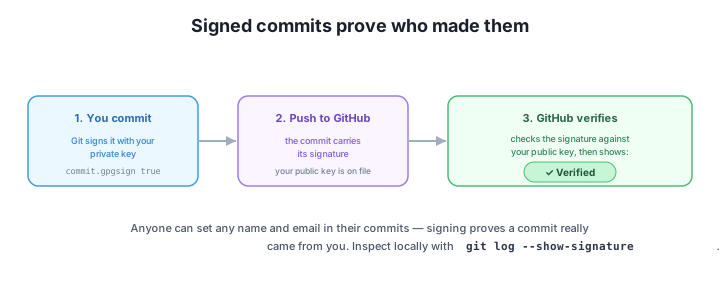
To enable SSH commit signing, you tell Git three things: use the SSH format, which key to sign with, and to sign every commit automatically. These settings were applied and read back:
$ git config --global gpg.format ssh
$ git config --global user.signingkey ~/.ssh/id_ed25519.pub
$ git config --global commit.gpgsign true
$ git config --global --get-regexp '^(gpg|commit|user)\.(format|signingkey|gpgsign)$'
user.signingkey ~/.ssh/id_ed25519.pub
gpg.format ssh
commit.gpgsign true
With commit.gpgsign true, every commit you make from now on is signed automatically — no extra flags needed. (You point user.signingkey at your public key file when using SSH format; Git uses the matching private key to actually sign.)
For others to see those signatures as trusted, GitHub needs your public key registered as a signing key in your account settings. Once it is, commits you push show a green “Verified” badge next to them in the GitHub interface — a clear, visible signal that the commit genuinely came from your registered identity.
You don’t need GitHub to inspect signatures, though. Locally, git log --show-signature displays each commit’s verification status alongside its message, so you can confirm your own commits are being signed before you ever push. Signing is quiet protection: most days you won’t notice it, but it makes impersonation in your project’s history practically impossible.
The single most important security rule in version control is short: never commit secrets. That means API keys, passwords, access tokens, private certificates, and .env files full of credentials should never enter your repository. The reason is brutal: Git’s whole purpose is to remember. Once a secret is committed, it lives in history — and if you ever push that history, you’ve potentially handed the secret to everyone who can read the repo.
The good news is that prevention is easy and almost free: add secret-bearing files to .gitignore before you ever stage them. A typical entry looks like this:
.env
.env.local
*.pem
secrets/
With .env in .gitignore, Git won’t even offer to stage it — git status ignores it, and you can’t accidentally git add . your way into a leak. The rule of thumb: the moment you create a file that holds a credential, add its name (or pattern) to .gitignore in the same breath. Commit real configuration as a safe template instead, like an .env.example that lists the names of the variables with obvious placeholder values:
API_KEY = "demo-not-a-real-secret"
DATABASE_URL = "postgres://user:password@localhost/dbname"
Teammates copy the template to their own .env and fill in the real values locally — values that never touch Git. Prevention handled at the .gitignore level means you almost never have to deal with the much harder problem of cleaning a secret out.
Even careful people slip. What you do next depends entirely on how far the secret traveled.
Case 1 — committed locally, but not yet pushed. This is the easy case. Stop tracking the file, ignore it going forward, and commit that change:
$ git rm --cached .env
$ echo ".env" >> .gitignore
$ git commit -m "chore: stop tracking .env and ignore it"
git rm --cached removes the file from Git’s tracking without deleting it from your disk, and adding it to .gitignore keeps it out from now on. Be clear about what this does not do, though: the secret still exists in the earlier commit where you first added it. Because you never pushed, you can also choose to rewrite that local history to erase it entirely (covered below) before it ever leaves your machine.
Case 2 — the secret reached history, especially if pushed or public. This is serious, and the order of operations matters. First, find where it entered. The -S flag (the “pickaxe”) searches history for commits that changed how many times a string appears — perfect for locating when a key first showed up:
$ git log --oneline -S "API_KEY"
363ae49 Add config
(Your commit hashes will differ from these — hashes are unique to each repository.) Now follow two non-negotiable steps:
Treat the secret as compromised and rotate or revoke it immediately. This is the first thing you do — before any history surgery. Purging a secret from Git does not un-leak it: anyone who saw or cloned the repo while the secret was present may already have it. Go to the provider (your cloud console, your API dashboard) and revoke the old credential, then issue a new one. Until you rotate, the leak is live.
Purge it from all history. Once the secret is dead, scrub it from the repository so it isn’t sitting in old commits. The standard tools are git filter-repo (the modern, recommended choice) and the BFG Repo-Cleaner. Both work by rewriting history — they rebuild your commits without the offending content, which changes every affected commit’s hash. Because history rewriting is disruptive, treat it like any other rewrite: coordinate with your team, have everyone re-clone or reset afterward, and force-push the cleaned history. (We’re describing these tools rather than showing their output, since the exact run depends on your repo and the file involved.)
The two steps are not interchangeable. Rotation closes the actual security hole; purging cleans up the mess. Skipping rotation and only purging is the classic mistake — the repo looks clean while the leaked key is still valid in the wild.
A pushed secret is a leaked secret — rotate first
If a secret was ever pushed (and especially to a public repository), consider it compromised the moment it left your machine. Rewriting history removes it from your repo, but it cannot un-leak what others may have already seen, cloned, cached, or scraped by automated bots that scan public repos for keys within minutes. Your first action is always to rotate or revoke the credential at its source. Purging history is cleanup, not a fix.
You already set user.name and user.email in your config, so your commits show your name. Why would you also bother to sign them?
Hint
Because the name and email on a commit are just text Git copies from your config — anyone can set them to impersonate you, and Git doesn’t verify them. Signing attaches a cryptographic signature made with your private key, which others can verify against your public key. That’s what turns the claim “this is from me” into proof, and it’s what earns the green “Verified” badge on GitHub.
You just realized you committed your .env file in your last commit, but you have not pushed yet. What do you do?
Hint
Stop tracking it and ignore it: git rm --cached .env, add .env to .gitignore, then commit (e.g. git commit -m "chore: stop tracking .env and ignore it"). Remember this leaves the secret in the earlier commit’s history — since you haven’t pushed, you can also rewrite local history to remove it entirely before it ever leaves your machine. If the value was a real credential, rotate it anyway to be safe.
You discover an API key was committed and pushed to a public repository. What is the first thing you do?
Hint
Rotate or revoke the key immediately — before any history cleanup. A pushed (let alone public) secret must be treated as compromised; bots scan public repos for keys within minutes, and purging history cannot un-leak what others may already have. After rotating, purge it from history with git filter-repo or the BFG Repo-Cleaner (which rewrite history, so coordinate with your team and force-push). Use git log -S "the-string" to find where it entered.
Git does not verify the name on a commit — it’s just config text — so signing proves authorship by attaching a signature from your private key that others verify with your public key. You enable SSH commit signing with gpg.format ssh, user.signingkey, and commit.gpgsign true; once your public key is registered on GitHub, signed commits show a “Verified” badge, and git log --show-signature lets you check them locally. On the hygiene side, the cardinal rule is never commit secrets — prevent them with .gitignore before they’re ever staged. If one slips in but isn’t pushed, git rm --cached plus a .gitignore entry stops tracking it (though it stays in earlier history). If a secret reached history, rotate or revoke it first because purging can’t un-leak it, then purge it with git filter-repo or the BFG, which rewrite history. Find when a string entered with git log -S.
commit.gpgsign true, verified by GitHub’s “Verified” badge and git log --show-signature..gitignore for secrets — prevention is everything; never let .env or keys get staged.git rm --cached — stops tracking a file going forward but leaves it in earlier history.git filter-repo/BFG and git log -S to locate it.Trust and secrecy are what make a repository safe to collaborate on and safe to make public. Signing means no one can quietly forge commits under your name, which matters enormously in open-source and any audited codebase. Keeping secrets out is the difference between a routine push and a 2 a.m. incident where a leaked key racks up a cloud bill or exposes user data. Both habits are cheap to adopt and expensive to skip — and they set up the next lesson perfectly, where you’ll build a troubleshooting playbook for the moments when things go wrong.
Build a calm, repeatable plan for diagnosing and recovering when Git goes sideways.
Return to the Mastery, Safety, and Capstone module overview
You can now make your commits trustworthy and keep your repositories clean — signing so others can verify your work, and handling secrets so they never become a liability. Next you’ll assemble a troubleshooting playbook: a clear, repeatable approach to diagnosing and recovering from the situations that trip people up, so that when something breaks, you stay calm and know exactly what to do.