Title here
Summary here
Every Git user makes the same handful of mistakes. You stage the wrong file. You commit a stray debug line. You realize the commit you just made belonged on a different branch entirely. None of these are signs that you’re bad at Git — they’re signs that you’re using it. The difference between a beginner and an expert isn’t that the expert never slips up; it’s that the expert knows the exact command to set things right, and knows which fixes are safe and which ones are dangerous.
This lesson is built to be a reference. Don’t try to memorize it — bookmark it. When something goes wrong, come back, find your situation, and run the fix. Organize your thinking around one question: what do I want to undo or fix? Match that to a command, and you’re done.
By the end of this lesson, you will be able to:
Keep this one close. Let’s build the playbook.
These are the lightest, safest fixes of all — nothing has been committed yet, so there’s no history to worry about. You’re just tidying up before you commit.
You ran git add on something you didn’t mean to include in the next commit. You don’t want to lose your edits — you just want it out of the staging area. Use git restore --staged:
$ git restore --staged app.py
$ git status -sb
## main
 M app.py
The file is no longer staged (notice the M has moved to the right column — it’s modified but unstaged again), and your edits are completely untouched. This is the everyday undo for “oops, didn’t mean to add that.”
This one is different and more destructive: you’ve made changes to a file and you’ve decided you don’t want them at all. You want the file back exactly as it was in your last commit. Use git restore without --staged:
$ git restore app.pyThere’s no output on success — the file silently returns to its last committed version. Be careful here: those edits are gone. Unlike unstaging, this destroys uncommitted work that Git never recorded, so there’s no reflog to rescue you. Only run it when you’re certain you don’t want the changes.
Now we’re touching history. Everything in this section is safe only if the commit hasn’t been pushed yet. If you’ve already shared it, skip ahead to the next section.
You committed, then immediately spotted a typo in the message — or realized you forgot to include a file. As long as you haven’t pushed, you can rewrite that last commit in place with git commit --amend. To fix just the message:
$ git commit --amend -m "Add user login form"To add a forgotten file to the same commit, stage it first, then amend:
$ git add forgotten_file.py
$ git commit --amend --no-edit
--no-edit keeps the existing message. Either way, --amend replaces the previous commit with a new one — the old commit hash disappears and a new hash takes its place. That’s why this is local-only: anyone who already pulled the old commit would now be out of sync.
Sometimes the whole commit was premature — maybe you committed too early, or you want to split it into two. You don’t want to lose the work; you want the commit to vanish and the changes to come back as if you’d never run git commit. That’s a soft reset:
$ git reset --soft HEAD~1
$ git status -sb
## main
M  app.py
$ git log --oneline
febd56a Add app
(Your hashes will differ from febd56a — Git generates a unique hash for every commit.) The most recent commit is gone from the log, and its changes are sitting in the staging area (the M is in the left column now, meaning staged), ready for you to recommit however you like. HEAD~1 means “one commit before the current tip,” so this rewinds by exactly one commit. Nothing is lost — the work just moves from “committed” back to “staged.”
A classic: you were heads-down on main, made a commit, and then realized it belonged on a feature branch. The fix is two commands — first bookmark the commit by creating a new branch at the current position, then rewind the original branch back one commit:
$ git branch feature      # bookmark the commit on a new branch
$ git reset --hard HEAD~1  # move main back one commit
After this, feature has the commit and main no longer does. The order matters: you create feature while still on the wrong branch, so it captures the commit before you rewind. Then git reset --hard moves main back, dropping the commit from it.
A word of warning about that second command: git reset --hard discards working-tree changes, so make sure your work is committed first — which it is here, because it’s safely captured on the feature branch. To keep working on the commit, just git switch feature and carry on.
The golden dividing line: rewrite vs. revert
git commit --amend and git reset (in all its forms) rewrite history — they change or remove commits. That is perfectly safe for commits that live only on your machine, because no one else has them yet. But the moment a commit has been pushed and others may have pulled it, rewriting it is dangerous: their history and yours diverge, and you create painful conflicts for the whole team. The rule is simple — rewrite history only for local, unpushed commits. For anything already shared, use git revert (next section), which undoes a commit by adding a new one and never touches existing history.
This section is for when the safe-rewrite window has closed — the commit is out in the world — and for when something seems lost entirely.
You pushed a commit, teammates pulled it, and now you’ve found a problem. You cannot safely use reset or --amend here, because that would rewrite shared history. Instead, use git revert, which creates a brand-new commit that is the exact inverse of the bad one — it cancels out its changes while leaving the original commit untouched in the log:
$ git revert <commit>Replace <commit> with the hash of the commit you want to undo (find it with git log --oneline). Git applies the reverse of that commit’s changes and opens an editor for the new commit’s message, with a sensible default already filled in. Because revert only adds a commit, everyone’s history stays consistent — they just pull the new “undo” commit like any other. This is the safe, team-friendly way to back out anything that’s already been shared.
The contrast is the whole point: reset moves your branch backward through history and erases commits; revert moves forward, adding a commit that happens to cancel a previous one. Erasing is fine when you’re alone; adding is what you want when others are watching.
This feels like the scariest situation and is usually the easiest to fix. Maybe a reset --hard went further than you meant, or you deleted a branch you actually needed. As you saw back in Module 7, Git keeps a private log of everywhere HEAD has been — the reflog — and almost nothing truly disappears right away:
$ git reflogThat prints a list of recent positions, each with its own hash, like a1b2c3d HEAD@{2}: commit: Add login form. Find the entry from just before things went wrong, then point a branch (or your current branch) back at it:
$ git branch recovered a1b2c3d   # recover a deleted branch's commit
$ git reset --hard a1b2c3d       # or move your current branch back to it
The reflog is your safety net. It’s why even a reset --hard is recoverable for a while — the “lost” commit is still in your repository, just no longer pointed to by any branch, and the reflog remembers where it was.
You committed your work, then noticed you left a print("DEBUG") line in the file. You have not pushed yet. You want to remove the line and fold the fix into the same commit, without creating a second messy commit. What do you do?
Hint
Delete the debug line, stage the file with git add <file>, then run git commit --amend --no-edit. This rewrites the last commit to include your fix while keeping the original message. It’s safe because the commit hasn’t been shared yet — amend rewrites history, which is fine for local, unpushed commits.
You pushed a commit, and your teammates have already pulled it. Now you’ve discovered it breaks the build. You need to undo its changes without causing chaos for everyone else’s history. What command do you reach for, and why this one instead of reset?
Hint
Use git revert <commit>. It creates a new commit that reverses the bad one, leaving the shared history intact — everyone just pulls the new “undo” commit. You avoid git reset because reset rewrites history, which is dangerous once a commit has been pushed and others have it. Rewrite only local commits; revert anything shared.
You made a commit on main, but it should have gone on a branch called feature. The commit is still local. Which two commands move it to feature and clean up main?
Hint
First git branch feature to bookmark the commit on a new branch (while you’re still on main), then git reset --hard HEAD~1 to rewind main back one commit. Afterward, feature holds the commit and main doesn’t. The --hard reset is safe here because the work is already captured on feature.
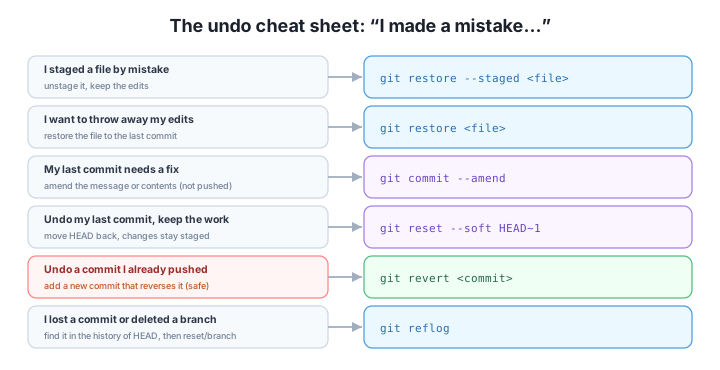
When something goes wrong in Git, the right fix depends on what you want to undo and whether the commit has been shared. For staging and working-tree mishaps, git restore --staged <file> unstages without losing edits, and git restore <file> discards edits entirely (destructive — no reflog rescue). For your latest unpushed commit, git commit --amend rewrites it in place, and git reset --soft HEAD~1 undoes it while keeping the work staged. To move a commit to the right branch, git branch <name> bookmarks it, then git reset --hard HEAD~1 rewinds the original branch. For commits that are already pushed, never rewrite — use git revert <commit>, which adds an inverse commit and keeps shared history intact. And when something seems lost, git reflog almost always finds it.
git restore --staged <file> — unstage a file, keeping its edits.git restore <file> — discard working-tree edits (destructive).git commit --amend — fix the last commit’s message or contents (local only).git reset --soft HEAD~1 — undo the last commit, keep the work staged.git revert <commit> — safely undo a pushed commit by adding a new one.git reflog — recover lost commits and deleted branches.Confidence with Git comes from knowing you can always get back to safety. Once you’ve internalized the playbook — and especially the golden rule that you rewrite only what’s local and revert anything that’s shared — mistakes stop being scary. You’ll stage, commit, and push without that nagging fear of an irreversible blunder, because you know the exact command for every situation. That fearlessness is what lets you move fast, and it’s the perfect mindset to carry into the capstone, where you’ll put all of these skills together to build and publish a real repository.
Put everything together: create, structure, and publish a real repository from scratch.
Return to the Mastery, Safety, and Capstone module overview
You now have a fix for every common Git mistake, and a clear rule for when each one is safe to use. Keep this playbook handy — even seasoned developers return to it. Next, you’ll bring together everything from the entire course in the capstone: building a repository from nothing and publishing it for the world to see.