Title here
Summary here
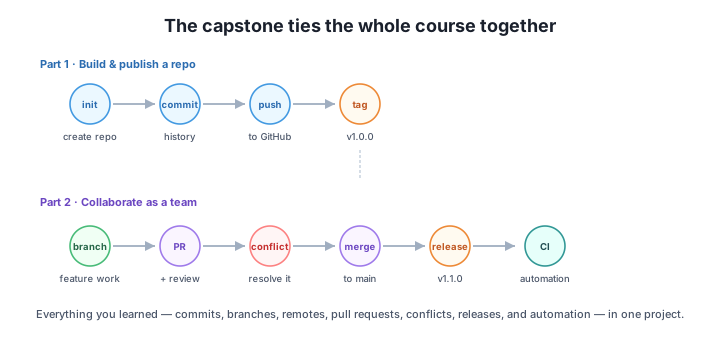
In Part 1 you built the Taskline repository from scratch, committed real history, pushed it to GitHub, and cut your first release. That was the solo half of the story. Software, though, is almost never written alone — and the moment a second person touches the same project, you need everything this course taught about branching, pull requests, conflicts, and releases working together. That is exactly what this final lesson does: you’ll simulate a complete team collaboration on Taskline, where two contributors edit the same line of the same file, both open pull requests, and one of them runs straight into a merge conflict that has to be resolved by hand.
This part exercises Modules 3, 5, and 6 in one continuous flow. When you finish it, you will have completed the capstone — and the entire Git and GitHub course.
By the end of this part, you will be able to:
Let’s bring the team in.
Imagine two contributors joining Taskline: Maya, who maintains the repo, and Sam, who’s pitching in on the README. Each one starts the same way — get a local copy of the shared repository, then create a feature branch so their work stays isolated from main.
Here’s what each teammate runs (the same two commands, just with a different branch name for the work they’re doing):
$ git clone [email protected]:maya/taskline.git
$ git switch -c feat/readme-tagline
Maya creates feat/readme-tagline for a punchier project tagline. Sam clones the same repo and creates feat/readme-badges to describe Taskline’s progress-tracking feature. Two people, two branches, one shared history — this is the branching model from Module 6 in action.
On a public open-source project, contributors typically fork the repo and push to their own copy. On a small shared-repo team — the more common setup at work — everyone has push access and simply creates branches inside the one repository, exactly as shown here (Module 5/6). Either way, the branch is the unit of independent work.
Now both teammates edit README.md — and, as luck would have it, they both rewrite the same description line under the title. Maya’s branch changes it to a tagline; Sam’s branch changes it to highlight progress tracking. Each commits the change on their own branch, pushes the branch to GitHub, and opens a pull request.
On real GitHub, a pull request is where a teammate reviews the change and then clicks the green Merge pull request button to bring it into main (Module 5). Maya’s PR #1 is reviewed first and merged. The main branch now contains her tagline. So far, so smooth — the first PR almost always merges cleanly because nothing else has moved.
The interesting part is what this does to Sam’s still-open PR #2. His branch was created from the old main, before Maya’s change existed. His PR now targets a main that has been updated underneath him — and because he edited the very same line Maya did, GitHub can’t merge it automatically. Sam needs to catch his branch up to the new main first.
To bring his branch up to date, Sam updates his local main, switches back to his feature branch, and merges the latest main into it:
$ git switch main
$ git pull origin main
$ git switch feat/readme-badges
$ git merge main
Auto-merging README.md
CONFLICT (content): Merge conflict in README.md
Automatic merge failed; fix conflicts and then commit the result.
There it is — a real merge conflict. Git was able to start the merge (Auto-merging README.md) but found that both branches changed the same line in different ways, so it refuses to guess which one is correct. It stops and hands the decision to a human.
When Sam opens README.md, Git has marked the conflicting region with conflict markers showing both versions side by side:
# Taskline

<<<<<<< HEAD
A command-line task tracker with progress tracking.
=======
A fast, friendly command-line task tracker.
>>>>>>> main
The block between <<<<<<< HEAD and ======= is Sam’s version (the current branch, HEAD); the block between ======= and >>>>>>> main is what’s now on main (Maya’s tagline). This is the exact conflict format you learned to read in Module 3 — Git isn’t broken, it’s asking a question.
Sam reads both versions and realizes they’re not really in opposition — Maya’s tagline and his progress-tracking note can live in one sentence. So he edits the file to combine both ideas and deletes all three conflict markers, leaving a clean line. Then he stages the resolved file and completes the merge commit:
$ git add README.md
$ git commit --no-edit
Staging the file tells Git the conflict is resolved; git commit --no-edit finalizes the merge using Git’s default merge message. Sam’s branch now contains both his work and Maya’s, reconciled. When he pushes, his pull request updates and GitHub reports that it can now be merged cleanly — the conflict has been resolved at the source.
With the conflict resolved, PR #2 is reviewed and merged into main via the Merge pull request button, just like the first. The final README.md on main now carries the combined sentence both contributors helped write:
# Taskline

A fast, friendly command-line task tracker with progress tracking.
Both ideas survived. Now that main holds a meaningful set of improvements, Maya cuts a release to mark this point in history — an annotated tag, pushed to the remote (Module 4):
$ git tag -a v1.1.0 -m "Add README improvements"
$ git push origin v1.1.0
Take a look at what the history looks like now. The graph tells the whole collaboration story — two feature branches, a merge that brought main into Sam’s branch to resolve the conflict, and the final pull-request merge:
$ git log --oneline --graph
*   4940fb9 Merge pull request #2 from feat/readme-badges
|\
| *   c39604a Merge branch 'main' into feat/readme-badges
| |\
| |/
|/|
* | c3a6a88 docs: add tagline to README
| * 7a58f3e docs: describe progress tracking in README
|/
* 174db33 feat: mark tasks complete
* 98a65c9 Initial commit: project scaffold
Reading bottom to top: the initial scaffold, an early feature commit, then the history forks into Maya’s tagline commit (c3a6a88) and Sam’s progress-tracking commit (7a58f3e). Sam’s branch then merges main in (c39604a) to resolve the conflict, and finally PR #2 merges everything back to main (4940fb9). That branching-and-rejoining shape is the visual signature of healthy team collaboration.
Your own commit hashes will be different from the ones shown here — Git computes each hash from the commit’s content, author, and timestamp, so they’re unique to your run. The GitHub URLs (like [email protected]:maya/taskline.git) are examples; substitute your own.
A merge conflict is not a failure
When Git stops with CONFLICT (content), nothing has gone wrong. Git is doing exactly the right thing: two people changed the same line, and rather than silently picking one, it pauses and asks a human to decide. Resolving a conflict calmly — reading both sides, choosing or combining them, then committing — is a core professional skill, not an emergency. You read the same conflict markers back in Module 3; the only difference now is that they showed up in a realistic team flow. The more conflicts you resolve, the more routine they become.
Right now, anyone can merge a pull request into main even if the tests are broken. How would you make GitHub require a passing CI check before the Merge pull request button is enabled?
Hint
Add a branch protection rule on main and mark your CI workflow’s status check as required (Module 8). With protection enabled, GitHub disables the merge button until the required check passes — so a PR that breaks the build can’t reach main. Combine it with “require a review” to enforce the pull-request flow you used here.
A new teammate wants to add a --help flag to Taskline. Walk through the full flow they’d follow, from getting the code to landing their change on main.
Hint
Clone (or pull the latest main), create a feature branch with git switch -c feat/help-flag, make and commit the change, push the branch, and open a pull request. After review, merge it via the Merge pull request button. If main moved while they worked and a conflict appears, they resolve it exactly as Sam did in Stage 4.
After the --help flag merges, you want to publish a formal v1.2.0 release with notes that users can read on GitHub. How would you do it?
Hint
Create and push an annotated tag (git tag -a v1.2.0 -m "Add --help flag" then git push origin v1.2.0), then on GitHub open Releases and draft a release from that tag with a title and notes (Module 4). A GitHub Release wraps the tag with human-readable changelog notes and downloadable assets, making it the public-facing version of your milestone.
In this final capstone part you ran a complete team collaboration on the Taskline repo. Two contributors cloned the shared repository and created feature branches, then both edited the same line of README.md. The first pull request merged cleanly into main; the second, built on the old main, hit a merge conflict when it tried to catch up. You read the CONFLICT (content) output and the conflict markers, resolved the conflict by combining both versions, and completed the merge commit. With both features reconciled on main, you tagged and pushed the v1.1.0 release and read the branching-and-rejoining shape in the commit graph.
main.<<<<<<<, =======, >>>>>>> for a human to resolve.git add the file, then git commit --no-edit to finalize the merge.v1.1.0) marks the collaborative milestone in history.This single flow is what real-world Git looks like every day: people working in parallel, pull requests gathering review, the occasional conflict that needs a calm human decision, and a release that captures the result. You didn’t learn these as isolated commands — you watched commits, branches, remotes, pull requests, conflicts, and releases cooperate inside one project. That integrated understanding is exactly what teams hire for.
And with this lesson, you’ve reached the end. You have completed the entire Version Control with Git & GitHub course. You can now create and publish a repository, write clean history, collaborate through branches and pull requests, resolve conflicts without panic, protect your work with safety practices, automate checks, and ship releases. That is the full toolkit of a confident, collaborative developer — congratulations on getting here.
Revisit any module or review what you've learned across the Git and GitHub course.
Continue your learning with other DataTweets courses.
You started this course not knowing what a commit was, and you’re finishing it by simulating a full team collaboration — conflict and all — without breaking a sweat. That’s a real transformation. Git is no longer a mysterious tool you tiptoe around; it’s an instrument you can play.
From here, the best thing you can do is use it. Put every project under version control, however small. Commit early and often, branch for every change worth isolating, open pull requests even on your own repos to build the habit, and cut a release when something is ready to share. The skills you practiced on Taskline transfer directly to real codebases, and they only get sharper with use. Go build something — and version it well. Congratulations on completing the course.