Title here
Summary here
In Lesson 1 you learned that rebase replays commits onto a new base. Its most powerful form, interactive rebase, turns that same replay machinery into an editing session for your own history. As you work on a feature, your commits often pile up messy — a string of wip, more wip, and oops fix typo notes that capture how you got there but tell a reviewer nothing useful. Interactive rebase lets you reshape those scrappy commits into a clean, deliberate series before anyone else sees them: fold several into one, fix a wording, reorder them, or drop a mistake entirely. The result is history that reads like a story you wrote on purpose, not a transcript of every keystroke.
By the end of this lesson, you will be able to:
git rebase -i HEAD~N and read its todo listpick, reword, edit, squash, fixup, and dropwip commits into one clean commit--abortThis builds directly on the rebase basics and golden rule from Lesson 1. Let’s begin.
Run git rebase -i HEAD~N and Git doesn’t immediately do anything to your commits. Instead, it opens your text editor with a todo list — one line for each of the last N commits, oldest at the top, each prefixed with a command. Here -i means interactive, and HEAD~3 means “the last three commits from where I am now.”
That todo list is the whole interface. Each line says what Git should do with that commit when you save and close the editor. Out of the box every line starts with pick, which means “keep this commit exactly as it is.” Your job is to edit those lines — change a command, reorder the lines, or delete one — then save and close. Git reads your edited list top to bottom and replays the commits according to your instructions.
Two ideas make this safe to experiment with. First, the order in the editor is oldest first, the reverse of git log, because Git replays them in that order. Second, nothing happens until you save: close the editor without changes and your history is untouched. If a rebase ever gets confusing partway through, git rebase --abort returns you to exactly where you started.
Every line in the todo list begins with one of these commands. Git even prints the full list as comments inside the editor:
# Commands:
# p, pick   = use commit
# r, reword = use commit, but edit the commit message
# e, edit   = use commit, but stop for amending
# s, squash = use commit, but meld into previous commit
# f, fixup  = like squash, but discard this commit's log message
# d, drop   = remove commit
Here is what each one does in practice:
pick — Keep the commit as-is, message and changes unchanged. This is the default for every line.reword — Keep the commit’s changes, but pause to let you rewrite its message. Perfect for fixing a typo or vague wording without touching the code.edit — Stop at this commit so you can amend it — change the files, split it, or run git commit --amend. When you’re done you continue with git rebase --continue.squash — Fold this commit into the previous line’s commit, combining the two changes into one. Git opens an editor with both messages so you can write a single combined message.fixup — Like squash, but discard this commit’s message entirely and keep only the previous commit’s message. Use it when this commit is a tiny “oops” you don’t want to document.drop — Remove the commit completely, as if it never happened. (Deleting the whole line does the same thing.)One more move that needs no command: reordering the lines reorders the commits. Cut a line and paste it higher or lower in the list, and Git replays the commits in that new order. Combined with the six commands above, you can reshape recent history almost any way you like — all from one editable list.
Let’s clean up a real mess. On a feature/parser branch you’ve been building a JSON parser in parser.py, and your history looks like this:
$ git log --oneline
6028cb2 oops fix typo
0a3a32a more wip
5416912 wip
34e6232 Add parser
The top three commits — wip, more wip, and oops fix typo — are all part of the same piece of work. No reviewer needs that play-by-play. They belong as one clean commit. The bottom commit, Add parser, is older finished work we’ll leave alone.
To rework the three messy commits, run:
$ git rebase -i HEAD~3Git opens the editor with those three commits as a todo list (oldest first), each on a pick line, followed by the command reference:
pick 5416912 wip
pick 0a3a32a more wip
pick 6028cb2 oops fix typo

# Rebase 34e6232..6028cb2 onto 34e6232 (3 commands)
#
# Commands:
# p, pick   = use commit
# r, reword = use commit, but edit the commit message
# e, edit   = use commit, but stop for amending
# s, squash = use commit, but meld into previous commit
# f, fixup  = like squash, but discard this commit's log message
# d, drop   = remove commit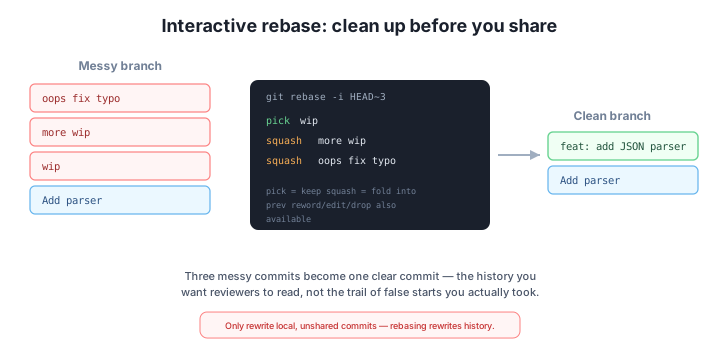
We want all three to become a single commit, so we keep the first line as pick (it’s the base everything melds into) and change the next two to squash:
pick 5416912 wip
squash 0a3a32a more wip
squash 6028cb2 oops fix typo
Save and close. Because we used squash, Git now opens a second editor containing all three messages stacked together, so we can write the final combined message. We delete the throwaway wip lines and replace them with one clear summary: feat: add JSON parser. Save and close again, and the three commits collapse into one:
$ git log --oneline
dfa8239 feat: add JSON parser
34e6232 Add parser
The three wip commits are gone, replaced by a single well-named commit. Notice the new hash dfa8239 — squash created a brand-new commit, exactly the rewriting behavior from Lesson 1. (Your own hashes will differ from dfa8239; commit hashes are unique to each repository and each rebase.) Had we wanted to discard the wip and oops fix typo messages entirely instead of editing them, we’d have used fixup on those two lines and skipped the message-editing step.
Interactive rebase rewrites commits — keep it local
Every commit an interactive rebase touches comes out as a new commit with a new hash — that’s why dfa8239 appeared above. This is the same rewriting from Lesson 1, so the golden rule still applies: only run git rebase -i on local, un-pushed commits. Rewriting commits you’ve already shared replaces what your teammates have and breaks anyone who built on them. If a rebase gets confusing partway through, you’re never stuck: git rebase --abort cancels everything and restores your branch to exactly how it was before you started.
One of your recent commits has the right changes but a sloppy message: fixd login bg. You want to correct the wording without touching the code. Which command do you put on that line in the todo list?
Hint
Use reword. It keeps the commit’s changes exactly as they are and only pauses to let you rewrite the message (for example, to Fix login background). You’d run git rebase -i HEAD~N far enough back to include that commit, change its line from pick to reword, and save.
You’re folding three commits into one. Two of them have useful message details you want to keep, but the third is just typo and its message is worthless. How do squash and fixup differ, and which do you use on the typo commit?
Hint
Both fold a commit into the previous one. squash keeps that commit’s message and adds it to the combined-message editor for you to edit; fixup discards the message and keeps only the previous commit’s message. Use fixup on the typo line so its useless message is thrown away, and squash on the ones whose wording you want to preserve.
While reviewing your todo list you spot a commit that added a debug print you never meant to keep. You want it gone — not folded into anything, just removed. How do you do it?
Hint
Put drop in front of that commit’s line (or simply delete the whole line from the todo list — both have the same effect). When you save, Git replays every other commit and leaves that one out, as if it never existed.
Interactive rebase (git rebase -i HEAD~N) opens an editable todo list of your last N commits — oldest first — and lets you reshape them before sharing. Each line carries a command: pick keeps a commit as-is, reword edits its message, edit pauses to amend it, squash folds it into the previous commit while combining messages, fixup folds it in but discards its message, and drop removes it. Reordering the lines reorders the commits. The classic use is squashing a trail of wip commits into one clean, well-named commit, as we did to turn wip / more wip / oops fix typo into a single feat: add JSON parser. Because rebasing produces new commits with new hashes, the golden rule from Lesson 1 holds: only run it on local, un-pushed work — and git rebase --abort always lets you back out safely.
git rebase -i HEAD~N — opens a todo list of the last N commits to edit.pick, reword, edit, squash, fixup, drop control each commit.git rebase --abort bails out.The difference between a hireable Git history and a confusing one is often just a single interactive rebase. Reviewers read your commits to understand why a change was made; a clean series of intentional commits makes their job easy, while a wall of wip notes makes it impossible. Squashing, rewording, and dropping commits before you open a pull request is one of the highest-leverage habits a developer can build — and because it only ever touches your own local work, it’s completely safe to practice. Next you’ll learn to copy a single commit from one branch to another with cherry-pick, another precise tool for moving exactly the work you want.
Copy a single commit from one branch onto another — grab exactly the change you need, nothing more.
Return to the Rewriting and Recovering History module overview
You can now open an interactive rebase, read its todo list, and reshape your recent commits — squashing a trail of wip into one, rewording messages, reordering, editing, and dropping — all while staying on the safe side of the golden rule. Next you’ll pick up cherry-pick, a surgical way to copy one specific commit wherever you need it.