Title here
Summary here
Merge and rebase both move ranges of commits — whole branches’ worth of work — from one place to another. But sometimes you don’t want the whole branch. You want one commit: a specific fix sitting on a branch full of unfinished work, and you need exactly that change somewhere else, right now. That’s the job of git cherry-pick. It reaches into another branch, grabs the changes from a single commit, and lays them down on your current branch as a brand-new commit — same diff, new hash. Think of it as copy-and-paste for commits.
By the end of this lesson, you will be able to:
git cherry-pick copies one commit’s changes onto your current branch--continue and bail out with --abortThis builds on what you learned about merge and rebase. Let’s begin.
When you git merge or git rebase, you bring along everything on a branch since it diverged. Cherry-pick is the opposite mindset: it takes the changes from one specific commit — identified by its hash — and applies them as a new commit on whatever branch you’re currently on. The original commit stays exactly where it was; cherry-pick makes a copy. That copy carries the same diff (the same lines added and removed) but gets a new hash, because a commit’s hash depends on its parent and the moment it’s created, and the copy has a different parent on a different branch.
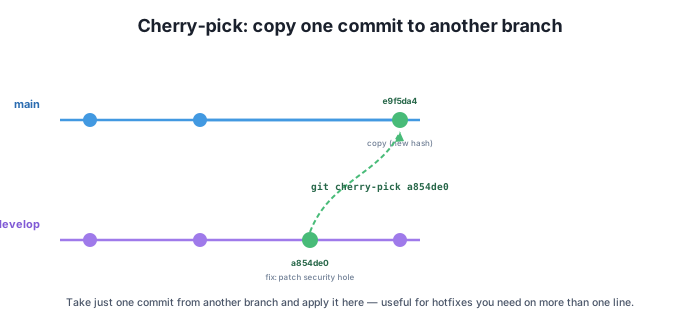
The mental model is simple: point at a commit, copy it here. Merge and rebase ask “combine these two lines of work”; cherry-pick asks “take that one change and put it on this branch.” That precision is exactly what makes it useful — and, as you’ll see at the end, exactly what makes it easy to overuse.
Here is the situation cherry-pick was made for. You’re working on develop, where a half-finished feature lives across several commits. While you’re there, you (or a teammate) spot a security hole and patch it — a quick, important fix committed on develop. But that fix needs to be on main right now, in production, and you absolutely cannot ship the unfinished feature commits along with it. Merging develop into main would drag the whole unfinished branch over. You want just the one fix.
The source branch develop has the fix we want (its hash is a854de0):
$ git log --oneline
a854de0 fix: patch security hole
80455e2 Add new feature
9b28a6f Add site
The fix is the top commit, a854de0. Below it sits 80455e2 Add new feature — the unfinished work we want to leave behind. Note the hash; you’ll need it. (Your own hashes will be different every time, since they’re computed from your commits’ content and history — the workflow is identical.)
Now switch to main and cherry-pick just that one commit:
$ git switch main
$ git cherry-pick a854de0
[main e9f5da4] fix: patch security hole
 Date: Sat May 3 10:00:00 2025 +0000
 1 file changed, 1 insertion(+)
 create mode 100644 security.py
Cherry-pick applied the fix and made a new commit on main. Look at the new hash in the output — e9f5da4, not a854de0. Same change, new commit. Now main has only that fix, and not the unfinished “Add new feature” commit:
$ git log --oneline
e9f5da4 fix: patch security hole
9b28a6f Add site
That’s the whole point. main got the security patch as e9f5da4 and nothing else. The feature work stays parked on develop until it’s ready. This is the everyday use of cherry-pick: a fix lands on the wrong branch, or needs to live on two branches at once, and you copy precisely the commit you need.
A precision tool, not a merge replacement
Cherry-pick copies one specific commit (or a small handful) — its diff is reapplied as a new commit with a new hash, because the copy has a different parent on a different branch. That’s its strength: surgical, targeted change. But it is not a substitute for merging whole branches. When you want all of a branch’s work integrated, merge or rebase. Reach for cherry-pick when you need this commit, here, and nothing else.
You’re not limited to a single commit. You can cherry-pick several at once by listing their hashes — git cherry-pick a854de0 80455e2 — and Git applies them in order, each as a new commit. For a contiguous run of commits you can use a range with A^..B, which copies everything from A through B.
Because cherry-pick reapplies a diff onto a different branch, the lines it touches might have changed there. When they have, you get an ordinary merge conflict — the same <<<<<<< / ======= / >>>>>>> markers you’ve resolved before. Handle it the usual way: edit the files to resolve the conflict, git add them, and then tell cherry-pick to carry on:
$ git cherry-pick --continueIf you decide you don’t want the cherry-pick after all — say the conflict is gnarlier than expected — back out cleanly and return the branch to where it started:
$ git cherry-pick --abortNow the warning. Cherry-pick is a precision tool, and like any precision tool it’s tempting to use everywhere. The classic mistake: cherry-picking the same commit onto branches that later merge together. When that happens, the same change exists as two different commits (two hashes, one diff), and the eventual merge can produce confusing, duplicate-looking history — and sometimes spurious conflicts. If two branches are going to be merged anyway, let the merge move the work; don’t pre-copy commits between them. Save cherry-pick for the cases where merging the whole branch is exactly what you don’t want — like the hotfix above.
A security fix is sitting on top of develop, on a branch full of unfinished feature commits. You need that fix on main immediately, but you must not bring the feature work with it. What’s your sequence of commands?
Hint
Find the fix’s hash with git log --oneline on develop. Then switch to the target branch and copy just that one commit: git switch main followed by git cherry-pick <hash>. That applies only that commit’s changes to main — the unfinished feature commits stay on develop.
After you cherry-pick commit a854de0 onto main, git log shows the new commit as e9f5da4. The change is identical to the original — so why isn’t the hash the same?
Hint
A commit’s hash is computed from its content and its context — including its parent commit and creation time, not just the diff. The cherry-picked copy has a different parent (it sits on main, not develop), so it’s a genuinely new commit and gets a new hash. Cherry-pick copies the changes, never the original commit object.
You run git cherry-pick a854de0 and Git reports a conflict because the same lines were edited on the target branch. What do you do — and what’s your escape hatch if you change your mind?
Hint
Resolve it like any merge conflict: edit the conflicted files, git add them, then run git cherry-pick --continue to finish creating the commit. If you’d rather not proceed at all, run git cherry-pick --abort to undo everything and return the branch to its pre-cherry-pick state.
git cherry-pick copies the changes from one specific commit onto your current branch as a new commit — same diff, new hash. It’s the precision counterpart to merge and rebase, which move whole ranges of work. The classic use is the hotfix that lands on the wrong branch (or is needed on two branches at once): find the commit’s hash with git log, switch to the target branch, and git cherry-pick <hash>. You can copy several commits by listing their hashes, and conflicts are resolved exactly like merge conflicts, then continued with git cherry-pick --continue or abandoned with git cherry-pick --abort. Use it surgically — copying the same commit onto branches that later merge can create confusing, duplicate-looking history, so cherry-pick is a precision tool, not a replacement for merging.
git cherry-pick <hash> — applies the changes from one commit as a new commit on your current branch (new hash, same diff).git cherry-pick --continue, or back out with git cherry-pick --abort.Hotfixes rarely respect your branch layout — they show up where they’re convenient, not where they belong. Cherry-pick lets you put a specific change exactly where it needs to be without disturbing anything else, which is why it’s a staple of release management and emergency fixes. Knowing both its power and its trap — duplicate commits across branches that later merge — keeps your history clean and your fixes landing on time.
Recover lost commits with the reflog and hunt down the commit that introduced a bug with git bisect.
Return to the Rewriting and Recovering History module overview
You can now copy a single commit onto any branch with surgical precision, handle conflicts when they come up, and recognize when cherry-pick is the wrong call. Next you’ll move from rewriting history to recovering it — using the reflog to bring back commits you thought were gone, and git bisect to pinpoint the exact commit that broke something.