Title here
Summary here
The last few lessons taught you to rewrite history with rebase and reset — powerful, but the word “destructive” tends to make people nervous. This lesson is the antidote. It hands you the safety net that makes rewriting safe to experiment with, plus a detective’s tool for hunting down bugs. First, reflog: Git quietly records every place HEAD has ever pointed, so a commit you thought you threw away is almost always still recoverable. Second, detached HEAD: the one situation where work really can slip through the cracks — and exactly how to keep it from happening. Third, git bisect: a binary search through your history that finds the precise commit that introduced a bug, even across hundreds of commits, in just a handful of tests.
By the end of this lesson, you will be able to:
git reflog to find and recover commits after a “destructive” command like git reset --hardgit switch -cgit bisect, both manually and with git bisect runThese tools turn Git from something to fear into something to lean on. Let’s begin.
Here is a scenario that makes most beginners’ stomachs drop. You run a hard reset to move back two commits — and the two commits you reset past appear to vanish:
$ git reset --hard HEAD~2
HEAD is now at 8b36465 Add work
$ git log --oneline
8b36465 Add work
git log now shows only one commit. The work looks gone. It isn’t. Git keeps a private journal called the reflog (“reference log”) that records every single move HEAD makes — every commit, checkout, reset, merge, and rebase. Ask to see it:
$ git reflog
8b36465 HEAD@{0}: reset: moving to HEAD~2
db03b58 HEAD@{1}: commit: More important work
e672b64 HEAD@{2}: commit: Important analysis
8b36465 HEAD@{3}: commit (initial): Add work
Read it from the bottom up and you can replay your own history. There’s the initial commit, then the two commits you “lost” (Important analysis and More important work), and finally the reset that jumped you back. Each line has a label like HEAD@{1} — that’s a name you can use to refer to where HEAD was at that point. Crucially, the lost commits still have their hashes: e672b64 and db03b58.
To get back, reset to the last good commit — db03b58, the tip before you reset away:
$ git reset --hard db03b58
HEAD is now at db03b58 More important work
$ git log --oneline
db03b58 More important work
e672b64 Important analysis
8b36465 Add work
Everything is back. (Your hashes will differ from these — the values here are from one real run; the important thing is the shape of what reflog shows you.) The reflog is the single most reassuring command in Git: it means a hard reset, a botched rebase, or a deleted branch is almost never the end of the story.
This is why you can experiment fearlessly
The reflog is the reason you can run “scary” commands without losing sleep. Almost nothing is truly lost in Git: even commits you reset past, rebase away, or stranded on a deleted branch live on as long as the reflog remembers where HEAD was. By default, reflog entries are kept for about 90 days (30 days for commits already unreachable), after which Git’s garbage collector may finally clean them up. So as long as you act within a few weeks, git reflog is your undo button for nearly any history mistake.
Normally HEAD points at a branch (like main), and that branch points at the latest commit. When you make a new commit, the branch moves forward to include it — that’s how your work stays attached to a name you can find later.
A detached HEAD is when HEAD points directly at a commit instead of at a branch. The most common way to land here is checking out a commit by its hash:
$ git checkout 8b36465
Note: switching to '8b36465'.

You are in 'detached HEAD' state...
HEAD is now at 8b36465 Add work
This is perfectly fine for looking around — inspecting an old version, building it, running a quick test. The danger appears if you commit while detached. Those commits attach to nothing but HEAD itself. The moment you switch back to a branch, HEAD moves to that branch and your new commits are no longer reachable by any name — they look lost:
$ git switch main
Warning: you are leaving 1 commit behind, not connected to
any of your branches:

  4f9a2c1 Experiment that worked
Git even warns you. The fix is simple, and you should do it before switching away: give the work a branch so it has a name to hang on to.
$ git switch -c experiment
Switched to a new branch 'experiment'
git switch -c experiment creates a new branch right where you are and attaches HEAD to it, so the commits you made while detached are now safely on the experiment branch. And if you already switched away and left commits behind? You’re not stuck — this is exactly what the reflog is for. Find the stranded commit’s hash in git reflog (or in the warning Git printed), then create a branch pointing at it:
$ git branch experiment 4f9a2c1The commit is reachable again. Detached HEAD is the one place work can genuinely slip away, but between git switch -c (to prevent it) and git reflog (to recover it), it’s entirely under your control.
Sometimes you know a bug exists now but didn’t exist some time ago, and you have no idea which of the commits in between introduced it. Checking them one by one is slow — 200 commits could mean 200 tests. git bisect does far better: it performs a binary search through history. You tell it one commit that’s “bad” (has the bug) and one that’s “good” (doesn’t), and it repeatedly checks out the midpoint for you to test, halving the suspect range each time.
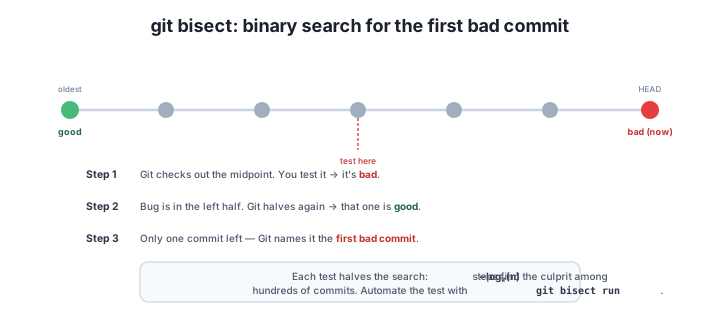
Start a bisect session, then mark your two endpoints. You can mark the current (broken) commit as bad with no argument, and pass the hash of a known-good older commit to good:
$ git bisect start
status: waiting for both good and bad commits
$ git bisect bad
status: waiting for good commit(s), bad commit known
$ git bisect good 75ec379
Bisecting: 1 revision left to test after this (roughly 1 step)
[959a5538499e3a198b5fe6efcff01205f2065cdc] Change multiplier (BUG: should be 2)
Git has checked out the midpoint commit for you. Now you test whatever the bug affects (run the program, the test suite, whatever proves the bug). Here the bug is present, so you tell Git this commit is bad:
$ git bisect bad
Bisecting: 0 revisions left to test after this (roughly 0 steps)
[95389da8380c7b505b70f8168e23ff7b563c2d71] Add README
Git narrows the range and checks out the next commit to test. You test this one — the bug is gone — so you mark it good:
$ git bisect good
959a5538499e3a198b5fe6efcff01205f2065cdc is the first bad commit
commit 959a5538499e3a198b5fe6efcff01205f2065cdc
Author: Maya Chen <[email protected]>
Date:   Tue Jun 3 10:00:00 2025 +0000

    Change multiplier (BUG: should be 2)

 calc.py | 2 +-
 1 file changed, 1 insertion(+), 1 deletion(-)
$ git bisect reset
Git has pinpointed 959a5538…, the first bad commit — and even shows you what it changed (calc.py), which usually makes the cause obvious. The final, essential step is git bisect reset, which ends the session and returns you to the branch you started on. (Your hashes will differ.)
git bisect runTesting every midpoint by hand is fine for a few steps, but if you can express “is this commit good?” as a script, Git will run the entire bisect for you. The rule is simple: the script must exit 0 when the commit is good and exit non-zero when it’s bad. Here a small test.sh checks that price(1) equals 2.
You can give both endpoints right on the start line — git bisect start <bad> <good> — then hand Git the script:
$ git bisect start HEAD 75ec379
$ git bisect run ./test.sh
running './test.sh'
Bisecting: 0 revisions left to test after this (roughly 0 steps)
[95389da8380c7b505b70f8168e23ff7b563c2d71] Add README
running './test.sh'
959a5538499e3a198b5fe6efcff01205f2065cdc is the first bad commit
commit 959a5538499e3a198b5fe6efcff01205f2065cdc
Author: Maya Chen <[email protected]>
Date:   Tue Jun 3 10:00:00 2025 +0000

    Change multiplier (BUG: should be 2)

 calc.py | 2 +-
 1 file changed, 1 insertion(+), 1 deletion(-)
bisect found first bad commit
Git checked out each midpoint, ran your script, used the exit code as the verdict, and reported the same first bad commit — all without you touching a thing. (75ec379 is the known-good first commit; HEAD is the current bad one.) Always finish with git bisect reset to return to your branch. With a reliable test, bisecting hundreds of commits is the work of seconds, not an afternoon.
You ran git reset --hard HEAD~3 to undo some work, then realized you actually needed two of those three commits. git log no longer shows them. How do you get them back?
Hint
Run git reflog. It lists every position HEAD has held, including the commit that was the tip before your reset. Find that commit’s hash (or its HEAD@{n} label) and run git reset --hard <hash> to restore your branch to it. The commits were never deleted — reset only moved the branch pointer.
You checked out an old commit by its hash, made a couple of commits while experimenting, and then ran git switch main. Git warned you that you were leaving commits behind. How do you keep them?
Hint
The cleanest fix is to do it before switching: git switch -c <name> creates a branch where you are so the commits get a name. If you already switched away, find the stranded commit’s hash with git reflog (or in Git’s warning) and create a branch on it with git branch <name> <hash>. Either way the commits become reachable again.
A bug appeared somewhere in the last 200 commits, but you don’t know which one introduced it. You know the current tip is broken and a commit from last month was fine. What’s the fastest way to find the culprit?
Hint
Use git bisect. Run git bisect start, mark the current commit bad and the known-good old one good, and Git binary-searches the range — about log2(200) ≈ 8 tests instead of 200. If you can write a script that exits 0 for good and non-zero for bad, let git bisect run ./test.sh do it all automatically. Finish with git bisect reset.
Git is far more forgiving than it first appears. The reflog records every move HEAD makes, so after a “destructive” command like git reset --hard you can find the lost commit’s hash and reset back to it — almost nothing is truly lost for roughly 90 days. A detached HEAD (HEAD pointing at a commit instead of a branch) is the one place work can genuinely slip away: commits made there become unreachable when you switch off, so give them a name with git switch -c <name> beforehand, or recover them via the reflog afterward. And git bisect turns bug-hunting into a binary search: mark a bad and a good commit, test the midpoints Git checks out, and it names the first bad commit in about log2(n) steps — fully automatable with git bisect run <script> and always closed out with git bisect reset.
git reflog — a log of every position HEAD has held; use it to recover commits after resets, bad rebases, or deleted branches.git switch -c <name> — create a branch to keep work made in detached HEAD (and recover with git reflog / git branch <name> <hash> if you already left).git bisect — binary-search history to find the first bad commit; mark good/bad, then git bisect reset when done.git bisect run <script> — automate bisect with a script that exits 0 for good, non-zero for bad.These are the tools that change your relationship with Git from cautious to confident. Once you know the reflog has your back, you can rebase, reset, and experiment freely, because the undo button is always within reach. Detached HEAD stops being a mysterious warning and becomes a managed state. And git bisect can save hours of guesswork by pinpointing exactly which commit introduced a regression — across hundreds of commits — in a handful of tests. Together they make Git a safety net and a debugger, not just a record-keeper.
Put rewriting and recovery together: clean up a branch with interactive rebase, then rescue a commit you thought was gone.
Return to the Rewriting and Recovering History module overview
You can now recover commits you thought were lost, keep work safe in detached HEAD, and hunt down the exact commit that introduced a bug. In the next lesson you’ll bring the whole module together in a guided project — polishing a branch with the rewriting tools you’ve learned and then recovering a commit with the safety net from this lesson.