Title here
Summary here
Git is installed and knows your name, so it’s time to put it to work. In this lesson you’ll turn an ordinary folder into a Git repository — a project Git is watching and recording. You’ll do it with a single command, peek at the hidden folder Git creates to store everything, and learn the mental model that makes the rest of Git click: the three areas your work moves through on its way from “a file I’m editing” to “a saved snapshot in history.”
We won’t commit anything yet. This lesson is about understanding the place your snapshots will live; Lesson 4 fills it with actual changes.
By the end of this lesson, you will be able to:
git init and explain what it does.git folder and why you should never edit it by handgit status on a brand-new repository and read what it tells youLet’s begin.
A repository (or repo) is a project that Git is tracking — a folder whose entire history Git records for you. You don’t download or sign up for anything to make one. You take a normal folder and tell Git to start watching it, using git init.
First, make a folder for the project and move into it. We’ll call ours skylog. Then run git init:
$ git init
Initialized empty Git repository in /Users/you/skylog/.git/
That one line did the whole job. The path in the message — /Users/you/skylog/.git/ — is where Git will keep this project’s history; yours will show your own location instead of /Users/you/. The word empty is important: the repository exists, but it has no commits yet, because you haven’t saved any snapshots.
A few things worth knowing about git init:
skylog and everything inside it. Folders elsewhere on your computer are untouched.init doesn’t move, rename, or commit anything — it just sets up tracking.git init again in an already-initialized folder is harmless, but unnecessary.From this point on, every Git command you run inside skylog operates on this repository.
Where did the history go? git init created a hidden folder named .git inside your project. The leading dot makes it hidden, so a normal directory listing won’t show it. Ask for hidden entries with ls -a and there it is:
$ ls -a
.   ..   .git
The . and .. are the current folder and its parent — every directory has them. The new arrival is .git. That single folder is your repository: it holds every commit, every saved version of every file, and all of Git’s bookkeeping. Look inside and you’ll see Git’s machinery:
$ ls .git
HEAD   config   description   hooks   info   objects   refs
You don’t need to understand each of these yet, but a quick tour removes the mystery:
objects — where Git stores the actual content of your snapshots. Your project’s history lives here.refs — pointers to commits, including your branches.HEAD — a marker for which branch you’re currently on.config — settings for this specific repository.hooks, info, description — supporting files Git uses behind the scenes.The key idea: all of Git’s data for this project is inside .git, and Git manages it for you. You interact with it through commands like git add and git commit — never by opening these files yourself.
Leave the .git folder alone
Don’t open, edit, or rearrange the files inside .git by hand — Git keeps them in a precise internal format, and editing them can corrupt your history. And be careful with deletion: removing the .git folder deletes your entire history (every commit), while leaving the actual project files in place. The folder would simply stop being a repository. There’s almost never a reason to touch .git directly; let Git’s commands do the work.
Here’s the mental model that makes Git make sense. As you work, a change passes through three areas before it becomes part of your permanent history:
.git folder. Once a change is here, it’s a permanent snapshot you can return to.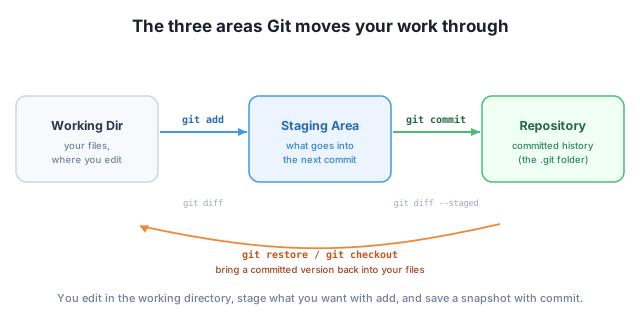
You move work from one area to the next with two commands you’ll learn in the next lesson:
git add moves changes from the working directory into the staging area — “include this in my next snapshot.”git commit moves everything that’s staged into the repository as one snapshot, with a message describing it.The dashed arrow in the figure shows the trip back: commands like git restore can pull a file from the repository back into your working directory, undoing edits. And the small git diff labels mark where you can ask Git to compare areas — what’s changed but unstaged, and what’s staged but not yet committed.
Why two steps instead of one? Because the staging area gives you control. You rarely want to save everything you’ve touched in a single lump. Staging lets you assemble a clean, meaningful snapshot — exactly the changes that belong together — before committing it.
git status is the command you’ll run more than any other. It tells you the current state of your repository — which area your changes are in, what’s tracked, and what to do next. Run it in your fresh skylog repo:
$ git status
On branch main

No commits yet

nothing to commit (create/copy files and use "git add" to track)
Read it line by line, because each line is teaching you something:
On branch main — you’re on a branch called main, the default starting branch. Branches come later; for now, just know main is your project’s main line of work.No commits yet — the repository is real, but its history is empty. You created the place for snapshots without saving one. This matches the empty repository message you saw from git init.nothing to commit (create/copy files and use "git add" to track) — there’s nothing waiting to be saved, and Git is telling you the next move: add some files, then use git add to start tracking them.That last line is Git being helpful. Throughout this course you’ll notice that git status doesn’t just report state — it suggests the command you probably want next. Get in the habit of running it often. When you’re unsure what Git is thinking, git status almost always answers the question.
Create a new folder, move into it, and run git init. Then prove the repository exists. What did git init print, and what command reveals the hidden folder it created?
Hint
git init prints Initialized empty Git repository in .../<your-folder>/.git/. Because the folder it creates starts with a dot, a normal ls won’t show it — use ls -a to list hidden entries, and you’ll see .git alongside . and ...
You just edited a file in your project but haven’t run any Git commands yet. Which of the three areas is that change currently in? Which command would move it to the staging area, and which would then save it into the repository?
Hint
An edited-but-untouched-by-Git change lives in the working directory. git add moves it into the staging area; git commit then saves everything staged into the repository as a snapshot.
Run git status in your brand-new repository. Explain in your own words what No commits yet means and what the line in parentheses is telling you to do.
Hint
No commits yet means the repository exists but holds no snapshots — its history is empty. The parenthetical, (create/copy files and use "git add" to track), is Git suggesting your next step: put some files in the folder and run git add to start tracking them.
You turned an ordinary folder into a Git repository with git init, which prints Initialized empty Git repository and creates a hidden .git folder. That folder holds your entire history — objects, refs, HEAD, config, and more — and Git manages it for you, so you never edit it by hand. You also met the model that underpins everything else: changes flow through three areas — the working directory where you edit, the staging area where you gather what goes into the next snapshot, and the repository where committed snapshots live — moved along by git add and git commit. Finally, you read git status on a fresh repo, learning to recognize On branch main, No commits yet, and Git’s helpful suggestion to add files and use git add.
git init..git folder — the hidden directory holding all of Git’s history and data; never edit it by hand..git.git status — reports the current state and suggests your next step.Almost every Git command makes sense once you know which of the three areas it touches. git add moves work into staging; git commit moves it into history; git status tells you where everything sits. Beginners who skip this model end up memorizing commands that feel arbitrary; those who learn it can reason about what Git is doing and recover when something looks wrong. With the repository created and the model in hand, you’re ready to actually save your first snapshot.
Add files to your repository, stage them with git add, and save your first commit to the repository's history.
Return to the Version Control Foundations module overview
You’ve created your first repository, looked inside the .git folder, and learned the three areas every change travels through before it becomes history. Next you’ll make that journey for real — adding files to your project, staging them with git add, and saving your very first commit.