Title here
Summary here
You have a repository, and Git knows who you are. Now comes the part you’ll repeat dozens of times a day: the everyday loop of telling Git what you’ve changed and saving those changes as snapshots. The whole rhythm boils down to three commands — git status to see where things stand, git add to choose what goes into the next snapshot, and git commit to save it. Once this loop is second nature, Git stops feeling like a puzzle and starts feeling like a safety net.
We’ll work inside a small project called SkyLog, a command-line journal for logging what you see in the night sky. Following along with real files is the fastest way to make the loop stick.
By the end of this lesson, you will be able to:
git status to tell which files are untracked, modified, or stagedgit add, one file at a time or all at oncegit commit and write a clear commit messagegit diff to see exactly what changedLet’s begin.
git statusThe single most useful command in daily Git is git status. It answers the question “what’s going on right now?” — which files Git is tracking, which ones have changed, and which are ready to be saved. Run it early and often; it never changes anything, it just reports.
Suppose the SkyLog folder has two brand-new files. README.md:
# SkyLog

A tiny command-line journal for logging what you see in the night sky.
And skylog.py:
import sys

def add(observation):
    with open("observations.md", "a") as f:
        f.write(f"- {observation}\n")
    print(f"Logged: {observation}")

if __name__ == "__main__":
    add(" ".join(sys.argv[1:]))
Right after creating them, here’s what Git reports:
$ git status
On branch main

No commits yet

Untracked files:
  (use "git add <file>..." to include in what will be committed)
	README.md
	skylog.py

nothing added to commit but untracked files present (use "git add" to track)
Let’s read this top to bottom:
On branch main — you’re on the default branch (more on branches later).No commits yet — this repository has no saved snapshots so far.Untracked files — Git sees these files exist but isn’t tracking them yet. An untracked file is one Git has never been told to care about. It won’t be saved until you tell Git to include it.The parenthetical hints are Git suggesting your next move. Here it’s telling you to use git add to start tracking those files.
git addBefore Git saves anything, you build up the next snapshot in a holding area called the staging area (sometimes called the index). You put changes there with git add. Think of it as packing a box: you decide exactly what goes in before you seal it with a commit.
Let’s stage just the README for now:
$ git add README.mdThat command prints nothing — silence means success. Run git status again to see what changed:
$ git status
On branch main

No commits yet

Changes to be committed:
  (use "git rm --cached <file>..." to unstage)
	new file:   README.md

Untracked files:
  (use "git add <file>..." to include in what will be committed)
	skylog.py
Notice the new section, Changes to be committed — that’s the staging area. README.md is now listed there as a new file, ready to be saved. Meanwhile skylog.py is still untracked, because we only added the README. This is the whole point of staging: you control precisely what goes into each snapshot.
When you do want everything at once, git add . stages all changes in the current folder (the . means “here and below”):
$ git add .Use git add README.md when you want to commit one file’s worth of work on its own, and git add . when everything you’ve touched belongs together in the same snapshot. Both are common — the choice is yours.
git commitOnce the right changes are staged, you seal the box with git commit. The -m flag lets you attach a commit message describing what this snapshot is for:
$ git commit -m "Add project README"
[main (root-commit) 57d9883] Add project README
 1 file changed, 3 insertions(+)
 create mode 100644 README.md
Reading that output:
(root-commit) — this is the very first commit in the repository.57d9883 — the short commit hash, a unique ID for this snapshot. Yours will be different; every commit gets its own hash based on its contents.1 file changed, 3 insertions(+) — a summary of what the snapshot contains: one file, three lines added.That snapshot is now part of your project’s permanent history. You can always come back to exactly this state.
A good commit message is short, written in the imperative mood (“Add project README”, not “Added” or “Adding”), and explains what the change accomplishes. Aim for a clear one-line summary under about 50 characters. Compare “Add project README” — instantly understandable months later — with “stuff” or “update”, which tell future-you nothing.
Staging and messages: why they matter
The staging area lets you commit a curated subset of your work. If you’ve fixed a bug and started an unrelated feature, you can stage and commit just the bug fix, leaving the feature for its own commit — keeping your history clean and each snapshot focused. As for messages: write them in the imperative (“Fix login crash”), keep them concise, and describe the intent of the change. A good message turns your history into something you can actually read.
git diffEvery file in a Git project moves through a predictable set of states. Understanding them is what makes git status readable at a glance.
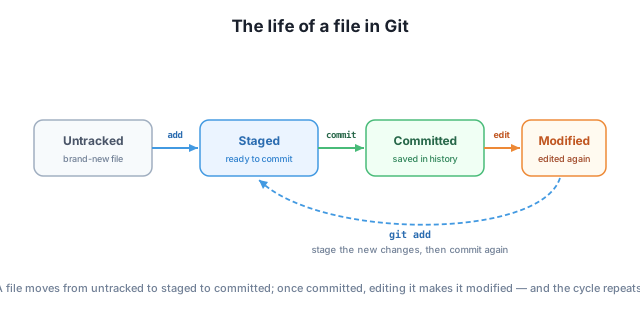
The states, in order:
git add).git commit).A modified file isn’t lost work — it just hasn’t been re-saved yet. To capture the new edits, you stage them with git add again and make another commit, which is why the cycle loops back around.
Let’s see this happen. Suppose we append a usage line to README.md after it’s been committed. Now git status shows:
$ git status
On branch main
Changes not staged for commit:
  (use "git add <file>..." to update what will be committed)
  (use "git restore <file>..." to discard changes in working directory)
	modified:   README.md

Untracked files:
  (use "git add <file>..." to include in what will be committed)
	skylog.py

no changes added to commit (use "git add" and/or "git commit -a")
README.md now appears under Changes not staged for commit as modified — Git noticed it differs from the last committed version. But what, exactly, changed? git status only names the files; to see the actual lines, use git diff:
$ git diff
diff --git a/README.md b/README.md
index 30534db..55123d7 100644
--- a/README.md
+++ b/README.md
@@ -1,3 +1,5 @@
 # SkyLog

 A tiny command-line journal for logging what you see in the night sky.
+
+Run it with: python skylog.py "Saw the Orion Nebula"
How to read a diff:
--- a/README.md is the old version; +++ b/README.md is the new one.@@ -1,3 +1,5 @@ marks the location: lines 1–3 in the old file correspond to lines 1–5 in the new one.+ were added; lines starting with - would mean removed. Lines with a leading space are unchanged, shown for context.Here, two lines were added (a blank line and the usage note) and nothing was removed. The index 30534db..55123d7 line refers to internal blob hashes — like the commit hash, these will differ on your machine, and that’s perfectly normal. git diff is your window into exactly what you’re about to commit, so you never save a change you didn’t mean to.
You run git status and see a file listed under Untracked files and another under Changes to be committed. What’s the difference between these two files, and what command moved the second one into that section?
Hint
The untracked file is one Git isn’t watching yet — it won’t be saved by a commit. The file under Changes to be committed is staged: it’s in the staging area and will be included in the next snapshot. git add moved it there.
You’ve edited two files, but only one of them is finished and ready to save. Which command stages just that file, and why might you avoid git add . in this situation?
Hint
Use git add <filename> to stage only the finished file. git add . would stage both files, pulling your unfinished work into the same commit. Staging one file at a time keeps each snapshot focused on a single, complete change.
After committing README.md, you edit it again and run git status. The file shows up under Changes not staged for commit as modified. What does “modified” mean here, and what two commands would you run to save the new edit?
Hint
“Modified” means the file’s current contents no longer match the last committed version — you’ve changed it since the last snapshot. To save the change, run git add README.md to stage it, then git commit -m "..." to commit it. You could also run git diff first to review exactly what changed.
The everyday Git loop is three commands. git status reports the state of your project — which files are untracked, modified, or staged — and suggests your next move. git add stages changes into the staging area, letting you choose exactly what goes into the next snapshot: one file with git add <filename>, or everything with git add .. git commit -m "..." saves the staged changes as a permanent snapshot with a clear, imperative message. Underlying all of this is the file lifecycle — untracked, staged, committed, modified — and git diff, which shows the precise lines that changed before you commit them.
git status — shows untracked, modified, and staged files; changes nothing.git add.git commit -m — saves staged changes as a snapshot with a message.git diff — displays the exact line-level changes not yet staged.This loop is the heartbeat of working with Git — you’ll run status, add, and commit more than any other commands by a wide margin. Mastering it means you can save your work in small, meaningful steps, each labeled with why you made it, and review exactly what you’re saving before you save it. That’s the difference between a tangled folder of guesses and a clean, readable history you can trust and travel back through.
Put the full loop into practice by building SkyLog's history from scratch — initializing, staging, committing, and inspecting changes step by step.
Return to the Version Control Foundations module overview
You now know the loop that powers everything else in Git: check status, stage with git add, save with git commit, and inspect changes with git diff. Next you’ll bring it all together in a guided project, building up SkyLog’s version history one commit at a time — the same rhythm you’ll use on every project from here on.