Title here
Summary here
Every commit you make adds to a permanent, readable record of your project. That record is only useful if you can navigate it — and Git gives you rich tools to do exactly that. In this lesson you’ll learn to read your history with git log, shape it into the view you need (a compact one-line summary, per-commit file stats, a custom format, or a branch graph), and zoom into any single commit with git show. These are the commands you’ll reach for constantly: to remember what you did yesterday, find when something changed, or review a teammate’s work.
We’ll use the SkyLog repository from Module 1, now with a few more commits.
By the end of this lesson, you will be able to:
git log and explain what a commit records--oneline, --stat, and custom --pretty formatsgit log --graph --allgit showLet’s begin.
git logRun git log inside a repository and Git prints the commits, newest first, each with its full hash, author, date, and message:
$ git log
commit 65db0dc13c8b02ba836d262c57f552dea7ff3dc6
Author: Ada Skye <[email protected]>
Date:   Thu Mar 5 19:05:00 2026 +0330

    Add timestamps to logged observations

commit 429ca719b8a8328898cc45ce74bec1e5cd3630ca
Author: Ada Skye <[email protected]>
Date:   Tue Mar 3 22:30:00 2026 +0330

    Log first two observations

commit 4baefbe1cfbccc6068f77abd4dd6aae5feb37e14
Author: Ada Skye <[email protected]>
Date:   Mon Mar 2 21:15:00 2026 +0330

    Add SkyLog script and usage notes

commit ac6a33d623c6850116ecdd86625ed4a80b3c1464
Author: Ada Skye <[email protected]>
Date:   Sun Mar 1 20:00:00 2026 +0330

    Add project README
Each entry is one commit — a snapshot with a unique 40-character hash, who made it, when, and why. Notice every commit also links back to the one before it; together they form a chain, which is your history.
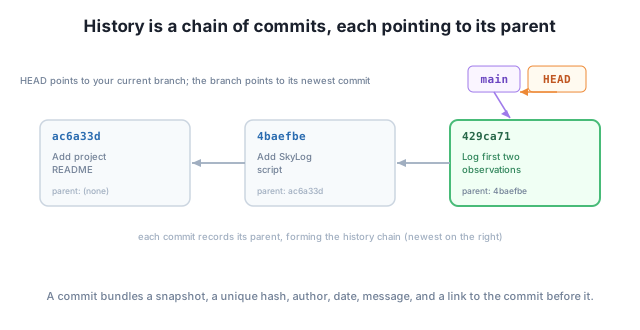
(Your hashes and dates will differ from these — every commit’s hash is computed from its content and the moment it was made.)
--oneline and --statThe full view is thorough but verbose. For a quick scan, --oneline collapses each commit to a short hash and its message:
$ git log --oneline
65db0dc Add timestamps to logged observations
429ca71 Log first two observations
4baefbe Add SkyLog script and usage notes
ac6a33d Add project README
This is the view most people live in day to day. When you also want to see which files each commit touched and by how much, add --stat:
$ git log --stat -2
commit 65db0dc13c8b02ba836d262c57f552dea7ff3dc6
Author: Ada Skye <[email protected]>
Date:   Thu Mar 5 19:05:00 2026 +0330

    Add timestamps to logged observations

 skylog.py | 4 +++-
 1 file changed, 3 insertions(+), 1 deletion(-)

commit 429ca719b8a8328898cc45ce74bec1e5cd3630ca
Author: Ada Skye <[email protected]>
Date:   Tue Mar 3 22:30:00 2026 +0330

    Log first two observations

 observations.md | 2 ++
 1 file changed, 2 insertions(+)
The -2 limited the output to the two most recent commits — handy in a long history. The 4 +++- is a tiny bar chart of the change: three lines added, one removed in skylog.py.
git log opens a pager
When the history is long, git log opens it in a scrollable pager. Press the space bar or arrow keys to move, and press q to quit back to your prompt. If you ever feel “stuck” after git log, just press q.
--pretty=formatWhen you want exactly the columns you care about — say a short hash, the author, and the message on one line — --pretty=format lets you build it with placeholders like %h (short hash), %an (author name), and %s (subject/message):
$ git log --pretty=format:"%h  %an  %s" -4
65db0dc  Ada Skye  Add timestamps to logged observations
429ca71  Ada Skye  Log first two observations
4baefbe  Ada Skye  Add SkyLog script and usage notes
ac6a33d  Ada Skye  Add project README
This is the basis for the “pretty” git logs you’ll see people use. There are placeholders for dates, emails, relative times, and more — but %h, %an, %ad, and %s cover most needs.
git log --graph --allHistory isn’t always a straight line — once you start branching (next module), commits can diverge and rejoin. --graph draws the structure with ASCII lines, and --all includes every branch, not just the one you’re on:
$ git log --graph --oneline --all
* 5b88bad Note planned CSV export feature
* 65db0dc Add timestamps to logged observations
* 429ca71 Log first two observations
* 4baefbe Add SkyLog script and usage notes
* ac6a33d Add project README
Right now SkyLog’s history is linear, so the graph is a single column. The moment branches diverge — which you’ll create in Module 3 — those * markers fan out into a tree, and this command becomes the clearest way to see how branches relate.
git showgit log summarizes commits; git show opens one up completely, including the exact lines it changed. Point it at a commit (or HEAD for the latest):
$ git show HEAD
commit 65db0dc13c8b02ba836d262c57f552dea7ff3dc6
Author: Ada Skye <[email protected]>
Date:   Thu Mar 5 19:05:00 2026 +0330

    Add timestamps to logged observations

diff --git a/skylog.py b/skylog.py
index 48fbde4..ed6b676 100644
--- a/skylog.py
+++ b/skylog.py
@@ -1,8 +1,10 @@
 import sys
+from datetime import datetime

 def add(observation):
+    stamp = datetime.now().strftime("%Y-%m-%d %H:%M")
     with open("observations.md", "a") as f:
-        f.write(f"- {observation}\n")
+        f.write(f"- [{stamp}] {observation}\n")
     print(f"Logged: {observation}")

 if __name__ == "__main__":
Lines starting with + were added and - were removed. You can run git show 4baefbe (a short hash from your log) to inspect any commit — this is how you answer “what exactly did that commit change?” You’ll learn to read this diff format in depth in the next lesson.
Which git log view would you use to (a) quickly scan the last 20 commit messages, and (b) see which files changed in each commit? Write the command for each.
Hint
(a) git log --oneline -20 — one line per commit, limited to 20. (b) git log --stat — adds the per-commit list of changed files and their insertion/deletion counts.
In the default git log, what four pieces of information does each commit entry show, and which one is guaranteed to be unique?
Hint
Each entry shows the commit hash, the author, the date, and the message. The 40-character hash is the unique identifier — it’s computed from the commit’s contents, so no two commits share one.
You see 4baefbe Add SkyLog script and usage notes in git log --oneline and want to see exactly what it changed. What command do you run?
Hint
git show 4baefbe — git show followed by the commit’s (short) hash prints that commit’s metadata and full diff. You can copy the short hash straight from git log --oneline.
Git’s history is a readable record, and git log is how you read it. The default view shows each commit’s hash, author, date, and message; --oneline compresses it for scanning, --stat adds which files changed, and --pretty=format builds custom output from placeholders like %h, %an, and %s. --graph --all draws the branch structure (a single column until branches diverge), and git show opens any one commit in full, including its line-by-line diff. Together these let you find, review, and understand any change in your project’s past.
git log — list commits, newest first (hash, author, date, message).--oneline / --stat — compact view / per-commit file change stats.--pretty=format — custom log output via placeholders (%h, %an, %s).--graph --all — visualize all branches as a tree.git show <commit> — full details and diff of a single commit.Reading history is a daily activity for anyone who uses Git: you check what you did before a break, hunt down when a bug appeared, and review what changed before merging someone’s work. Knowing how to shape git log into the right view — and drill into a single commit with git show — turns a wall of text into precise answers. It’s also the foundation for the next lesson, where you’ll compare versions in detail with git diff.
Use git diff to compare exactly what changed — between your files, the staging area, and any two commits.
Return to the Working with History module overview
You can now read your project’s history in whatever shape you need and open any commit to see exactly what it changed. Next you’ll get precise about differences — using git diff to compare your working files, your staged changes, and any two points in history.