Title here
Summary here
Not everything in a project folder belongs in version control. As you run SkyLog, the directory fills up with files Git has no business tracking: debug logs, a Python cache folder, a virtual environment, and — most dangerously — a .env file holding secrets. Committing these is at best noisy and at worst a security incident. The fix is .gitignore: a small file that tells Git which paths to leave alone. In this lesson you’ll write one, confirm it works, see exactly what’s being ignored, handle the classic gotcha (Git won’t ignore something it already tracks), and learn to carve out exceptions with negation.
We’ll keep working in the SkyLog repository from the previous lessons.
By the end of this lesson, you will be able to:
.gitignore with patterns and confirm the clutter disappears from git statusgit status --ignoredgit rm --cached while keeping it on disk!) rule, and set up a global ignoreLet’s begin.
.gitignoreRun your project for a while and Git starts noticing files you never meant to commit. In SkyLog, git status --short shows four pieces of clutter as untracked:
$ git status --short
?? .env
?? __pycache__/
?? skylog.debug.log
?? venv/
None of these belong in the repository. The .env file holds secrets (API keys, passwords). __pycache__/ is compiled Python that’s regenerated automatically. skylog.debug.log is a runtime log that changes every run. venv/ is a virtual environment — hundreds of files specific to your machine. Committing them bloats history, creates pointless diffs, and can leak credentials to anyone who can read the repo.
The cure is a file named .gitignore at the root of the repository. Each line is a pattern; any path that matches is hidden from Git. Create one with these rules:
# Python
__pycache__/
venv/

# logs and secrets
*.log
.env
A few pattern basics: a trailing slash (venv/) matches a directory, * is a wildcard so *.log matches every file ending in .log, a bare name like .env matches that exact file, and lines starting with # are comments. Save it, then check git status --short again:
$ git status --short
?? .gitignore
The clutter is gone. The only untracked file now is .gitignore itself — which you do want to commit, so that everyone working on SkyLog ignores the same things.
git status --ignoredIgnored files are hidden by default, which is exactly what you want day to day. But sometimes you need to confirm that a file really is being ignored (and isn’t just missing). Add --ignored to git status and Git lists them too, marked with !!:
$ git status --ignored --short
?? .gitignore
!! .env
!! __pycache__/
!! skylog.debug.log
!! venv/
The ?? is still your untracked .gitignore; the !! lines are everything your patterns are now suppressing. This is the command to reach for when you ask, “is Git actually ignoring this, or did I get the pattern wrong?”
.gitignore Doesn’t Untrack Tracked FilesHere’s the rule that trips up almost everyone: .gitignore only affects files Git isn’t already tracking. If a file was committed before you ignored it, Git keeps tracking it — and your new pattern does nothing for it.
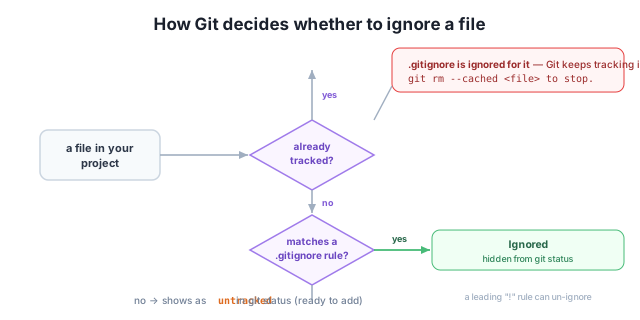
Suppose a teammate committed a secrets file as config.env by mistake last week. Adding *.env to .gitignore won’t help — Git is already following config.env. To make Git stop tracking it without deleting it from your disk, use git rm --cached:
$ git rm --cached config.env
rm 'config.env'
$ git status --short
D  config.env
?? .gitignore
The D means the file is staged for deletion from the repository, but it’s still sitting in your folder — --cached removes it only from Git’s index, not from your working directory. Now add a matching pattern (*.env) to .gitignore and commit both changes. From this commit forward, config.env lives on disk for you to use locally but is no longer tracked or shared.
Ignoring is not the same as securing
.gitignore only stops untracked files from being added — it does nothing to files already in history. If a secret was ever committed, git rm --cached removes it going forward but the old commits still contain it. Anyone with the repo can read those past versions, so treat any committed secret as compromised: rotate it (change the key or password) rather than assuming it’s safe.
Sometimes you want to ignore a whole folder but keep one file inside it. A line starting with ! is a negation — it un-ignores something an earlier pattern would have excluded. In SkyLog, imagine a data/ folder with a huge full_dataset.csv you don’t want in Git, plus a small sample.csv you do want to share. This .gitignore does both:
data/*
!data/sample.csv
The first line ignores everything inside data/; the second carves out an exception for the sample. Stage everything and check:
$ git add .
$ git status --short
A  .gitignore
A  data/sample.csv
Only .gitignore and data/sample.csv are staged (A = added). full_dataset.csv stayed ignored, exactly as intended. (Order matters: the negation must come after the rule it overrides.)
Finally, some clutter isn’t project-specific — it’s tied to your machine, like editor swap files or operating-system metadata (.DS_Store on macOS). Rather than repeat those in every project’s .gitignore, set a global ignore once. Point Git at a personal ignore file:
$ git config --global core.excludesfile ~/.gitignore_globalNow any pattern you put in ~/.gitignore_global applies to all your repositories. Keep project-specific rules (like venv/) in the project’s .gitignore so collaborators share them, and reserve the global file for things only your environment produces.
Your project produces a build/ directory, files ending in .tmp, and a single secrets file named secrets.json. Write the three .gitignore lines that would ignore all of them.
Hint
build/ (trailing slash matches the directory), *.tmp (the * wildcard matches any file ending in .tmp), and secrets.json (a bare name matches that exact file).
You added app.log to .gitignore, but git status still lists app.log as a modified, tracked file. Why, and what one command fixes it while keeping the file on disk?
Hint
.gitignore doesn’t affect files Git already tracks, and app.log was committed earlier. Run git rm --cached app.log to remove it from the index (the --cached keeps it in your folder), then commit so Git stops tracking it going forward.
You want Git to ignore every file in a cache/ folder except cache/.gitkeep. Write the two .gitignore lines, in the correct order.
Hint
cache/*
!cache/.gitkeep
The negation (!) line must come after the rule it overrides, or the exception won’t take effect.
A .gitignore keeps the noise — logs, caches, build artifacts, virtual environments — and the danger — secrets — out of your repository. You write patterns like *.log, .env, __pycache__/, and venv/, commit the .gitignore so collaborators share it, and confirm the clutter has vanished from git status. Use git status --ignored to list what’s being suppressed (marked !!). The one rule to remember is that .gitignore only governs untracked files: to stop tracking something already committed, run git rm --cached <file> (which leaves the file on disk). And when you need an exception, a ! negation un-ignores a single path inside an ignored folder, while a global ignore file handles machine-specific clutter across all your projects.
.gitignore — a root file of patterns telling Git which paths to leave untracked.*.log (wildcard), .env (exact name), venv/ (directory), # (comment).git status --ignored — list ignored files, marked with !!.git rm --cached <file> — stop tracking an already-committed file, keeping it on disk.!) — un-ignore a path an earlier rule excluded; must come after that rule.core.excludesfile — a global ignore file applied to all your repositories.Every real project accumulates files that shouldn’t be versioned, and getting them out of Git is one of the first things you set up. A clean .gitignore keeps diffs meaningful, history small, and collaborators in sync. More importantly, it’s your first line of defense against committing credentials — and understanding that ignoring is not the same as untracking (or securing) is what saves you from leaking a secret you thought was safe. These habits carry into every repository you’ll ever touch.
Recover from mistakes — unstage, discard, and amend changes when something goes wrong.
Return to the Working with History module overview
You can now keep your repository clean and your secrets out of it, and you understand the crucial difference between ignoring a file and untracking one. Next you’ll learn how to recover when something does go wrong — unstaging changes, discarding edits, and amending commits so a mistake never has to stay in your history.