Title here
Summary here
Everyone makes mistakes in a repository: you edit the wrong file, stage something too early, write a typo into a commit message, or commit a change you wish you hadn’t. The good news is that Git is one of the most forgiving tools you’ll ever use — almost nothing is truly lost. The trick is knowing which undo to reach for, because each one affects a different part of Git: your working directory, the staging area, or the committed history.
In this lesson you’ll learn five undo commands and exactly what each one touches: git restore to throw away or unstage changes, git commit --amend to fix the last commit, git reset to move your branch backward (in three flavors), and git revert to undo a commit safely — even one you’ve already shared.
By the end of this lesson, you will be able to:
git restoregit commit --amendgit reset and explain --soft, --mixed, and --hardgit revertLet’s begin.
git restoreThe most common “undo” is the smallest: you changed a file in your working directory and want to throw that change away. git restore <file> takes the file back to its last committed state, discarding your unstaged edits:
$ git status --short
 M notes.txt
$ git restore notes.txt
$ git status --short
$ cat notes.txt
one
The M in the second column meant notes.txt had unstaged modifications. After git restore, the file matches the last commit again — the git status --short output is empty, and notes.txt is back to its original one.
A different situation: you’ve already staged a change with git add, but you didn’t mean to. You don’t want to lose the edit — you just want it out of the staging area. That’s what git restore --staged <file> does:
$ git status --short
M  notes.txt
$ git restore --staged notes.txt
$ git status --short
 M notes.txt
Watch the column carefully. M (the M in the first column) means the change is staged. After git restore --staged, it becomes M (the M shifts to the second column) — the edit is still there, just no longer staged. So the two forms of restore are mirror images: plain git restore discards the edit, while git restore --staged keeps the edit and only removes it from staging.
Restore discards — staged restore keeps
git restore <file> throws away your uncommitted edit, so there’s no undo for it. git restore --staged <file> only moves the change out of staging and keeps your edit. Read the second-column M (unstaged) versus first-column M (staged) before you choose.
git commit --amendYou just committed, and immediately noticed a typo in the message — or you forgot to include a file. Instead of making a second “fix the previous commit” commit, you can replace the last commit in place with git commit --amend. To change just the message, pass a new one with -m:
$ git commit --amend -m "Start notes (with two lines)"
$ git log --oneline
860e3ca Start notes (with two lines)
The last commit now carries the corrected message. If instead you forgot a file, stage it first with git add, then run git commit --amend — the staged change folds into the previous commit. You can do both at once: stage the missing change and supply a new message.
It’s important to understand what --amend really does: it doesn’t edit the old commit, it replaces it with a brand-new commit (and a new hash). That’s why amending is a form of rewriting history — perfectly fine for a commit that lives only on your machine, but a problem once that commit has been pushed and shared. We’ll return to that rule below.
git resetgit reset is the most powerful — and most misunderstood — undo. It moves the current branch pointer to an earlier commit, effectively “uncommitting” the commits in between. What happens to your changes depends on the mode you pick. The three modes form a ladder from gentlest to most destructive.
--soft moves the branch back but leaves your changes staged, ready to recommit:
$ git reset --soft HEAD~1
$ git status --short
M  notes.txt
HEAD~1 means “one commit before HEAD.” The commit is undone, but the change it contained is staged (first-column M) — useful when you want to redo the commit differently.
The default mode (--mixed) also moves the branch back, but leaves the changes unstaged:
$ git reset HEAD~1
Unstaged changes after reset:
M	notes.txt
$ git status --short
 M notes.txt
Now the change sits in your working directory, unstaged (second-column M). This is the default — git reset HEAD~1 with no mode flag behaves this way.
--hard moves the branch back and discards the changes entirely — both staged and working-directory edits are wiped out:
$ git reset --hard HEAD~1
HEAD is now at 860e3ca Start notes (with two lines)
There is no second column to inspect afterward because the working directory has been reset to match the target commit. --hard is the only mode that destroys uncommitted work, so treat it as the dangerous one.
It helps to see all of these side by side, because each command targets a specific combination of the three areas Git tracks: your working directory, the staging area, and the committed history (HEAD).
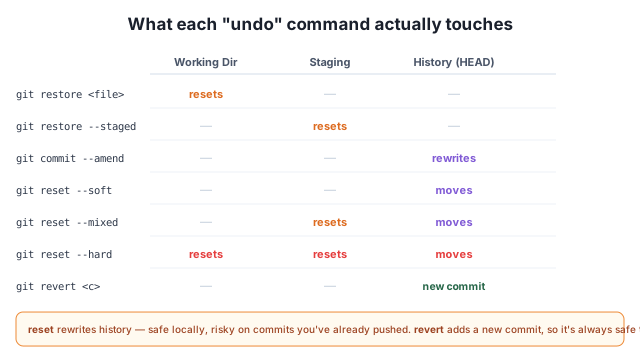
Read it as a grid: git restore touches only the working directory; git restore --staged touches only staging; git reset --soft moves HEAD alone; --mixed moves HEAD and clears staging; --hard resets everything. git commit --amend rewrites the last commit. And git revert, which we’ll see next, is the one undo that adds a commit rather than removing one.
git revertEvery command so far rewrites history: reset and --amend change or remove commits, replacing them with new hashes. That’s fine when the commits live only on your machine. But once you’ve pushed a commit and a teammate has pulled it, rewriting it breaks everyone’s copy of the history.
For that situation, use git revert. Instead of deleting the bad commit, it creates a new commit that undoes the changes the old one made. The original stays in history; the revert sits on top of it. Here we undo the “Add debug flag (oops)” commit, which is at HEAD~1:
$ git revert --no-edit HEAD~1
[main 7606729] Revert "Add debug flag (oops)"
 Date: Wed Mar 4 09:00:00 2026 +0330
 1 file changed, 1 deletion(-)
 delete mode 100644 debug.txt
$ git log --oneline
7606729 Revert "Add debug flag (oops)"
f4f26fa Extend a.txt
0509e77 Add debug flag (oops)
fc01ebb Add a.txt
Notice the original 0509e77 Add debug flag (oops) is still there — revert didn’t remove it. Instead it added 7606729 Revert "Add debug flag (oops)", which deletes the debug.txt that commit introduced. The --no-edit flag accepts Git’s default revert message so you aren’t dropped into an editor.
Because revert only adds to history and never changes existing commits, it’s always safe to push and share — nobody’s history gets rewritten out from under them.
Never rewrite history you’ve already pushed
git reset and git commit --amend rewrite history — they replace commits with new hashes. That’s perfectly safe for commits that live only on your machine. But once a commit has been pushed and shared, rewriting it breaks every clone that already has the old version, forcing painful manual fixes for your teammates. Rule of thumb: rewrite freely before you push; after you’ve pushed, undo with git revert, which adds a new commit and never disturbs existing history.
You edited report.txt and ran git add report.txt, but now you realize you don’t want it in the next commit yet — though you do want to keep the edit. What command do you run? And what different command would throw the edit away completely?
Hint
To keep the edit but remove it from staging: git restore --staged report.txt (the M moves from the first column to the second). To throw the edit away entirely and return the file to its last committed state: git restore report.txt — this one can’t be undone.
You just committed, but want to undo only the commit while keeping its changes staged so you can recommit them with a better message. Which git reset mode do you use — and which mode would instead destroy those changes entirely?
Hint
Use git reset --soft HEAD~1 to undo the commit and keep the changes staged (first-column M). The destructive option is git reset --hard HEAD~1, which undoes the commit and discards the changes from both staging and the working directory.
A buggy commit was pushed yesterday and three teammates have already pulled it. You need to undo it. Should you git reset --hard back past it, or git revert it — and why?
Hint
Use git revert <commit>. The commit is already shared, so rewriting history with git reset would break your teammates’ copies of the repository. git revert adds a new commit that undoes the change while leaving the original in place, so it’s always safe to push and share.
Git is forgiving, and the key to undoing safely is knowing which area each command touches. git restore <file> discards an unstaged edit; git restore --staged <file> unstages a change while keeping the edit (watch the M move between columns). git commit --amend replaces the last commit so you can fix its message or contents. git reset moves your branch backward in three modes — --soft keeps changes staged, the default --mixed keeps them unstaged, and --hard discards them entirely. All of these rewrite history, which is safe locally but dangerous once you’ve pushed. For shared commits, git revert adds a new commit that undoes an old one without touching existing history — so it’s always safe to share.
git restore <file> — discard unstaged edits in the working directory.git restore --staged <file> — unstage a change, keeping the edit.git commit --amend — replace the last commit (message and/or contents).git reset --soft / --mixed / --hard — move the branch back, keeping changes staged / unstaged / discarded.git revert <commit> — add a new commit that undoes an old one; safe for pushed history.Mistakes are inevitable, and fear of “breaking” the repository makes people hesitant to use Git well. Once you understand that each undo command targets a specific area — working directory, staging, or history — you can fix nearly anything with confidence and without losing work. Just as important, you learn the one rule that prevents real damage: rewrite history freely before you push, but undo shared commits with git revert. That single distinction keeps you out of the most painful situations a team can hit.
Put restore, amend, reset, and revert to work fixing a tangled repository in a hands-on guided project.
Return to the Working with History module overview
You can now undo with intent: discard or unstage with git restore, fix the last commit with --amend, move history with git reset’s three modes, and safely reverse a shared commit with git revert. Next you’ll combine everything from this module in a guided project — taking a messy repository and cleaning it up step by step.