Title here
Summary here
Learn how to install and configure VS Code with essential extensions for Python, including linting, debugging, and formatting

Visual Studio Code is a powerful, extensible, and lightweight code editor that has become one of the preferred code editors in the Python community.
In this guide, we’ll learn how to install Visual Studio Code and set it up for Python development, as well as how to become more productive with VS Code.
Let’s dive in!
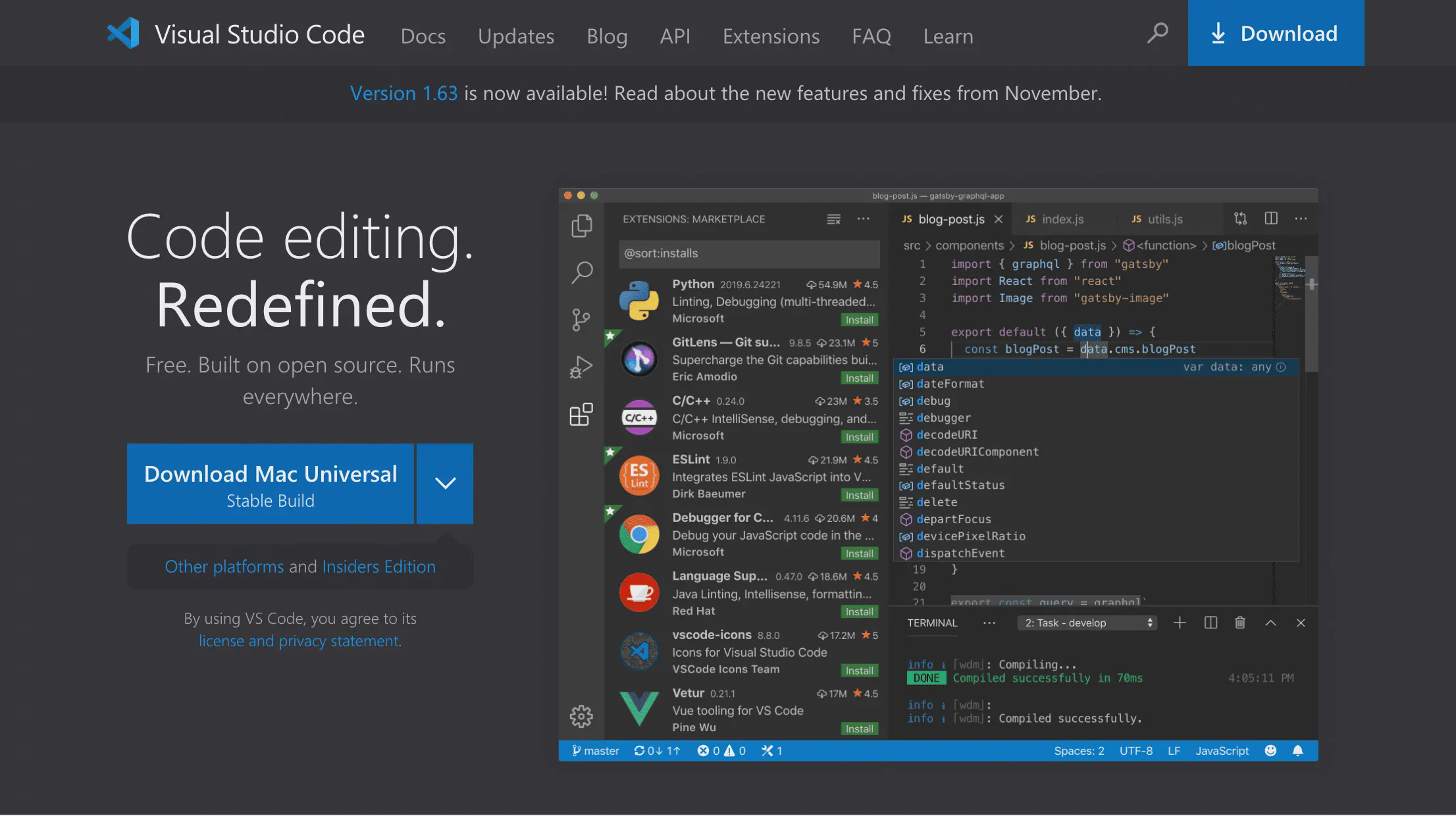
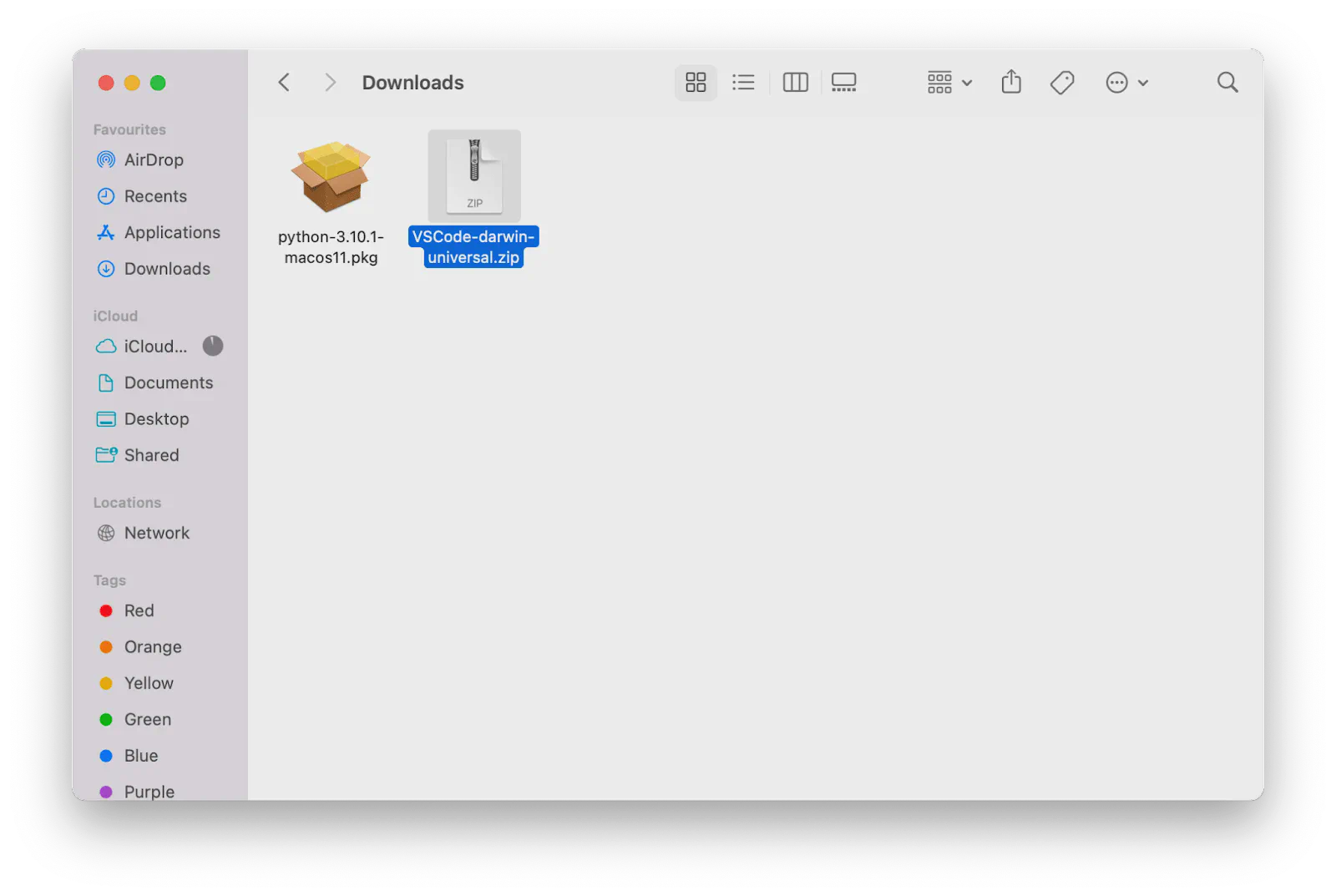
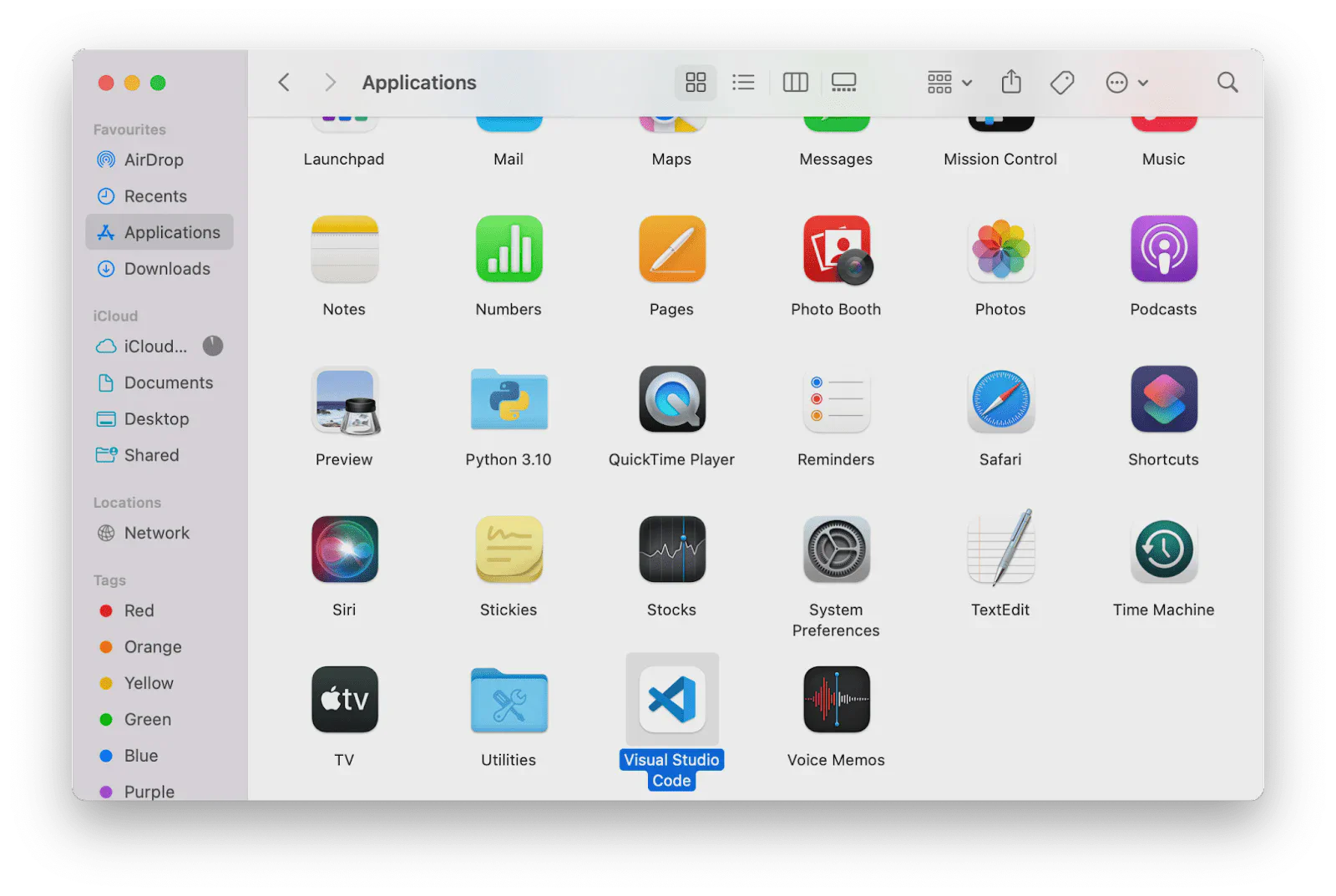
This section will cover how to install VS Code on macOS step by step. Let’s get started.
Due to the essential differences between Windows and macOS, Windows users need to do minor modifications to install VS Code. However, installing VS Code on Windows is straightforward and similar to installing other Windows applications.
py_scripts. Then try to open the folder in VS Code.Usually, VS Code needs your permission to access files in your Desktop folder. Click OK:
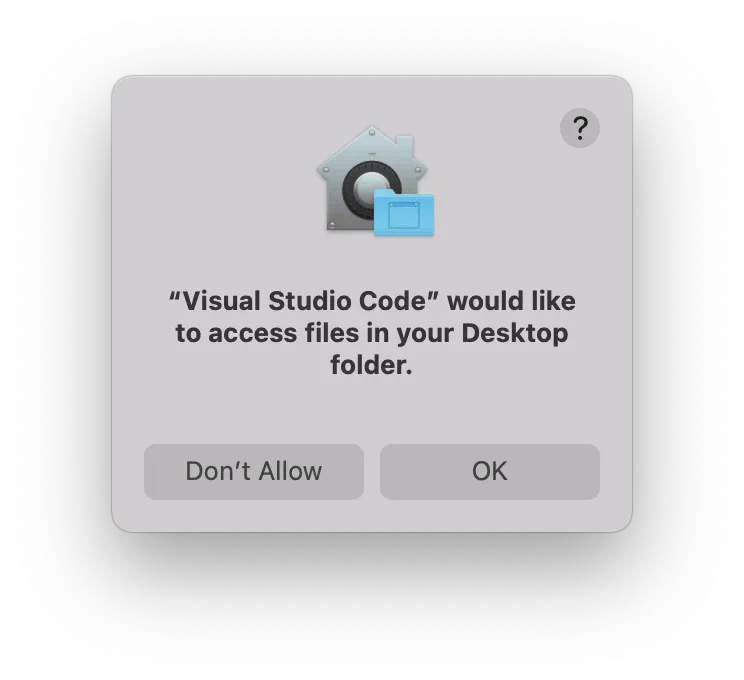
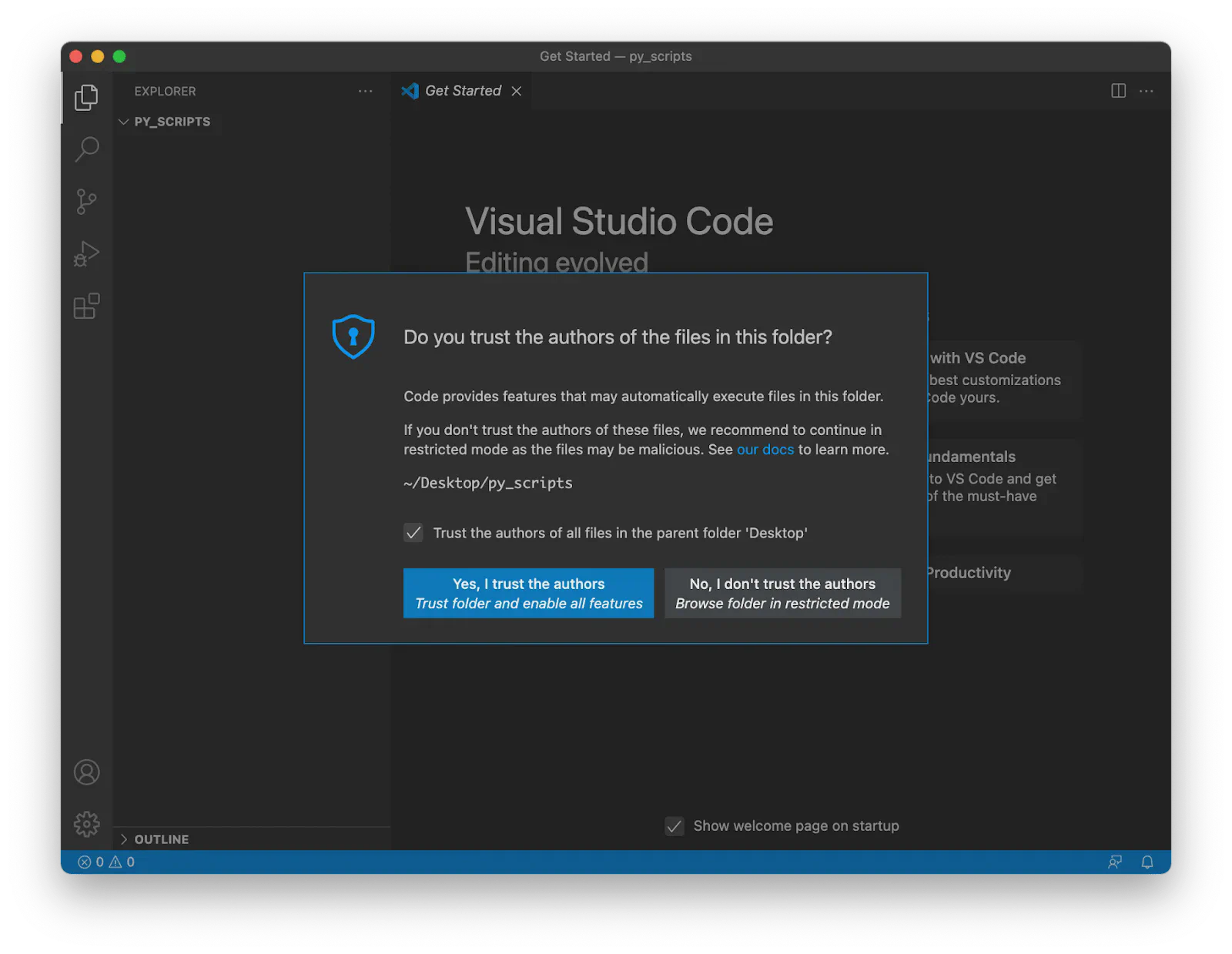
You may also need to declare that you trust the authors of the files stored in your Desktop folder:
.py extension. For example, create a new file and name it prog_01.py. VS Code detects the .py extension and suggests installing a Python extension: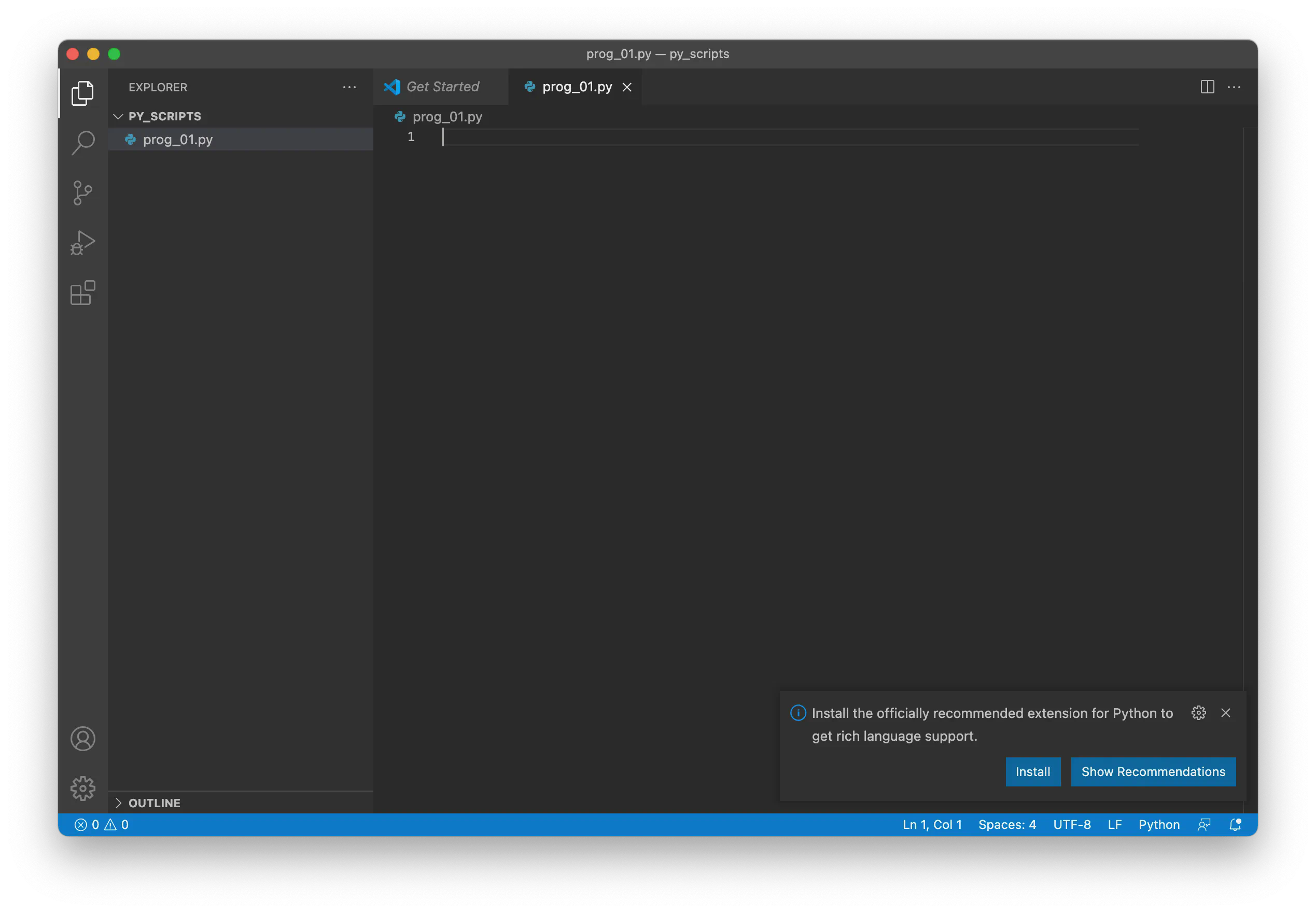
To work with Python inside VS Code, we need to use the Python extension, which brings many useful features, such as code completion with IntelliSense, debugging, unit testing support, and more:
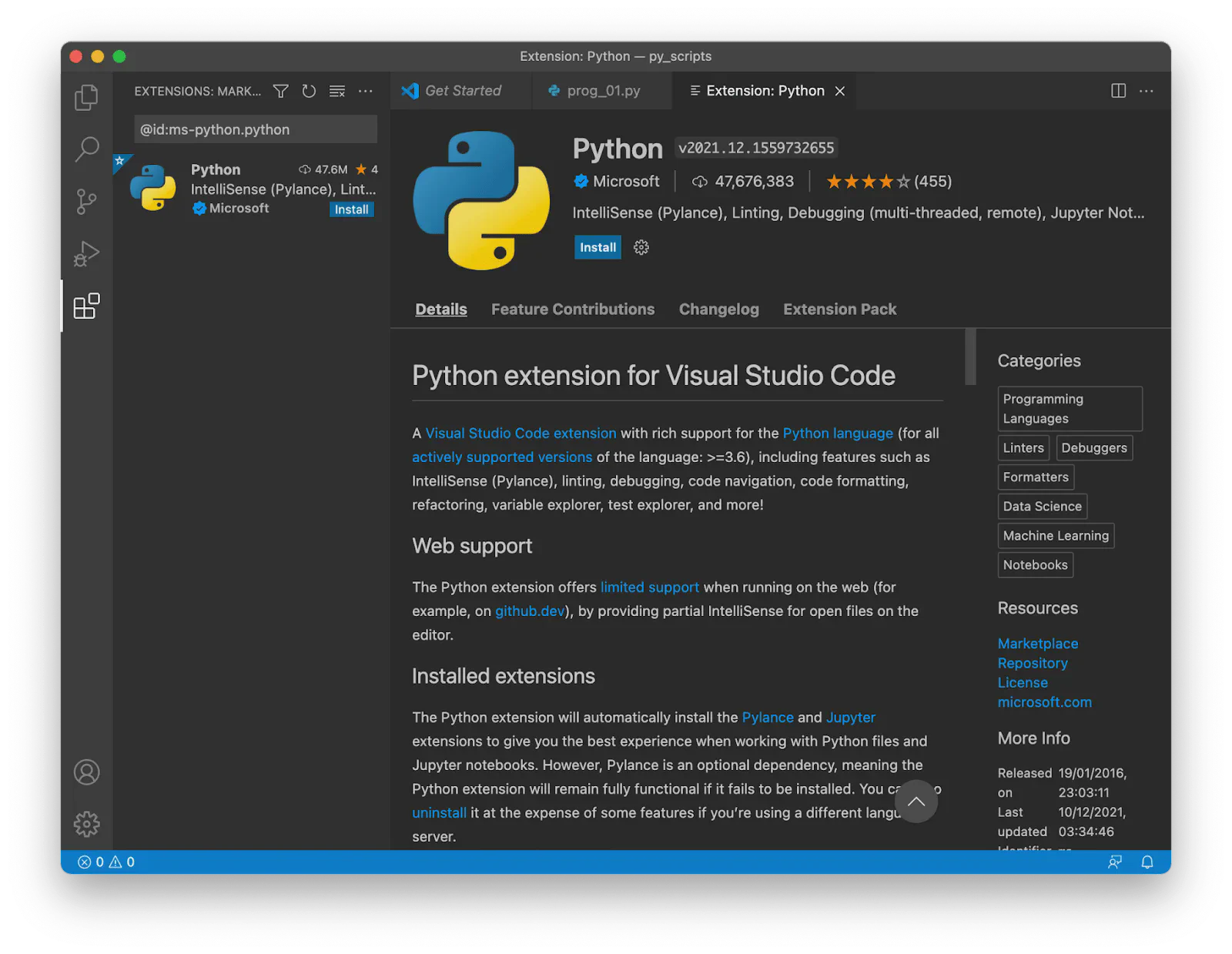
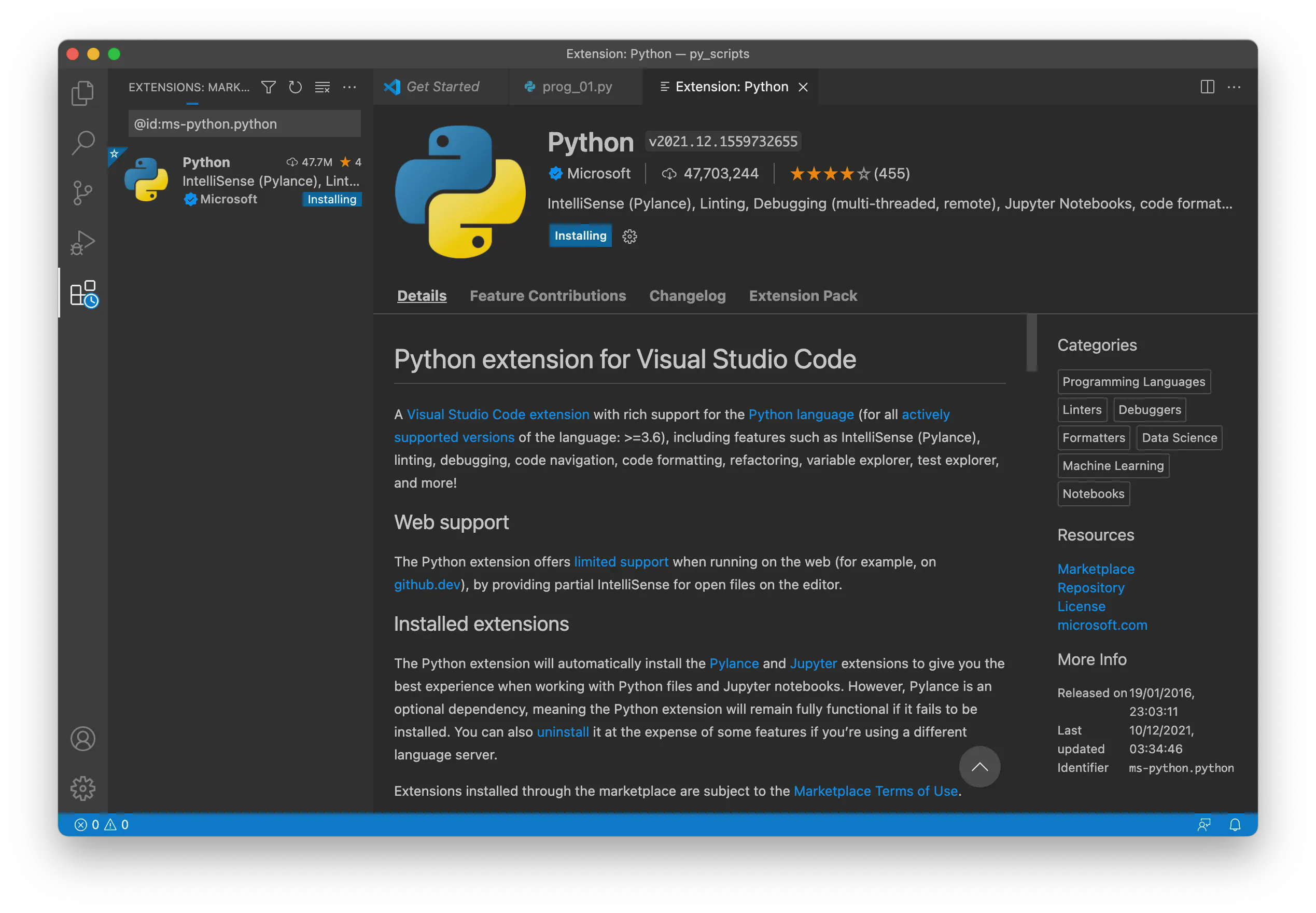

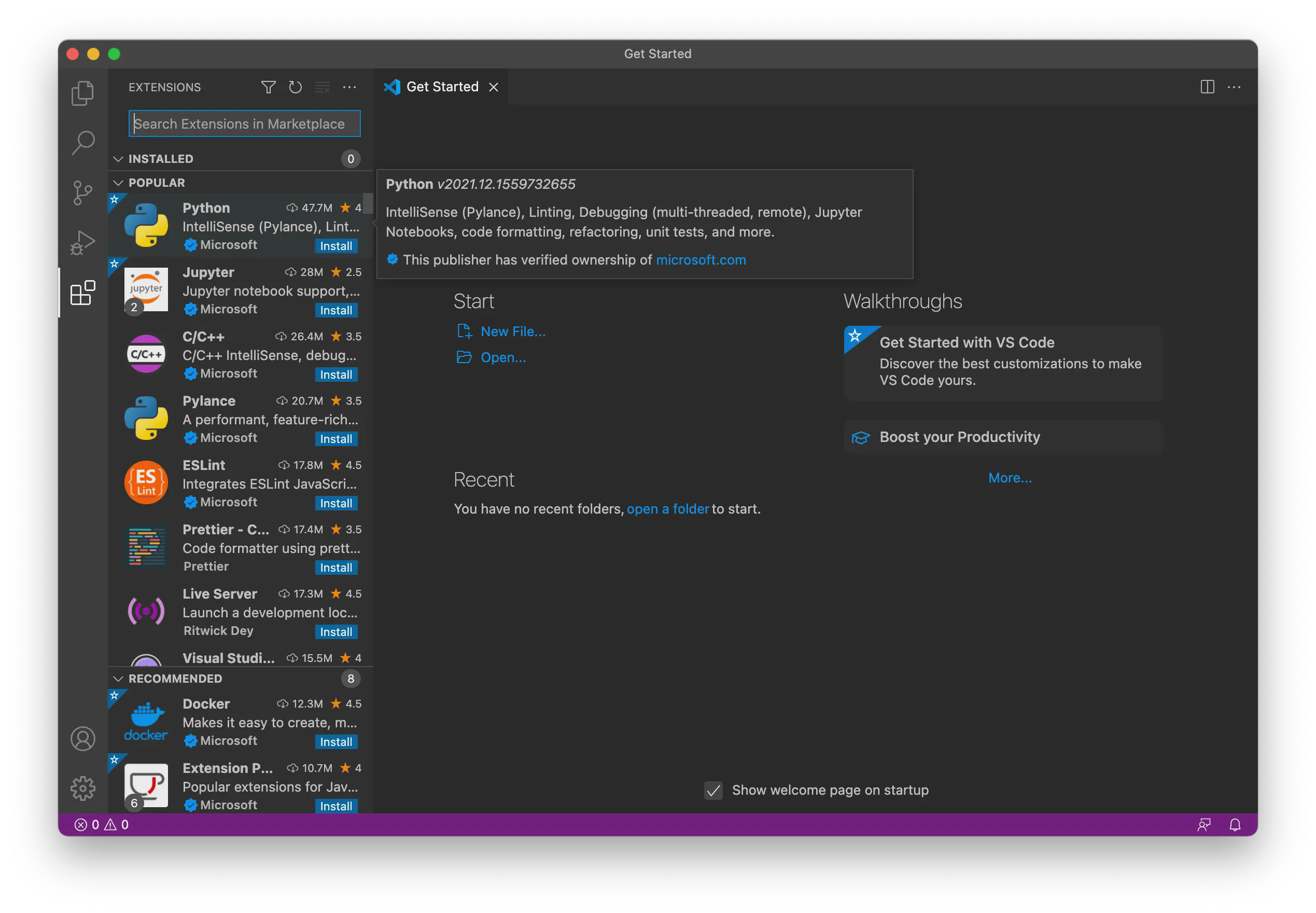
This will show you a list of the most popular VS Code extensions on the VS Code Marketplace. Select the Python extension and install it:
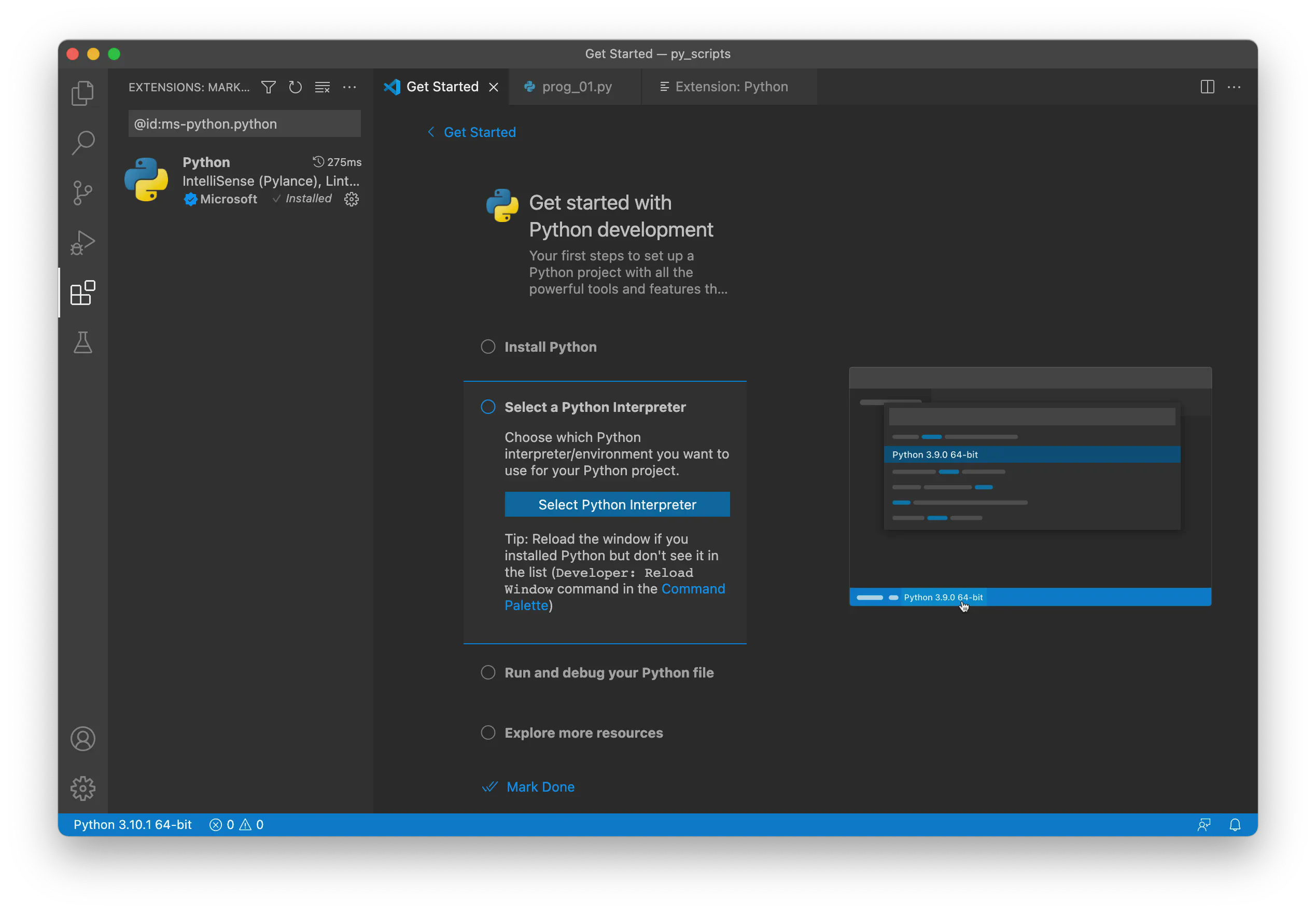
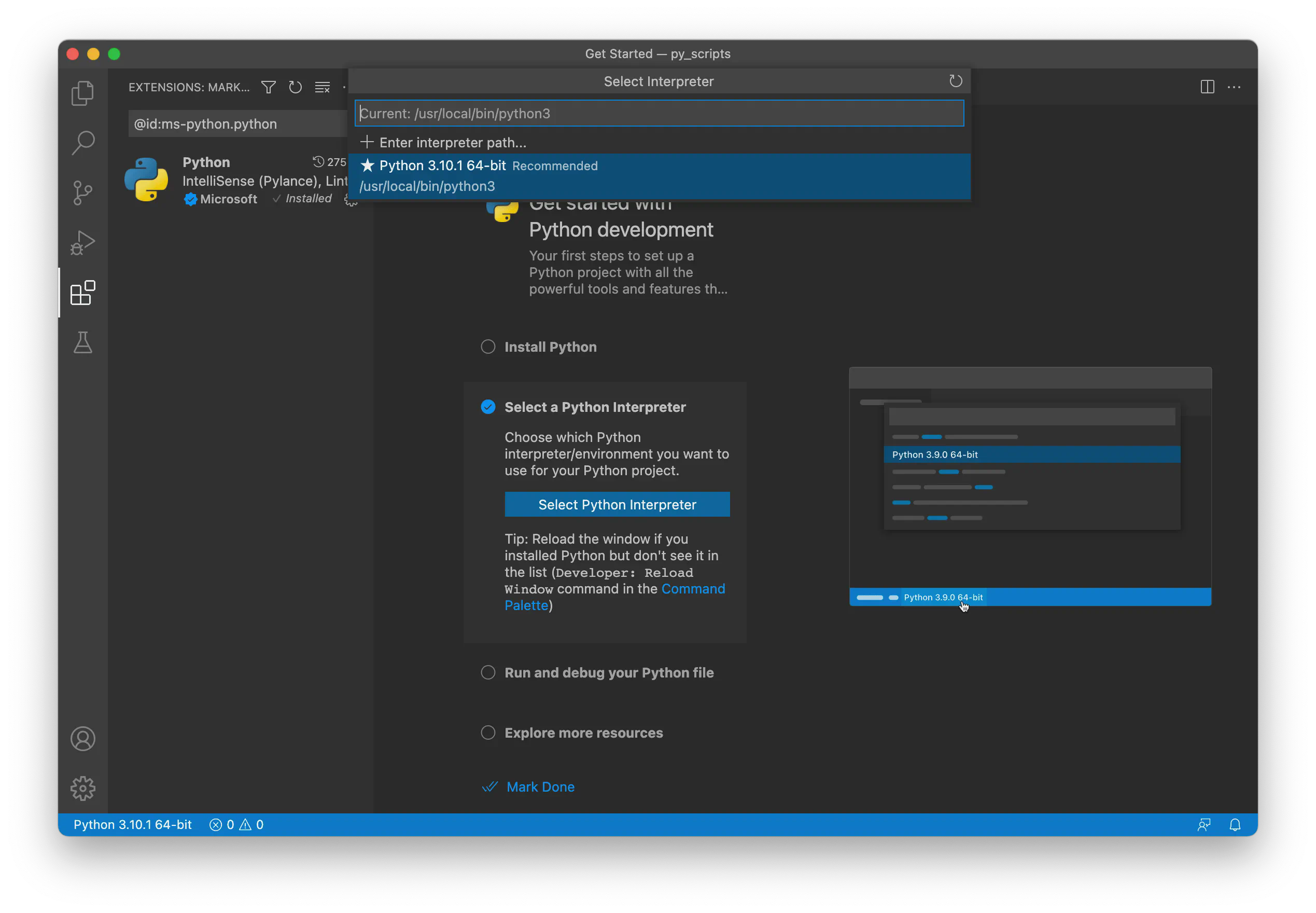
Then select the recommended Python interpreter on the list:
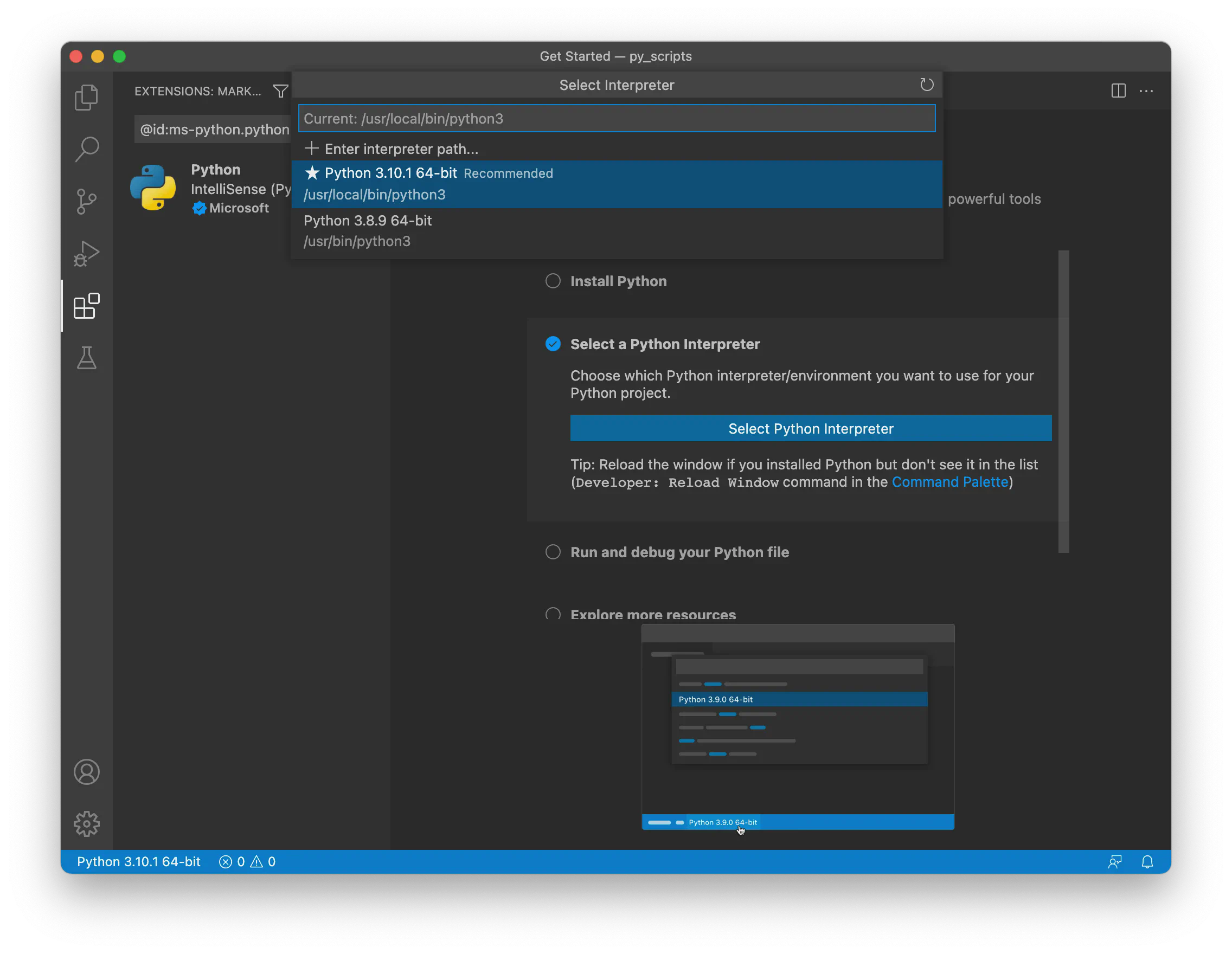
If you have multiple Python versions installed on your Mac, choose the latest version:
You can also select a Python interpreter using the Python: Select Interpreter command from the Command Palette. To do so, press CMD + SHIFT + P, type “Python,” and choose Select Interpreter.
Now that we have everything set up, let’s write and run Python code inside VS Code.
Write the following code in VS Code:
def palindrome(a):
    a = a.upper()
    return a == a[::-1]

name = input("Enter a name: ")
if palindrome(name):
    print("It's a palindrome name.")
else:
    print("It's not a palindrome name.")
Run the code by clicking the ▶️ button in the top-right corner of VS Code.
It's a palindrome name.It's not a palindrome name.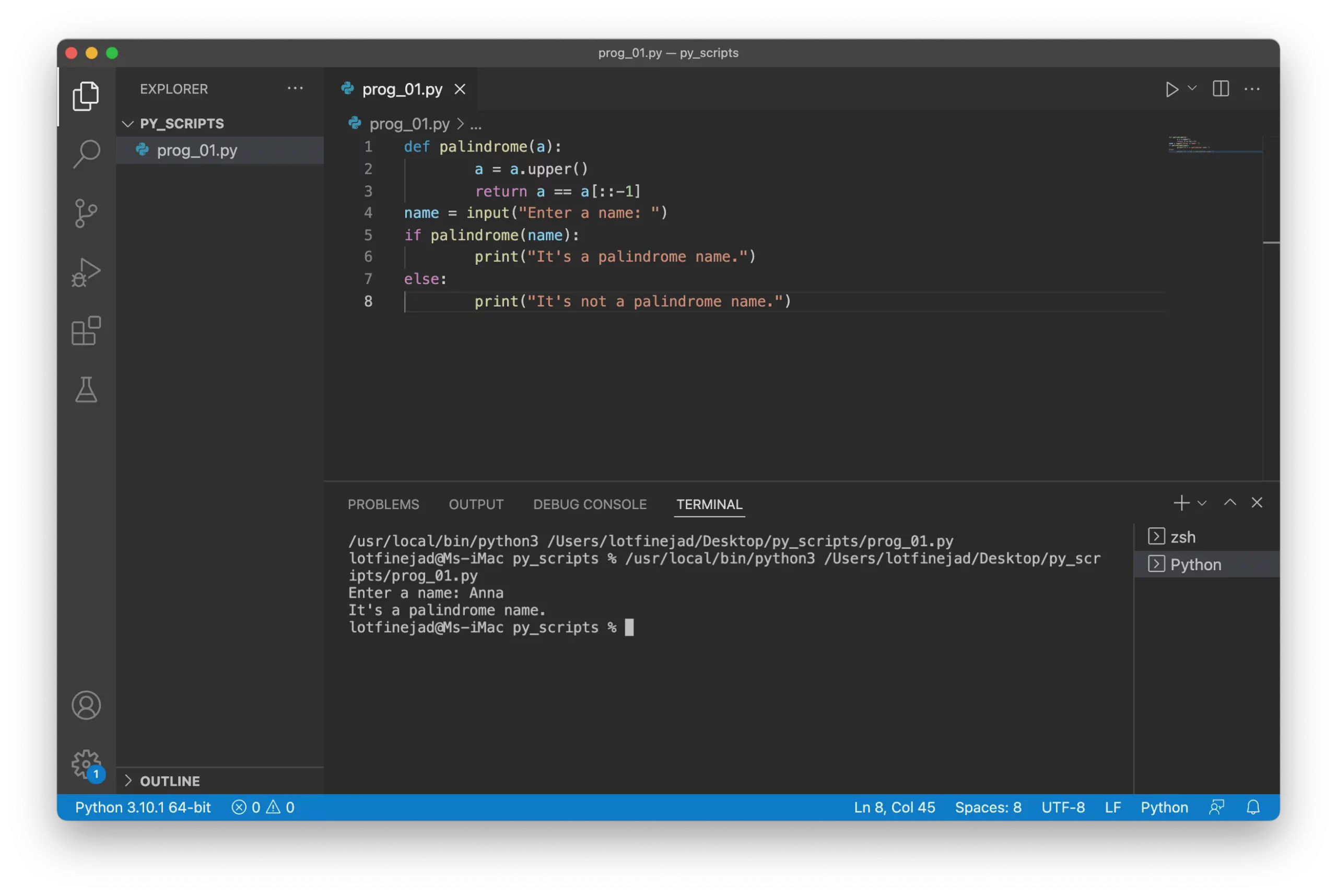
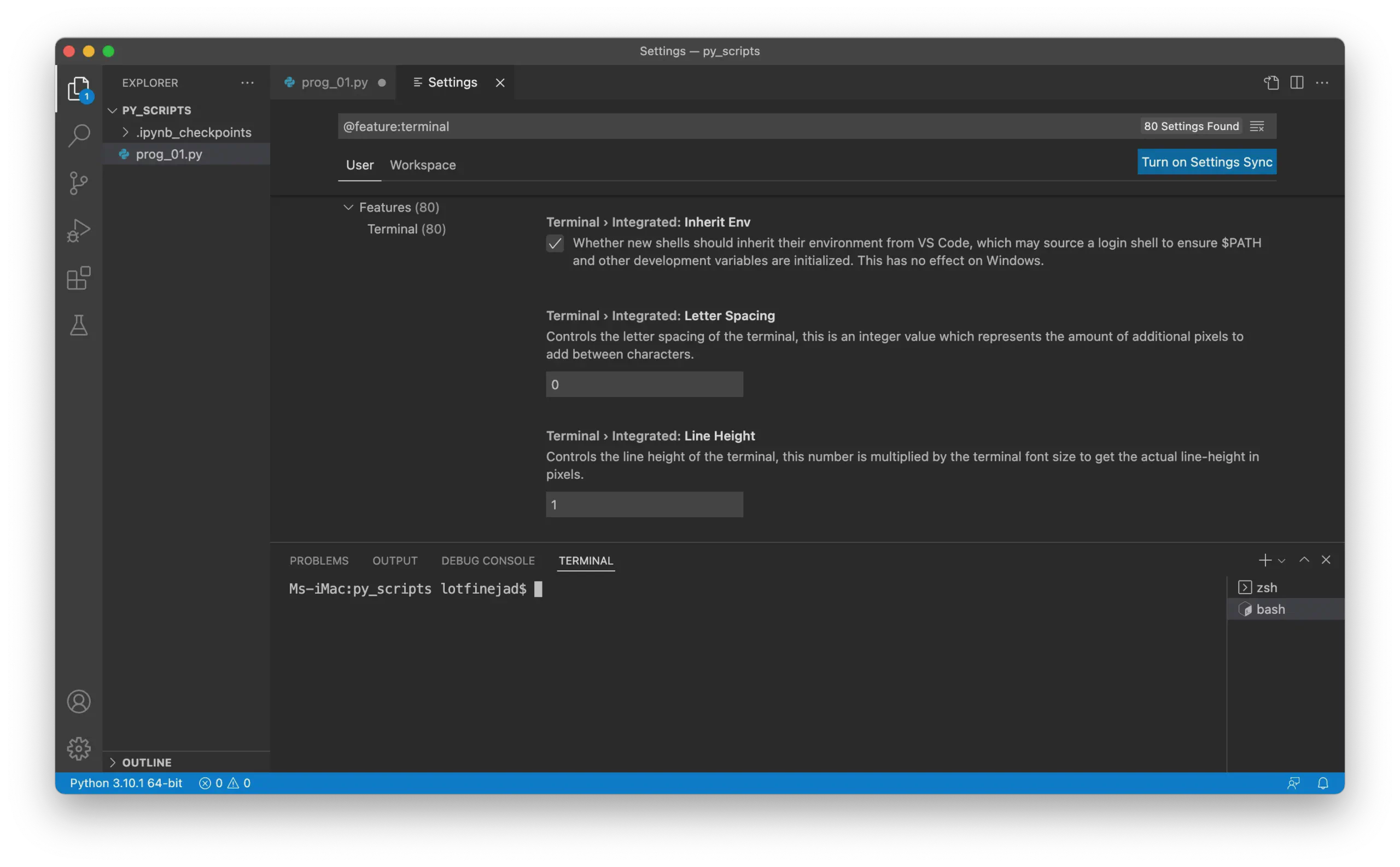
As you’ve seen, all outputs from the program appear in the integrated terminal. Let’s explore this feature further.
Visual Studio Code brings great convenience by embedding this feature into the IDE because executing terminal commands is an essential part of writing code.
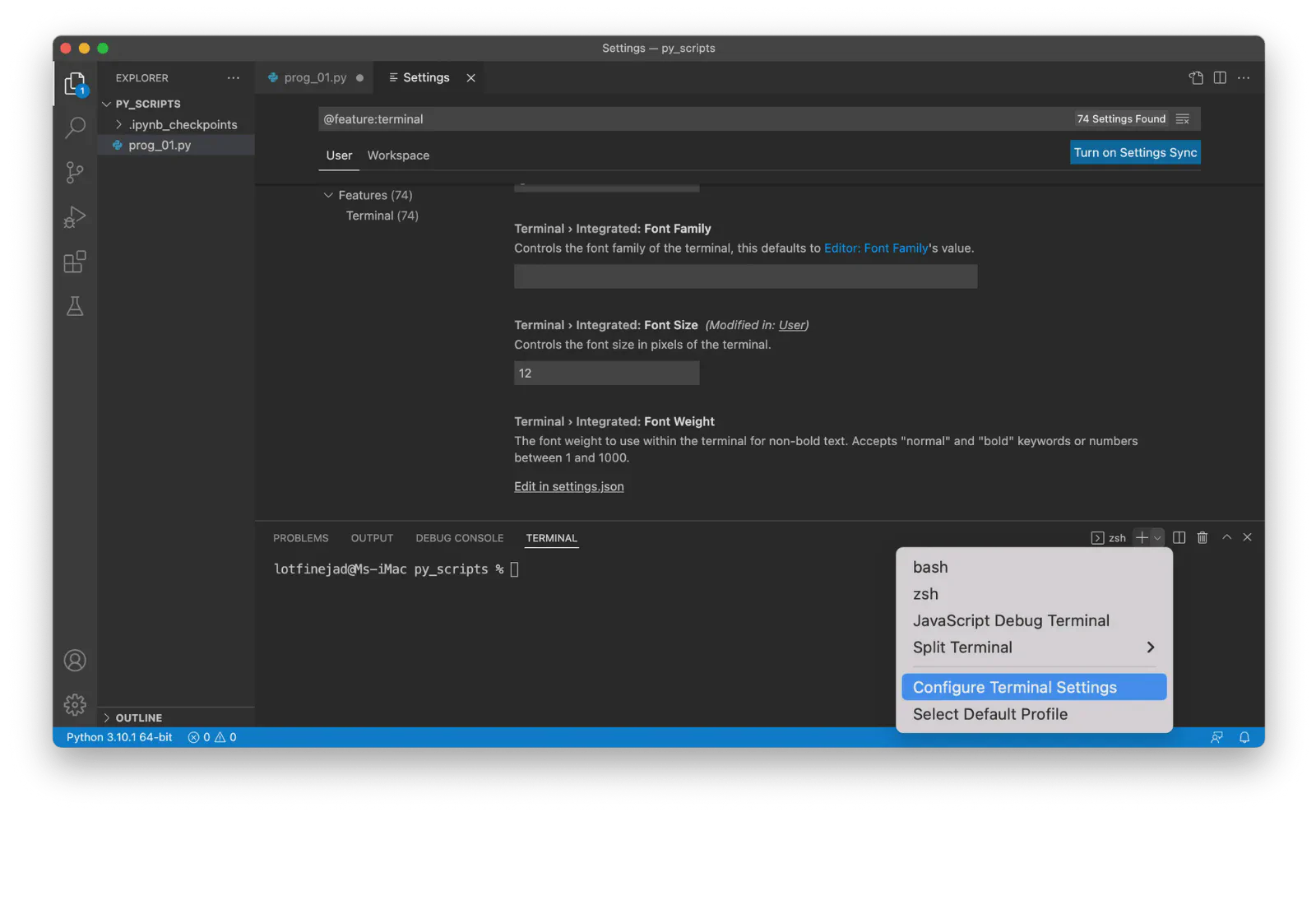
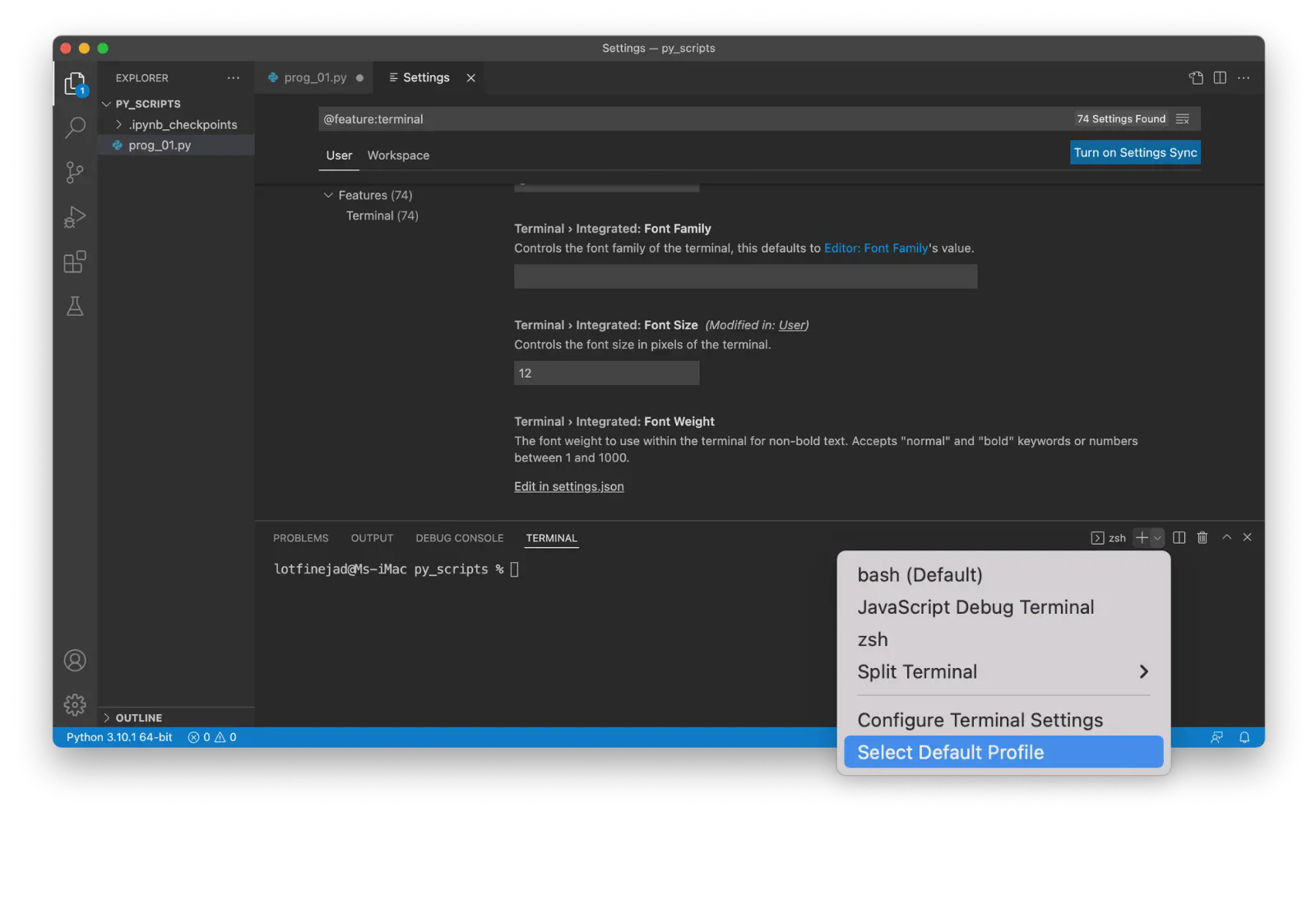
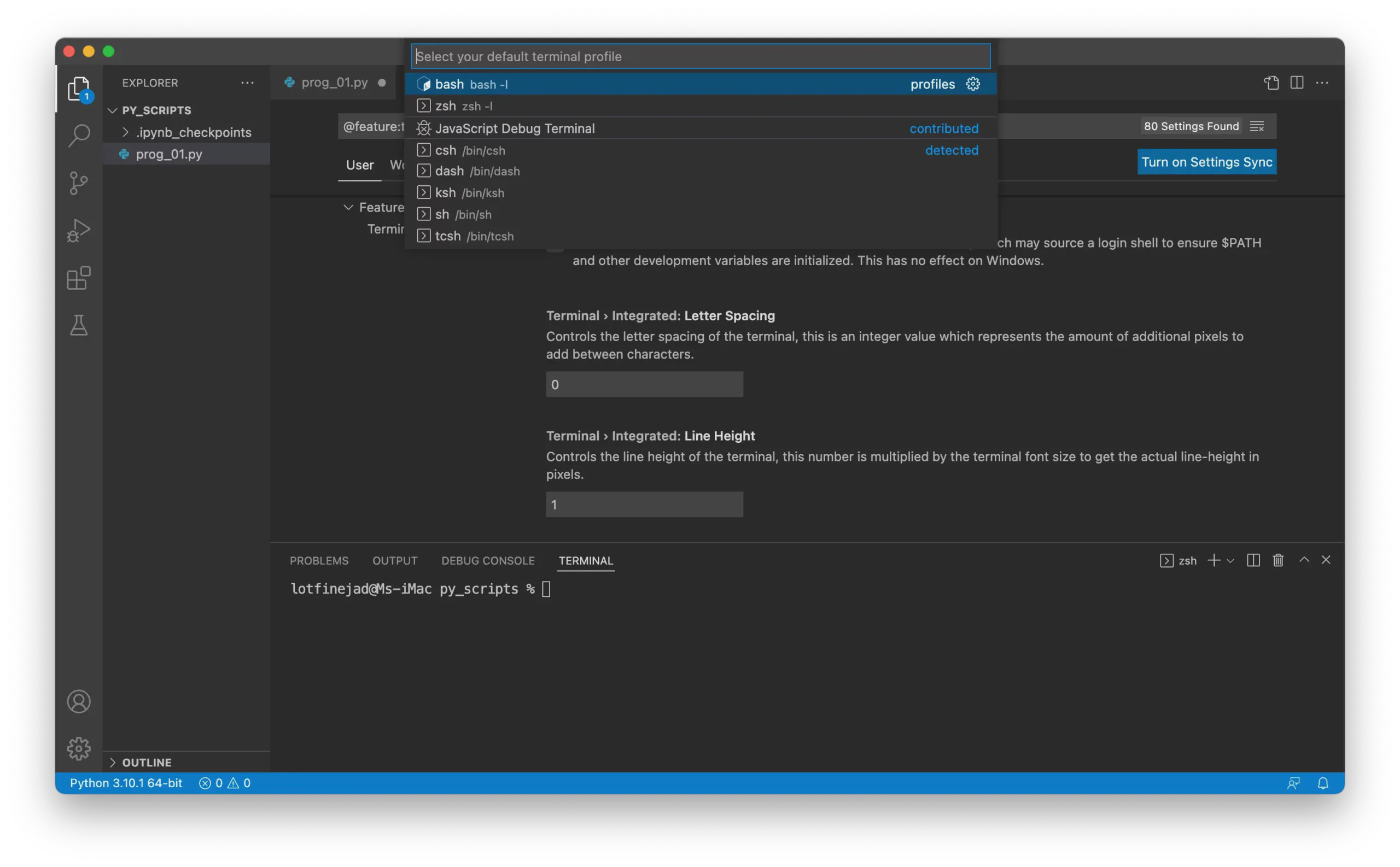
Another useful feature of VS Code is running single or multiple lines of Python code using the REPL (Read, Evaluate, Print, Loop).
Write the following statement in your Python file:
print("Hello, world!")Select the statement, right-click, and choose Run Selection/Line in Python Terminal:
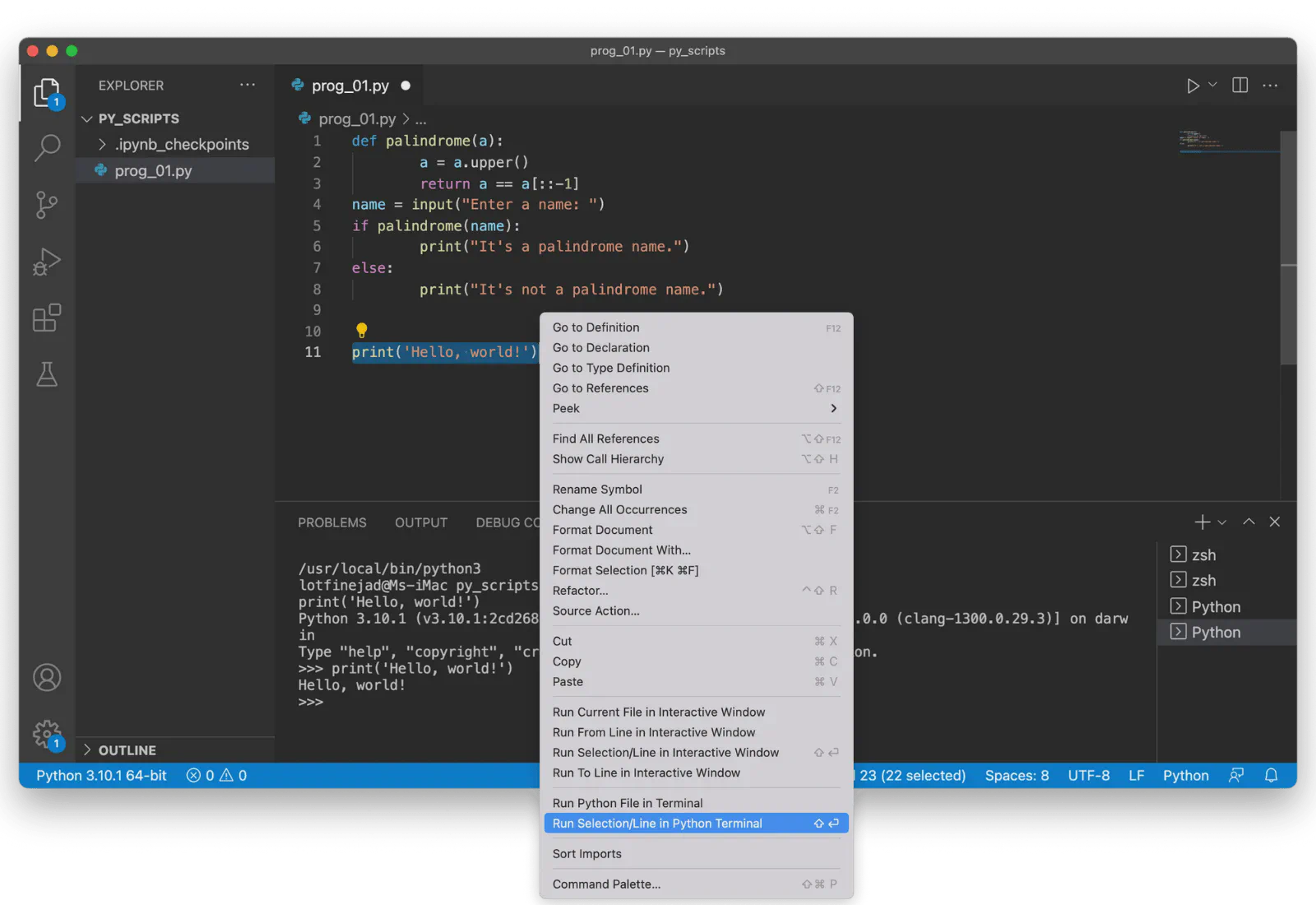
The output will appear in the integrated terminal, but in a special format known as REPL.
What is REPL?
>>>) indicate an input line in REPL.CMD + SHIFT + P).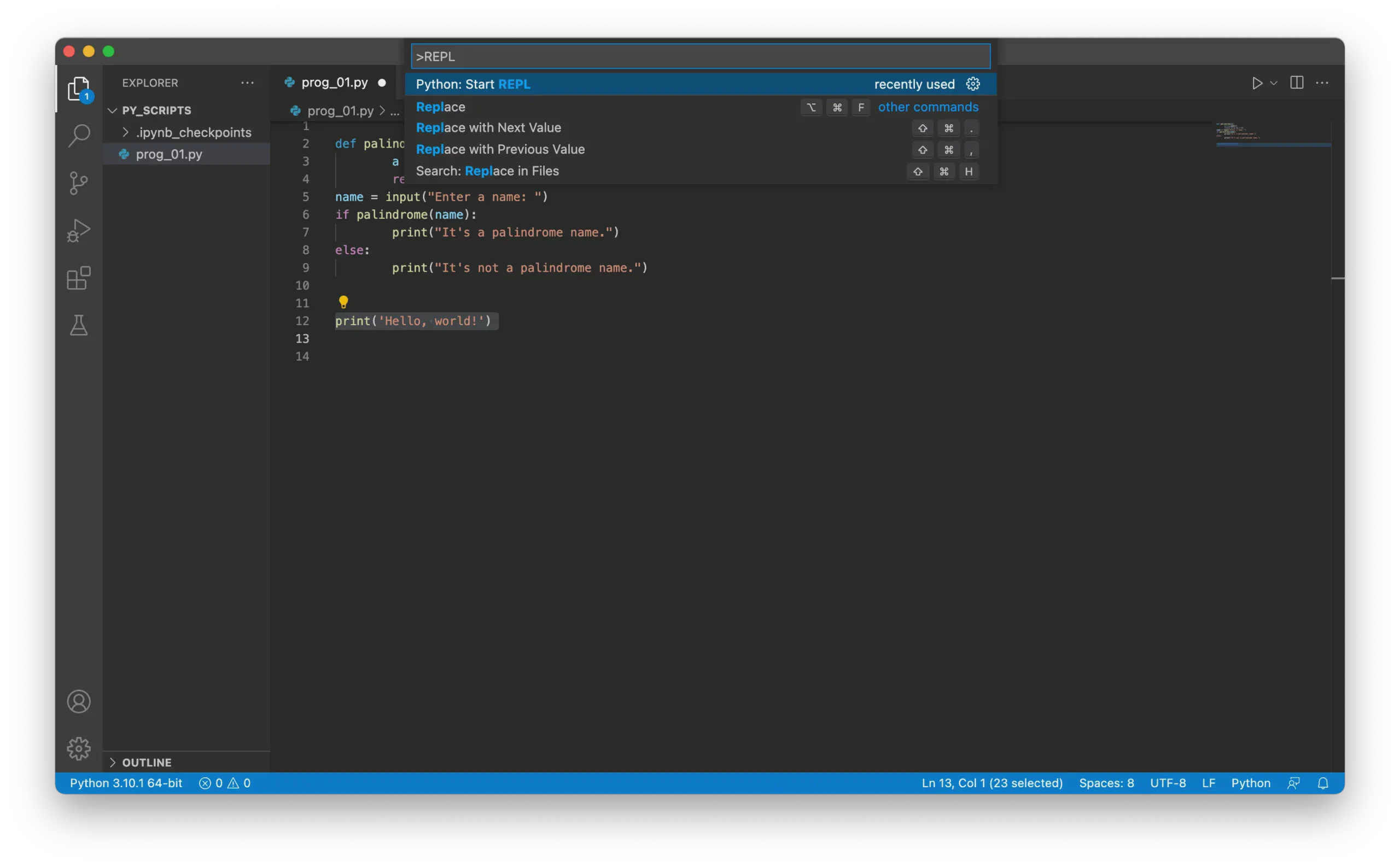
>>> prompt and see instant results: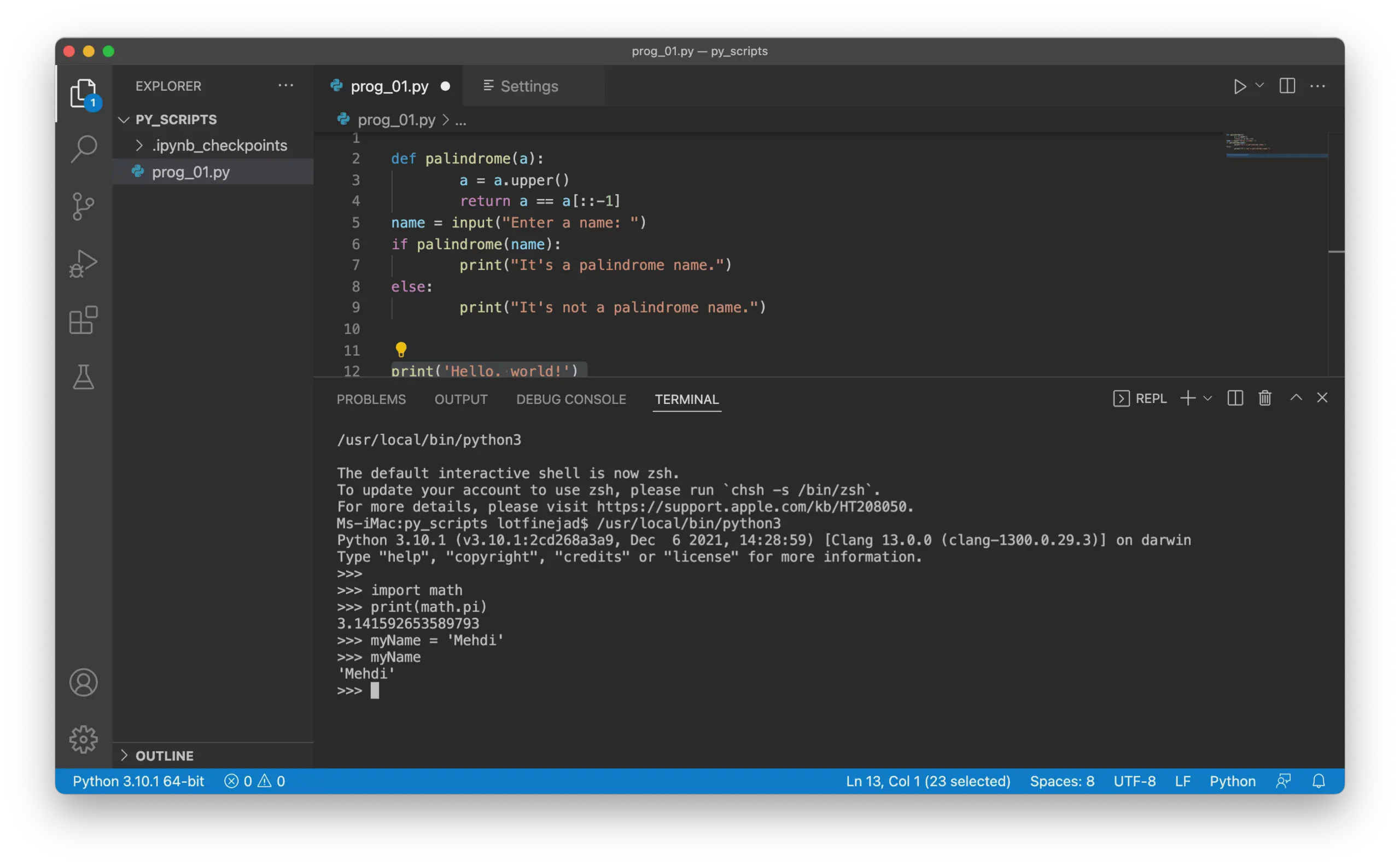
REPL is great for testing small pieces of code or experimenting with APIs.
When writing Python programs, it’s important to follow proper formatting guidelines. Python has a well-known style guide called PEP 8, which makes your code easier to read and understand.
autopep8To automatically format your code in VS Code, use the autopep8 package.
Install autopep8 Open the integrated terminal and execute the following command:
pip3 install autopep8Configure autopep8 in VS Code
autopep8: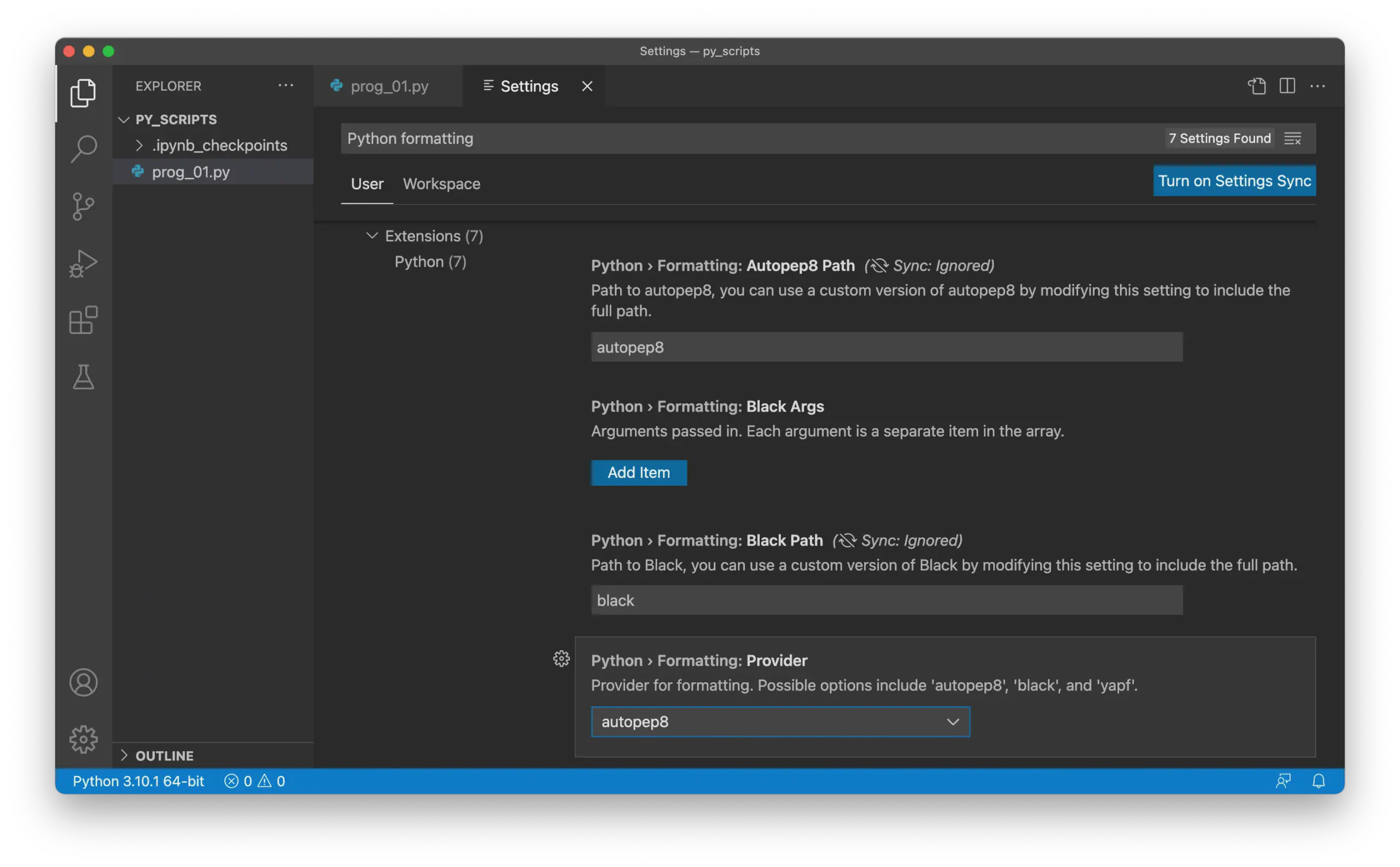
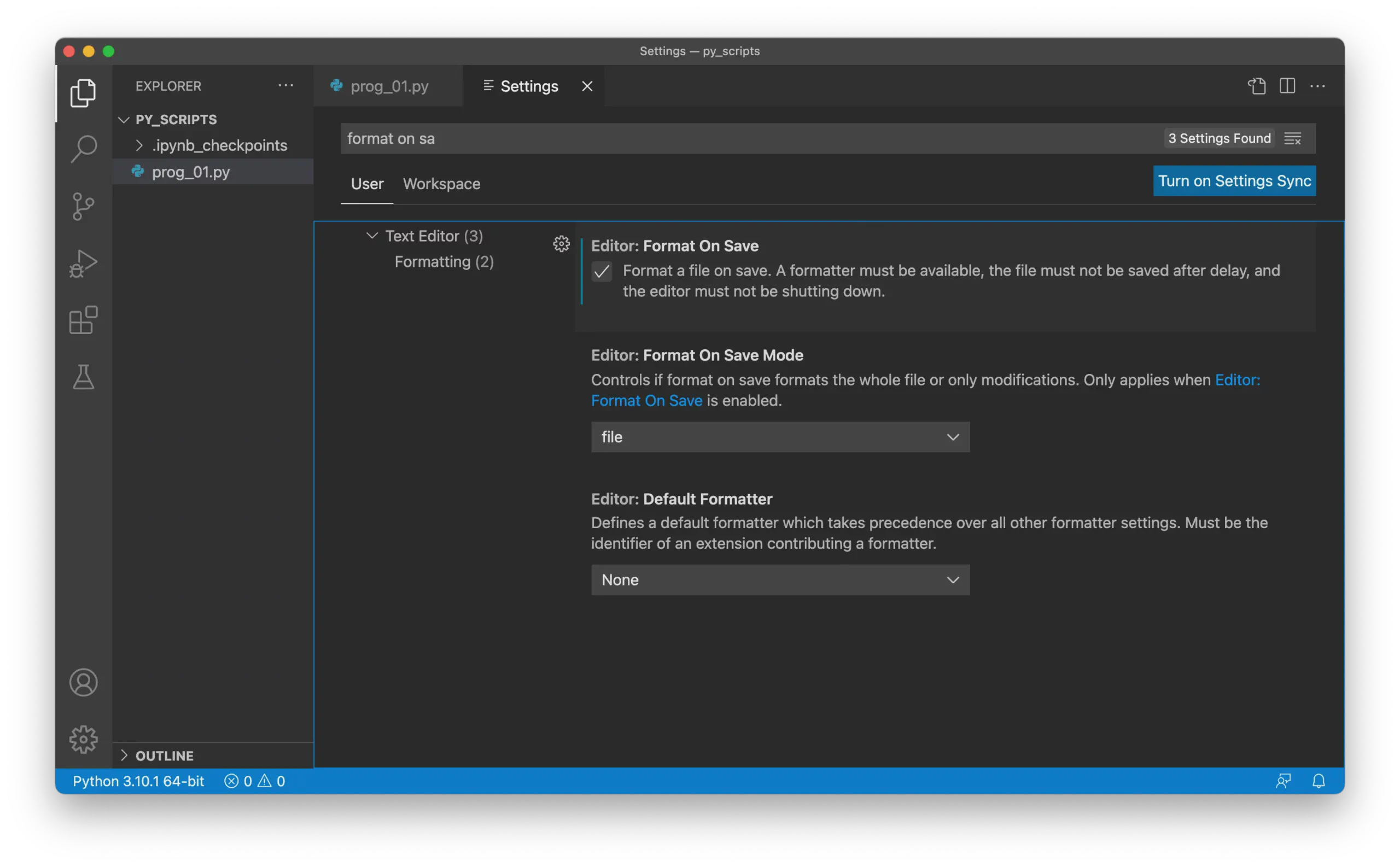
Enabling this option applies all PEP 8 rules automatically whenever you save a Python file.
Refactoring is the process of restructuring code without changing its external behavior to improve readability and maintainability.
VS Code provides basic refactoring tools through the Python extension, including:
To rename a function, right-click on its name and choose Rename Symbol. For example:
palindrome() to check_palindrome().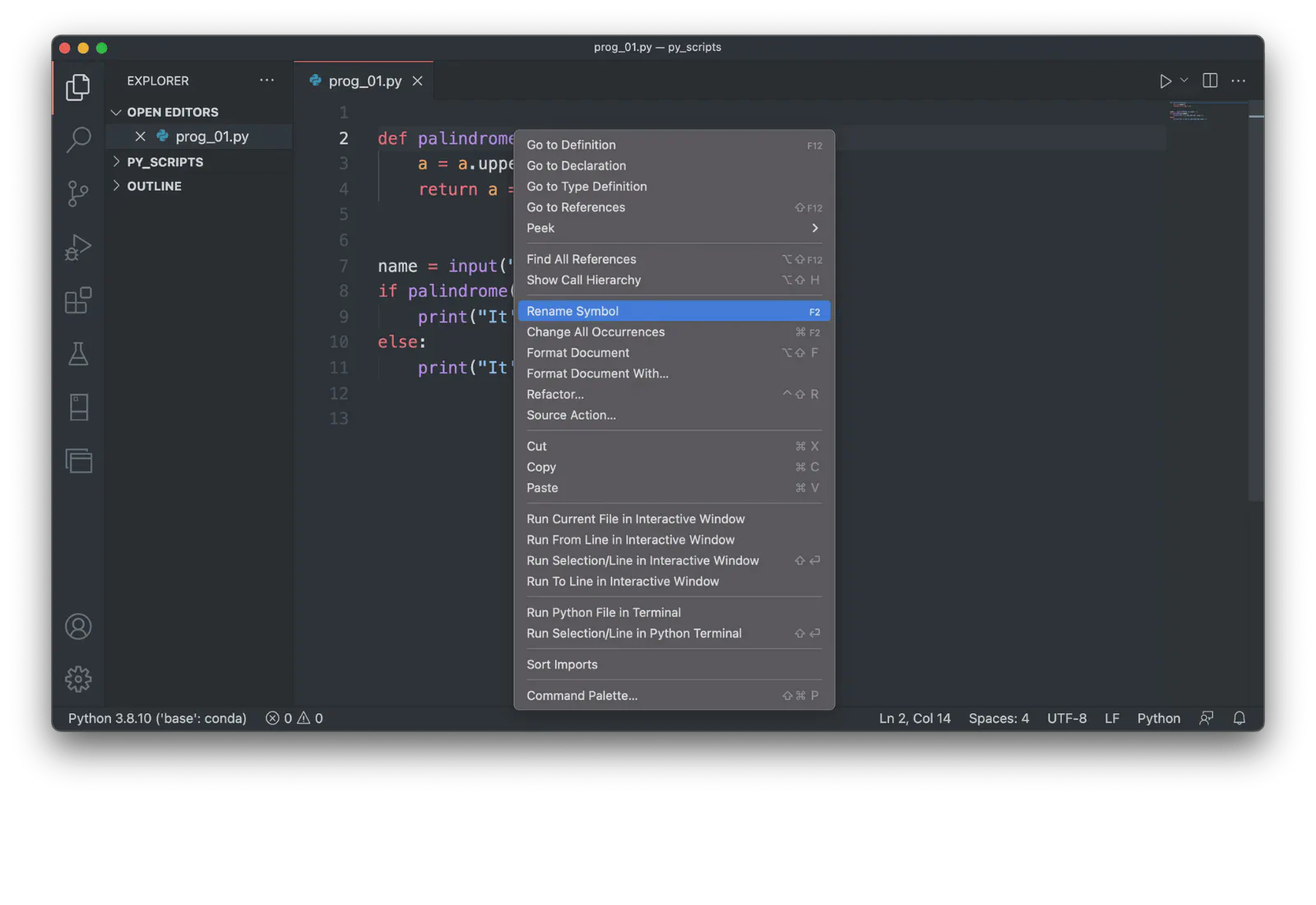
palindrome will be replaced with check_palindrome: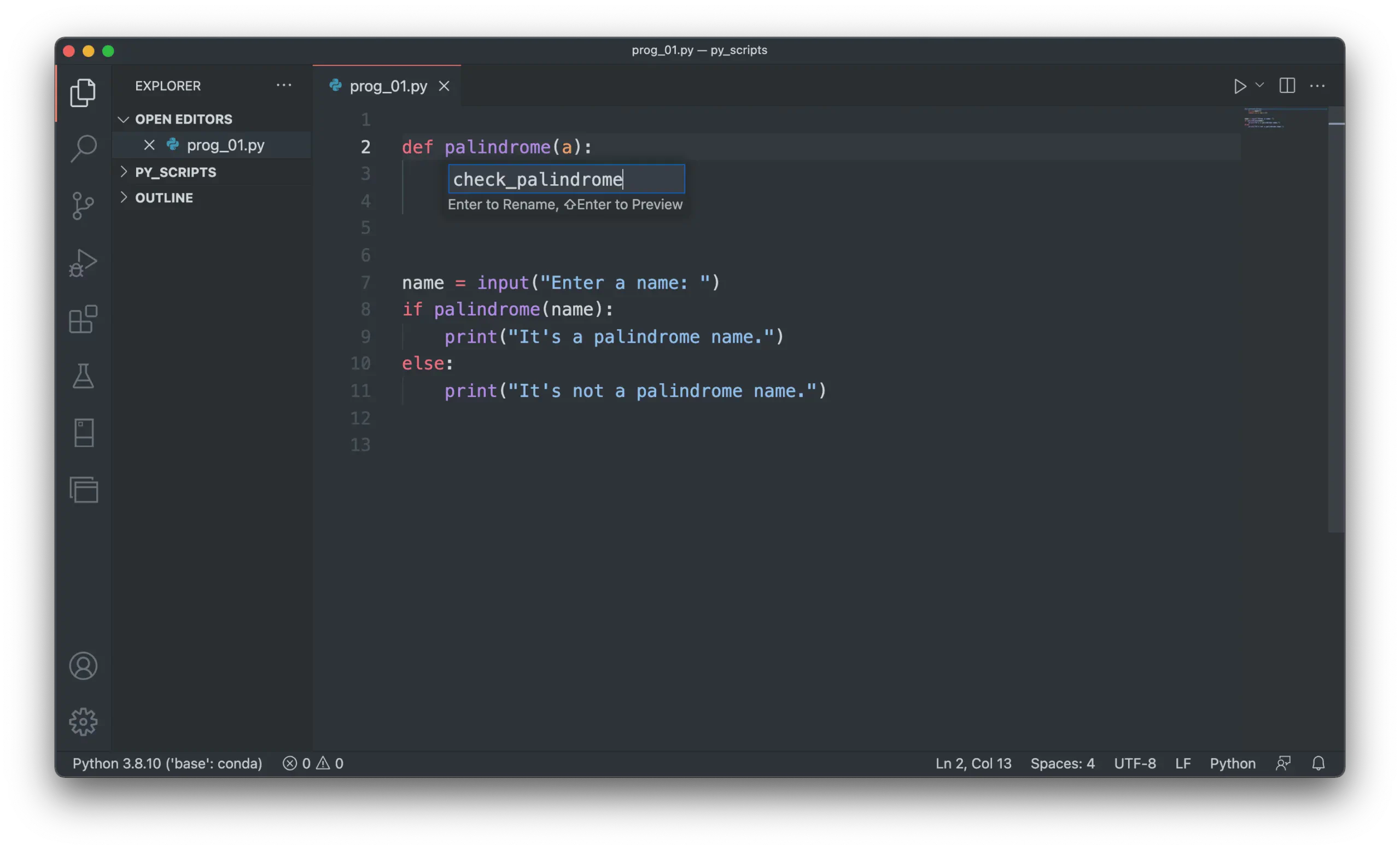
Create a Python file with the following code:
height = 5
width = 4
area = height * width
print("Room's area =", area, "square meters")
Select the third line, right-click, and choose Refactor from the context menu:
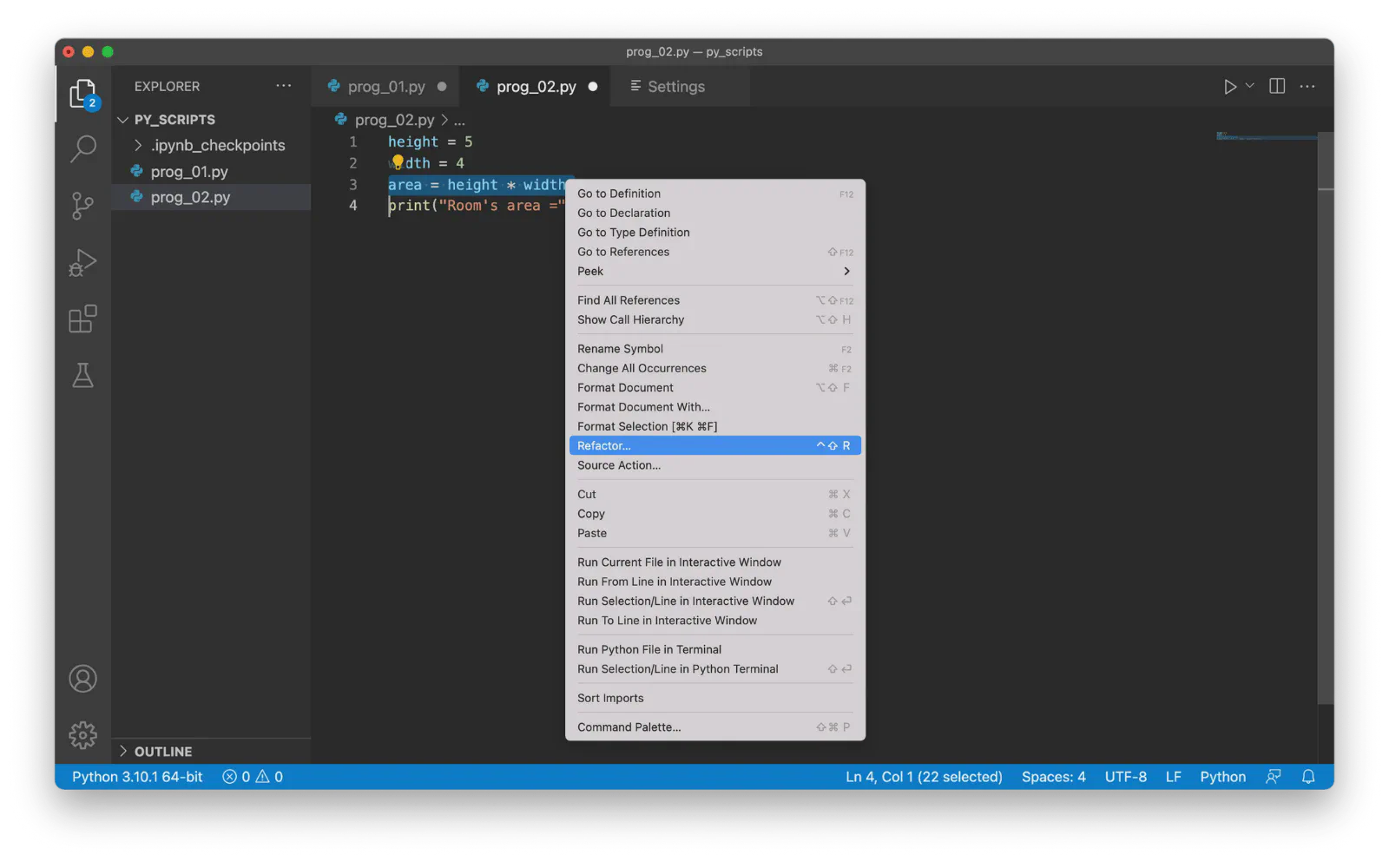
calc_area):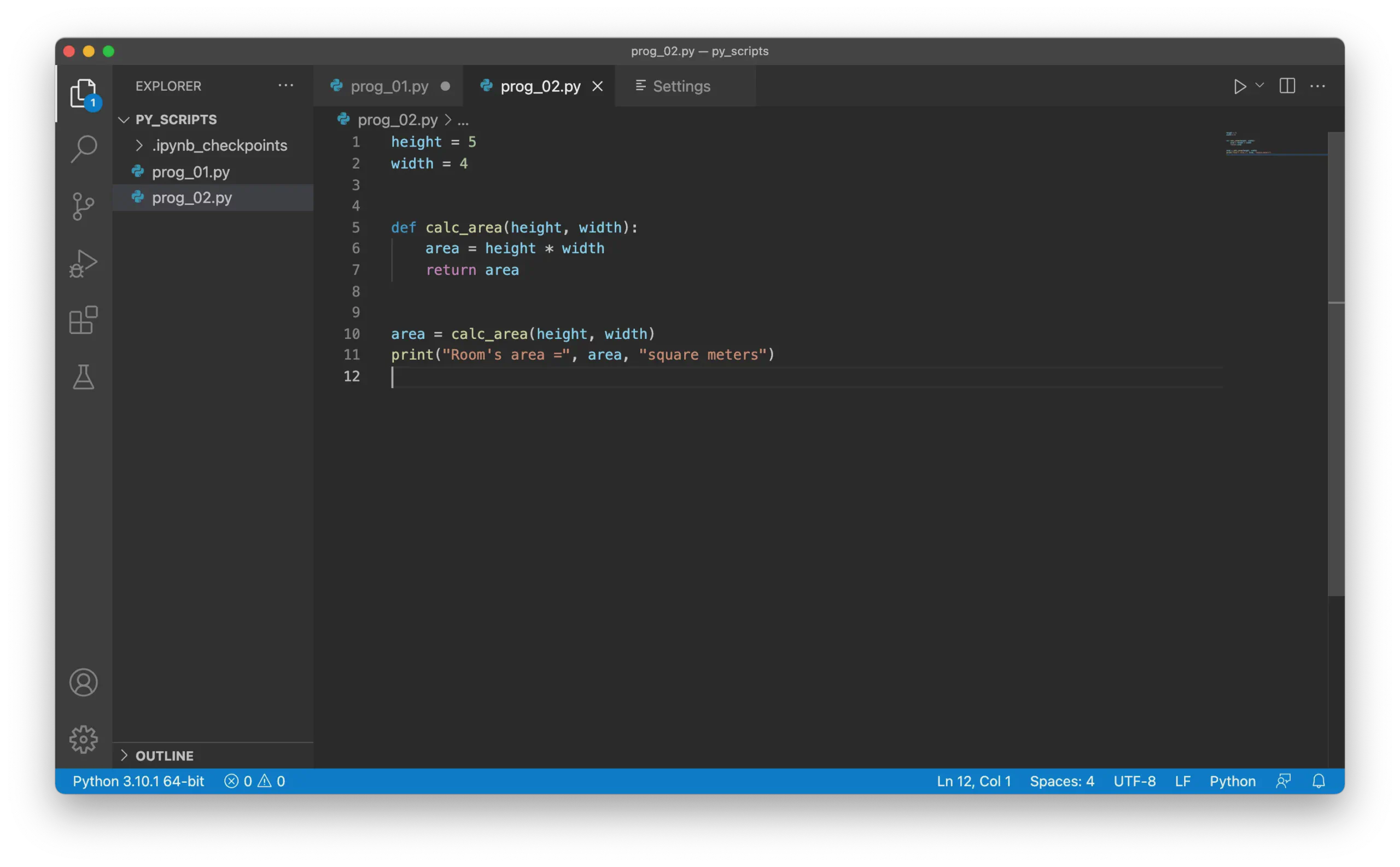
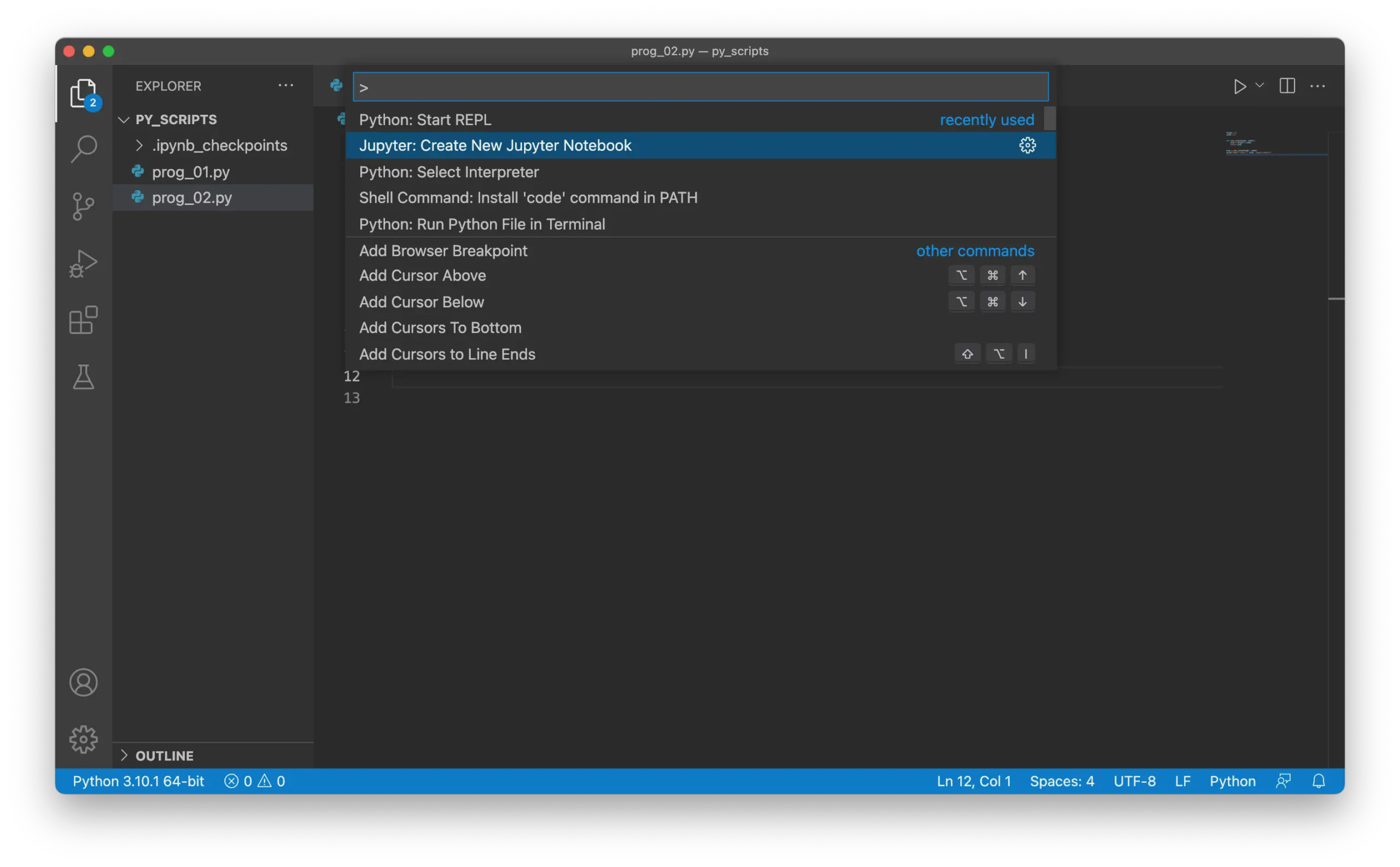
VS Code supports working with Jupyter Notebooks.
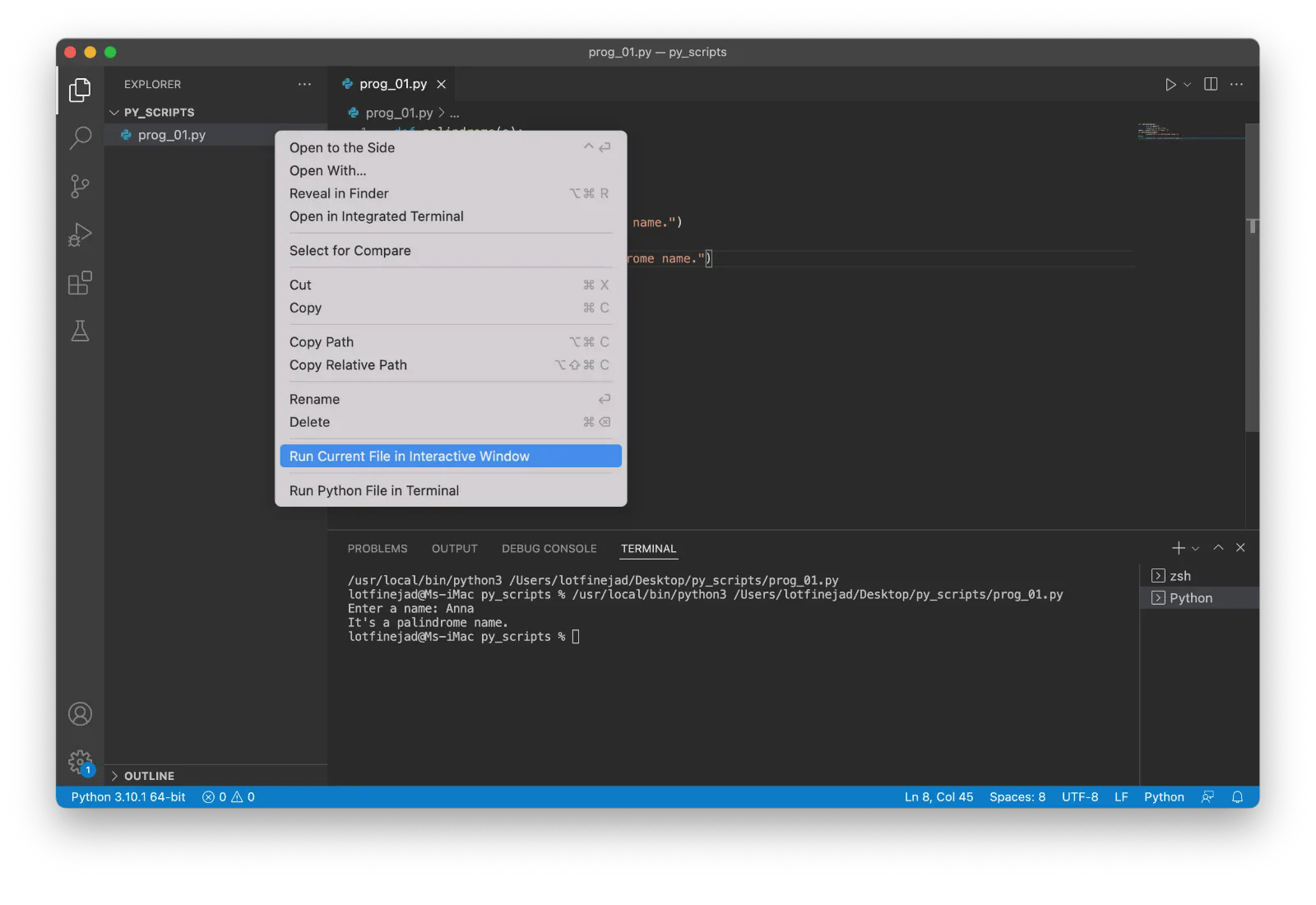
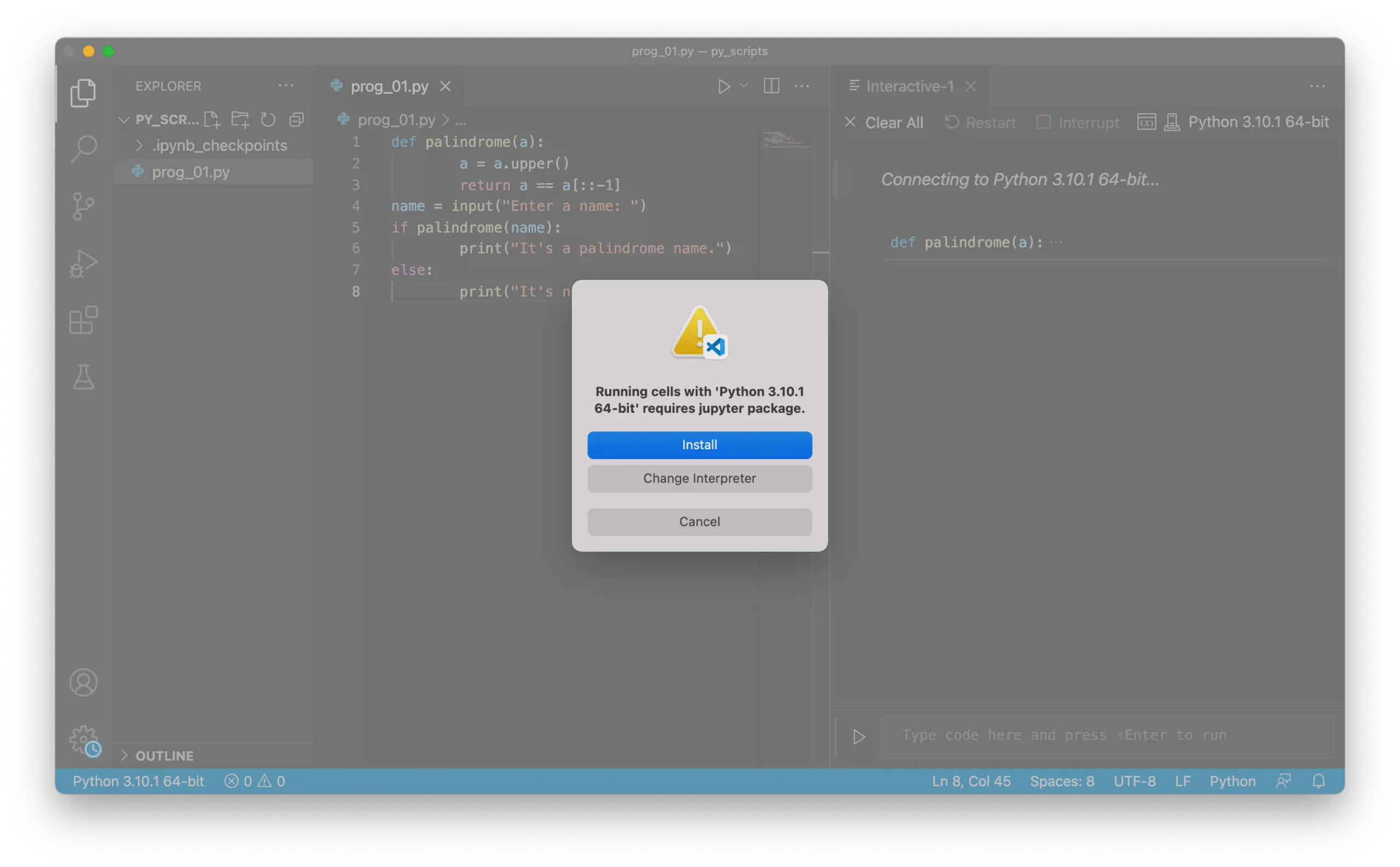
You can also create new Jupyter Notebooks in VS Code:
This guide covered installing and configuring VS Code, running Python files, and using additional features like REPL, formatting, refactoring, and Jupyter integration.
While we’ve covered a lot, there’s even more to explore in VS Code to enhance your productivity. Dive deeper into its documentation to make the most out of this powerful editor!