Title here
Summary here
Learn how to install Python 3 on macOS using Command Line Developer Tools or the official installer, with step-by-step instructions

Python is one of the most powerful programming languages, widely used in data science, machine learning, and big data analytics. Installing Python is essential for all programmers. As a novice programmer, you may wonder how to install or update Python on your Mac properly. Here, we’ll walk through the different ways of installing and updating Python on macOS.
Then, to write and run our Python code in an integrated development environment (IDE), we will learn how to install and configure Visual Studio Code on Mac. There are different methods for installing and updating Python on Mac, but let’s stick to the third principle of the Zen of Python that says: “Simple is better than complex.” Accordingly, we will try simple methods rather than complex ones. Before we jump into learning how to install or update Python on Mac, let’s review what we’re going to discuss in this guide:
I have two pieces of news for you: one is good, the other bad. The good news is that for the sake of compatibility with legacy systems, Python 2.7 is pre-installed on your Mac. The bad news is that Python 2.7 has been retired. Therefore, it isn’t recommended for new developments. If you want to take advantage of the new Python version with its many features and improvements, you need to install the latest Python alongside the version that comes pre-installed on macOS.
Before we start installing the latest version of Python, let’s see why there are different versions of the same programming language. All programming languages evolve by adding new features over time. The programming language developers announce these changes and improvements by increasing the version number.
To check the current version of Python that is already installed, open the Terminal application by pressing Command + Space, typing Terminal, and hitting Return. Now, type the following command and hit Return:
python --versionYou’ll likely see:
Python 2.7.18Next, try this command to check if Python 3 is installed on your Mac:
python3 --versionIf Python 3 isn’t installed, you may see this message:
xcode-select: note: no developer tools were found at '/Applications/Xcode.app', requesting install. Choose an option in the dialog to download the command line developer tools.A dialog box will appear, stating that this command requires the Command Line Developer Tools. Let’s briefly explain: this package includes tools mostly used in development, such as make, git, python3, etc. Although there are other ways to install Python 3.x on Mac, I recommend installing the Command Line Developer Tools because it provides many additional tools for development.
To install the tools:
After installation, rerun the command to confirm Python 3 installation:
python3 --versionYou should see something like:
Python 3.8.9Downloading the latest Python version from the official Python website is another method. Here’s how:
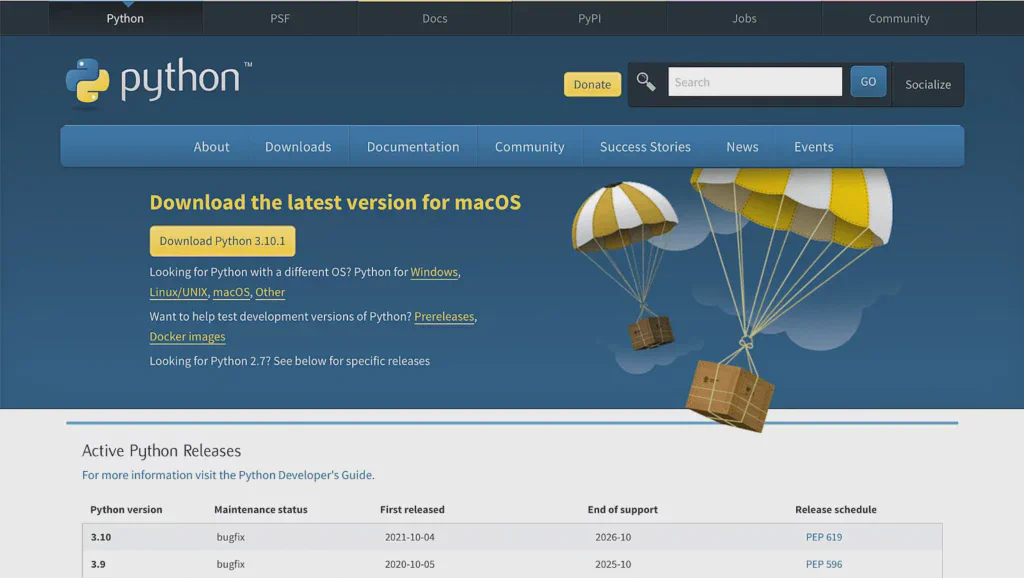
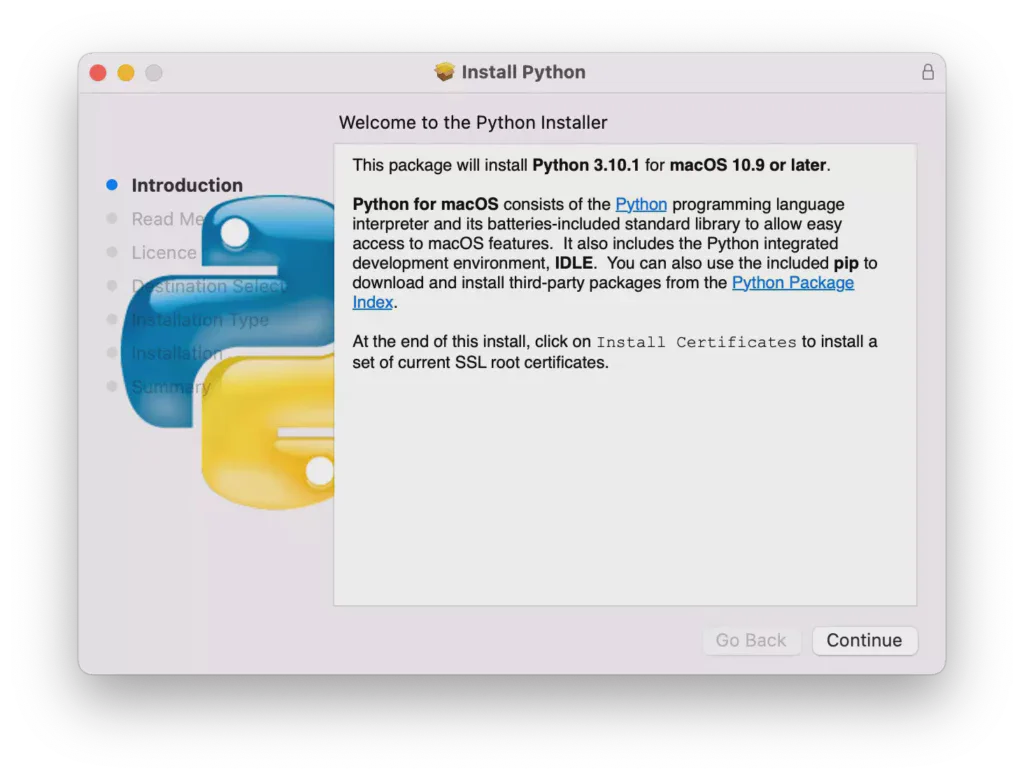
Note: If you’re using an Apple M1 Mac, you need to install Rosetta. Rosetta enables Intel-based features to run on Apple silicon Macs.
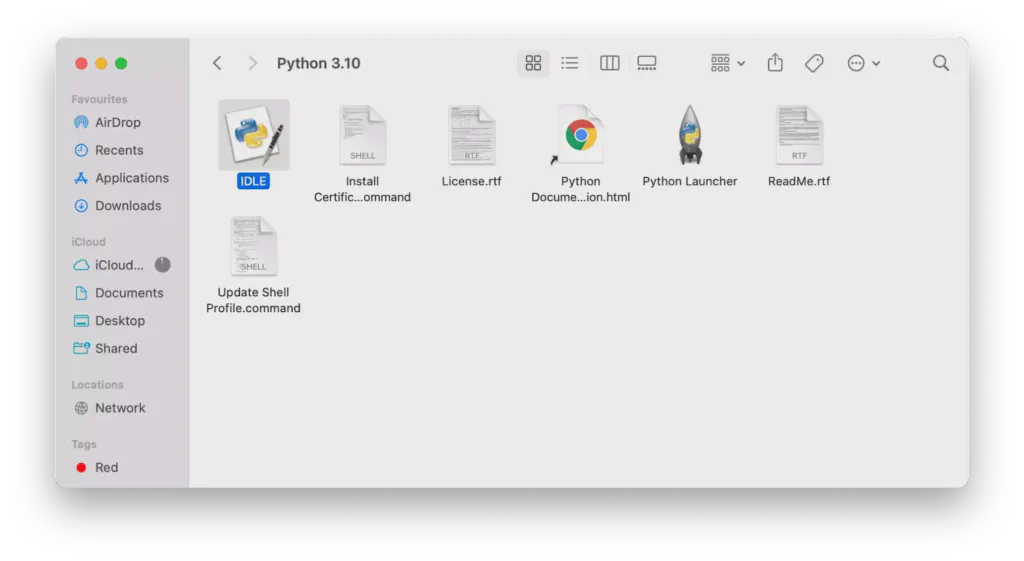
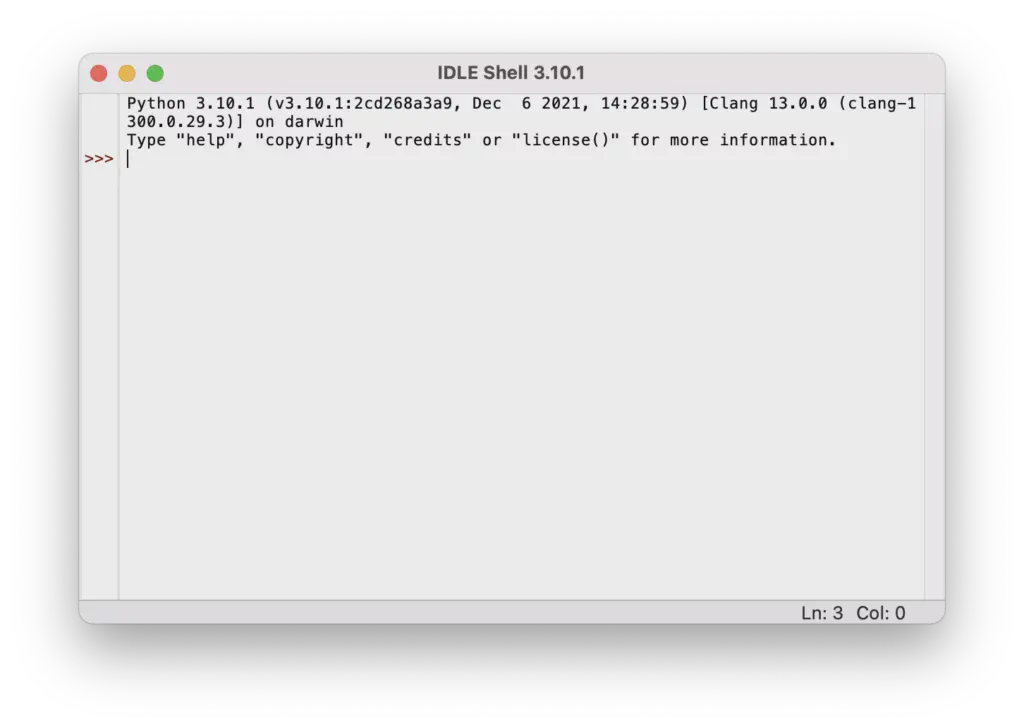
Write and run a simple Python program in IDLE. Type the following code:
print("Hello, World!")Although we can use IDLE or the terminal for writing Python scripts, a powerful, extensible, and lightweight code editor like Visual Studio Code (VS Code) is preferred.
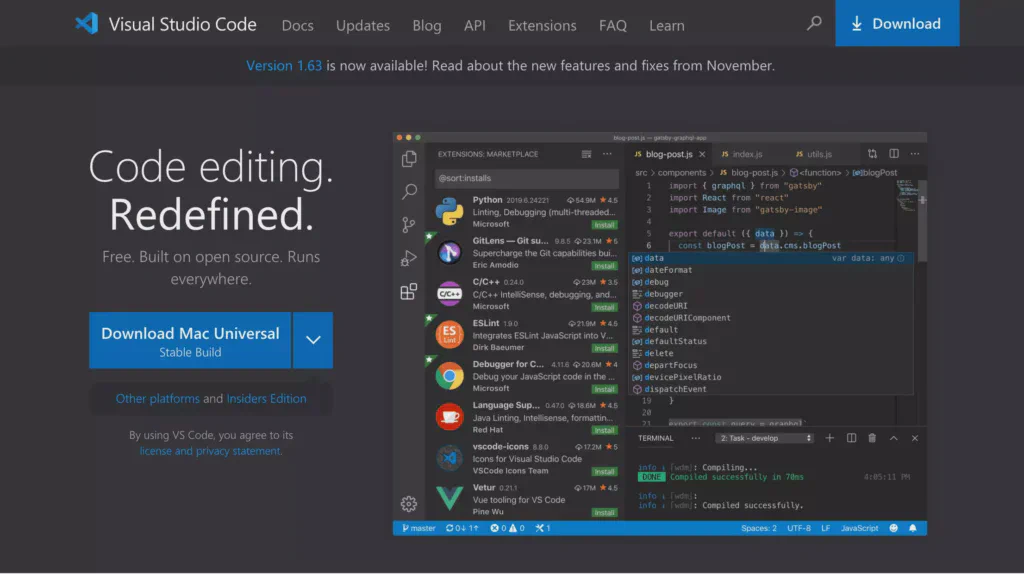
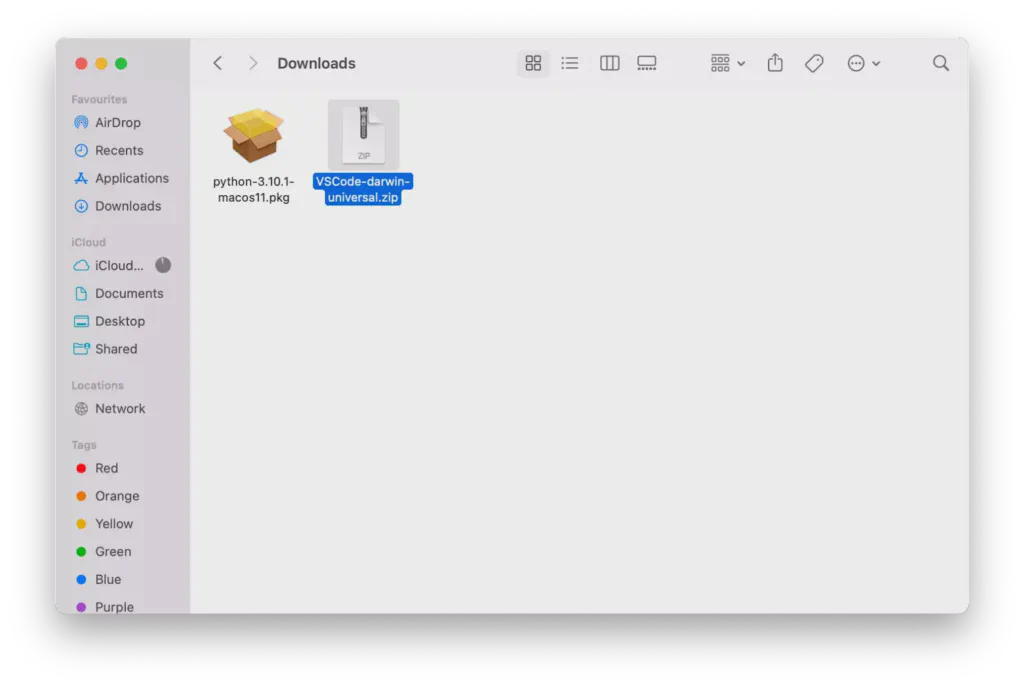
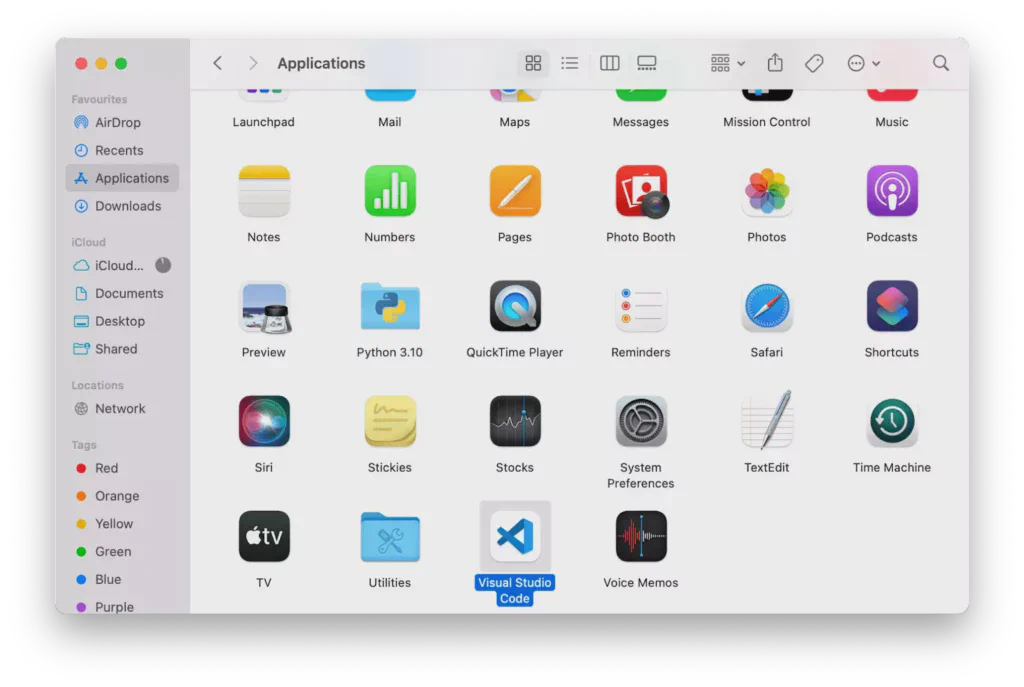
py_scripts, and open it in VS Code.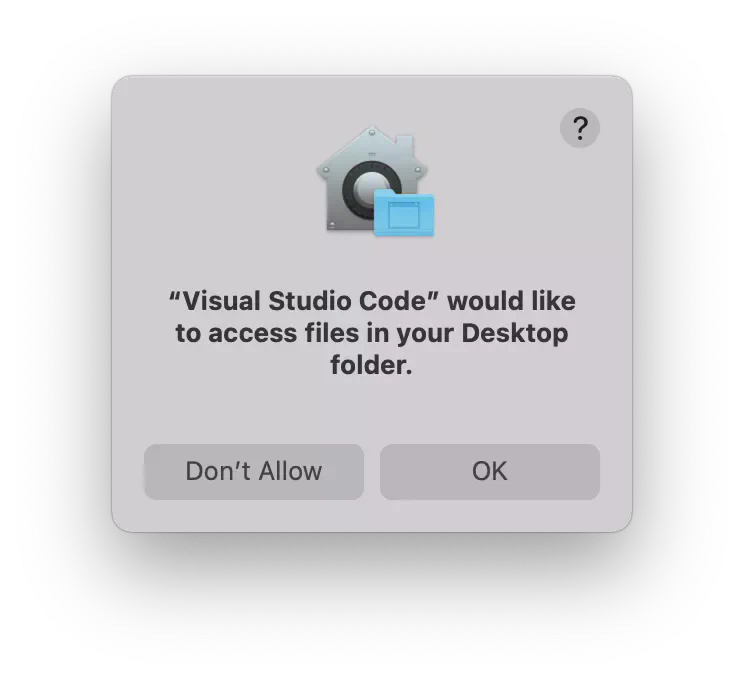
.py extension (e.g., prog_01.py). VS Code will detect the .py extension and prompt you to install the Python extension.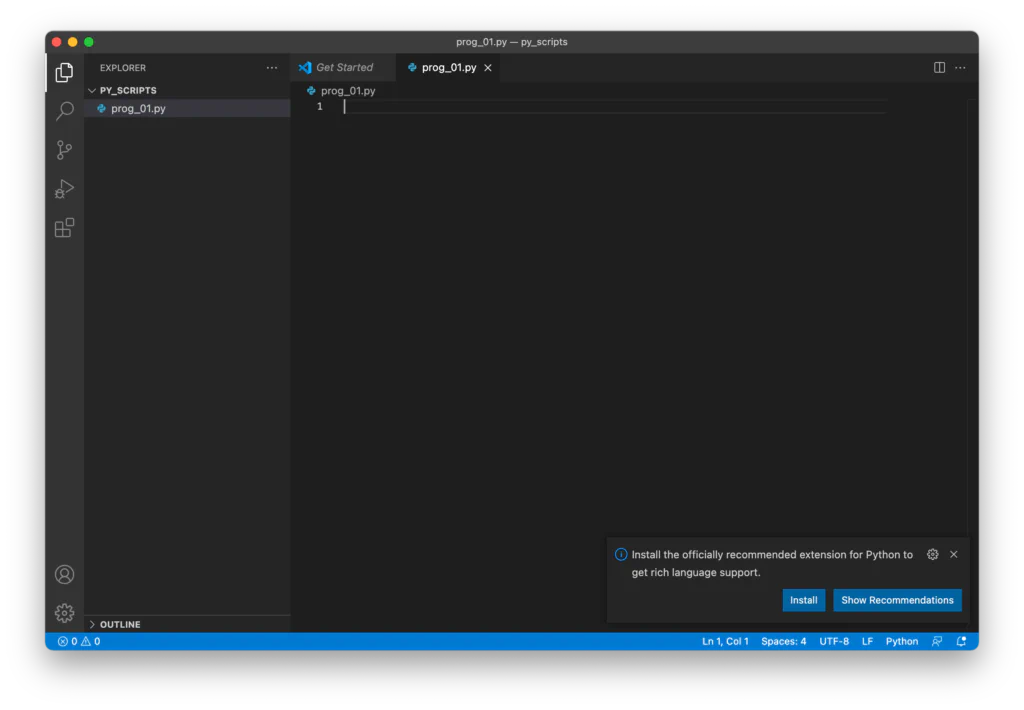
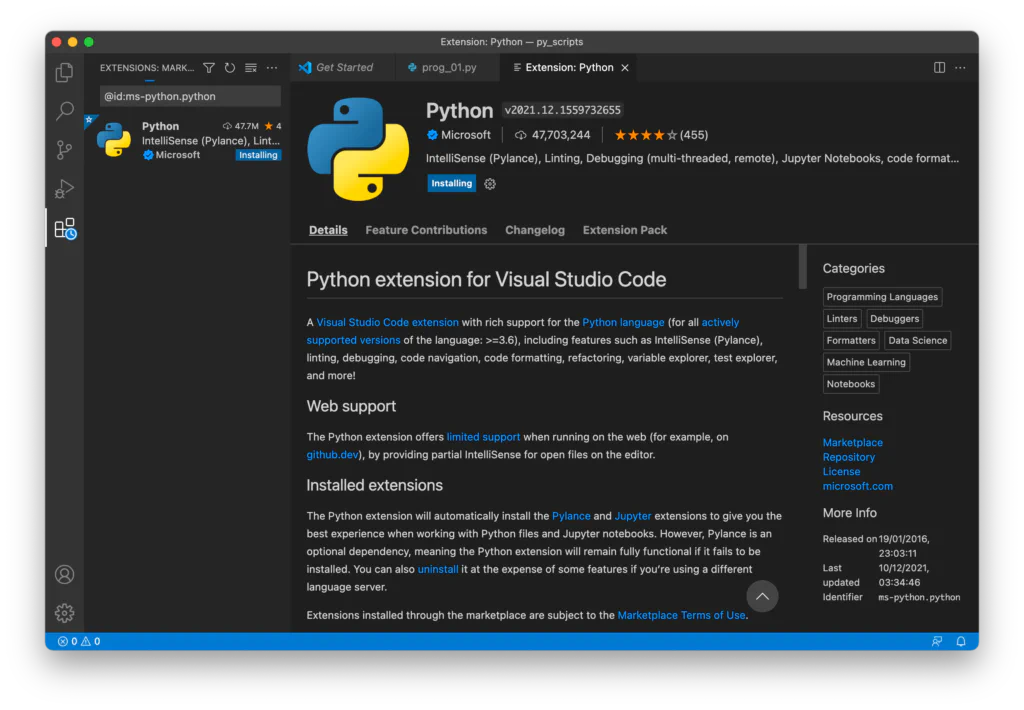
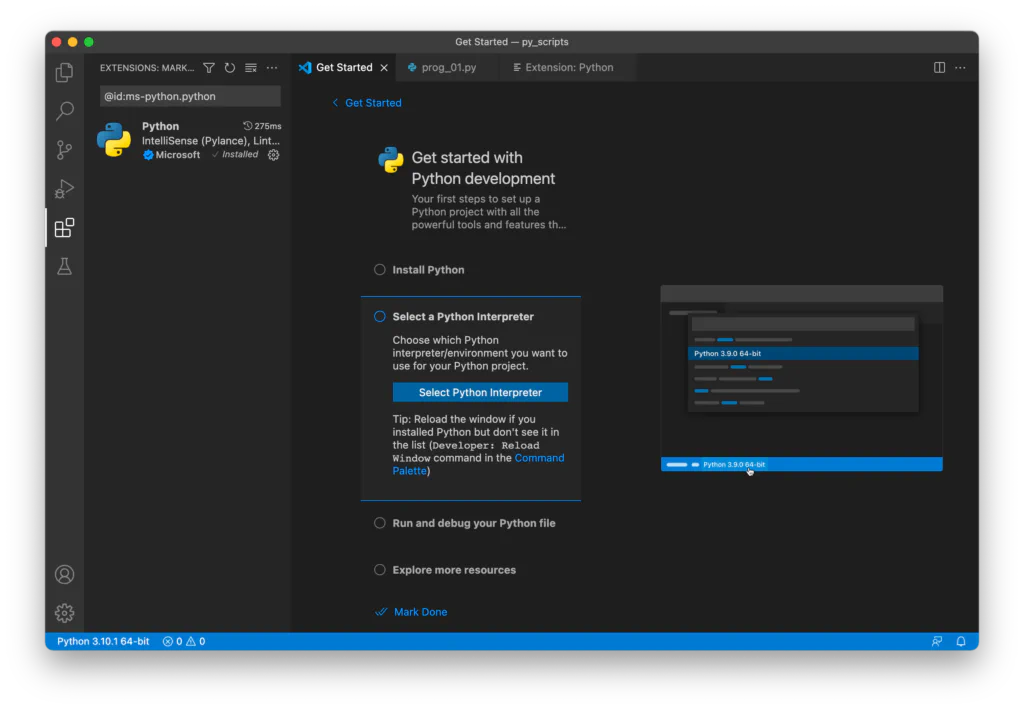
Now that everything is set up, let’s write and run a Python script in VS Code.
Write the following code in the .py file you created:
print("Hello, World!")
name = input("What's your name? ")
print("Hello, {}!\nWelcome to DATATWEETS!".format(name))
Run the code by clicking the ▶️ button in the top-right corner of VS Code. The output will appear in the integrated terminal. First, it will display:
Hello, World!Then it will ask for your name. Enter your name and hit Return. It will output:
Hello <your name>!
Welcome to DATATWEETS!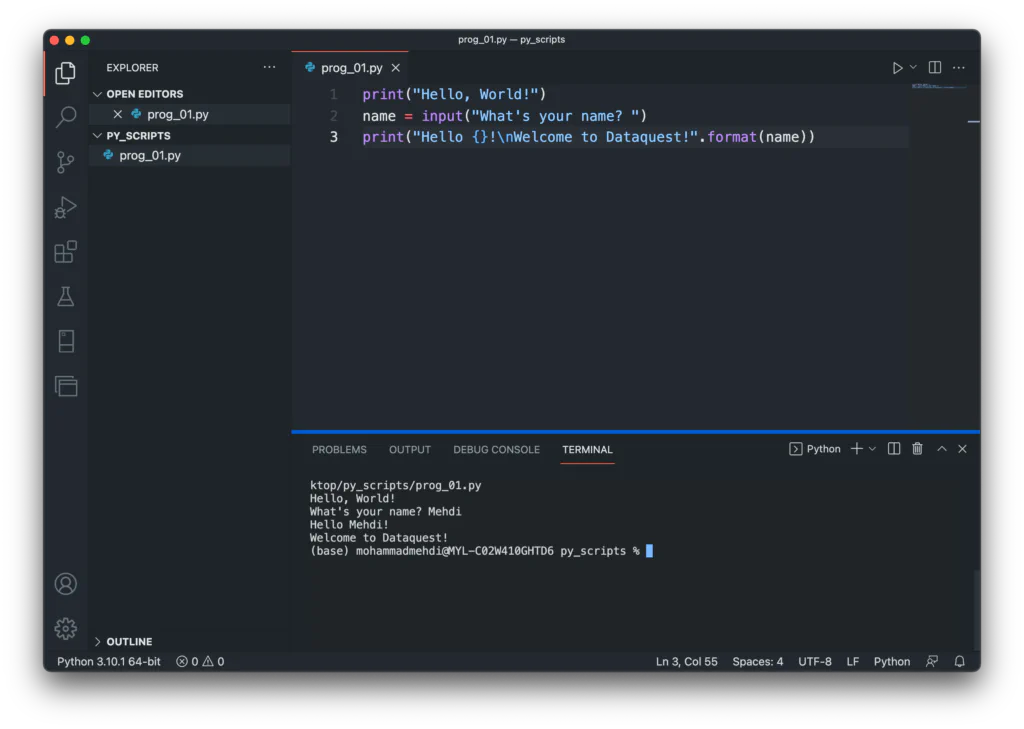
In this guide, we learned how to install and update Python on macOS, install and configure Visual Studio Code for Python development, and run our first Python script. In the next guide, we’ll explore Python virtual environments and how to use them. Congratulations, Pythonista!