Title here
Summary here
Learn how to install Python 3 on Windows with step-by-step instructions, including environment setup and verification

Python is a popular open-source, high-level programming language. It’s intuitive and offers many helpful tools and libraries — Python is a powerful data science asset to have in your toolkit. To start working with Python, we first need to download it and install it on our operating system (in this case, Windows).
There are two main ways to install Python on Windows:
Before installing Python, check if it’s already installed on your computer.
cmd in Windows Search) or Windows PowerShell (right-click the Start button and select Windows PowerShell).python -VThis command shows the installed Python version (if any). 3. To check the installation path, type:
where.exe pythonIf Python isn’t installed, follow these steps to download and install it from the official Python website.
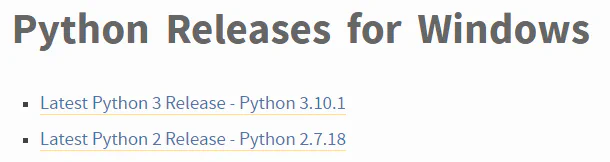
Python 3 (released in 2008):
Simpler syntax.
Extensive libraries, especially for data science.
Actively supported by the Python community.
Python 2 (no longer supported):
May be required for legacy projects or older scripts.
For new projects, Python 3 is recommended. If you need Python 2, download the Windows x86-64 MSI installer to match your Windows architecture.
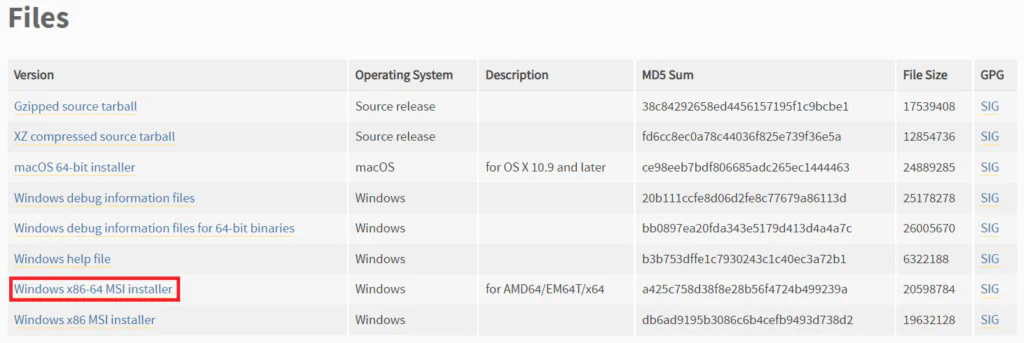
To download Python 3, choose the appropriate installer for your Windows version:
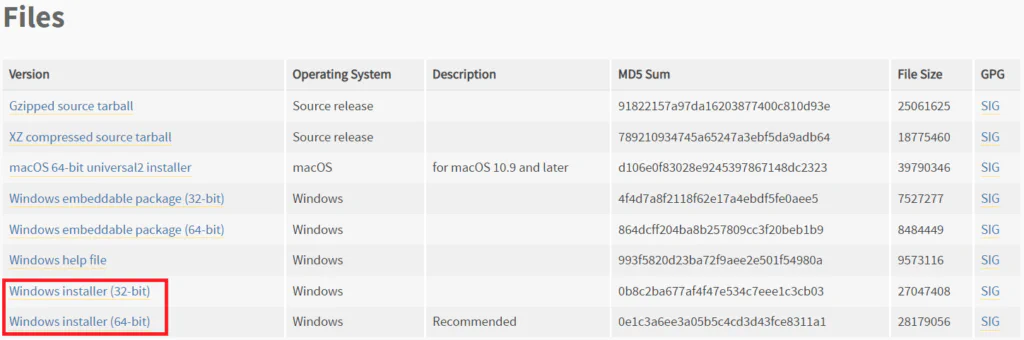
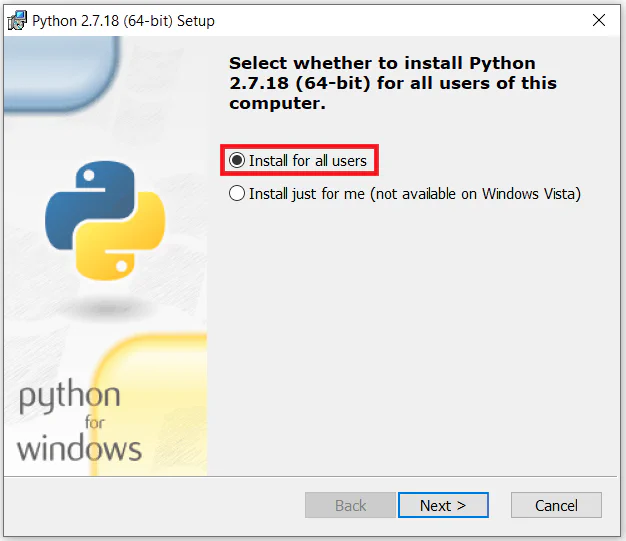
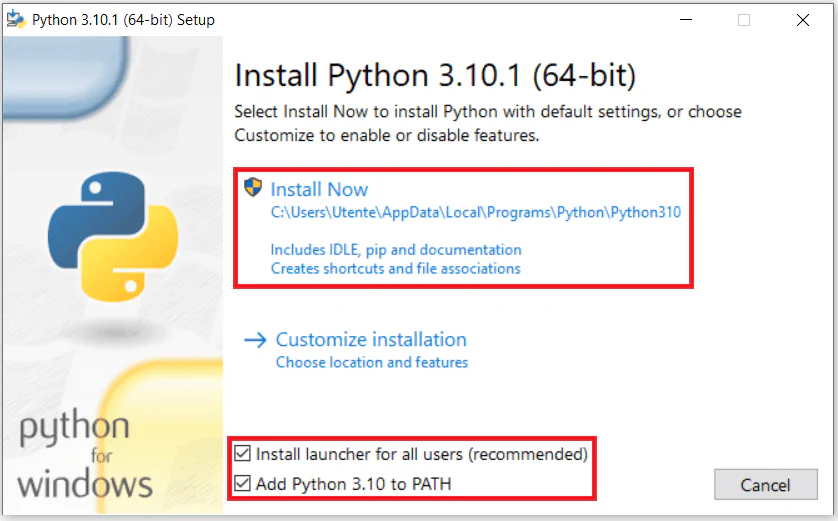
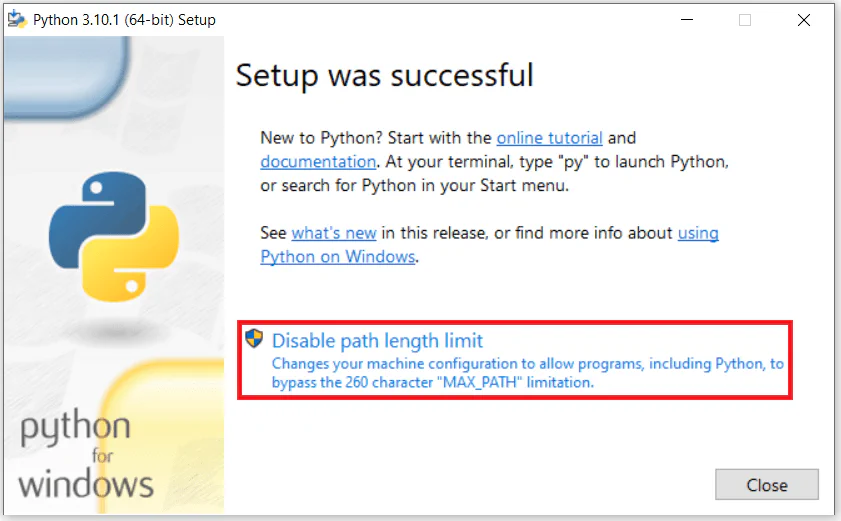
python -VIf both Python 2 and Python 3 are installed, Python 2 may take priority. To check Python 3, type:
python3 -VFor data science or machine learning, installing Python through Anaconda Navigator is recommended.
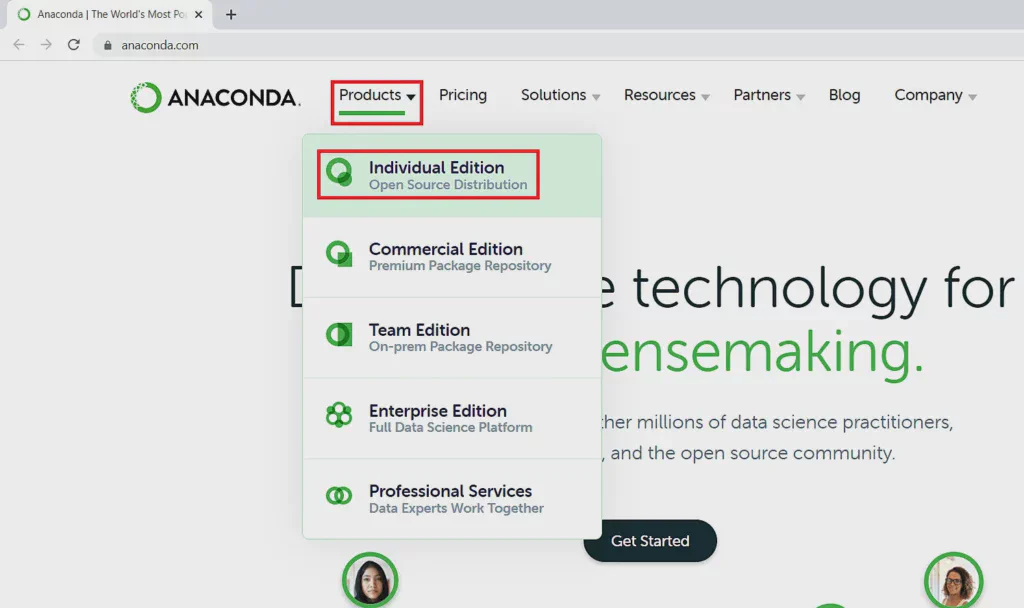
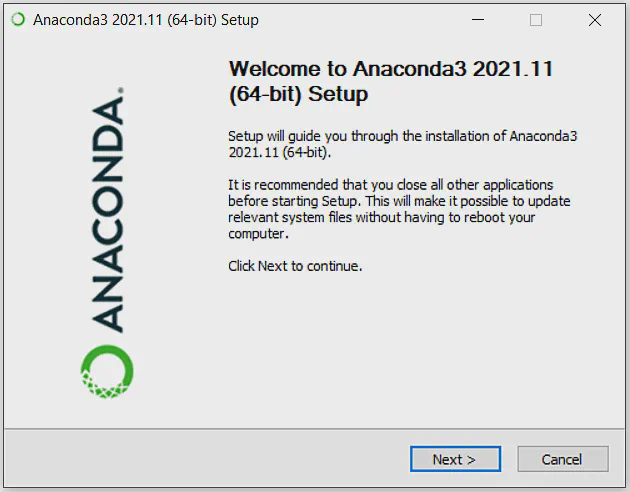
IDLE in Windows Search.
Anaconda Navigator.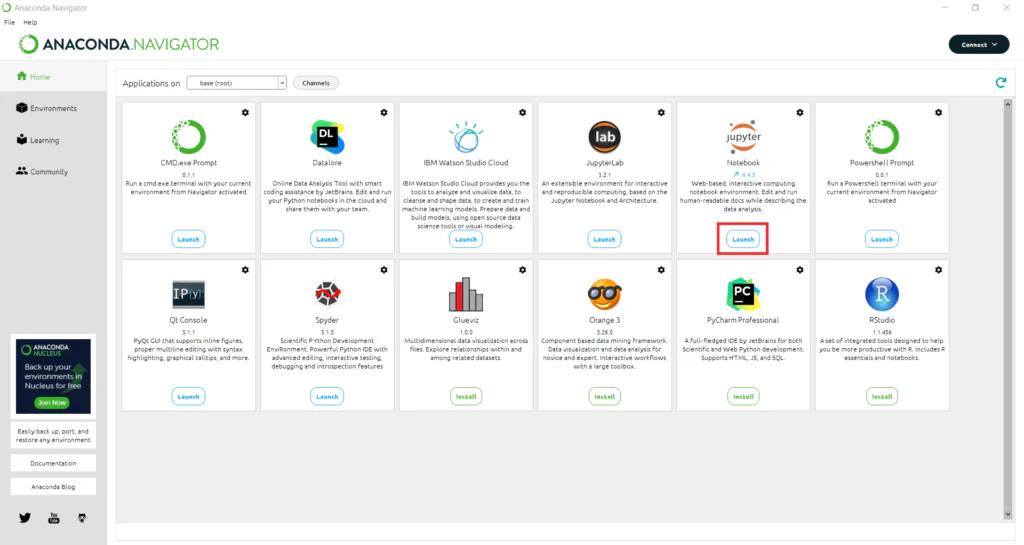
Visit the Python Releases for Windows page, download the latest version, and run the installer.
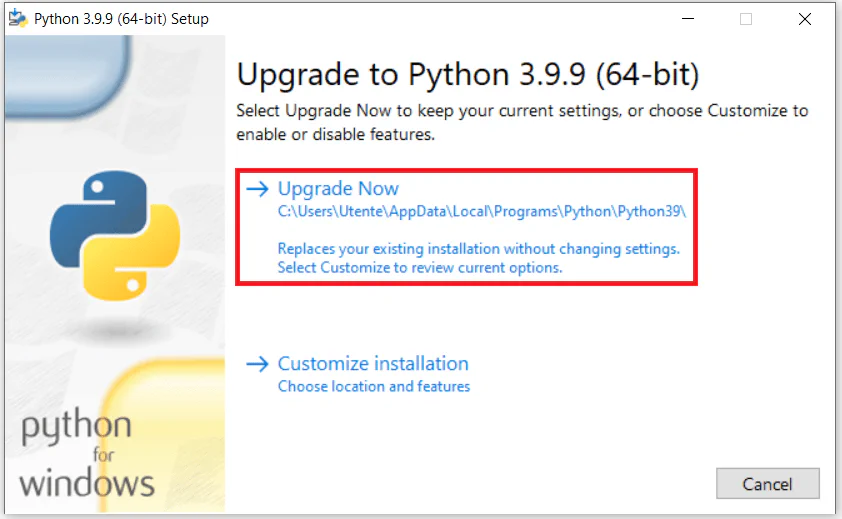
Anaconda Prompt.conda update pythonTo create a new virtual environment with the latest Python version:
conda create -n python_latest python=3.10
conda activate python_latest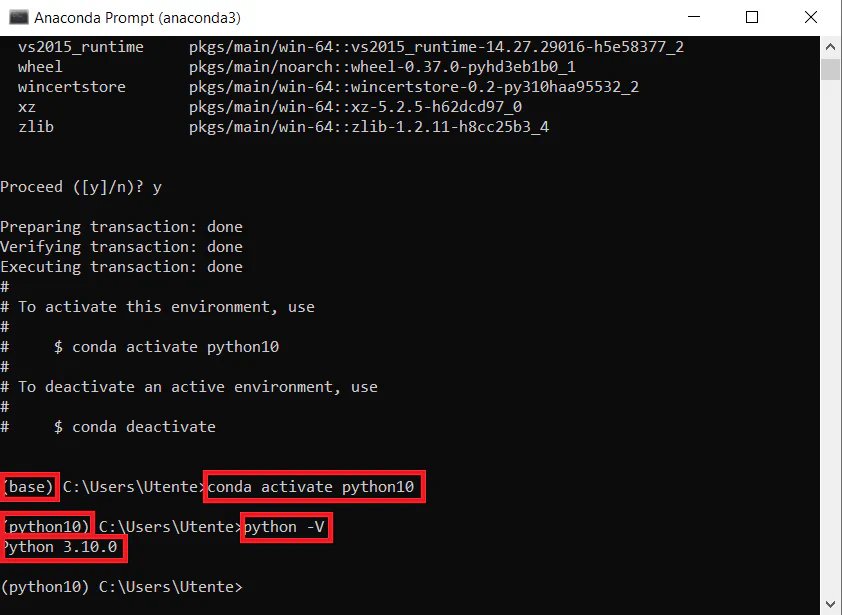
In this guide, we covered:
Now, you’re ready to start coding in Python!