Title here
Summary here
You’ve spent four modules running loops by hand, one message at a time, in a browser. This module hands the loop to an agent that runs the whole cycle itself — over the real files on your computer. The tools are Claude Code and Codex, and the single most important thing to say up front is that, despite how they’re marketed, they are not just for developers. They’re file agents. Point one at a folder of messy documents and it will read, sort, rename, and summarize them for you, running the attempt-check-correct loop on its own. A non-developer doing exactly that is doing real loop engineering.
By the end of this lesson, you will be able to:
Let’s demystify the tool first.
Three words, each simple. A CLI (command-line interface) is just a text window on your computer where you type instructions instead of clicking buttons — the terminal. It looks intimidating because it’s plain text, but conceptually it’s a chat box that happens to sit on your computer and can touch your files. Agentic means it doesn’t just answer — it acts, and it decides its own next steps toward a goal. Put together, an agentic CLI is a tool you give a goal to, in plain language, that then works on the real files in a folder to achieve it — reading them, changing them, creating new ones — without you directing each step.
The crucial difference from ChatGPT or Claude in a browser is reach and autonomy. A browser chat can only see what you paste in, and you run every round. An agentic CLI can see and change the actual files in a folder you point it at, and it runs the rounds itself. That’s a real jump in power — which is exactly why the next lesson is about safety. But the loop underneath is the same one you already know.
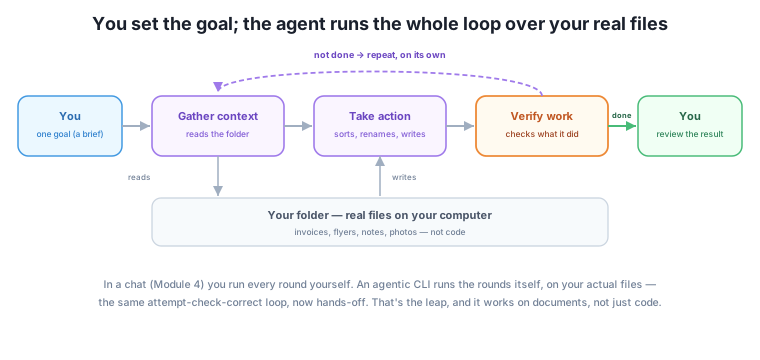
Notice the loop in the middle is exactly the one you learned in Module 1 — gather what you need, take an action, check the work, repeat — and the one Claude Code itself is built around. You’re not learning a new concept here. You’re watching your familiar loop run without you in every round.
Look at what moves. In a browser loop, you are in every round: you read each attempt, you check it, you type the correction. In an agentic loop, you set the goal at the start and review the result at the end — and the agent does the rounds in between. It reads the relevant files (gather context), makes changes (take action), checks whether that worked (verify), and goes again if it’s not done. The parts you’ve spent four modules learning to do by hand, it now does on its own.
This is why everything you’ve built still matters — in fact it matters more. The agent runs the loop, but you still supply the goal, the definition of done, and the check it verifies against. Hand it a vague goal and it will confidently do the wrong thing across a hundred files, fast. Hand it a clear brief and a real check, and it will do a lot of careful work while you’re getting coffee. The autonomy raises the stakes on the goal and the check — the exact things Modules 2 and 3 taught you to write.
These tools were built for programmers, and most of what’s written about them assumes you’re editing code. That framing hides their real range. Here’s the reframe this whole module rests on: they are file agents, not just code agents. To the tool, a folder of invoices, flyers, meeting notes, and photos is just a folder of files — exactly like a folder of code. The loop it runs doesn’t care whether the files contain Python or party flyers.
So the tasks a non-developer can hand to one are real and plentiful:
None of these involve writing code. They involve reading, sorting, naming, and summarizing — office work — done as an autonomous loop over your real files. That’s the underserved capability this module unlocks.
‘No coding’ does not mean ’no setup’
Be clear-eyed about this: the course promises no coding, and that holds — you never write a program. But this module does involve technical setup — installing a command-line tool and working in a terminal — which is the one genuinely new-feeling step in the course. If that’s not for you, Modules 1–4 already gave you a complete, browser-only loop toolkit and this module is the optional “go further” track. If you’re willing to try it, the payoff — real work done hands-off over your files — is large. The next section gives you just enough orientation to not feel lost.
If you’ve never opened a terminal, here’s the whole mental model you need — nothing more:
claude or codex) — after that, you mostly talk to it in plain language, the same as a chat.That’s genuinely all the terminal literacy this module needs. You’re not learning to code or to administer a computer — you’re learning to open a text window, start a tool in the right folder, talk to it, and stop it if needed. Everything else is the loop engineering you already know.
Harborlight has a shared “stuff” folder that’s become a dumping ground: a hundred files with names like IMG_4471.jpg, scan.pdf, final_FINAL_v2.docx, and Untitled spreadsheet. Nobody can find anything. Sorting it by hand is a dreary afternoon.
Instead, the owner points an agentic CLI at the folder with one goal: “Sort this folder into sensible subfolders by type, rename the cryptic files to something readable, and write an index describing what’s where.” The agent runs the loop on its own: it reads each file to see what it is (gather context), creates folders and moves and renames files (take action), checks that everything got sorted and the names match the contents (verify), fixes what it missed, and writes the index. What was an afternoon becomes a few minutes of the agent working while the owner watches — no code, just the loop from Module 1 running hands-off over real files. That exact task is this module’s project; the rest of the module is about doing it safely and well.
Which of these could you hand to an agentic CLI, even as a non-developer: (a) rename 200 photos by the date they were taken, (b) write a mobile app, (c) turn a folder of meeting notes into one summary document, (d) standardize the header on 40 Word files?
Hint
(a), (c), and (d) are all file tasks a non-developer can hand over — sorting, summarizing, and batch-editing real files. (b) is genuine software development. The point: most of what these tools can do for you is file work, not coding.
Your browser chat can’t rename the actual files in your Downloads folder, but an agentic CLI can. In one sentence, what capability makes the difference?
Hint
The agentic CLI can see and change the real files in a folder you point it at (with permission), whereas a browser chat only sees what you paste in. That reach — acting on your actual files — is the whole difference, and the reason safety comes next.
The agent runs the loop itself. Name two things it still needs you to supply for the result to be any good.
Hint
The goal (a clear brief — what “sorted” and “done” actually mean) and the check (the definition of done it verifies against). Autonomy doesn’t replace those; it makes them matter more, because the agent will act on a vague goal fast and across many files.
An agentic CLI — Claude Code or Codex — is a tool you give a plain-language goal to, running in your computer’s terminal, that then works on the real files in a folder to achieve it: reading them, changing them, creating new ones, and running the attempt-check-correct loop itself. The loop is exactly the one from Module 1; what’s new is that the agent runs the rounds and can touch your actual files, instead of you steering each round over pasted text. That autonomy makes the goal and the check more important, not less — a vague goal gets done wrong fast, across many files. The key reframe is that these are file agents, not just code agents: sorting a folder, cleaning an export, batch-editing documents, and building an index are all real, code-free tasks a non-developer can hand over. The one genuinely new step is installing and running a terminal tool — which the next lesson does safely.
This is the capability most people don’t know they have: the same tools sold to programmers will run autonomous loops over your documents, doing hours of sorting, cleaning, and summarizing while you watch. Understanding that they’re file agents — and that the loop inside is the one you already know — is what turns “that’s a developer thing” into “that’s a tool I can use on my Monday-morning mess.” But autonomy over your real files is exactly why the next step isn’t “let it rip.” Next, you’ll set one up safely, learning the single most important idea in the module: the difference between what you tell an agent to do and what it’s actually allowed to do.
You now know what an agentic CLI really is: a file agent that runs your familiar loop, hands-off, over the real files on your computer — and that it’s for far more than code. Hold onto the reframe: sorting, cleaning, and summarizing files are loops you can now delegate. Next, before you let anything run on its own, you’ll learn to set one up safely — because an agent that can change your files needs boundaries you can trust, and those boundaries work differently than you might expect.
Keep DATATWEETS free. Help fund practical data, AI, and engineering lessons for learners worldwide.