Title here
Summary here
Loop engineering is a way of thinking, and the thinking is the same no matter which tool you use. That’s why this course teaches every idea in a tool-neutral way first, then shows it across four specific tools so you can use whatever you already pay for. Two of them you probably know: ChatGPT and Claude, the chat AIs you type into. Two you may not: Claude Code and Codex, command-line agents that run loops over the actual files on your computer. This lesson introduces all four and, crucially, dismantles the myth that the last two are only for programmers.
By the end of this lesson, you will be able to:
Let’s meet them.
ChatGPT (from OpenAI) and Claude (from Anthropic) are the chat AIs you already know: you type in a box, they reply, and you can keep the conversation going. For loops, this is where you run things by hand — you’re the check and the corrector, sending each correction as a new message. Both also offer ways to save a loop’s setup so you don’t retype it: ChatGPT has Projects and custom instructions, Claude has Projects and Artifacts (a side panel where a document lives and gets revised). You’ll use both heavily in Module 4, entirely in a browser, no code.
For this course, treat ChatGPT and Claude as near-interchangeable for loop purposes. Where a technique works better in one, we’ll say so, but the loop ideas transfer directly between them. Use whichever you have.
Claude Code (from Anthropic) and Codex (from OpenAI) are different animals. Instead of a chat box, they run in your computer’s terminal — a text window where you type commands — and, once you give permission, they can read and change the actual files in a folder. You give one a goal like “sort this folder and write an index of what’s in it,” and it runs the whole loop on its own: it looks, acts, checks its work, and repeats, without you typing each round.
They’re marketed to developers, and yes, they’re great at code. But here’s the differentiator this course is built on: they are file agents, not just code agents. A folder of messy invoices, flyers, and photos is just files. A pile of customer feedback is just a file. Pointing one of these agents at your messy folder and having it organize, rename, and summarize everything is real, valuable loop work — and it requires zero programming. Module 5 is built entirely on that idea. You’ll learn to set them up safely so they can only touch what you allow.
These tools can change your files
Because file agents can edit and delete real files, safety comes first. Module 5 covers permissions in depth before you run anything for real. For now, just hold the idea: they’re powerful because they act on your files, which is exactly why you set boundaries before letting them run.
To make this real, picture Harborlight’s shared “stuff” folder: a hundred loose files with names like IMG_4471.jpg, scan.pdf, final_FINAL_v2.docx, and Untitled spreadsheet. A person could spend an afternoon sorting it. Here’s the loop a file agent runs instead, once you give it the goal “organize this folder and write an index of what’s in it.”
It looks — opens each file to see whether it’s an invoice, a flyer, a photo, or a note. It acts — creates folders like invoices/ and event-flyers/, moves each file in, and renames the cryptic ones to something readable like invoice-2026-03-riverside-books.pdf. It checks its own work — did every file get sorted, do the new names match the contents, is anything left loose? And it repeats on whatever it missed, then writes an index.md listing what’s where. That is the exact goal → attempt → check → correct → stop loop from Lesson 2 — just run over files instead of paragraphs, and run by the agent instead of by you.
Notice there was no code in that description, because there’s no code in the task. It’s sorting and naming — office work. That’s the whole point: a file agent is a loop-runner for your files, and files are not a programmer’s private territory.
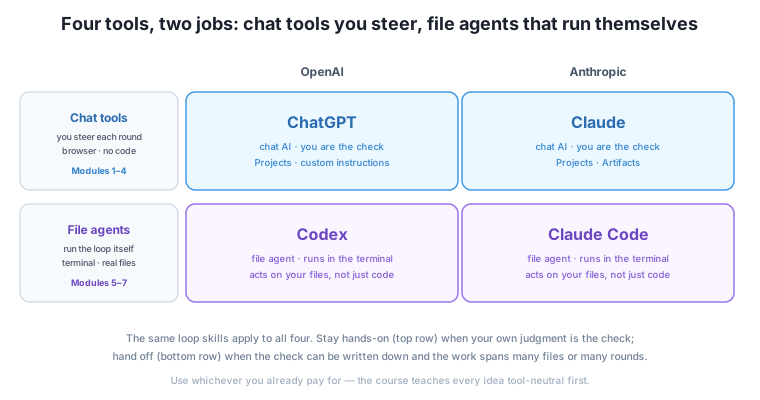
A rough map you’ll refine as the course goes:
The through-line: stay hands-on when your judgment is the check; hand off when the check can be written down and the work is over many files or many rounds.
Throughout the course you’ll run loops for Harborlight, a small independent community bookstore. It’s a stand-in for the kind of small organization most people actually work in, and it has exactly the tasks a non-developer faces:
None of these require reading or writing code, and every one is a real task. Using one running example lets you focus on the loop each time, instead of re-learning a new scenario every lesson.
Time to feel the difference yourself. Pick any tool you have — ChatGPT or Claude — and run this small experiment.
What you’re looking for
The looped version is usually tighter, on-length, and free of the small invented details or tone slips the one-shot slipped in. The point isn’t that the loop is magic — it’s that your explicit goal and check did the work. Keep both versions; you’ll reuse this newsletter task in later modules.
You’ll run loops in four tools. ChatGPT and Claude are chat AIs for hand-run loops in a browser, where you act as the check and corrector; both offer Projects to save a loop’s setup. Claude Code and Codex are command-line file agents that, with permission, run loops over the real files on your computer on their own — and their key value for this course is that they’re file agents, not just code agents, so a non-developer can point one at a messy folder and get real loop work done. Match the tool to the job: stay hands-on when your judgment is the check; hand off when the check is written down and the work spans many files or rounds. Your running example is Harborlight, a small bookstore with real, code-free tasks.
Knowing what each tool is for stops you from forcing a browser chat to do a big file job, or from spinning up a file agent for a task you should steer by hand. That match-the-tool judgment saves real time. You’ve now finished the foundations: you know what a loop is, its five parts, that you already run it by hand, when it’s worth it, and where you’ll run it. Next, Module 2 tackles the part beginners get most wrong — writing a goal a loop can actually finish.
You’ve met all four tools and felt, first-hand, how a deliberate loop beats a one-shot on a task that matters. That side-by-side is the whole course in miniature. Next, we go deep on the first and most-skipped part of a loop: writing a goal it can actually finish.
Keep DATATWEETS free. Help fund practical data, AI, and engineering lessons for learners worldwide.