Title here
Summary here
Lesson 3 introduced behavior-driven development and showed you the basic idea behind Given-When-Then. This lesson goes further. It teaches Gherkin itself: the exact syntax you type into a .feature file so a tool can read it, and a person can read it too. You will write real feature files for Ledgerly, the invoicing app this course uses throughout, covering a discount-code feature and an overdue-invoice feature.
Gherkin has a small number of keywords, but each one carries a specific meaning. Get the syntax right, and your scenarios read like plain English while still driving automated tests. Get it wrong, and Ledgerly’s team ends up with scenarios nobody trusts and nobody wants to maintain. This lesson walks through every keyword you need, in the order you will actually use them.
By the end of this lesson, you will be able to:
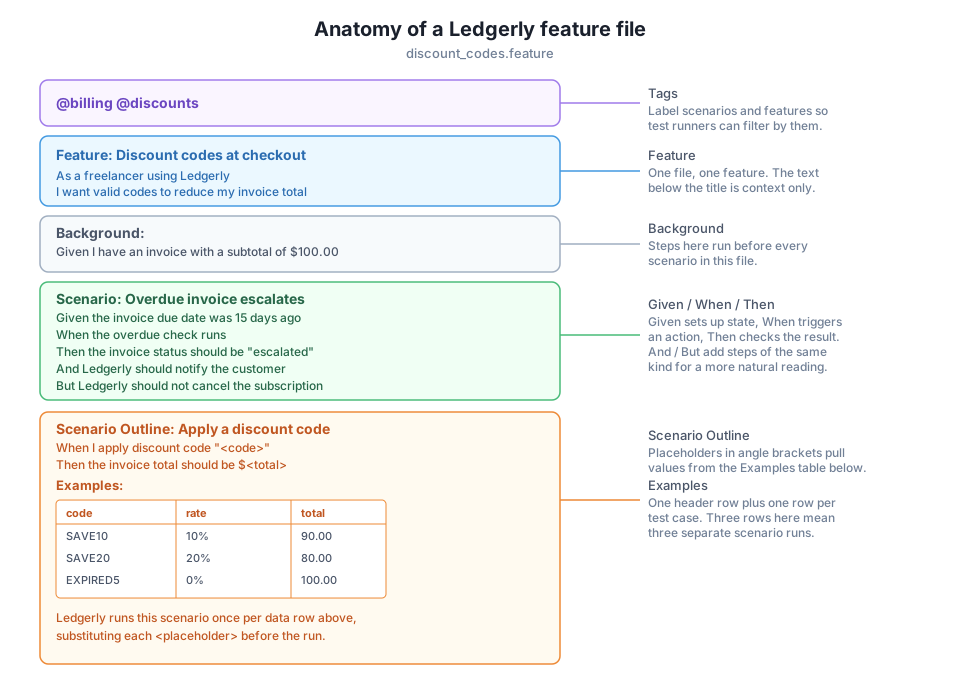
Every Gherkin file starts with one Feature line. It names a slice of Ledgerly’s behavior, and everything below it in the file belongs to that one feature. Below the feature line, one or more Scenario blocks each describe a single, concrete case: one starting state, one action, one expected result.
Feature: Invoice overdue escalation
  Ledgerly marks an invoice as overdue and notifies the customer,
  but never cancels an active subscription just because one invoice is late.

  Scenario: An invoice fifteen days overdue gets escalated
    Given an invoice for customer "Amara Okafor" was due 15 days ago
    When the daily overdue check runs
    Then the invoice status should be "escalated"
    And Ledgerly should send an overdue notice to the customer
    But Ledgerly should not cancel the customer's subscription
The free-form text under Feature: is not executed by any tool. It exists to give a human reader context before they read the scenarios below it. Keep it short, and use it to state the feature’s purpose in one or two lines.
Each step keyword carries a distinct meaning, even though a test runner treats them the same way underneath.
A test runner does not care which of these five words you use. It only matches the text after the keyword to a step definition in your code. The choice of keyword exists purely so a human reader can follow the scenario’s logic at a glance.
Many scenarios in one feature file need the same starting state. Writing that state into every single scenario creates duplication, and duplication drifts out of sync as the feature changes. Background runs its steps once, automatically, before every scenario in the file.
Feature: Discount codes at checkout

  Background:
    Given I am a Ledgerly customer with an unpaid invoice
    And my invoice subtotal is $100.00

  Scenario: A valid discount code lowers the total
    When I apply discount code "SAVE10"
    Then my invoice total should be $90.00

  Scenario: An expired discount code changes nothing
    When I apply discount code "EXPIRED5"
    Then my invoice total should be $100.00
    And I should see the message "This code has expired"
Both scenarios above start from the same unpaid, $100.00 invoice, without either scenario repeating those two lines. Keep Background short and general. Include only the setup that every single scenario in the file genuinely needs. A scenario that needs something extra should add that step for itself, right inside that scenario, instead of growing the shared Background for everyone else.
A Scenario Outline looks like a normal scenario, except its steps contain placeholders in angle brackets, like <code>. An Examples table below the outline supplies one row of real values per test case. Ledgerly’s test runner expands the outline once for every row in the table, producing one full scenario run per row.
  Scenario Outline: Apply a discount code to an invoice
    When I apply discount code "<code>"
    Then my invoice total should be $<total>

    Examples:
      | code      | total  |
      | SAVE10    | 90.00  |
      | SAVE20    | 80.00  |
      | EXPIRED5  | 100.00 |
This one outline produces three separate scenario runs: one for SAVE10, one for SAVE20, one for EXPIRED5. Each run substitutes its row’s values into <code> and <total> before anything executes. Adding a fourth discount code to test means adding one row to the table, not writing a fourth scenario from scratch.
Behind each Gherkin step sits a small piece of code called a step definition, which turns the step’s text into a real function call. Here is a tiny, runnable stand-in for the step that applies a discount code in Ledgerly’s checkout.
class DiscountCodes:
    """A tiny stand-in for Ledgerly's real discount-code lookup."""

    def __init__(self):
        self._codes = {"SAVE10": 10, "SAVE20": 20, "EXPIRED5": 0}

    def rate_for(self, code):
        return self._codes.get(code, 0)


def apply_discount_code(cart_total_cents, code):
    """Maps the Gherkin step 'When I apply discount code "<code>"' to real code."""
    codes = DiscountCodes()
    rate = codes.rate_for(code)
    discount_cents = cart_total_cents * rate // 100
    return cart_total_cents - discount_cents


result = apply_discount_code(10000, "SAVE10")
print(f"SAVE10 on $100.00 cart -> final total: ${result / 100:.2f}")

result_expired = apply_discount_code(10000, "EXPIRED5")
print(f"EXPIRED5 on $100.00 cart -> final total: ${result_expired / 100:.2f}")
SAVE10 on $100.00 cart -> final total: $90.00
EXPIRED5 on $100.00 cart -> final total: $100.00Notice that the two printed totals match the two rows from the Examples table above. A real step definition would call code exactly like this, with the code and expected total values coming straight from the current row instead of being hardcoded.
A tag is a word that starts with @, placed above a Feature or a Scenario. A tag on a Feature line applies to every scenario inside that feature automatically. A tag on a single Scenario applies only to that one scenario. Tags do not change what a scenario tests. They only label it, so a test runner can select scenarios by label.
@billing
Feature: Discount codes at checkout

  Background:
    Given I am a Ledgerly customer with an unpaid invoice
    And my invoice subtotal is $100.00

  @smoke
  Scenario: A valid discount code lowers the total
    When I apply discount code "SAVE10"
    Then my invoice total should be $90.00

  @regression
  Scenario Outline: Apply a discount code to an invoice
    When I apply discount code "<code>"
    Then my invoice total should be $<total>

    Examples:
      | code      | total  |
      | SAVE10    | 90.00  |
      | SAVE20    | 80.00  |
      | EXPIRED5  | 100.00 |
Every scenario in this file carries @billing, inherited from the feature line. The first scenario also carries @smoke, marking it as part of a fast confidence check before every commit. The outline carries @regression, marking it as part of a fuller suite run before a release. A team might run --tags=@smoke on every push, and save --tags=@regression for a nightly build, without touching the feature file itself.
A common anti-pattern: steps coupled to the UI
A frequent mistake is writing steps that describe how a person clicks through a page, instead of what they accomplish. When I click the button with id "apply-discount-btn" breaks the moment Ledgerly’s team renames that button or redesigns the checkout page. When I apply discount code "SAVE10" describes the same action in terms of user intent, and keeps working no matter how the page changes underneath it.
Ledgerly is adding a refunds.feature file with three scenarios: refunding a fully paid invoice, refunding a partially paid invoice, and rejecting a refund on an invoice that was never paid. All three scenarios need the customer logged in and viewing their invoice list first. Write the Background block for this file.
Hint
A reasonable Background only includes the two steps every scenario truly shares, something like Given I am logged in as a Ledgerly customer and And I am viewing my invoice list. Details specific to one scenario, like how much of the invoice was paid, belong inside that scenario’s own Given steps, not in the shared Background.
Ledgerly currently has three separate scenarios that each apply a different discount code and check a different resulting total, all using identical step text except for the code and the total. Rewrite these three scenarios as a single Scenario Outline with an Examples table.
Hint
Replace the three hardcoded values with placeholders like <code> and <total> in the step text, then move the three concrete values into rows of one Examples table, matching the pattern shown for SAVE10, SAVE20, and EXPIRED5 earlier in this lesson. The outline should test one behavior, applying a discount code, and the table should supply every data variation for it.
Ledgerly’s team wants a fast pre-commit check that only runs the most critical billing scenarios, and a slower nightly run that covers everything, including rarely hit edge cases. Add tags to the discount_codes.feature file from this lesson that would support both runs, and state the two command-line filters you would use.
Hint
Tag the fast, essential scenario with something like @smoke, and tag the slower or rarer scenarios with something like @regression. A pre-commit run could use a filter like --tags=@smoke, while a nightly run could use --tags=@regression or omit the filter entirely to run every scenario in the file.
Gherkin gives Ledgerly’s team a small, fixed vocabulary for writing scenarios that both people and test tools can read. Feature names a slice of behavior, and each Scenario inside it describes one concrete case using Given, When, and Then, extended with And and But for readability. Background removes setup steps that every scenario in a file would otherwise repeat. Scenario Outline paired with an Examples table runs one scenario once per row of data, instead of writing near-identical scenarios by hand. Tags label features and scenarios so a team can filter which ones a given test run executes, without changing the feature file itself.
@-prefixed labels on features or scenarios, used to organize and filter test runs.Correct Gherkin syntax is what makes a scenario both readable and executable at the same time. A Background that is too broad, an Examples table that is missing a row, or a tag that nobody documented, all quietly erode trust in the whole test suite. Once Ledgerly’s team can write and read this syntax fluently, they can turn a plain-English description of a feature, like applying a discount code, into an automated check that runs on every commit. The next lesson puts this syntax to work in a guided project, testing real Ledgerly behavior with BDD from start to finish.
Apply Gherkin syntax to write and run a full BDD test suite against Ledgerly's discount and overdue-invoice features.
Return to the Writing Quality, Tested Code module overview
You can now write a complete Gherkin feature file for Ledgerly: a Feature line, one or more scenarios built from Given, When, Then, And, and But, a shared Background where it earns its keep, a Scenario Outline with an Examples table for data-driven cases, and tags that organize and filter what runs. The next lesson takes this syntax into a guided project, where you write and run real BDD scenarios against Ledgerly’s billing behavior end to end.
Keep DATATWEETS free. Help fund practical data, AI, and engineering lessons for learners worldwide.