Title here
Summary here
This guide builds a two-service data engineering lab with Docker Compose: a Postgres database and a Python loader job, wired together with a health check, an internal network, and a named volume, then shows what breaks when each of those pieces is missing.

A real data pipeline is never just a script. It’s a script and a database, and the two only work together if the database exists, accepts connections, and keeps its data between runs. Running that database directly on your machine — or worse, sharing one “dev Postgres” across every project — is exactly how a pipeline that works today breaks in six months because a system library or a Postgres minor version quietly moved on.
This is where people who’ve only ever run a single container quietly get stuck, because a real lab is rarely one container. It’s a database plus the code that touches it, and getting both of them to start in the right order, find each other, and keep their data straight is more coordination than one docker run command wants to do. (If you’ve containerized a single service before — say, Jupyter for a reproducible notebook environment or Airflow in one standalone container — this is the next layer: wiring more than one container together as a single unit.) Docker Compose is built for exactly that. This guide builds the mental model first, then stands up a real two-service lab — a Postgres database and a Python loader — using real commands and their real output the whole way through.
To set up a data engineering lab with Docker Compose, describe each piece — a database, a loader script — as a service in one docker-compose.yml, give the database a healthcheck so dependent services wait for it to actually accept connections rather than just “have started,” and store its data in a named volume so tearing containers down doesn’t erase it. Bring the whole thing up with docker compose up -d; every service can then reach every other one by its service name over a network Compose creates automatically, and one-off jobs like a data loader run on demand with docker compose run --rm <service>.
docker-compose.yml — either a public image (postgres:16-alpine) or a build: you author yourself. Each service becomes its own container.docker compose up builds or pulls whatever’s missing and starts every service as one unit. docker compose down stops and removes those containers and that network — but leaves your data alone, unless you add -v.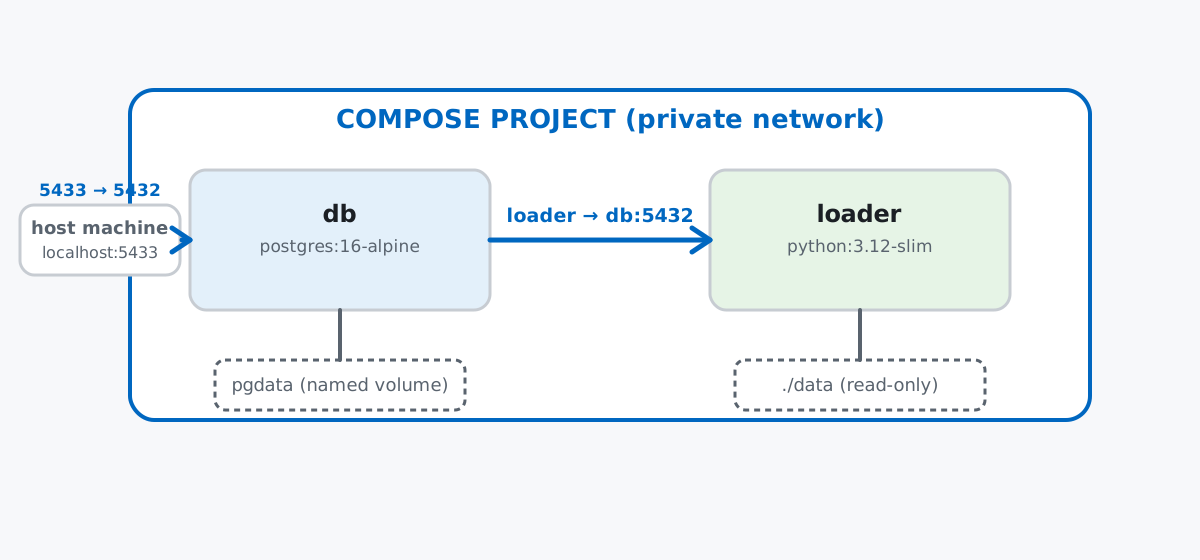
Keep this in mind for everything below: one YAML file describes two services, Compose gives them a shared network for free, and only one of them — the database — needs its data to outlive the container.
This is an infrastructure topic, not a data-analysis one — the point is proving the plumbing works, not the specific numbers flowing through it. So instead of hunting for an external dataset, the lab uses a small seeded dataset generated with a fixed seed, framed around a fictional online bookshop, Papercut Books, that wants its order history in a real database instead of a spreadsheet:
import numpy as np
import pandas as pd

rng = np.random.default_rng(7)
n = 180

genres = {
    "fiction": 12.50, "mystery": 11.90, "sci-fi": 13.40,
    "poetry": 9.80, "cookbook": 18.20,
}
cities = ["Vienna", "Porto", "Krakow"]

genre_choices = rng.choice(list(genres), size=n)
dates = pd.Timestamp("2026-05-01") + pd.to_timedelta(rng.integers(0, 60, size=n), unit="D")

orders = pd.DataFrame({
    "order_id": np.arange(1, n + 1),
    "order_date": dates.date,
    "city": rng.choice(cities, size=n, p=[0.4, 0.35, 0.25]),
    "genre": genre_choices,
    "quantity": rng.integers(1, 5, size=n),
})
orders["unit_price_eur"] = orders["genre"].map(genres)
orders["revenue_eur"] = (orders["quantity"] * orders["unit_price_eur"]).round(2)
orders.to_csv("data/orders.csv", index=False)
order_id order_date city genre quantity unit_price_eur revenue_eur
0 1 2026-06-12 Krakow cookbook 4 18.2 72.8
1 2 2026-05-03 Krakow poetry 2 9.8 19.6
2 3 2026-06-28 Krakow poetry 2 9.8 19.6
3 4 2026-06-22 Porto cookbook 3 18.2 54.6
4 5 2026-06-04 Krakow sci-fi 4 13.4 53.6
180 rows writtenThat gives one file, data/orders.csv, that the lab will load into Postgres. The full project has five files:
docker-compose-lab/
├── docker-compose.yml
├── .env
├── data/
│   └── orders.csv
└── loader/
    ├── Dockerfile
    └── load.py
docker-compose.yml defines both services:
services:
  db:
    image: postgres:16-alpine
    container_name: papercut-db
    env_file: .env
    volumes:
      - pgdata:/var/lib/postgresql/data
    ports:
      - "5433:5432"
    healthcheck:
      test: ["CMD-SHELL", "pg_isready -U $${POSTGRES_USER} -d $${POSTGRES_DB}"]
      interval: 2s
      timeout: 3s
      retries: 10

  loader:
    build: ./loader
    env_file: .env
    environment:
      DB_HOST: db
    depends_on:
      db:
        condition: service_healthy
    volumes:
      - ./data:/data:ro

volumes:
  pgdata:
.env holds the database credentials, kept out of the YAML so they’re not hardcoded (this is a local lab, so a plain-text dev password is fine here — a real project would use a secrets manager instead):
POSTGRES_DB=papercut
POSTGRES_USER=papercut
POSTGRES_PASSWORD=papercut_dev_only
loader/Dockerfile builds a small Python image, and loader/load.py reads the CSV and writes it into Postgres over a SQLAlchemy engine:
import os
import pandas as pd
from sqlalchemy import create_engine

db_host = os.environ["DB_HOST"]
db_name = os.environ["POSTGRES_DB"]
db_user = os.environ["POSTGRES_USER"]
db_password = os.environ["POSTGRES_PASSWORD"]

engine = create_engine(
    f"postgresql+psycopg2://{db_user}:{db_password}@{db_host}:5432/{db_name}"
)

orders = pd.read_csv("/data/orders.csv")
orders.to_sql("orders", engine, if_exists="replace", index=False)
print(f"loaded {len(orders)} rows into 'orders' on {db_host}")
Notice db_host comes from DB_HOST, not a hardcoded address — that’s the piece that makes the container portable, and it’s the first thing the gotchas section below breaks on purpose. (The outputs below come from Docker Compose v5.1.4, PostgreSQL 16.14, and Python 3.12 with pandas 3.0.3, SQLAlchemy 2.0.51, and psycopg2-binary 2.9.12 inside the loader container.)
One command starts both services:
docker compose up -d Network docker-compose-lab_default Created
Volume docker-compose-lab_pgdata Created
Container papercut-db Started
Container papercut-db Waiting
Container papercut-db Healthy
Container docker-compose-lab-loader-1 StartedRead the order: the database container starts, Compose then waits — not just for it to start, but for its healthcheck to report healthy — and only then starts loader. That’s depends_on: condition: service_healthy from the YAML, doing exactly what it says. Check on both:
docker compose psNAME IMAGE COMMAND SERVICE CREATED STATUS PORTS
papercut-db postgres:16-alpine "docker-entrypoint.s…" db 13 seconds ago Up 12 seconds (healthy) 0.0.0.0:5433->5432/tcp, [::]:5433->5432/tcpOnly db shows up in ps a moment later — loader already finished. Its job was to load the CSV once and exit, and docker compose logs confirms it did:
docker compose logs loaderloader-1 | loaded 180 rows into 'orders' on dbAn exited container with status 0 isn’t a failure here — loader is a job, not a long-running service like db. That distinction matters for the next section.
docker compose runloader already did its one job during up, but you don’t have to wait for a full up to run it again — say, after you’ve edited orders.csv. docker compose run starts a fresh, one-off container from the same service definition:
docker compose run --rm loader python -c \
"import socket; print(socket.gethostbyname('db'))"172.26.0.2That’s the loader container resolving db to a real IP address on the project’s private network — proof the two containers can already find each other, before touching any data. --rm cleans the one-off container up as soon as it exits, so repeated runs don’t leave a pile of stopped containers behind.
The data is in Postgres now, and db’s own client (psql) is already inside its container — no separate client to install:
docker compose exec db psql -U papercut -d papercut -c \
  "SELECT city, round(sum(revenue_eur)::numeric, 2) AS total_revenue, count(*) AS orders
   FROM orders GROUP BY city ORDER BY total_revenue DESC;"
city | total_revenue | orders
--------+---------------+--------
Vienna | 2999.80 | 80
Krakow | 1853.30 | 51
Porto | 1692.00 | 49
(3 rows)docker compose exec runs a command inside an already-running container, which is why it only works on db (still up) and not loader (already exited — that’s what run is for). The Compose CLI reference covers the full difference between up, run, and exec if you want the complete picture beyond what this post uses.
The whole point of pgdata:/var/lib/postgresql/data was to keep the data safe from a container’s own lifecycle. Prove it by tearing the containers down — without -v — and bringing them back:
docker compose down
docker compose up -d db
docker compose exec db psql -U papercut -d papercut -c "SELECT count(*) FROM orders;"
count
-------
180
(1 row)The papercut-db container from the last section is gone — down removed it along with the network — but a brand-new container, built from the same postgres:16-alpine image, opened the same named volume and found all 180 rows exactly where the old container left them. The container is disposable; the volume, deliberately, is not.
Inside a container, “localhost” means the container itself — not another service, and not your host machine. It’s the single most common Compose networking mistake, because localhost works everywhere except here. Point the loader at it by accident and Postgres simply isn’t there to answer:
docker compose run --rm --no-deps -e DB_HOST=localhost loader python load.pypsycopg2.OperationalError: connection to server at "localhost" (::1), port 5432 failed: Connection refused
Is the server running on that host and accepting TCP/IP connections?
connection to server at "localhost" (127.0.0.1), port 5432 failed: Connection refused
Is the server running on that host and accepting TCP/IP connections?The fix is the one already in docker-compose.yml: use the service name (db), not localhost — Compose’s internal DNS resolves it to the right container, on whichever machine the stack happens to be running.
A project-root .env file isn’t automatically injected into every container — each service still needs its own env_file: (or environment:) line. .env does one thing on its own: it lets Compose substitute ${POSTGRES_USER}-style variables inside docker-compose.yml itself, like in the healthcheck above. It does not hand those variables to a container just because the container is in the same project. Drop env_file: .env from the loader service and the container simply never receives the credentials load.py expects:
# loader service temporarily missing its `env_file: .env` line
docker compose run --rm loader python load.py
Traceback (most recent call last):
File "/app/load.py", line 6, in <module>
db_name = os.environ["POSTGRES_DB"]
~~~~~~~~~~^^^^^^^^^^^^^^^
File "<frozen os>", line 714, in __getitem__
KeyError: 'POSTGRES_DB'docker compose down -v really does delete your data — the -v is the entire difference from a safe teardown. The persistence proof two sections up used plain down. Add -v and the named volume goes with it:
docker compose down -v
docker compose up -d db
docker compose exec db psql -U papercut -d papercut -c "SELECT count(*) FROM orders;"
ERROR: relation "orders" does not exist
LINE 1: SELECT count(*) FROM orders;
^Same image, same docker-compose.yml, brand-new empty database — because -v deleted pgdata along with the containers. orders doesn’t just have zero rows; the table was never created, because there was nothing left to have created it. Reach for -v deliberately, when you actually want a clean slate — not as a habit tacked onto every down.
Everything here comes down to five pieces, each solving one specific problem:
docker-compose.ymldown; only -v removes itdocker compose run → re-run a one-off job anytime, independent of upIf you want to build on this — writing real DAGs and pipeline code against a lab like this one, with the DevOps practices (CI, environment parity, secrets handling) that carry it from a laptop to production — Lesson 2: CI/CD and DevOps in our free Software Engineering Fundamentals course picks up right where this post stops, and the Scaling Python for Data Engineering course covers what to actually do with data once it’s sitting in a database like this one.
 Python
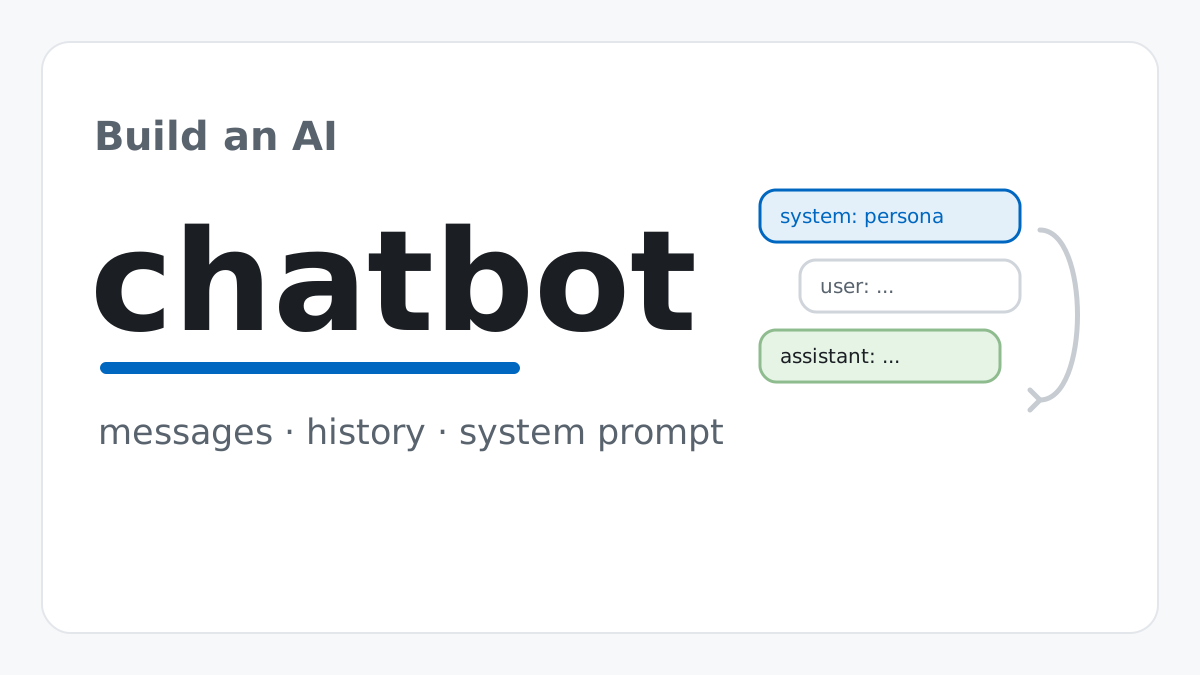
Build an AI Chatbot in Python: A Command-Line LLM Client
A from-scratch walkthrough of the pattern behind every LLM chatbot: one function that sends a message plus conversation history to a chat-completion API, a persona set by a system prompt, and a loop that keeps the conversation going.
Read tutorial
Python
Build an AI Chatbot in Python: A Command-Line LLM Client
A from-scratch walkthrough of the pattern behind every LLM chatbot: one function that sends a message plus conversation history to a chat-completion API, a persona set by a system prompt, and a loop that keeps the conversation going.
Read tutorial
 Software Engineering
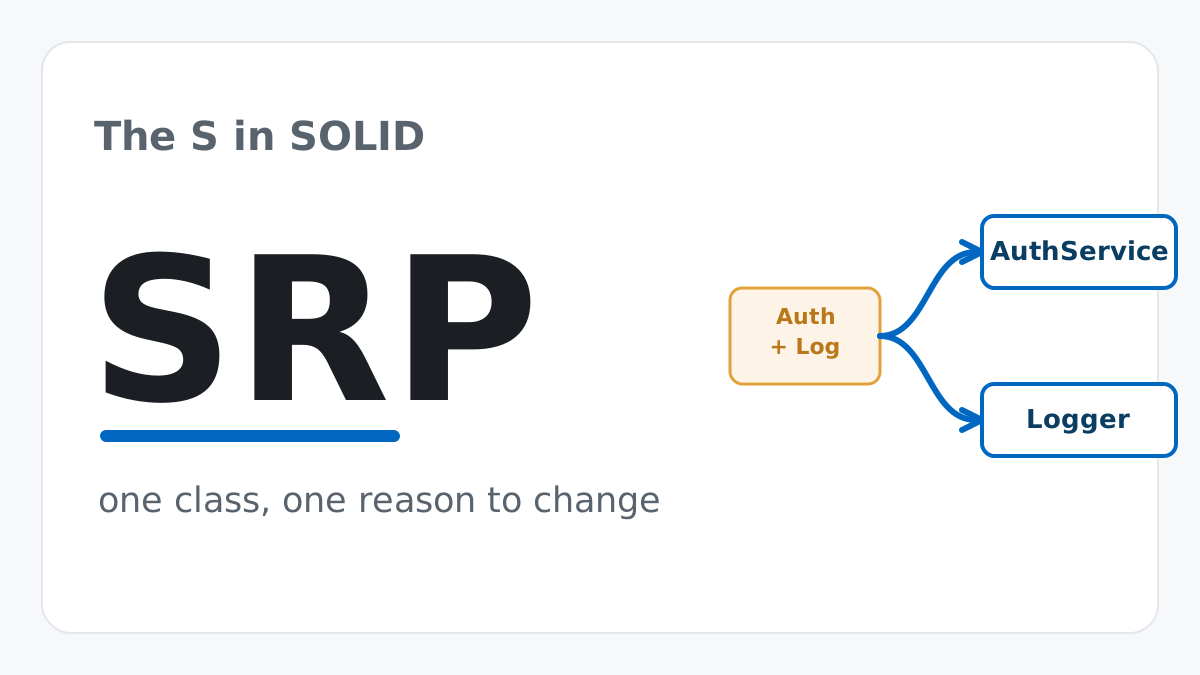
The Single Responsibility Principle: One Class, One Reason to Change
The Single Responsibility Principle says a class should have only one reason to change. See it in action: take a Python AuthService that also owns its logging, find why that's a problem, and refactor it into clean, focused classes.
Read tutorial
Software Engineering
The Single Responsibility Principle: One Class, One Reason to Change
The Single Responsibility Principle says a class should have only one reason to change. See it in action: take a Python AuthService that also owns its logging, find why that's a problem, and refactor it into clean, focused classes.
Read tutorial