Title here
Summary here
requests plus BeautifulSoup is the tool to reach for when you need one page's data, not a whole crawl. This guide fetches a real page, parses it, finds elements with find, find_all, and select, walks the parse tree, and follows pagination — no project scaffolding required.

Sometimes you don’t need a crawler. You need the price on one page, or the headlines from one listings page, or a table of names and links you’ll paste into a spreadsheet once. Reaching for a full scraping framework for that is like renting a truck to move one chair — it works, but it’s the wrong amount of machinery for the job.
That’s the gap requests and BeautifulSoup fill. Our post on web scraping with Scrapy covers the framework built for crawling many pages at scale, with its own project layout and a runspider command. This post is the other end of the spectrum: two libraries, no project scaffolding, a script you can run top to bottom. We’ll build the mental model first, then fetch, parse, and extract real data from a live page, one runnable step at a time.
Every requests + BeautifulSoup scrape is the same three steps, done once, in order:
requests.get() and get back raw HTML as text, plus a status code telling you whether the request actually worked.BeautifulSoup, which turns a wall of text into a navigable tree of tags you can search.dict, a list, whatever your script needs next).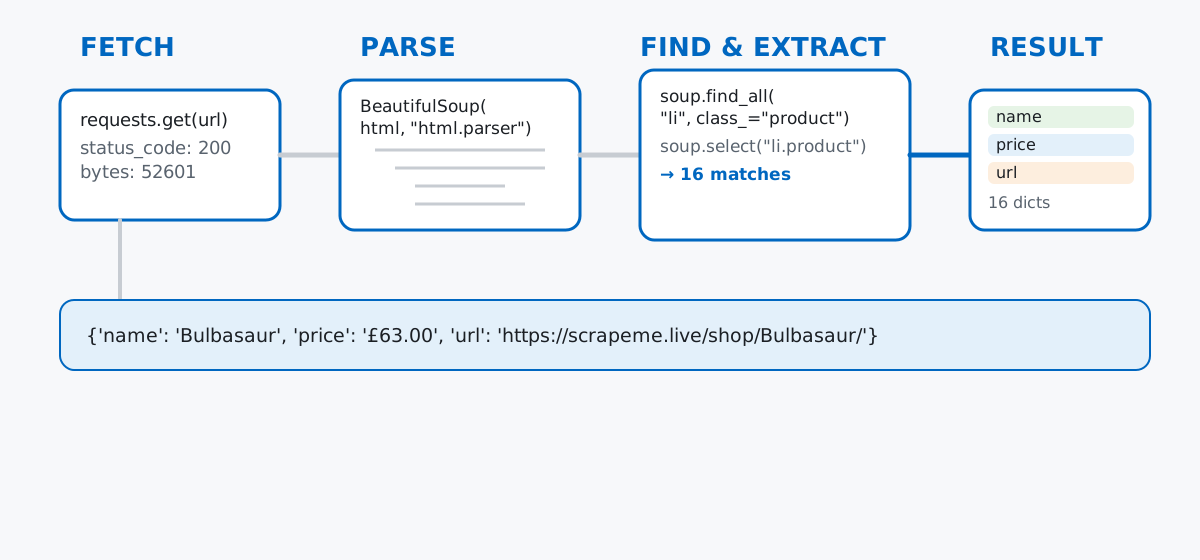
There’s no fourth step, no scheduler, and nothing running in the background. You call requests.get(), you get a string back, and everything after that is ordinary Python — if statements, loops, and dictionary building. That’s the whole trade-off against a framework like Scrapy: you give up automatic crawling, retry logic, and built-in politeness controls, and in exchange you get a script short enough to read in one sitting.
Practicing against a real business’s site risks getting your IP blocked or scraping data you don’t have rights to reuse, so this post scrapes scrapeme.live, a small WordPress/WooCommerce store built specifically as a public scraping playground — fake Pokémon-themed products, no login, and a robots.txt that only blocks /wp-admin/:
User-agent: *
Disallow: /wp-admin/
Allow: /wp-admin/admin-ajax.php
The scenario: imagine a friend running a small Pokémon fan-trivia site asks you for a quick catalog index — just the product name, price, and product page link for the first couple of pages, so they can check a few facts before an event. It’s a one-off, not a recurring job, and it doesn’t need a project folder. That’s exactly the job requests and BeautifulSoup are for. Install both:
pip install requests beautifulsoup4Everything below was run against the live site; your numbers will match as long as the store’s demo catalog hasn’t changed. (The outputs in this post come from requests 2.34 and beautifulsoup4 4.15 — everything shown also works on recent 2.x/4.12+ releases of each.)
requests.get()A scrape starts with one function call:
import requests

response = requests.get("https://scrapeme.live/shop/", timeout=10)
print("status_code:", response.status_code)
print("ok:", response.ok)
print("content-type:", response.headers.get("Content-Type"))
print("bytes:", len(response.content))
status_code: 200
ok: True
content-type: text/html; charset=UTF-8
bytes: 52601response isn’t the parsed page — it’s the raw HTTP round trip. status_code is the number the server sent back (200 means “here’s your page”), and .ok is a shortcut that’s True for any 2xx code. response.text holds the actual HTML as a string; .content holds the same thing as raw bytes, which is why len() on it counts bytes, not characters. Checking status_code before doing anything else is cheap insurance — the gotchas section below shows exactly what goes wrong if you skip it.
BeautifulSoupHanding that HTML string to BeautifulSoup turns it into a searchable tree:
from bs4 import BeautifulSoup

soup = BeautifulSoup(response.text, "html.parser")
print("title tag text:", soup.title.get_text(strip=True))
print("type(soup):", type(soup))
title tag text: Products – ScrapeMe
type(soup): <class 'bs4.BeautifulSoup'>The second argument, "html.parser", names which parser BeautifulSoup should use under the hood — it ships with Python, so no extra install is needed. (lxml is a faster drop-in alternative if you install it separately, but the built-in parser is plenty for a page this size.) Once you have soup, you can reach into it like a nested object — soup.title finds the page’s <title> tag directly, no searching required, because tag names double as attributes on the tree.
.find(), .find_all(), and .select()Real pages need more than “find the one <title> tag.” BeautifulSoup gives you two complementary ways to search: tag/attribute methods, and CSS selectors.
first_product = soup.find("li", class_="product")
print("find() type:", type(first_product))
print("find() first product name:", first_product.find("h2").get_text(strip=True))

all_products = soup.find_all("li", class_="product")
print("find_all() type:", type(all_products))
print("find_all() count on page 1:", len(all_products))

select_products = soup.select("li.product")
print("select() count on page 1:", len(select_products))
first_via_select = soup.select_one("li.product h2")
print("select_one() first product name:", first_via_select.get_text(strip=True))
find() type: <class 'bs4.element.Tag'>
find() first product name: Bulbasaur
find_all() type: <class 'bs4.element.ResultSet'>
find_all() count on page 1: 16
select() count on page 1: 16
select_one() first product name: Bulbasaurfind() returns the first matching tag (or None — more on that shortly); find_all() returns every match as a list-like ResultSet, even if that’s a list of one or zero. select() does the same “find everything” job but takes a CSS selector string instead of separate tag-name and class_ arguments — "li.product" reads exactly like the CSS you’d write in a stylesheet, which is often faster to write than chaining keyword arguments once selectors get specific. select_one() is select()’s single-result counterpart, mirroring find(). Both approaches found the same 16 products on this page — pick whichever reads more clearly for a given query; there’s no performance reason to prefer one over the other. The official BeautifulSoup documentation covers the full search API, including regular-expression and function-based filters beyond what’s shown here.
Finding a tag only gets you the tag — pulling out the actual data means reading its text or its attributes:
sample = []
for card in all_products[:5]:
    name = card.find("h2").get_text(strip=True)
    price_tag = card.select_one(".price .woocommerce-Price-amount")
    price = price_tag.get_text(strip=True) if price_tag else None
    link_tag = card.find("a", class_="woocommerce-loop-product__link")
    url = link_tag["href"] if link_tag else None
    img_tag = card.find("img")
    image_url = img_tag["src"] if img_tag else None
    sample.append({"name": name, "price": price, "url": url, "image_url": image_url})

for row in sample:
    print(row)
{'name': 'Bulbasaur', 'price': '£63.00', 'url': 'https://scrapeme.live/shop/Bulbasaur/', 'image_url': 'https://scrapeme.live/wp-content/uploads/2018/08/001-350x350.png'}
{'name': 'Ivysaur', 'price': '£87.00', 'url': 'https://scrapeme.live/shop/Ivysaur/', 'image_url': 'https://scrapeme.live/wp-content/uploads/2018/08/002-350x350.png'}
{'name': 'Venusaur', 'price': '£105.00', 'url': 'https://scrapeme.live/shop/Venusaur/', 'image_url': 'https://scrapeme.live/wp-content/uploads/2018/08/003-350x350.png'}
{'name': 'Charmander', 'price': '£48.00', 'url': 'https://scrapeme.live/shop/Charmander/', 'image_url': 'https://scrapeme.live/wp-content/uploads/2018/08/004-350x350.png'}
{'name': 'Charmeleon', 'price': '£165.00', 'url': 'https://scrapeme.live/shop/Charmeleon/', 'image_url': 'https://scrapeme.live/wp-content/uploads/2018/08/005-350x350.png'}Two different extraction moves are happening here, and it’s worth naming them. .get_text(strip=True) (or the shorter .text) pulls the visible text out of a tag, with strip=True trimming stray whitespace and newlines. Reading an attribute is different: a tag behaves like a dictionary of its attributes, so link_tag["href"] and img_tag["src"] read the URL sitting inside the HTML markup itself, not anything rendered on screen. Mixing the two up — trying .text on something you meant to read as an attribute — is a common first mistake, and it tends to fail silently by returning an empty string rather than raising an error.
Search methods like .find() jump straight to a match anywhere in the document. Sometimes it’s more natural to start from a tag you already have and step to a neighbor instead — that’s tree navigation:
name_tag = all_products[0].find("h2")
print("name_tag.parent.name:", name_tag.parent.name)
print("name_tag.parent['class']:", name_tag.parent.get("class"))
print("name_tag.next_sibling:", repr(name_tag.next_sibling))

next_element_sibling = name_tag.find_next_sibling()
print("next actual element sibling:", next_element_sibling.get_text(strip=True))

for child in list(all_products[0].children)[:3]:
    print("child:", repr(child)[:70])
name_tag.parent.name: a
name_tag.parent['class']: ['woocommerce-LoopProduct-link', 'woocommerce-loop-product__link']
name_tag.next_sibling: '\n'
next actual element sibling: £63.00
child: '\n'
child: <a class="woocommerce-LoopProduct-link woocommerce-loop-product__link" href="htt
child: <a aria-label="Add “Bulbasaur” to your basket" class="button product_type_simple.parent walks up one level — the <h2> product name sits inside the <a> link that wraps the whole product card. .next_sibling walks sideways to the very next thing in the HTML source, which here is just a newline character, not the price tag you might expect; real-world HTML is full of whitespace text nodes between tags, which is exactly why .find_next_sibling() exists — it skips past text nodes and hands you the next actual tag, which turns out to be the price. .children lists every direct child of a tag, one level down, and printing it shows the same mix of whitespace and tags. Tree navigation is most useful when a piece of data has no distinguishing class or id of its own, but sits right next to (or inside) something that does.
The full catalog spans more than one page, and a “next page” link sits right in the HTML — following it is just another requests.get() call in a loop:
import time

catalog = []
url = "https://scrapeme.live/shop/"
pages_fetched = 0
max_pages = 2

while url and pages_fetched < max_pages:
    resp = requests.get(url, timeout=10)
    page_soup = BeautifulSoup(resp.text, "html.parser")

    for card in page_soup.select("li.product"):
        name = card.find("h2").get_text(strip=True)
        price_tag = card.select_one(".price .woocommerce-Price-amount")
        price = price_tag.get_text(strip=True) if price_tag else None
        link_tag = card.find("a", class_="woocommerce-loop-product__link")
        catalog.append({
            "name": name,
            "price": price,
            "url": link_tag["href"] if link_tag else None,
        })

    pages_fetched += 1
    next_link = page_soup.select_one("a.next.page-numbers")
    url = next_link["href"] if next_link else None
    if url:
        time.sleep(1)  # be polite between requests to the same site

print("pages_fetched:", pages_fetched)
print("catalog size:", len(catalog))
print("first row:", catalog[0])
print("last row:", catalog[-1])
pages_fetched: 2
catalog size: 32
first row: {'name': 'Bulbasaur', 'price': '£63.00', 'url': 'https://scrapeme.live/shop/Bulbasaur/'}
last row: {'name': 'Nidoking', 'price': '£31.00', 'url': 'https://scrapeme.live/shop/Nidoking/'}Sixteen products per page, two pages, thirty-two rows in catalog — exactly what you’d hand-count if you opened both pages yourself. next_link["href"] already comes back as a full, absolute URL (https://scrapeme.live/shop/page/2/) because that’s how this site writes its own pagination links, so there’s no URL-joining step needed here; a site that used relative links (/shop/page/2/) would need requests.compat.urljoin(url, next_link["href"]) to resolve it safely. max_pages is a deliberate safety rail, the same idea as capping a for loop — without it, this pattern would happily keep requesting pages until next_link comes back None on the catalog’s last page.
Both libraries end with the same kind of result — structured data pulled out of HTML — so the real question is which shape of tool fits your job, not which one is “better.” A rough way to decide:
Reach for requests + BeautifulSoup | Reach for Scrapy | |
|---|---|---|
| Scope | One page, or a small known handful | Many pages, unknown in advance |
| Setup | Two pip installs, one script | A scaffolded project (startproject) |
| Crawling | You write the loop yourself | Built-in scheduler follows links for you |
| Politeness | You add time.sleep() by hand | DOWNLOAD_DELAY on by default |
| Output | Whatever Python structure you build | Items, pipelines, CSV/JSON export built in |
| Best for | A quick script, a one-off pull, learning HTML parsing | A recurring or large crawl you’ll run again |
If you’re not sure yet how big the job is, that’s itself useful information: start with requests and BeautifulSoup, because it’s the cheaper way to find out. This post’s catalog index script is a good example — it’s 20-odd lines, no project folder, and answers “what does this data even look like?” If it later needs to run daily, cover hundreds of pages, or get retried automatically on failure, that’s the point where migrating the same logic into a Scrapy spider starts paying for itself.
Parsing before checking status_code lets you silently scrape an error page. A 404 page is still valid HTML — BeautifulSoup parses it without complaint, and if that page happens to show “related products” or similar suggestions, your selectors might even return something, just not what you asked for:
bad_response = requests.get("https://scrapeme.live/shop/this-product-does-not-exist-zzz/", timeout=10)
print("bad status_code:", bad_response.status_code)
bad_soup = BeautifulSoup(bad_response.text, "html.parser")
print("bad_soup.title text:", bad_soup.title.get_text(strip=True))
print("bad page product count (parsed anyway):", len(bad_soup.select("li.product")))
bad status_code: 404
bad_soup.title text: Page not found – ScrapeMe
bad page product count (parsed anyway): 6That request 404’d, but parsing it still finds six li.product cards — this store’s “you may also like” widget on its own 404 page. Nothing here raises an exception; only checking status_code (or .ok) before trusting the result would catch that this wasn’t the page you meant to scrape.
.find() returns None when nothing matches, and .text on None raises AttributeError. This is the single most common crash in a BeautifulSoup script, usually after a site’s HTML changes underneath you:
missing = soup.find("div", class_="does-not-exist-on-this-page")
print("missing:", missing)
missing.text
missing: None
Traceback (most recent call last):
File "verify.py", line 99, in <module>
missing.text
AttributeError: 'NoneType' object has no attribute 'text'The fix is to check before you read: if missing is not None:, or the more compact missing.text if missing else None used throughout this post’s extraction code.
.find_all() and .select() always return a list, even an empty one — .find() and .select_one() return a single tag or None. Mixing them up breaks loops in a way that’s easy to miss: looping over the result of .find() (a single Tag) doesn’t error, but it iterates over that tag’s children, not a list of matches, which silently gives you the wrong data instead of crashing.
No delay between requests is easy to forget, and it’s not polite to the server. Nothing in plain requests slows you down automatically the way Scrapy’s default DOWNLOAD_DELAY does — the multi-page loop above adds time.sleep(1) between requests by hand for exactly this reason. On a real site (not a practice sandbox), skipping that pause is how a personal script turns into something that looks like a denial-of-service attempt.
Every scrape in this post followed the same three steps: fetch a page with requests.get(), parse it with BeautifulSoup, and extract data by searching (.find(), .find_all(), .select()) or navigating (.parent, .next_sibling, .children) the resulting tree.
requests.get() → fetch one page, and check status_code/.ok before trusting itBeautifulSoup(html, "html.parser") → turn HTML text into a searchable tree.find() / .select_one() → one match, or None.find_all() / .select() → every match, as a list (possibly empty).parent / .next_sibling / .children → step to a neighbor when there’s no selector to search forReach for this combination when the job is one page or a small, known handful; reach for Scrapy once you’re crawling many pages on a schedule. Either way, once the data is out of HTML and into a plain Python structure, cleaning and analyzing it is a job for pandas — the DataFrames and Reading Data lesson in our free Python for Data Analytics course picks up exactly where this post’s catalog list leaves off.
 Python
Build an AI Chatbot in Python: A Command-Line LLM Client
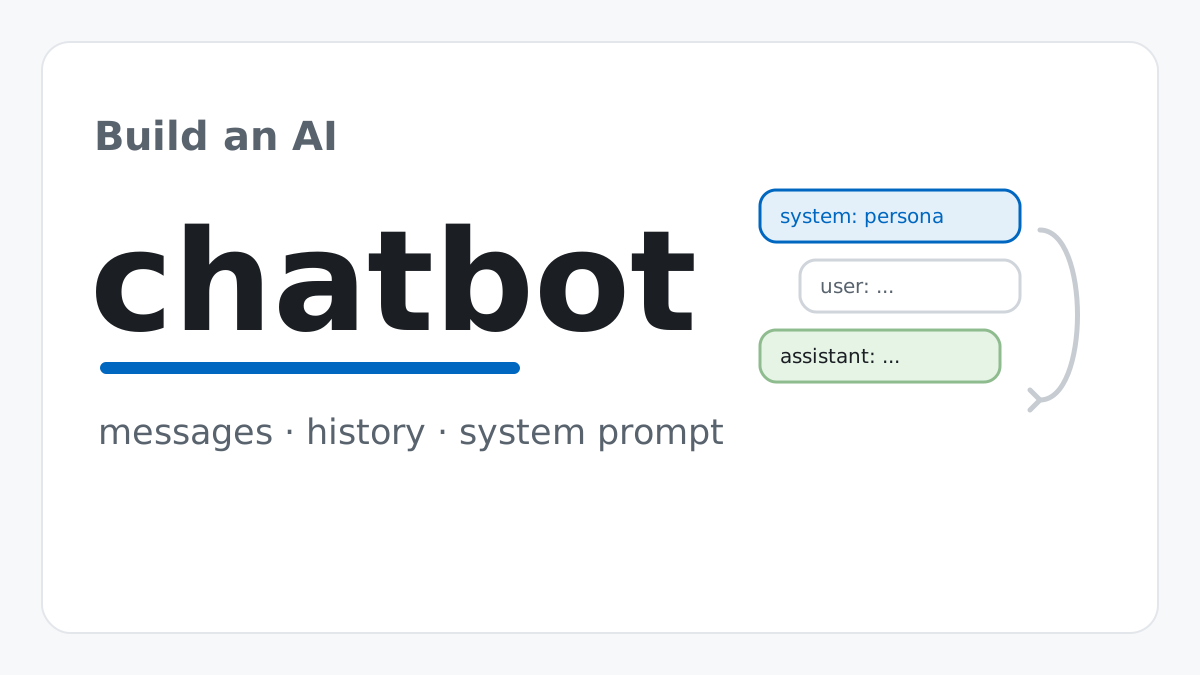
A from-scratch walkthrough of the pattern behind every LLM chatbot: one function that sends a message plus conversation history to a chat-completion API, a persona set by a system prompt, and a loop that keeps the conversation going.
Read tutorial
Python
Build an AI Chatbot in Python: A Command-Line LLM Client
A from-scratch walkthrough of the pattern behind every LLM chatbot: one function that sends a message plus conversation history to a chat-completion API, a persona set by a system prompt, and a loop that keeps the conversation going.
Read tutorial
 Software Engineering
The Single Responsibility Principle: One Class, One Reason to Change
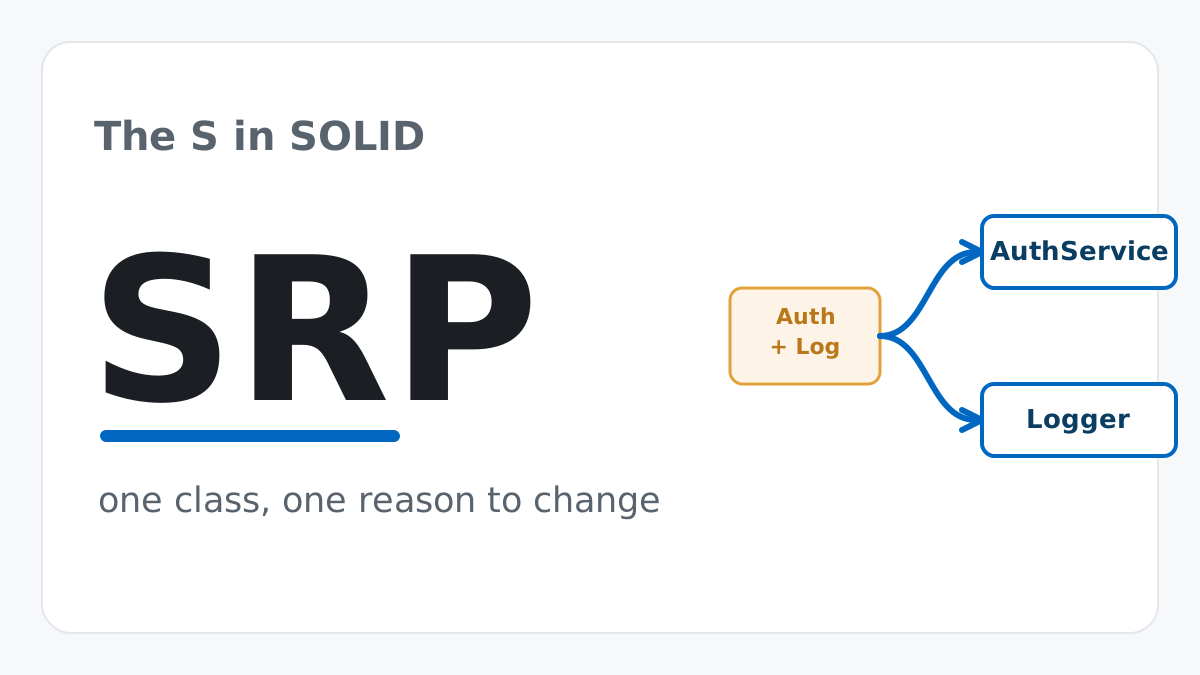
The Single Responsibility Principle says a class should have only one reason to change. See it in action: take a Python AuthService that also owns its logging, find why that's a problem, and refactor it into clean, focused classes.
Read tutorial
Software Engineering
The Single Responsibility Principle: One Class, One Reason to Change
The Single Responsibility Principle says a class should have only one reason to change. See it in action: take a Python AuthService that also owns its logging, find why that's a problem, and refactor it into clean, focused classes.
Read tutorial